Posted on 5 Comments

Silhouette Print and Cut with Foil Embellishments

Silhouette Secrets+ with EllyMae

Want to take your Silhouette projects to the next level? Print and cut designs with foil embellishments might be the next project for you!

Combining techniques such as adding Foil Quill accents to a print and cut project can give it a little pop.

This technique takes two amazing features and combines them together. It can be as simple or complex as you want to make it and the end result can be amazing and unique.

This post is inspired by my friend Teresa P. who does some amazing Foil Quill work and combines it with print and cut. The credit goes to her for this post as she is a big inspiration!

To get started with this combination, I would recommend being familiar with both the print and cut process and using the Foil Quill. Here are 2 basic tutorials:
Let’s Explore v4 – Print and Cut Basics
Silhouette Cameo 4 – Beginner Foil Quill

A few other tools to be familiar with in the Silhouette software for this technique are:
Let’s Explore v4 – Basic Trace
Let’s Explore v4 – Trace by Color
Let’s Explore v4 – Freehand Drawing Tools
Let’s Explore v4 – Drawing Tools

You won’t use all of these tools at the same time, but each tool serves a purpose and one may work better for you on a certain graphic versus another. You may find that you know more than you realize in the software.

What does it mean to combine a print and cut project with Foil Quill?
Basically, you are telling the software that you want to foil certain areas on top of a print and cut. Since a print and cut has registration marks, it can read where the design is on the page to know where you are telling it to foil.

However, each design may vary in what you need to do to tell it where to foil. You may have to create a “cut” line by tracing, drawing, etc. in order for it to know where you want to foil on top of the print and cut.

Tutorial written in Silhouette Studio v4.4.552
Affiliate links may be present in the following blog post and as an Amazon Associate, I earn from qualifying purchases.

How to Add Foil Accents to Print and Cut Projects

Set up print and cut page with the design to be used.

I am using Watercolor Almond Flowers Greeting Card by Graphic House Design – Design #398797.

On the Page Setup Panel – Tab 1, choose the machine, cutting mat, and media size.
Check the boxes next to Show Print Border and Show Cut Border.

Silhouette Studio Software showing design on the screen set up for print and cut.

Tip – It helps to place the design towards the bottom of the page if possible. You do not want to unload the mat after it’s foiled, so you can send the design to be cut after it’s foiled.

On the Page Setup Panel – Tab 3, turn the Registration Marks on and click the Restore Defaults button.

Tip: using the system defaults will give you the most accurate print and cut. I recommend using the defaults especially if you are just getting started with print and cut.

Use File > Print > Print to print the page.

Silhouette Studio Software showing a print window.

Tips:
– Once the page is printed, do not move the design on the page. If you accidentally move the design use the Undo button.
– This is a great time to use the Layers Panel and lock the layer with the graphic image
on it so it does not move. Create a new “working layer” to complete the following steps.

Place the printed page on the cutting mat in the exact location (top left corner) on the cutting mat as it shows on the design screen.

Silhouette Studio software showing where to place the printed page on the Silhouette cutting mat.

Using drawing tools or the trace panel, create cut lines where you want to add foil quill.

In this example, I used the Freehand Drawing Tools to trace around the areas of the design that I wanted to fill with the Foil Quill.

Silhouette Studio software showing drawing around elements on the page to create lines.

Add a fill to the shape using the Line Effects/Sketch fill panel.

Silhouette Studio software page showing how to fill in designs with sketch filles.

I used a crosshatched fill with 0.010″ spacing and an edge effect in the Line Style/Sketch Panel.

Set the sketch lines to a different color than the cut line color using the Line Style Panel – Tab 2.

I use red for my cut lines and blue for sketch lines.

Secure foil on top of the area to be foiled.

Shows the placement of foil on top of printed design for foil setup.

Tips:
– Use washi tape or a low tack tape to secure the foil onto the page. Be careful when removing so as not to tear the paper or remove the ink.
– Keep the foil & tape away from the registration marks area so it does not interfere with the reading of the print and cut.
– Make sure the foil is secure and will not catch as the mat moves back and forth in the machine.

Click on the Send tab. Choose the cut by Line Color.

Silhouette Studio software showing how to set up a project by Line Color.

Choose the Material settings on the Send tab for each color.

Uncheck the line color(s) for the cut lines and only have the Foil Quill lines checked.

Send it to foil.

Shows a glance at the foiling completed on the print and cut job.

DO NOT unload the cutting mat when finished.

Carefully check the foil and remove carefully.

Uncheck the foil color lines and check the cut lines.

Silhouette Studio software showing how to switch to the next step in the process on the Line Color tab.

Switch the tools from the Foil Quill to a blade if needed and send it to cut.

Finished photo of foil and print and cut project cut out.

Enjoy your foil accented print and cut design.

Finished photo of the foiling section on the print and cut project.

Now it’s time to practice!

Choose designs and then decide what will work best for creating the cut lines to fill with a line effect/sketch fill to foil accents with.

This could be a great addition to cards, stickers, scrapbook pages, or many more projects.

Here are a few examples I created using the same techniques.

Another project photo showing a foiled finished card with Happy Anniversary on it.
Anniversary card with sentiment & accents in gold foil.
Happy Anniversary created with Samantha Craft font found HERE.
Finished project foiled card with Happy Birthday to You on it.
Trace tool used for the geometric shapes and added sentiment in gold foil.
Geometric Floral Frame by Rhonna Farrer – Design #293654

Check out a quick demo video of the foiling process for the Happy Birthday card above on my YouTube channel HERE.

Photo of a floral Christmas wreath that has foiled elements added to it.
Christmas wreath accented with green & pink foils.
Christmas Wreath by Echo Park – Design #162745

Looking to add a Foil Quill to your tools?
Find it at Joanns, Amazon, Swing Design, Scrapbook Pal
Check out the supply list I used in the Foil Quill Beginner’s Tutorial HERE

I would love to see what you are creating with your Silhouette software or machines!
Or if you have any questions, feel free to post photos or questions on my Facebook group at 
Silhouette Secrets with EllyMae.
Check out the Foil Quill Album on the Facebook group HERE.

Save this for future reference by pinning the image below.

Enjoy!

THANK YOU for your support! How can you help? Click HERE & buy a coffee.
Every little bit helps with the cost of running the site.

Silhouette Classes

Never stop learning! Let me help you take the anxiety out of learning with Silhouette and get to creating faster! My Silhouette classes are heavily focused on software, so you can take the skills & techniques taught and apply them to many future projects!

Silhouette step-by-step Classes by Silhouette Secrets+

Silhouette Secrets+ with EllyMae

**This post may contain affiliate links. What that means is that I may receive compensation if you purchase through the links I have provided. The price you pay for the product or service is not higher but I may get compensated for sharing.
Posted on Leave a comment

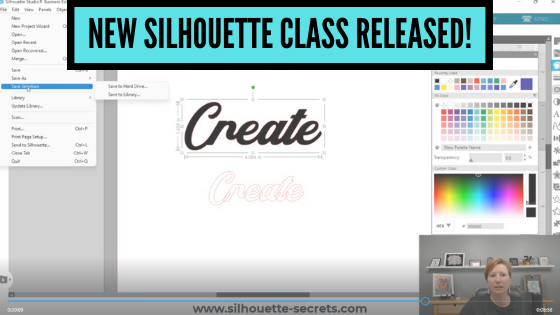
New Silhouette Class Released!

This class has been in creation for a long while and I first want to send a great big THANK YOU to Marjorie DiFiore with Atlanta Stylish Point!

Marjorie contacted me last year about a need she was seeing in brand new Silhouette Studio software users who did not necessarily own a Silhouette cutting machine, but were using the Silhouette Studio Business Edition to create for use in other programs or machines. We have worked together and she has answered my numerous questions regarding svg files, specifically in use with a GlowForge laser machine.
THANK YOU Marjorie!

Due to our big move, the class creation was delayed a bit, but I am excited to announce it is now available on my Teachable site!
With more to come in the future!

Check out the new class HERE

Silhouette Studio Software Basics to Create SVG Files

In this Silhouette Studio software class we use basic tools to create and export a svg file. We will discuss the important factors to know before creating svg files, how to install fonts, use basic tools to create a svg file, demonstrating using the exported file in the Glowforge App, and a bonus video on 3 additional tools in Silhouette Studio that can help in your design creations.

Who is this class for?
This class is for
– those who are laser machine owners and want to get started learning to use the Silhouette Studio software to design and export files in svg format to use with the laser machine
– if you are a beginner Silhouette user who wants to learn how to create svg files, this class is going to cover the basics of getting started with Silhouette and creating a simple svg file
– beginners to Silhouette Studio in general – the class covers several of the basic tools to get started creating your own designs using fonts. The class also discusses more advanced features of exporting as a svg file.

What if you do not own a laser machine can you still take the class?
Of course! The information will be relevant to anyone who wants to get started creating in the Silhouette software with the option to export as a svg file using the Silhouette Studio Business Edition upgrade.

Affiliate links are present in the following supply list and as an Amazon Associate, I earn from qualifying purchases
The cost to you is no different, but I may earn a commission by you using the links provided.

Class Supplies:

– Silhouette Studio Software
– Silhouette Studio Business Edition Upgrade
*this is discussed in class why it’s needed and how to get it
Optional fonts used in class:
– Radicals Font by Plusstore – main class demo
– Bohemian Script font – Silhouette Design Store or Creative Fabrica – Bonus class demo photo

Class Content

Section 1 – Important Factors Supporting PDF download
Section 2 – Important Factors to Create a SVG File – 20 minutes
Section 3 – Installing Fonts – 6 minutes
Section 4 – Creating a SVG Design in Silhouette Studio – 39 minutes
Section 5 – Demonstration of Exported Design in the Glowforge App – 16 minutes
Section 6 – Bonus: Additional Tools in Silhouette Studio – 16 minutes
Additional Resources
Class Conclusion

This class is available on my Teachable site

HERE

I currently have 22 different Silhouette classes available on Teachable.
These are all step-by-step video classes that are taught just like an in-person class.
The best part about being available online is that you can view the class anytime and as many times as needed to practice the technique.
Check out all the available classes

HERE

I would love to see what you are creating with your Silhouette software or machines!
Feel free to post on my Facebook group at 
Silhouette Secrets with EllyMae.

Save this for future reference by pinning the image below.

Enjoy !

This image has an empty alt attribute; its file name is logo.jpg

THANK YOU for your support! How can you help? Click HERE & buy a coffee.
Every little bit helps with the cost of running the site.

SS Logo snip it
**This post may contain affiliate links. What that means is that I may receive compensation if you purchase through the links I have provided. The price you pay for the product or service is not higher but I may get compensated for sharing.
Posted on 2 Comments

Silhouette America Website Updates

Silhouette America has recently updated their website and as can happen with updates, menus have changed on the site.

Written 2/27/2022
Affiliate links may be present in the following blog post and as an Amazon Associate I earn from qualifying purchases.

Here is a brief glance at the Silhouette America website but if you scroll down on the website, there is more information and project photos they have included.

One of the changes is how to find “legacy” versions of the software.

What are legacy versions?

Legacy versions are older versions of the software. This is an awesome feature that Silhouette America has because you are never forced to update. When a new version is released, if your software is set to check for updates, it will ask you if you want to install now or later.

I would recommend always choose later and if you are going to update, do so from the Silhouette America website directly.

How to Find Legacy Versions

Go to the Silhouette America website HERE

Click on the Software Menu header at the top

Click Get Software

If you want the current version of the software, you can download it here.

I do not always recommend the current version of the software for all users. It really just depends on what machine model you are using, if you are a Windows or MAC user, if you are currently having issues, and other factors can play into it.
If you have a question regarding what version we are recommending at this time, please feel free to post on the Silhouette Secrets+ Facebook group and we can make a recommendation.

To find Legacy versions click on Learn More

Click on Download Legacy Versions

Choose which Legacy version you want to install

If you are a Windows user, you will need to uninstall the current version to download a legacy version. There is a way to download multiple versions, but I do not recommend it for all users. If you’d like to see how, I’d recommend checking out this tutorial from Kelly Wayment at Finding Time to Create. It is a bit complicated, so I don’t recommend it unless you are familiar with your computer.
For MAC users, you can easily have multiple versions installed on the computer. Just make sure to name each one differently in the Applications folder, so you know which one you are opening.

Take a look around the new Silhouette America website!

If you are shopping on the Silhouette America site click

HERE

and use code 10OFF to save 10% on most items.

Have any questions, feel free to post questions on my Facebook group at 
Silhouette Secrets with EllyMae.

Save this for future reference by pinning the image below.

Enjoy !

This image has an empty alt attribute; its file name is logo.jpg

THANK YOU for your support! How can you help? Click HERE & buy a coffee.
Every little bit helps with the cost of running the site.

Or if you are looking for more in-depth, step-by-step classes, check out all of my online Silhouette classes on my Teachable site HERE.

SS Logo snip it
**This post may contain affiliate links. What that means is that I may receive compensation if you purchase through the links I have provided. The price you pay for the product or service is not higher but I may get compensated for sharing.
Posted on 1 Comment

Let’s Explore v4 – Crosshairs

What are those annoying lines that are following my mouse cursor?

Why did they appear?

These are 2 questions I see asked often.

Crosshairs

Crosshairs are a tool that can help in lining things up with other objects. It is a visual on the screen of a horizontal and vertical line that meets at the point of your mouse cursor.

Some people like them, some people do not.

Why do they show up?

The most common way that Crosshairs are activated is by pressing the letter H on the keyboard when not in text edit mode.
The letter H is the keyboard shortcut to toggle the Crosshairs on and off.

This can happen easily if a user thinks they have activated the Text Tool and start typing or maybe if a cat walks across your keyboard or a child is pushing buttons.

3 other ways Crosshairs can be turned on

1 – Opening a .studio file created by someone else that was saved with the Crosshairs on. This setting can sometimes be saved with the settings of the file.
Don’t like it? Press the letter H to toggle it off.

2 – On the Page Setup Panel – Tab 2.

Click the Crosshairs button to toggle it on and off.

3 – In the top menu, under View – choose “Show Crosshairs”.

Crosshairs are a great tool if you are designing in the software and want to line things up or have a visual of where things line up in relation to other object.
They can be used in conjunction with the Alignment, Guides, Rulers, Smart Snapping tools as well to help in the design process.

Do you use the Crosshairs? I find I am distracted by them, but just like the other design tools, I may use them for certain projects.

If I don’t need them, I press the letter H and go on about my work.

I would love to see what you are creating with your Silhouette software or machines!
Or if you have any questions, feel free to post photos or questions on my Facebook group at 
Silhouette Secrets with EllyMae.

Save this for future reference by pinning the image below.

Enjoy !

This image has an empty alt attribute; its file name is logo.jpg

THANK YOU for your support! How can you help? Click HERE & buy a coffee.
Every little bit helps with the cost of running the site.

Or if you are looking for more in-depth, step-by-step classes, check out all of my online Silhouette classes on my Teachable site HERE.

SS Logo snip it
**This post may contain affiliate links. What that means is that I may receive compensation if you purchase through the links I have provided. The price you pay for the product or service is not higher but I may get compensated for sharing.
Posted on Leave a comment

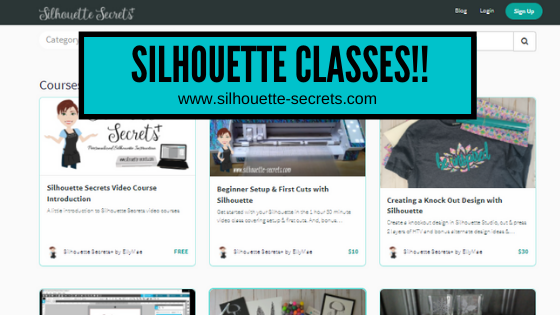
Silhouette Classes

I have been teaching Silhouette classes since September 2016. I originally had not planned to teach when I signed up for the instructor course. I just wanted to learn more and boy did I!

I have been teaching ever since through the Silhouette Secrets+ blog, in-person classes, at Silhouette events, Zoom lessons, online classes, and even from Silhouette headquarters in November 2021. Taking the Instructor Licensing was definitely a life changing event for me and now I can share that with many more Silhouette users.

I’ll share a little secret too! The best part about teaching Silhouette is all the people I have connected from all over the world! Whether it is in person at an event or only online! I’ve met some amazing people!

Why take a Silhouette class?

The most common reason to take a Silhouette class is to get started faster. Rather than you spending hours testing and searching for an accurate video on YouTube on how to do it, skip the testing and get set up and cutting.

I have 21 Silhouette classes available on my Teachable website.
The classes are all step-by-step classes that are the same as I teach in person.
The best part is that after you register for a class, it is available to you at any time that is convenient to you. And you can watch them over and over if needed.
I find this is even better for Curio users as there is no need for me to watch your machine etch if we were doing a live Zoom call.

Find all the classes HERE

Developing classes takes time and testing. Let me do that for you!
These classes can help take the anxiety out of working with your Silhouette machine and the Silhouette software.

Still on the fence? I understand completely.
Check out the testimonies from past students who have taken classes HERE.

Here are a few of the classes available

Curio Classes

Other Classes Include:
Creating a Vinyl Decal and Layering Vinyl using the Silhouette Studio Software
Cutting & Layering HTV in Silhouette Studio
Glass Etching with Silhouette
Heat Transfer Paper Print & Cut Lesson with Silhouette
Creating a Knockout Design with HTV & Bonus HTV & Subtract
Creating a Rhinestone Design in Silhouette Studio

As well as: 
Cameo Pro DIY Stand/Table instructions & tips
Cutting Like a Pro with the Cameo Pro Tips & Troubleshooting printable

As a Terri Johnson Creates Licensed Silhouette Instructor, it is my goal to help others learn the Silhouette Studio software & how to use their Silhouette machines to get the most out of it.

Find all of my online Silhouette classes on my Teachable site HERE.

I would love to see what you are creating with your Silhouette software or machines!
Or if you have any questions, feel free to post photos or questions on my Facebook group at 
Silhouette Secrets with EllyMae.

Save this for future reference by pinning the image below.

Enjoy !

This image has an empty alt attribute; its file name is logo.jpg

THANK YOU for your support! How can you help? Click HERE & buy a coffee.
Every little bit helps with the cost of running the site & developing more classes.

Or if you are looking for more in-depth, step-by-step classes, check out all of my online Silhouette classes on my Teachable site HERE.

SS Logo snip it
**This post may contain affiliate links. What that means is that I may receive compensation if you purchase through the links I have provided. The price you pay for the product or service is not higher but I may get compensated for sharing.
Posted on 3 Comments

Silhouette Connection Troubleshooting – Updated 2/9/22

Have you been cutting along and then all of a sudden the Send button on the Send tab is no longer highlighted to press to send a job to cut?

Or the Silhouette machine is not being picked up on the Send tab?
If there is no information on the right side of the Silhouette machine icon in the red rectangle area, then it is not being recognized properly.

Have you had a cut disconnect in the middle of cutting lately?
Or you cannot get the cut settings to show up because the tool isn’t recognized?

If you are a Windows 10/11 user, the issue may be nothing related to your Silhouette machine at all, but could be because of a Windows update. In the two years I’ve noticed that Windows updates are changing and controlling more and more.
This also includes shutting off power to the USB ports as it chooses.

4 Tips to Get Connected Again

#1 – Unplug all the cords from the Silhouette machine, including to the wall outlet and the power bank in the middle of the power cord.

Let it sit for 5 minutes.
While it’s sitting do a complete computer shut down from the Windows Menu option, not just a restart.

Screenshot from Windows 11

Plug everything back in and try again.

A complete computer shut down can help to clear out everything and if it’s the #2 reason below it will reset it.
Note: if it’s because of #2, it’s not a fix, but a short term resolution – read more under #2.

#2 – Power is being turned off to the usb port

One minute it shows as connected and you turn around and it’s no longer reading it. You see the “-” next to the machine icon.

So what is happening is Windows 10/11 is deciding on it’s own what it should turn off to “save power”. I had this happen to me on my brand new computer. I had disabled it in one location but it kept happening, so I had to do a little more digging and found there was one more location to disable the USB power save options.

I found the fix here and I would recommend for Silhouette users to change these settings if you are a Windows 10/11 user as well. This will help ensure you won’t lose connection in the middle of a cut or while you are working on a project.
Follow Steps 2 and 3 at this link
https://windowsreport.com/fix-windows-8-1-external-hard-drive-keeps-disconnecting/

And keep in mind that Windows updates hit user’s computers all at different times, so it may not be something that everyone experiences at the same time. I had not had the issue on my old computer, but when I started using the new computer regularly, it kept turning off my external hard drive access.

I have also had to do this every single time Windows does a new update since getting my new computer.

#3 – Uninstall USB port drivers and let them reinstall

If the above does not fix your connection issue, then I would suggest uninstalling the USB port drivers and letting them reinstall. I am also noticing that Windows updates are messing with this again too.

Instructions on how to do that can be found here:
https://docs.microsoft.com/en-us/windows-hardware/drivers/install/using-device-manager-to-uninstall-devices-and-driver-packages

Or Google “Uninstall USB port driver” and several others pop up with instructions.

If you have had this happen in the past and are sitting scratching your head, hopefully this helped explain it. I know it can be very frustrating when it’s working and then it’s no longer there. I’ve was cussing at my new computer and external hard drive for a few days now. Unplugging it and plugging it back in restarted the power on it, but that was not a permanent “fix”. As much as I use my computer and external hard drive, I needed it to work all the time!

Once the Silhouette machine is recognized by the computer, it should show in the software like this.

The message next to the machine icon should say “Ready to Load”, “Ready”, “Available”, or possibly another term meaning it is ready to go and has been detected. The Send button at the bottom will be highlighted and the cut setting will appear for a Cameo 4, Cameo Plus, Cameo Pro, and Portrait 3 model that have the tool recognition.

If you see any messages in orange, that means something needs attention and it’s usually a Firmware update that is needed. This pertains to the Cameo 4, Cameo Plus, Cameo Pro, and Portrait 3 models as the firmware is automatically checked upon each connection to the machine.
The firmware update can only be completed by USB connection.

You can switch between connections or machines by clicking on the Machine list icon at the bottom of the screen.

For more information about all the details on what everything means on the Send tab, check out this post
Let’s Explore v4 – The Send tab – Simple

#4 – Still not connecting?

If you are still having issues, click HERE, choose PC or MAC, and follow these steps exactly. It is very important that steps are not skipped or it may not be resolved.

If you are a Cameo 1 or Portrait 1 user and you cannot get it to connect, it could also be due to Windows 10 but due to a different cause. You will need to update the firmware on the Cameo 1 or Portrait 1 in order to connect to a Windows 10 updated computer.
Click HERE for step by step instructions on how to do that.

I’d love to see what you are creating with your Silhouette machines.
Feel free post on the
Silhouette Secrets+ Facebook Group.
We love to see what you are doing and creating with your Silhouette machines!

Save this for future reference by pinning the image below.

Enjoy!

This image has an empty alt attribute; its file name is logo.jpg

THANK YOU for your support! How can you help? Click HERE & buy a coffee.
Every little bit helps with the cost of running the site.

Or if you are looking for more in-depth, step-by-step classes, check out all of my online Silhouette classes on my Teachable site HERE.

SS Logo snip it
**This post may contain affiliate links. What that means is that I may receive compensation if you purchase through the links I have provided. The price you pay for the product or service is not higher but I may get compensated for sharing.

Posted on Leave a comment

Let’s Explore v4 – Pattern Fill

It is so neat what you can do in the Silhouette Studio software and with just a few clicks can have a completely different look.

Today we are going to explore the Pattern Fill in the Silhouette Studio software.

Tutorial written in Silhouette Studio v4.4.552
Affiliate links may be present in the following blog post and as an Amazon Associate I earn from qualifying purchases.

What would you use a digital pattern for?

This is a great option for being able to print your own projects. A digital pattern can be added to a shape to cut or even an entire page printed of that pattern.

There are so many options you have for projects that you can complete with it. Stickers, cards, scrapbook pages, patterned cardstock, sublimation, etc.

Check out the end of this post for more tutorials on using patterns in projects.

Software upgrade feature

Adding custom patterns to the Silhouette Studio library is a Designer Edition upgrade feature. If you are currently using the Basic Silhouette software, you will be able to use patterns from the Silhouette Design store in this same manner, but will not be able to add custom patterns directly to the library as shown below.

With the Silhouette Basic software, you can open a jpeg or a png file directly into the software and then use the Crop tool to crop the pattern to your shape.
More details on the Crop tool HERE

Digital Patterns

I had previously cut a pattern out of Sparkleberry Ink Bubble Up HTV and it turned out fantastic, so I contacted the owner at Sparkleberry Ink and asked if it was possible to get a digital version to be able to use for printing.

Thank you Sparkleberry Ink for adding this set to your digital pattern options!

Grab it HERE at Sparkleberryink.com.
Make sure if you are planning to use this for business or selling products that you grab the Commercial Use license!

Adding Patterns to the Silhouette Library

Open Silhouette Studio.

Download and unzip the patterns. Open the folder where the patterns are located. I am using Windows Explorer folder to view the file location.

Now, select the patterns in the folder and drag them into the Patterns folder on the Silhouette Library tree. They can either be added to the main Patterns folder or into a sub-folder you have created.

The Silhouette library will need to sync and then Ta-da!
The patterns should now show in the folder that you moved them to.

Now I have 2 new patterns to play with in my Silhouette software.

There are a couple things to be aware of when using digital patterns.

Digital patterns are photo files. This means that they can be large data files.

Adding digital patterns to your library does take up Silhouette cloud storage space. There is a limit to Silhouette cloud storage, so be mindful of that when adding patterns to the library.

Since they are large photographic images, it can take longer for them to sync, open, and manipulate in the software. This in some part will vary by each user and how their computer can handle those large amounts of data.

Save your files often, especially if trying to add a lot of patterns to 1 file.

How to Use Patterns in Silhouette Studio

Open the design you want to use in the Silhouette software.

I am using a file from Design Bundles called Mandala Breathe by On the Spot Studio.

There are a couple things I want to mention about this file in particular. I am using it because it is one I’ve previously used and I loved it. However, I did have to do some work to the file to use it as it was shown and have 2 separate colors. I will have a future tutorial on how I altered it in order to achieve the look I wanted.

The other thing I want to mention on this file is….. holy edit points!

Edit points are the data points that the Silhouette software and machine read in order to cut. It has to connect the dots (edit points) to make the cut. In this particular file and can be common in mandala designs, it has a LOT of edit points.

You could try to click the Simplify button in the Edit Points panel, but sometimes it changes the look of the design or doesn’t make a big enough difference.

In this case, the file cuts fine at the size it opens, but if you were to scale it down and try to cut it, you may not have great results. This is because those edit points then are just squished into a smaller area. It still has to hit every single one of them to cut.

If you have ever experienced a file that you have scaled down and it just tears up the material or doesn’t cut right, this may be why.

Learn more about Edit Points HERE. They are a great tool to know how to use.

In this tutorial, we are using digital patterns for printing, so I do not need to cut it, but wanted to mention it for future reference.


Select the part of the design that you want the fill applied to by clicking on it.

Next, click on this little icon in the bottom left corner of the Design Tab screen. This is the Show/Hide Library and when you are working with patterns it helps to view the patterns at a larger size.

This will open up the library in a split screen with the Design Tab.
I prefer to look at my patterns this way but you can also find them under the
Fill Color Panel – Tab 3.

Look at the difference in the size of the pattern icons in the Pattern Fill Panel vs using the Show Library tab. It’s easier on my eyes to use the split screen.

With the part of the design you want to fill selected, click on the pattern and it will fill with the pattern you selected.

So cool! And you would never know that this pattern is actually made up of bubbles.

But that’s not all – there is more!

Click on the Show/Hide Library icon again to collapse the library split screen.

Once the design is filled with the digital pattern, it can be adjusted.

Open the Fill Color Panel – Tab 3 and click on the Advanced Options section.

You can adjust several things about the pattern that can give you a different look – angle, scale, pan pattern, etc. I was just playing around with this Bubble Up pattern and it was amazing how a few changes could give it a different look.

On the left, the pattern is scaled up 295% and on the right the pattern is at 100%.

Such neat options!

Now, you may have guessed…. that’s not all!

Use the Fill Color Panel eye dropper to pick up a color from the pattern to fill in the 2nd part of the design.

And you have a custom colored design using a digital pattern in the Silhouette Studio software.

This particular design I sent to my Epson F-170 sublimation printer and then pressed it to a shirt.

I love how it turned out when pressed on the shirt.

So many options that you could use with digital patterns.

Don’t forget to grab these digital patterns from Sparkleberry Ink.

Here is an example of the Bubble Up – Green with the same design.

Want to dive in more to digital patterns?

Here are a couple more blog tutorials I have written over the last couple years with digital pattern projects.
Let’s Explore v4 – 3-D Tank Project
Let’s Explore – Pattern Fill
Let’s Explore v4 – Patterns, Print Bleed, Show/Hide Library

What would you use patterns for?

I would love to see what you are creating with your Silhouette software or machines!
Or if you have any questions, feel free to post photos or questions on my Facebook group at 
Silhouette Secrets with EllyMae.

Save this for future reference by pinning the image below.

Enjoy !

This image has an empty alt attribute; its file name is logo.jpg

THANK YOU for your support! How can you help? Click HERE & buy a coffee.
Every little bit helps with the cost of running the site.

Or if you are looking for more in-depth, step-by-step classes, check out all of my online Silhouette classes on my Teachable site HERE.

SS Logo snip it
**This post may contain affiliate links. What that means is that I may receive compensation if you purchase through the links I have provided. The price you pay for the product or service is not higher but I may get compensated for sharing.
Posted on Leave a comment

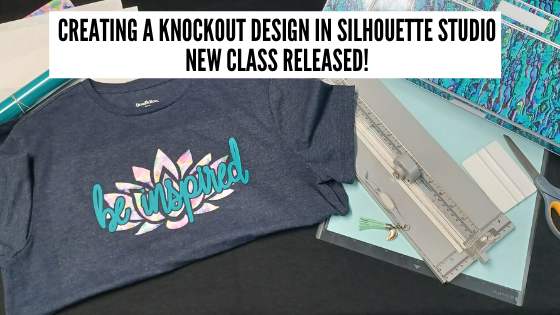
New Silhouette Class Released

Come join me in learning about your Silhouette software and cutting HTV to create a knock out design. We will use several tools in the Silhouette Studio software to create this design.

Check out the full class HERE.

This is a step-by-step class from creating the knockout design, cutting patterned & solid HTV, pressing 2 layers of HTV, and bonus design tips for alternate designs ideas.

Class Supplies list

Affiliate links are present in the following supply list and as an Amazon Associate, I earn from qualifying purchases
 The cost to you is no different, but I may earn a commission by you using the links provided.

– Silhouette machine – any model will work
– Silhouette blade
– Silhouette cutting mat
Sparkleberry patterned HTV or pattern/color of your choice
Use code SILSECRETS to save 10% at Sparkleberry Ink
Heat Transfer Mask for patterned HTV (required if using Sparkleberry patterns or other types of patterned HTV without a carrier sheet)
*Note: patterned HTV and glitter HTV require 2 different masks – glitter requires a High Tack mask in case you decide to go with that
Siser Easyweed HTV solid
– Blank to put the design on – I am using a T-shirt
– Weeding tool – EK Tools Reverse Tweezers are my tool
Vinyl Squeegee
Scissors
– Heat Press – I am using a Craft Pro 15″ x 15″ heat press from Heat Press Nation
Teflon Sheet or Parchment Paper
Paper trimmer (optional – but handy)
T-shirt Ruler Placement Guide – (optional)
Heat Press Pads or Pillows – (optional) this helps with the seams on a blank if it cannot be placed off the press area

Find all the class details HERE on my Teachable site.

Find all of my Silhouette classes on the Teachable site HERE.

I would love to see what you are creating with your Silhouette software or machines!
Or if you have any questions, feel free to post photos or questions on my Facebook group at 
Silhouette Secrets with EllyMae.

Save this for future reference by pinning the image below.

Enjoy !

This image has an empty alt attribute; its file name is logo.jpg

THANK YOU for your support! How can you help? Click HERE & buy a coffee.
Every little bit helps with the cost of running the site.

Or if you are looking for more in-depth, step-by-step classes, check out all of my online Silhouette classes on my Teachable site HERE.

SS Logo snip it
**This post may contain affiliate links. What that means is that I may receive compensation if you purchase through the links I have provided. The price you pay for the product or service is not higher but I may get compensated for sharing.
Posted on 8 Comments

Heat Transfer Paper with Silhouette

Yesterday I shared a post on printing from Silhouette using a png file for sublimation.

But what if you do not have a sublimation printer?

There are still options for you. One of those is heat transfer paper that can be printed on your home printer.

Now, a couple things to keep in mind here are the brand of heat transfer paper, the ink/printer used, and the printer quality settings will all be factors in how well this turns out for you. The only way to know for sure is to test it.
Heat Transfer Paper can also be used on more apparel than sublimation prints. You do not have to worry having a high polyester content like you do with sublimation.

Tutorial written in Silhouette Studio v4.4.552
Affiliate links may be present in the following blog post and as an Amazon Associate I earn from qualifying purchases.

In today’s post, I’m going to be using Heat Transfer Paper to print the same design I showed in the recent
Print Sublimation Designs from Silhouette Studio – Basics post – found HERE.

I am using a file from the St Patrick’s Day Sublimation bundle available HERE
Download the file to be used and extract/unzip the folder.

I have tested several different brands and the two that I’ve had the best luck with are Silhouette Printable Heat Transfer and Neenah JetPro heat transfer paper for inkjet printers.

For today’s example, I am using the Silhouette Heat Transfer for dark colored fabrics.

You do want to make sure that whatever brand you are using is going to be compatible with your current printer. The Silhouette Heat Transfer for darks is compatible with inkjet printers only and not laser printers. If you are looking for laser compatible, Heat Press Nation has some options – find those HERE.

Not all brands of heat transfer paper will be created the same and the only real way to know what will hold up is to test it. I have seen many failures from store bought brands. I have also heard some failures with the Silhouette brand as well, but it has held up well for me. I have been surprised that shirts have lasted 1-3 years and I will fully admit that I have not followed the care instructions. All my laundry just gets thrown in together and in the dryer as well. For best results, follow the manufacturer’s care instructions.

This is an example that I created for my online Heat Transfer Paper Print & Cut lesson with Silhouette using the Jetpro for lights. This shirt lasted for almost 3 years before the image started to look really worn. And it was washed a lot as a kid’s shirt.

With Heat Transfer Paper, it does need to be set up to cut around the design as a print and cut. For detailed instructions on setting up a print and cut project, check out the Let’s Explore v4 – Print and Cut Basics found HERE.
I would recommend practicing with cardstock or copy paper until you have a good cut before you use the more expensive heat transfer paper.

The process of print and cut is the same no matter what materials you are printing and cutting on. I would highly recommend using the default registration marks to get the most accurate cut. This also eliminates many things that can be the cause of inaccurate cuts or misreads when doing a print and cut project. The biggest issues we see with print and cut are usually something in the setup – this can range from registration marks moved, page size not set right, mat hanging down in front, design interfering with the reading of the optical eye, etc.

For more in depth information and troubleshooting, check out the step-by-step
Print and Cut Basics to Design Files to Troubleshooting Course found HERE.
I have over 2+ hours of instruction that covers a wide variety of print and cut options.

Since we are using a png file, it will either need to be Traced or the Autotrace feature used in order to get cut lines around it. A png is a graphic image that has no cut data. So you may need to create that cut data by Tracing to get a cut line. The biggest thing about tracing is that every single design or image will be different in what might work for it. Practice is the only way to know what works best. I usually trace and then increase the Threshold up until everything I want turns yellow, then I trace it. For the most part that works well.

In this case, with the png image I’m using, it was designed for sublimation so it has transparent areas inside of the design that do not trace. But, we can still work with that.

After I traced the original png image, I did an Offset of the trace. Make sure after you use the Offset feature, you remove the original trace or it will cut too!

Now, do you have to do this with all images? No. Every image you use can vary because they are all created differently. The more you do this and work with things in the software, you will start to recognize patterns and start to see what you might need to do.

For this png image that I am using, what that means is that with the Heat Transfer Paper for darks, it will leave a white border around the entire design.
The biggest thing here to keep in mind is that all images and designs can vary in what they need to make them work.

Once the file is all set up, the next step is to Print it. Make sure to follow the directions for the Heat Transfer Paper that you are using.
For this Silhouette Heat Transfer it says Do Not Mirror.

Keep in mind that the print quality is going to be dependent on the settings you choose. I print on Heat Transfer Paper with the highest quality Photo Matte option especially if it’s going to be on a shirt that will be washed. I also like to select the Print Preview just to check it once more before it uses up my ink and paper.

Once printed, click on the Send tab in the top right corner and set the cut settings.
This is where you can check where the bold red cut border is and if it will cut where you want.

Make sure that you do not move anything on the file after it is printed. For print and cut projects, it has to match up exactly with what was printed or it may not work.

Load the printed page on the cutting mat exactly as it shows on the screen in the top left corner of the cutting mat.

Whenever you are cutting a new material, test cut! However, with print and cut you do not want the test cut to be in the default location or it can interfere with the reading of the registration marks. Type out a capital B and move that to a location outside your design and use it for your test cut. I share more details on how I use the B in this post HERE.

I ended up increasing the blade depth up to a 2 on this material. My blade is well used and a 1 just didn’t “cut it”.

Weed away the excess.

Carefully peel the heat transfer paper off the backing and place onto the object to be pressed on. I immediately cover with parchment paper as the heat transfer may start to curl when it’s close to heat.

Follow the directions for the brand of Heat Transfer Paper you are using. I found heat press instructions on the Silhouette website for pressing this material.
Find those instructions HERE.

I am using a Craft Pro 15″ x 15″ press from Heat Press Nation and I love the pull out bottom platen so I can get my object prepped without burning my knuckles. Mine is plain old white, but they have more colors available now.

It is a little bit different look but it is still an option to use designs like these without a sublimation printer. The best part about Heat Transfer Paper is that you can use it on colors and cotton shirts or materials. You are not as limited by only polyester or specially treated products for sublimation.

I would recommend waiting at least 24 hours before you wash, just like you would for any HTV or sublimation prints. No need to take any chances too soon after creating your project. And I’d recommend following the manufacturer’s care instructions for your garment. Unless you are a little daring like me…. but really, it’s more because I’m lazy and just throw the laundry in.

In 2019 I taught a class at the All Things Silhouette Conference using heat transfer paper and I found you could use it for all kinds of projects if you want to add graphics to them.
Check out the Print and Cut with Heat Transfer Paper post HERE
for more ideas on what you can do with it.

For step-by-step classes on Print and Cut and Heat Transfer Paper check out these 2 classes available on my Teachable site:
Silhouette Print and Cut Basics to Design Files to Troubleshoot Course
Heat Transfer Paper Print & Cut Lesson with Silhouette

If you are looking for tips on printing from Silhouette for Sublimation, check out these posts:
Beginner Sublimation – Basic Sublimation Print with Silhouette Studio
Printing Sublimation Designs from Silhouette Studio – Basics – PNG files

I would love to see what you are creating with your Silhouette software or machines!
Or if you have any questions, feel free to post photos or questions on my Facebook group at 
Silhouette Secrets with EllyMae.

Save this for future reference by pinning the image below.

Enjoy !

This image has an empty alt attribute; its file name is logo.jpg

THANK YOU for your support! How can you help? Click HERE & buy a coffee.
Every little bit helps with the cost of running the site.

Or if you are looking for more in-depth, step-by-step classes, check out all of my online Silhouette classes on my Teachable site HERE.

SS Logo snip it
**This post may contain affiliate links. What that means is that I may receive compensation if you purchase through the links I have provided. The price you pay for the product or service is not higher but I may get compensated for sharing.
Posted on 9 Comments

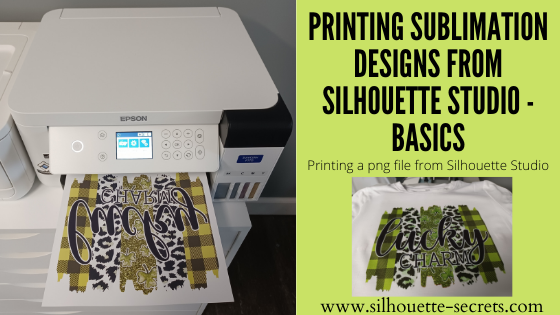
Printing Sublimation Designs from Silhouette Studio – Basics

One of the easiest ways to get started with sublimation is to use ready-made designs.

Print the design and press it.
That is the really the basics of sublimation.

Let’s take a look at a few tips that can help in printing png files from Silhouette Studio. Png files are a common file that is used in sublimation and can be opened with the Basic Silhouette Studio software, which is free.

Tutorial written in Silhouette Studio v4.4.552
Affiliate links may be present in the following blog post and as an Amazon Associate I earn from qualifying purchases.

Sublimation Prints From Silhouette Studio

The first thing I would recommend doing is to turn OFF Autotrace.

Autotrace is a new feature that was introduced in v4.4.247 of Silhouette Studio. There are still some bugs in the Autotrace feature and these vary by the software version you are using. However, the biggest thing is that while this is a neat feature if you are cutting around a png file, it is not necessary when you are just printing from Silhouette. It also adds more data to the file and takes longer to process when opening or working with the file because it traces the design to get a cut line when it’s opened.

Autotrace happens on transparent png files when opened and is ON as a software default when you are using any version higher than v4.4.247.

Some things you may notice if Autotrace is on are:
– The software takes a long time to open the file
– The software crashes when trying to open a png
– The software lags after the png file is opened
– The png file opens at a larger size than it should

For more details on Autotrace, check out this post
Let’s Explore v4 – Autotrace.

How to turn Autotrace OFF

Click on the gear icon in the bottom right corner of the Design tab.

Or in the top left menu, under Edit > Preferences
or
the keyboard short cut is Ctrl+K

Choose the Import tab and then uncheck the Auto-trace for png files.

Click Apply and Ok.

Since we are only printing from Silhouette, we do not need the cut lines around the png file. Turning it off can make designing in Silhouette Studio easier on you and your computer.

Printing from Silhouette Studio

I am using a file from the St Patrick’s Day Sublimation bundle available HERE
Download the file to be used and extract/unzip the folder.

In the Silhouette Studio software, use File > Open and find the location the png file is save to.

Measure the blank that you will be using to determine the size you want.

In the Silhouette software, on the left, choose the Draw Rectangle tool. Draw a rectangle and size it, using the Scale tools, to the size needed for your object.

I like to draw a template box using the drawing tools to fit my design in so I can see what size it is and how it will look.

You may notice that png files can open with extra space around the image, so the measurement may not be accurate on the design. It doesn’t happen to all png files, but if it does, that is why the template box is so nice to have to judge the size of the design.

This is most likely due to how the original file was saved. I did test several png files all the way back to v4.1.206 of the Silhouette Studio software and they opened the exact same way. So it’s not something that has changed in Silhouette, but I think we may see it now more than before because more people are using Silhouette Studio to print from for things like sublimation.


Extra tip: If you would really like to get a more accurate size of the png file, draw a rectangle or shape that just fits around the size of your design.
Notice in the photo below that the selection box is 10.1″ for the png file.

Select both the drawn shape and the png image. Then open the Modify Panel and choose Crop. This should crop the image down to the size of your shape you drew around it.
Make sure that the entire png was inside the boundaries of the drawn shape or it will be removed when you crop.

After the image is cropped, the selection box now measures what the shape drawn was. In this case, it is 7.2″ instead of the extra space with 10.1″.

This is not absolutely necessary in this project because we are using the original drawn “template” rectangle for our size, but it is an extra tip for future projects.


Once I have my design sized the way I want, I can move the original rectangle or delete it. It is only used as a sizing template.

Next, set up the Page Setup Panel.

Choose – Cutting Mat – none.
Since I am not cutting the design with my Silhouette, I do not need my mat set on the screen.

Set up the page size for the size being printed.
I am using letter size or 8.5″ x 11″ size sublimation paper.

And check the box next to the Show Print Border at the bottom.
This will show us what our maximum print borders are for the current printer selected.

Printing Tip – Does your design need mirrored?
I am using an Epson F170 Sublimation printer and since it’s set up as a sublimation printer, it automatically mirrors my design for me. If you are using a converted printer, you may need to manually do this yourself by right clicking on the design in the Design tab and choose Flip > Horizontally before printing.

Once it’s all set up to print, click File > Print.

I am using v4.4.552 and the print preview shows after clicking File > Print. I like this option as I can double check if anything looks off.
Click Print again to go to the Printer Menu.

Note: Printer menus can vary in look and options due to the different models and brands of printers and also between MAC and Windows computers.

Change the printer selection if needed.

Printing Menu Tip: If switching between printers or changing page sizes, you may need to click Apply and then Cancel and go back to the Design tab and start at File > Print again, just to double check the print margins adjusted. This will vary by user and printer.

The next step I like to do is click on the Preferences button in the printer options.

Then I check the Print Preview, just so I can make sure it’s going to print how I like before I use up my ink and paper. I’ve caught mistakes by doing this and so glad I did. But not everyone likes that extra step.

Click Ok and then click on Print.

With this preview, I can make sure that my design is going to print mirrored and is within the printer borders.
If everything looks good, click Print.

Note: as I mentioned in the Basic Sublimation with Silhouette Studio tutorial last week, the print will look dull. The heat and pressure is what brings out the full color in the transfer.

I don’t typically turn my heat press on until after I have printed my design. This is only a personal preference because it can take me so long to decide what I really want to print for my project.

Set the heat press to the time and temperature according to your sublimation blank or sublimation paper. I use 400 degrees for 60 seconds for most items, but still check for specific instructions on the objects I’m using.

I secure the print to my sublimation blank with heat tape. Then press the object. Make sure to use parchment paper on bottom and top to protect your heat press platens.

More tips on this in the Basic Sublimation with Silhouette Studio tutorial HERE.

Let it cool a bit after the press and then carefully remove the sublimation paper.

Sublimation is just another option that can be done with your Silhouette Studio software.
And hopefully with the tip provided about Autotrace, it will make it much easier for you to work with!

I am enjoying testing my new Epson F170 sublimation printer and look forward to playing with it more. Stay tuned for more information!

I would love to see what you are creating with your Silhouette software or machines!
Or if you have any questions, feel free to post photos or questions on my Facebook group at 
Silhouette Secrets with EllyMae.

Save this for future reference by pinning the image below.

Enjoy !

This image has an empty alt attribute; its file name is logo.jpg

THANK YOU for your support! How can you help? Click HERE & buy a coffee.
Every little bit helps with the cost of running the site.

Or if you are looking for more in-depth, step-by-step classes, check out all of my online Silhouette classes on my Teachable site HERE.

SS Logo snip it
**This post may contain affiliate links. What that means is that I may receive compensation if you purchase through the links I have provided. The price you pay for the product or service is not higher but I may get compensated for sharing.