Posted on 1 Comment

Let’s Explore v4 – Etching photos with the Curio

Etching photos with the Silhouette Curio

I love my Curio! So much that I now have 2 of them, just in case.
This little machine amazes me all the time!

Check out this post – Silhouette Inspiration – to see a few more Curio etched projects.

Today I am going to share my “secret” to etching photos with the Silhouette Curio.

IMG_20200216_140337580 copy

How is this possible? Just taking the photo by itself and trying to etch it doesn’t turn out well. Photos are made up of so many different aspects that you can’t just fill it with an emboss fill and call it good. It would just turn out like a big etched blob. It might work for a silhouette of a person, but not to capture the essence of the photo itself.

Well, it’s really not a “secret” at all. But, this is what I do.
I followed a technique that Kay Hall with Clever Someday composed and put into an eBook – Etching Photos on Acrylic with the Silhouette Curio.

Ebook

This past week I had a lesson with a student and she asked me about etching photos.
This is what I told her, “While I can teach you all about etching acrylic on your Curio, I highly recommend you grab this eBook and read it. In fact, I recommend that you read it 2-3 times before you even try to follow it.”
And that is what I would recommend to all of you reading this. I can etch acrylic with the emboss fills pretty much in my sleep – in fact, there are nights that is all I “think” about when I’m sleeping. But, this etching photos technique uses the sketch fills and gives an amazing finished project. It is a technique that has many steps, but if you follow it exactly, you will end up with a stunning project.

Now, keep in mind each photo you etch is going to turn out differently. I know it’s not the answer my students want to hear when I say, “Each design is going to act differently.” This is true for fonts, designs, photos, tracing, etc.
Why?
Because they are all made up of different elements. There is rarely a 1 click button to have something magically turn into something amazing. It is a process and it takes some time to go through that process. Skipping steps rarely leads to a good result.

How do I do it?

Blog post written in v4.3.370
Affiliate links may be present in the following blog post and as an Amazon Associate I earn from qualifying purchases.

I open the eBook every single time and follow it step-by-step. If I don’t, I know that I will miss a step and it won’t turn out.

So let’s take a look at the photo first. I opened the photo in Silhouette Studio and then scaled it down to fit on the Curio mat.

Original Photo copy

Like I said above, each photo is going to be different. In this photo, I don’t want the extra background to be etched, just the people in it. So I used the Magnet Trace feature to draw around the people and “extract” them out of the photo.

Magnet Trace copy

Magnet Trace is a Designer Edition upgrade feature in the Silhouette Software. As you can see in the photo above, the edges are not smooth around the photo. But, we can change that. I love the Magnet trace for extracting photo because even after I delete the background, it retains the memory of the photo. So I can use the Edit Points feature and adjust the edges around the part of the photo that I want to clean up.
If the tool has traced or placed an edit point too far in on the photo, I can move it out and it still “remembers” what the photo looked like. It is very forgiving and I highly encourage you to play around with it. It takes some practice but can come in quite handy.

Point Edit Magnet Trace copy

Each of the little gray dots is an Edit Point. I can delete or adjust the points until I have the desired edge around my photo.

After I have “extracted” my photo, I then cropped it down by drawing a square around the section of the photo I wanted & used the Modify – Crop feature to capture only the section I want etched. Then I enlarged that section of the photo to fill the acrylic blank area.

Crop copy

Now that my photo is ready, I open the Etching Photos onto Acrylic eBook and follow the directions. I do highly recommend that you read the book from start to finish 2-3 times before you even try to follow along in the software. While it may not make sense completely when you are reading it those first few times, it will make a whole lot more sense when you sit down and try to follow the technique in the software.

The more you do it, the more comfortable you will get.

Once you click on the Send button, a timer shows up in the bottom right corner of the Send tab. However, it is rarely accurate, especially with etching projects. Sometimes it’s less, but more often than not, it’s more time. This project said it would take 20 minutes & 59 seconds to etch and it actually took 32 minutes.

IMG_20200216_140744157 copy

The top of this is the etched photo and the bottom is etched into a Silhouette metal etching sheet using the Emboss fills.

I think the longest etching project I’ve done is around 3 hours. This is why I love that with the Business Edition upgrade to the software I can use multiple machines at a time. So I can set up a project to etch and still cut with my Cameo or start another project on my 2nd Curio.

Multiple machines copy

For more information on how to use multiple machines at the same time, check out this post – How to Use Multiple Silhouette machines.

IMG_20190520_162605898 copy

Don’t have a Curio? Here are a few places you will find them:
Amazon
Silhouette America
Swing Design

Want to get started etching with the Silhouette Curio?

First grab some acrylic blanks from Craft Chameleon and then a Silhouette etching tool.

Then, if you are a beginner with the Curio here is what I recommend to start:

1. Let’s Explore the Silhouette Curio
Header image copy

2. Beginner Curio Etching Metal
beginner curio Etching metal header copy

3. Want an online etching class? Check out the 1 hour Basic Acrylic Etching with the Silhouette Curio class on my Teachable site – HERE.

SilSecrets Curio Etching copy copy

I show you the steps I use to set up an acrylic etch from beginning to end.
Here is the course curriculum from the design file to the full etching video course.

Teachable course copy

and then once you feel comfortable with the etching process and your Curio

4. Grab the Etching Photos onto Acrylic with the Silhouette Curio by Kay Hall
Ebook

5. Want personalized lessons? To be able to ask questions in real time to an instructor? Set up an in-person or online lesson.
More information HEREOnline Lessons & Classes.

6. Join us at the All Things Silhouette Conference in November to learn more about All Things Silhouette – from software to machines to hand-on project classes.

ATS-logo-slider-11-2020

7. Check out the “Let’s Explore v4” series HERE for more in-depth software information including all about the Emboss Panel, which is the key to the Curio and etch fills for more projects. Etching on photos is the only thing I use the sketch fills for, otherwise the Emboss Panel is the main focus with the Curio.

I really feel that the software is the key to it all. You learn how to do things in the software that will translate over to all kinds of projects in the future.

I would love to see what you create!
Feel free to post on my Facebook group at Silhouette Secrets with EllyMae.

Save this for future reference by pinning the image below.

Photo Etching Curio

Enjoy!

SS_Signature copySS Logo snip it

**This post may contain affiliate links. What that means is that I may receive compensation if you purchase through the links I have provided. The price you pay for the product or service is not higher but I may get compensated for sharing.

Posted on 10 Comments

Let’s Explore v4.3+ – Glyphs

If you have downloaded a v4.3 software version or higher, then you may see a few changes that have been made to a couple screens. A few icons, a few new options, etc.
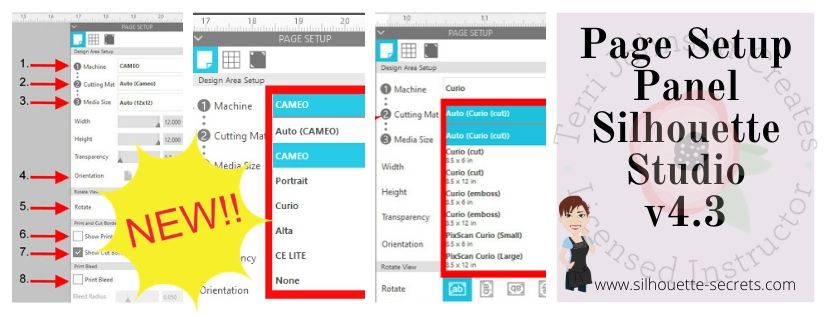
We discussed the new Page Setup Panel look in this post a few weeks back – Let’s Explore v4.3 – Page Setup Panel and today let’s look at another change.

While this is not a big, big change. You may notice in some tutorials that the when referencing the glyphs panel, the icon has changed. That’s it – just the icon.

Glyphs icon comparing copy

If you are using a version of Silhouette that has the fancy A as the icon, check out this post – Let’s Explore v4 – Glyphs and Spellcheck.

Glyphs with Updated Icon

Tutorial written using Silhouette Studio v4.3.356
Affiliate links may be present in the following blog post.

Glyphs are any special characters that are an addition to a font file. These can include swirls, fancy letters, or shapes.

The Glyphs Panel is a Designer Edition upgrade feature. With the Designer Edition upgrade active on the Silhouette software you should see it as the 2nd tab at the top of the Text Style Panel.

The glyphs icon is the only thing that has changed in this panel at the moment. As we all know, changes happen. It’s better to know they are there than to be surprised someday in the future.

Glyphs Panel copy

1 – Text Search bar – Just like on Tab 1,  the name of the font that is selected will appear in this box or you can highlight it and type a name in the box and it will select that font.

2 – Glyphs – This area is where you will see the glyphs of the font that you are using show up.
Note: sometimes not all the glyphs will show up here and you will need to access those through Character Map (PC) or Fontbook (Mac).
It just depends on how the font was created.

3 – Recently Used Glyphs – This handy feature shows the ones you have recently accessed.

4 – Icon size – Those little icons can be hard to see.  Change the size of how the Icons appear in the glyphs panel. And when you hover over a glyph it magnifies it as well.

How do you use glyphs?

There are 2 ways I use glyphs.

1 – Type out the word you are using. Highlight the letter you want to replace and then click on the glyph icon one time to replace that letter with the new glyph.

2 – Double click on the glyph icon and it will add it to the top left corner of the design mat as an individual “letter”. You can continue to click on the glyph icons to add more or just click off of it to keep the design as a separate text box.

I use this second way most often when I am using Dingbat fonts that are a bunch of designs all in one font file or if I want to add a swirl onto the end of a letter.

Glyphs can be so fun to play with and add a little extra creative flair to your designs. Each font file will vary in the glyphs it may have. Some have just a few and others have lots.

I used the font called Bohemian Script by Typia Nesia – Design #296014 and it has a glyph count of 213.

Bohemian Script

Keep in mind the larger the number of glyphs, the longer it will take to load that font in the text style panel. Be patient with your computer as it processes the data.

I’d love to see how you are using glyphs in your projects!
Feel free to post on my Facebook group at Silhouette Secrets with EllyMae.

To save this for later reference pin the image below to Pinterest

Pinterest

Enjoy!

SS_Signature copySS Logo snip it

**This post may contain affiliate links. What that means is that I may receive compensation if you purchase through the links I have provided. The price you pay for the product or service is not higher but I may get compensated for sharing.
Posted on 5 Comments

Interview with Lia Griffith – Paper flower guru

Who is Lia Griffith? And why am I hearing about her on the Silhouette Secrets+ blog?

Lia is a paper flower artist. She & her team develop paper flowers and files that can be reproduced by others. As well as many other crafty projects using different mediums.

She is a crepe paper guru! And now with the new Silhouette Cameo 4 & the rotary blade it is possible to cut crepe paper. Yea!!!!

Lia Photo

I first met Lia at the Silhouette Summit in May 2019. We happened to be in the same group during the event and just started talking. Of course, since we were at a Silhouette event, the talk turned towards crafting. Lia showed me her Instagram page (https://www.instagram.com/liagriffith/) and I was blown away. The spark was lit and with the new Cameo 4 announced, cutting crepe paper was added to the list of material it could cut.

SilSecrets_Lia

Who better to learn from than the crepe paper guru!

After the Silhouette Summit, I contacted Lia and asked about an interview once the Cameo 4 was released and she’d had a chance to use it. I started cutting crepe paper a little bit before the November 2019 All Things Silhouette Conference to test for the classes that Lia & her team were teaching. It was only the beginning. While I didn’t have a lot of time to really dive in, in December 2019 I took that plunge and I am hooked. I want to share that with all of you.

Crepe Paper Supplies copy
*Note affiliate links may be present in the following blog post and as an Amazon Associate I earn from qualifying purchases.

Interview with Lia Griffith

I recently sat down with Lia and through wonderful ways of technology & Skype had a great time learning more about her, her journey, and her tips for crepe paper and getting started.

How did you get started with crafting? Is it something you’ve always done?

My parents were both artists. When I was born, they were both photographers. And I was the 4th of 4 daughters, so I was the youngest. And our whole life was handmade. Almost by default because we didn’t have money, we were those folks. We had our own garden, we sewed our own clothing, we made Christmas gifts all the time; it was just the way we lived. That’s what we knew.
And then when I went to college, I went to graphic design school, that was my career of choice. And my parents actually the 3 of us went to school together. My Dad was getting his sculpture degree and he went on and got his Masters. And then my Mom was an illustrator and potter. And she went on to be a professional Illustrator. And then I went on to do Graphic Design. So that was kind of a fun part of my life. Just that, going to college with my parents.
So, it was a combination of art was our focus, but yet, our life was crafted. As I said, it was all DIY. Everything was DIY. And I think it came to me naturally too, when I was, I remember, specifically when I was 4 & 5 years old, we lived in this farmhouse in Oregon. And I would spend my time while my sisters were at school & I was home alone, and I would spend my days making things out of paper. So, I would make this cardboard car that I would get in and drive and I would make these paper clothing that I would wear, little costumes and shoes and things out of paper. I would my own dolls out of paper. I would take toilet paper and wrap them and glue it. I actually still have them. And make these little 3-dimensional dolls and then dress them.
So, when did I start crafting – huh? I don’t know how not to.
But as far as doing this for a living, I spent most of my career as a graphic designer. But I was always searching for something bigger. So, I’ve opened a couple retail stores, I had a flower shop, I had a baby clothes store. I actually had a baby clothes line that I produced for a while, that I designed and got out there, got into Nordstrom’s and Disney picked it up. It was ok.
But 7 years ago, I started this company (LiaGriffith.com) and right before that I was working as a Creative Director for a wedding stationary company, and I started a DIY wedding blog for them. Teaching, you know this was a while ago, 7 years ago, and there weren’t a lot of paper flowers back then. And just teaching brides how to take things and make their own DIY things for their wedding. And the blog went crazy of course because it was such a fresh new idea back then. And that’s when I started making paper flowers for real. I had made some prior to that when I did the paper runway show. So, I had made some large, jumbo flowers as part of the costume or part of the outfit and then I started making them in smaller versions. And then started thinking, ok, how can I create this so people can replicate it and it would be beautiful and it’s not difficult? So, my mind started going that direction. And at that point, all of my flowers were, I’d call it frosted paper at this point, but at that point, I would just use printer paper, light weight and I would paint on both sides, then cut it, and make these flowers. And then I discovered the frosted paper, which is something I’d used in graphic design prior. So, all of that 3-dimensional sculpted paper flower was really where I started. And then I looked at crepe paper and I was like “Eh – ok, I know there’s other people doing it. It’s not very pretty to me” And I tried a few things and didn’t love it. And then, I think it was about 4 years ago, well actually a little prior to that, the Italian crepe paper company came and said, “Do you want to try some of our crepe paper?” And I did. I did some videos for them and I liked it ok. I did a couple dozen flowers with them. And then the German crepe paper company came and said we’d love to have you collaborate with us. And that was when I really fell in love with crepe paper. Because they offered up not just the heavy weight crepe paper, but then they offered up the extra fine and then the double sided. So, having that range of 3, really shifted how I looked at crepe paper. And I feel… It’s been great having Megan and Krista as well, where we really dive in and wrap our head around how to best use the crepe paper.

So, that was kind of my journey into the crepe paper flower world and who would have thought, right?

Do you think the cutting machines have made it more popular or made it easier or do you think it was easier to do it by hand, because that’s how you started is by hand?

You know as far as the frosted paper flowers are definitely easier with a cutting machine because of the detail you can get. So, the Hellebore design, these are a pretty detailed design, with the tiny details. The petals aren’t so much but the little tiny stamen and the center bits & pieces, I mean you couldn’t cut that by hand. So as far as cutting machine for this, “Oh yeah!”. And some of the some of the other projects we have on our site, like one of my favorites are the little Amsterdam houses, but the detail work in that, there’s you know… without a cutting machine, who’s going to sit there with a knife and cut all those.
When the cutting machine came into my life, it changed the way I designed. It changed the way I prototyped; I was able to get through design ideas faster because I wouldn’t have to start over. There it was and it was like “Ok, let’s tweak here and there.” and then cut it again. It would get me from point A to point Z quicker… prototyping became a snap. And I think that’s true for all of the designers here on this team, is we rely… our cutting machines are running every day. Every day.

So as far as crepe paper goes, I feel like when we are prototyping crepe paper flowers that we usually cut by hand. And the way I do it is, I’ll prototype it by hand and if I cut something, I’ll sketch it and then take a photo of it with my phone with a ruler. And then put it in my computer and then do the svg cut file from that. That’s my methodology.
So, every single crepe paper flower that we design we always have a svg cut file for it. And I would say we do about 50/50 on the crepe paper. Sometimes if it’s a project, like these peonies, we’ll cut these all by hand just because it’s easier and you can stack them. You can stack 3 or 4 of them at a time and cut them. But, when we are cutting, say for the All Things Silhouette Conference, and we had to get all the packs pre-cut for everybody… those were all cutting machines. So, it sped it up so fast. So, there is definitely a time and a place for both – so I would say about 50/50. 

What would be your top tips for a beginner wanting to make crepe paper flowers?

So, one of the things that I think is a great place to start is the Crepe Paper Flowers book.

CrepePaperFlowersBook_Cover

Not to promote it, but I feel like it’s very simple & basic and it goes through each… everything you might want to know or that you may not know you want to know. It gives an overall view so that it takes the fear away from the crepe paper because I think I’ve heard over and over, “Oh, I’ve got my pack of crepe paper, but I’m so scared to cut it.” So, if you understand that the grain is important, that it goes a certain direction on the petals. And if you understand different techniques of cutting, it takes away the fear.

The book and there’s a video on our site & on YouTube that I recommend for anyone who is wanting to start working with crepe paper. It’s called 10 Amazing Facts You’ll Want to know About Crepe Paper. It covers the really important things that are in the book but I talk about it and show it, so it’s easier to consume. It talks about the different types of crepe paper. It talks about Italian, Chinese, Mexican… so that you understand… and of course German. It talks about why I might use Extra Fine over Double Sided, or where I use the different types of crepe paper. I would recommend that for everybody who wants to make crepe paper flowers, to watch that video. Because again, it just takes away the mystery.
(You can find that video HERE.)

Second, when you are making paper flowers, remember that this is a new skill. People don’t pick up a violin and play it immediately. Be gentle, enjoy it, enjoy the discovery of the new material and seeing how it works and watching the magic of how it will stretch when you pull it this way and that way. It’s a magical material! It’s so fun! And also, with the curling tool. So between with the curling tool and the stretch, there is just so much you can do in shaping. And so, my tip on that is really just go into the magic of how and the process of discovery of crepe paper.

“Because it’s addictive!”

 And the third thing is, when you are making a crepe paper flower, it is really hard to make an ugly crepe paper flower. It’s really hard… I mean you can… but it’s really hard. Every crepe paper flower is a beautiful crepe paper flower.

If there was 1 flower you would recommend for a beginner to start with, what is it?

I always recommend the Anemone. Because it has enough detail that it makes it interesting, but there’s only 9 petals so it’s easy to assemble. And you have the foam ball in the center, or we use the cotton spun balls, so that gives it some structure. So, it gives it kind of a neat detail, structure, and then only 9 petals and it’s beautiful! Easy to make.

Double_Sided_Crepe_Anemone_5

If you had to pick 1 flower to make for each season, what would it be for Winter?

I really love the Hellebore. To me it’s a new discovery flower for me. I only became aware of this flower a couple years ago. Because it’s different and new. And the colors are a bit more plum, mauve, and a limey green.

Crepe_Paper_Hellebore_Christmas_Rose_3

Spring?

I love my tulips! And the tulips we made with crepe paper, we put the wire in the petal center, which shaped them. And it’s so much fun. We are going to be doing some new tulips. We will be doing some beautiful Parrot Tulips this Spring. We will probably be doing a Member Make Parrot Tulip; I think it’s on our list.

Crepe_Ombre_Tulips_2
Summer?

Roses. I love my roses. Peonies.

Crepe_Heirloom_Rose_3

Fall?

Dahlias.

Crepe_Paper_Dahlia_1

We did the Dahlia for a Member Make this fall. Dahlias have been one of those things because it has so many petals that we’ve avoided it for awhile and then finally we had one that was ok. And we finally jumped in and Megan developed this one, it was so easy the way she developed it. It made it so easy to do.

And that’s kind of how we go on all our flowers… how can we do this so that anyone can reproduce it?

What is your favorite flower to create?

The Gardenia – the double-sided Gardenia. There is something about that flower to that… I think it really reminds me of my mother. It just has that homeyness to it.

WhiteDoubleSided

Have you had a chance to cut with the Cameo 4 and rotary blade? What are your thoughts?

Yes! It’s beautiful. The rotary blade is magical! There are so many things you can do with that blade. Not just with crepe paper – which it cuts spot on – but we also love to cut felt with it.

What did you think of your first All Things Silhouette Conference?

I loved it! We had so much fun! I mean after we got back, I said to my team, “We are going back. And more of us are going.”

(You can find out more information about the 2020 All Things Silhouette Conference HERE. Hope you will join us and get a chance to meet Lia in person.)

What do you enjoy doing when you aren’t crafting, creating, or working at the office?

Cooking, eating out, hanging out with friends, all that. I love to be outside in nature, going on hikes and walks, hanging out with my dog. Meditate. I read a lot. I don’t read, read. I listen read. So, I’ll listen to books. Last year, I read “listened” to, I Audible read, 27 books. I like to consume knowledge.

Last year, I did a pottery class, that just put me over the edge. So, I’m really wanting and craving, getting back into pottery more. So, my Mom was a potter. And I took a sewing class. I love to travel and hang out with my 25-year-old daughter.

You just were in Germany; you were there for a trade show. What was exciting about your trip? And are there new things coming for 2020 that you can share with us.

New paper flower kits, the flat ones and are all pre-cut. Which is great because if someone doesn’t have a cutting machine, it’s a way to introduce them to things that can be cut on a cutting machine. So those are doing really well for us. We have 12 packs right now and we are expanding that collection.
And we have new paper pads that are out now and those are really fun, most of those are flower colors for the frosted paper flowers.
We are also getting wires, those are coming. Those should be out in a month or two.
So, we are just trying to expand to be a one stop place to get supplies.
We are going to start doing more kits, we might even do a monthly subscription kit from our shop, eventually. There’s a lot of things in the air.

We are excited about creating beautiful craft experiences for our community, such as craft boxes, events and more. In fact, we are working on plans for a Bloom Summit here in Portland in the fall … a couple days and it would be a combination of making and just inspiration… creating beautiful lives, as women who have businesses. I will provide more details as it comes up.

What is one thing you plan to create in 2020 that you have never done before?

I’ve never done needle punch art. There was so much of that in Germany.

I want to thank Lia Griffith for taking the time to sit down with me and chat about herself and give us her tips for getting started with crepe paper creations!

As a special bonus for all of my readers and followers, they have provided us with a coupon code to save 20% off the annual membership on the LiaGriffith.com website. This gives you access to project templates, step-by-step tutorials, Live Member Makes, a private Facebook group, and more! The coupon code is SILHOUETTESECRETS

Many have asked how I created the crepe paper flowers in the past few weeks and this is how! I am not usually one for a subscription, but I took the leap and treated myself as a Christmas present to try it for the year. I now have more things saved to “My Craft Room” area on the website, then I can possibly complete in a year.

Here is a little peek at what I’ve added.

My Craft Room glimpse

Don’t forget to use code SILHOUETTESECRETS to get 20% off the annual membership!
This coupon is good for the first 50 people to sign up.

Paper_Hellebores_Winter_Wreath_2

Now, do you HAVE to have the membership to start cutting crepe paper with your Cameo 4? 
No!

But, it is what helped me get over any apprehension I had with trying something new and now I am hooked. For me, it was well worth it!

Crepe Paper Supplies

Where do you get crepe paper supplies?

Just like any other project, I think quality matters. Low quality products can end up leaving you with a headache and end up costing you more in the long run.

I have been using the Lia Griffith crepe paper and I love it!
As Lia said above, it is a German crepe paper and it comes in 3 varieties, so you have a lot of options to create flowers with. There is Extra Fine, Double-sided, and Heavy crepe paper that all give a different texture and feel to the projects.

Double_Sided_Crepe_Anemone_1

Find Lia Griffith supplies here:
LiaGriffith.com
or
I’ve compiled a list on my Amazon shop
Silhouette Secrets+ Amazon Shop

I have “collected” supplies from both sites and have had to get a few more totes to keep it all contained.

But, I have to say my favorite thing was receiving this card in my supply box from the LiaGriffith.com site.

Card copy

It is going on my Vision board. (shhh…. that’s on my to-do list too)

It is also in the front of the Lia Griffith Crepe Paper Flowers book, so any time you need a little encouragement, just open it up and read it to yourself.

How do you know which crepe paper to use?

To be honest, I just use what Lia & her team recommend. This is all new to me, so I am learning as I go. But, the best way is to just play with it. “Enjoy it.” as Lia said above.

My main focus is Silhouette & how you can cut the crepe paper on the Cameo 4 with the rotary blade.
For more tips on cutting cutting with your Cameo 4 check out this post
Cutting Crepe Paper on the Cameo 4

Crepe Paper Header

For tips on what to do after the flower is cut on the Cameo 4, I will refer you to the experts of Lia Griffith and her team at LiaGriffith.com.
That is where I am learning how to assemble these amazing crepe paper projects!

Like it, love it, save it for later by pinning the image below.

Pinterest Graphic

Enjoy!

SS_Signature copySS Logo snip it

**This post may contain affiliate links. What that means is that I may receive compensation if you purchase through the links I have provided. The price you pay for the product or service is not higher but I may get compensated for sharing.


Posted on 36 Comments

Let’s Explore v4 – Print & Cut Basics

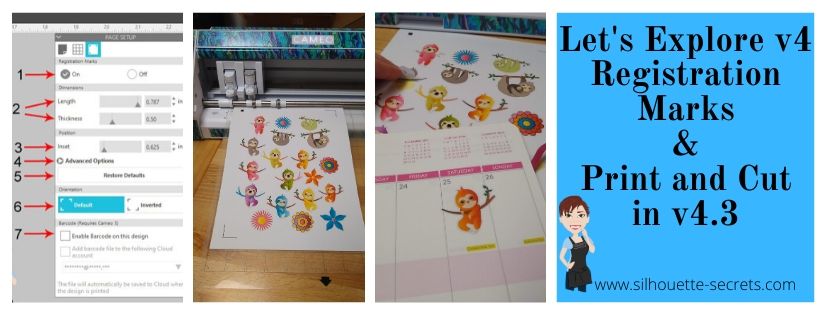
With the v4.3 software released, the Registration Marks panel had a small change as well. For software version of v4.3+, there is now an On or Off on the Registration Marks Panel – find the full details on the panel HERE. If you are using a software version prior to v4.3, then you will see it a little bit different and for almost all users, you would choose Type 1 registration marks – find the full details on that HERE.

Registration Marks Panel difference copy

No matter what version of v4 software you are using, the Basics of setting up a print and cut project are the same.

I follow the exact same steps each time and have great success with each print and cut project.

Print and Cut Basics

This tutorial is written using the v4.3.356 Silhouette studio software. For versions prior to v4.3 you may see a few differences in the software, the steps will be the same. However, you may find this Print and Cut Part 1 tutorial to be helpful too.
Affiliate links may be present in the following blog post and as an Amazon Associate I earn from qualifying purchases.

First, you want to start out by setting the design page up.

Step 1 – Open the Page Setup Panel – Tab 1
Step 2 – Choose the correct machine & cutting mat.
Note: users prior to v4.3 will notice the Page Setup Panel is a little different too. Find out more on that HERE.
Step 3 – Choose the Media size. I choose “Printer” as the option when using letter size paper. You will find it at the bottom of the drop down box for Media Size.
*NOTE: for users with software v4.4.450 or higher – choose Letter size – there is a change in the software with “media” size I have found as of 12/15/20. I have reported it and will update the post as I know more information in the future
Step 4 – Move transparency to 0%. This will help you see the page size better.
Step 5 – Choose the Portrait Orientation. This is the orientation I recommend as I see the least amount of issues with it.
Step 6 – Check the boxes next to Show Print Border and Show Cut border. This will show you the boundaries you have to work with.

Planner Sticker PNC1 copy

Next, open the design onto the cutting mat by either right clicking on the file in the Silhouette library and choosing merge or using File > Merge.
This will merge the design directly onto the page you have just set up.

Merge vs File Merge

Next, click on the Page Setup Panel – Tab 3 – Registration Marks and choose On.
Then click the Restore Defaults button.

PNC demo copy
Penguin in Snowball Fight by Stinkin’ Cute Paper Piecings – Design #117611

As with any new project, I would recommend doing a test first. This is why I start with all the default settings. A test print can save you a lot of headache and frustration just like a test cut when you are cutting new materials or a new design.

With a print and cut, design placement is very important. The design cannot be in the cross-hatched areas of the design screen or over the cut border that is shown on the screen. This is why I turn the Show Cut border on first on the Page Setup Panel.

Design placement copy

Make sure the design is away from the cross-hatched area. This is the area that the optical eye on the Cameo needs to read the registration marks accurately in order to find the design on the page. Making this area smaller or placing a design in it, can result in either a registration marks error message or an inaccurate cut.

Now it is ready to print.

There are 2 ways to do this.

Click on the Printer icon in the top left corner. This will send the print job directly to the printer that is set as the default printer connected to your computer.

Printer icon copy

In the top left corner, choose File > Print and you will get a pop up of Printer options. (Ctrl + P)

file print
The options vary by the printer you have connected to your computer.

Choose the printer to send the job to.

Tip: If you have a Preferences button, click on that and look for a “Preview before Printing” option. This is a great feature to see if it is going to print how you want it to before actually committing to the print job.

Preferences copy

Check the Preview before Printing box.

File Print Preview copy

Then click OK.

print copy

And choose Print.

A Printer menu will pop up and the design can be previewed before committing to printing.

Print Preview copy
Note: this will be dependent on the printer and what the printer setup settings are. Not every user will have this and it can vary, but never hurts to look for it.

Tip: Check to make sure that the bottom left registration mark will print completely. I see a lot of print and cut issues and one is the registration marks were outside the users printer margins and did not print. This means you will either get a registration error or it will cut inaccurately because it doesn’t have all the information to read it correctly.

Once you’ve verified the settings are correct, click on Print and it will send it to the current default printer.

Printer

Grab it off the printer. I am using a Canon TS9521C Craft Printer and I love it. This printer has great quality and I love having the option to print on a 12″ x 12″ sheet of cardstock with it.

Place it on the Silhouette cutting mat exactly as it shows on the virtual design screen, in the top left corner of the cutting mat. Make sure that the page is covering the grid lines on the cutting mat, or the Cameo may try to read the black lines when it goes to register.

Page on mat copy

Load the left edge of the cutting mat next to the line on the left side of the machine.

IMG_20200127_154139823 copy

Click on the Send tab in the top right corner and then choose the Material type you are cutting.

Cut Setting copy

Once all the settings are correct, then choose the Send button in the bottom right corner.

Note: a test cut using the Test option in the software will result in part of the upper left registration mark being cut out and can interfere with reading the marks correctly. I would suggest doing a test cut on a spare piece of material or moving the test cut out of the top left corner.

I love print and cut!

IMG_20200127_153032225 copy

I do the same steps every time when setting up the print & cut and rarely have an issue.

IMG_20200127_153058460 copy

I find that in troubleshooting most print and cut issues, it is something in how it is set up or how the design printed. I recommend for all my students and those interested in print & cut, to start with all the default settings to establish a baseline before they start changing things up.

Now that we have a successful print and cut, let’s try another design.

Print and Cut Planner Stickers

Follow the same setup steps listed in the beginning of this tutorial for the Page Setup.

Use File Merge and open the design on the screen.

Open the Page Setup Panel – Tab 3 – Registration Marks and turn the marks on. Click Restore Defaults.

Registration Marks copy
Doughnut Planner Stickers Set by Jennifer Wambach – Design #100816

In the photo above, I have highlighted a few trouble areas of this design. On the left and right edge, the design is over the Cut border and in the bottom left corner, the design is in the cross-hatched area.

To fix this, I select the entire design & cut lines and then use the bounding box in the corner and scale it down just a bit to fit within the borders of my print and cut page. Then move the design to the center of the page.

Planner Sticker demo copy

Once it is all setup the same way, follow the same steps as listed above for printing and loading it in the machine. Click on the Send tab and choose the material type. I am using sticker paper for this set and Send it to the Cameo to cut.

Planner sticker demo cu copy

I used the Silhouette White Sticker paper for this one, as that is what was in my stash. But, I’ve also used the Staples brand sticker paper and I like both.

IMG_20200127_161717399 copy

There are so many options that you can do. The Cameo 4 Autoblade cut beautifully using the Sticker Paper – White setting.

IMG_20200127_161842860 copy

The best thing to do is to start with the basics. Set it up with the defaults, do a test print, and then keep on playing.

If you are still needing help, check out the Print and Cut video class on my Teachable site HERE.

Print & Cut header

This includes 2.5 hours of step-by-step set-up, discussing different file types to print and cut, and troubleshooting tips as well.

Don’t forget to save this for later by pinning the image below – it will work time and time again.

Print and Cut Basics Pin

I would love to see what you create on my Facebook group at Silhouette Secrets with EllyMae.

Having print and cut issues? Feel free to post on the group and we will troubleshoot it with you.

Enjoy!

SS_Signature copySS Logo snip it

**This post may contain affiliate links. What that means is that I may receive compensation if you purchase through the links I have provided. The price you pay for the product or service is not higher but I may get compensated for sharing.

Posted on 9 Comments

Let’s Explore – Registration Marks v4.3

If you are using a v4.3 software version, you may have noticed that there are a few changes in the software panels from prior versions.

One of those panels is the Page Setup Panel – Tab 3 – Registration Marks, so let’s take a look at the difference.

Registration Marks Panel difference copy

If you are using version 4.0 to version 4.2, then the Page Setup Panel – Tab 3 will look like the one on the left side in the photo above – check out this post HERE for details on that.
If you are using version 4.3, then the Page Setup Panel – Tab 3 – Registration Marks will look like the one on the right.

As you can see the Registration Marks Style section has changed to an On or Off position now in version 4.3. While this is the only change you can see in this panel, when you are looking at videos or older tutorials, it will show the step to choose Type 1. This is great to know if you are new user to Silhouette or for someone just updating to the version 4.3 software.

But, while we are here, let’s review the Registration Marks Panel and explain what it all means.

The Registration Marks Panel is the 3rd tab in the Page Setup Panel, which is the top right icon.

Registration Marks Panel copy

The print and cut registration marks can also be toggled on by the keyboard shortcut letter ‘M’. I see this happen often when a user is typing with text and then clicks off of the text, but still tries to type letters. This can activate keyboard shortcuts and the marks will toggle on and off.

Now, first before we go into the details of this panel, let’s first set up the page for the print and cut. I follow the same steps every single time I set up a print and cut project and I rarely have any issues. We will go through them here briefly, but check out this Print and Cut – Part 1 tutorial for more details – HERE. Keep in mind that this tutorial was written in a software version before the On and Off change in this panel.

Affiliate links may be present in the following blog post.

Setting up a Print and Cut Page

Step 1 – Open the Page Setup Panel – Tab 1
Step 2 – Choose the correct machine & cutting mat.
Step 3 – Choose the Media size. I choose “Printer” as the option when using letter size paper. You will find it at the bottom of the drop down box for Media Size.
Step 4 – Move transparency to 0%. This will help you see the page size better.
Step 5 – Choose the Portrait Orientation. This is the orientation I recommend as I see the least amount of issues with it.
Step 6 – Check the boxes next to Show Print Border and Show Cut border. This will show you the boundaries you have to work with.

Page Setup copy
Colorful Sloth – Stickers by Sandi Idleman – Design #312256

Now, that the page is set up, let’s move to the registration tab and turn the
Registration Marks On.

Registration Marks On copy

Some things to point out here.

When the Show Cut border box is checked on the Page Setup Panel – Tab 1, you will notice that the red cut boundary moves when you turn the registration marks On. Notice that the cut boundary is lined up with the registration marks that appeared on the page.

There is a cross-hatched area that shows up on the design screen. This does not print on your page. However, having a design, cut border, or background in this cross-hatched area can interfere with the optical eye reading the registration marks accurately. This can cause mis-cuts. Make sure that the design is away from the cross-hatched areas on the page.

Notice on the left and right side, I have circled and highlighted 2 problem areas. These would result in those 2 things not being cut completely, if there were no other errors because they are outside of the cut border.

I mentioned above, that I do the same exact steps every time I set up a print and cut project. The next step I do is click the Restore Defaults button.

Restore defaults copy

And I am ready to print. This Colorful Sloth – Stickers by Sandi Idleman – Design #312256 is set up as a print and cut design, so the cut lines are already there.
If you are creating your own cut file, you may need to trace or fill with color. Check out these posts on Print & Cut – Part 2 – Text and Print & Cut – Part 3 – Images for exactly how to do that.

I go to File > Print in the top left and make sure the printer is set up with the correct page settings for the printer I am using. If the Printer Setup has a Preview option, I would highly recommend using it to make sure that all of the registration marks will print correctly.

Printer Setup copy

But, what about all the other options on the Registration Marks Panel?

Yes, there are more options. However, I would highly recommend for a beginner with print and cut, if you’ve ever had problems with print and cut, or if you have a new printer to start with the defaults and establish a baseline.
This will eliminate so many things that could be an issue that gives you a registration error or mis-cut.

It printed beautifully on the Silhouette white sticker paper! Make sure to place the printed page in the top left corner of the cutting mat exactly as the page shows on the design screen. Place the page on top of the grid lines on the cutting mat or the Cameo may try to read the grid lines instead of the registration marks.

PNC Loaded copy

The left edge of the mat, should line up with the line on the left on the Cameo that the 2 arrows point to.

PNC Load line copy

Now, something I noticed after it printed was that the designer of the file had increased the line thickness of the cut lines, so when it printed the red lines printed too. This is not always desired, so make sure you double check the file before printing it out.

Line Thickness copy

I love print and cut and I rarely have an issue with it registering or mis-cutting. This is why I want to stress the importance of using the defaults at least the first time to set you up for the best chance of success.

PNC Cut copy

Registration Marks Panel Options

Once you have established a baseline with print and cut and have had success with the default settings, then I you can venture into testing the limits.

I often see users who have maxed out the registration marks to try to gain more space on their page and they end up with it not registering at all or if it does, the cut is far from accurate. While you can move the registration marks, each printer will vary in how far you can move those and still get an accurate cut.
This will take testing on your part to know what the limits are for your printer!
I rarely move my registration marks because I know at the defaults it cuts great every time. However, on the occasion I am feeling daring, I have moved them but tell myself the entire time that if it doesn’t cut, I will know why. While I’ve still been successful in moving the marks and getting accurate cuts, that is not what I see with the majority of users. So, just keep that in mind.

Registration Marks Panel detail copy

1 – On or Off – Turn the registration marks used for print and cut on or off by clicking the box next to each option.

2 – Length & Thickness – Adjust the length of the registration marks or the thickness of the marks.

3 – Inset – Adjust all 3 of the registration marks at the same time. The higher the number, the closer to the middle they move.

Inset example copy

4 – Advanced Options – Click on the arrow and it expands with more options to adjust the individual insets of the print and cut area.

Advanced Inset copy

5 – Restore Defaults – This will reset the registration marks to the default settings.
This is the #1 thing that I feel can make all the difference in getting an accurate cut. I highly recommend starting with the defaults first and then as you feel more comfortable, you can start changing things up. Especially on a file that you have purchased that is set up as a print and cut file. It may not have been saved with the default settings for the Silhouette. The designer may have been able to print it with their printer at those marks, but yours may not be the same. Or you could encounter someone who has just designed it but never printed it to test it.

6 – Orientation – Default vs Inverted – This changed the direction of the registration marks on the mat. Notice the direction of the arrow on the cutting mat. Inverted placed it on the opposite corner of the mat & moves the registration marks on the page.

Orientation demo copy

7 –Barcode  – This adds a barcode to the side of your page and it stores all of the cut settings data in the bar code that the Cameo 3 will read. This is a Business Edition feature only. There is also the option to save the information to the cloud account that is associated with the email address used to log in. 

I troubleshoot a lot on many platforms for print and cut and most often it is something that needs to be tweaked with the way the file is set up. Starting with those defaults will save you a lot of headache in the long run.

Don’t forget to Pin this image below to save these tips for the future!

Registration Marks pin

I would love to see the projects you have created feel free to post on my Facebook group at Silhouette Secrets with EllyMae.

Enjoy!

SS_Signature copySS Logo snip it

**This post may contain affiliate links. What that means is that I may receive compensation if you purchase through the links I have provided. The price you pay for the product or service is not higher but I may get compensated for sharing.
Posted on 13 Comments

Silhouette “Secrets” for HTV – Beginner Tips & Tricks

HTV or Heat Transfer vinyl is vinyl that has a heat activated adhesive that can be applied to fabrics and other materials.

I always recommend starting with high quality products and in my experience, you will have less headache when creating your projects. Throughout the post I will share what brands I used on the shirts created, tips to cutting & applying, and share recommendations on where I buy those supplies.

Final product copy

Affiliate links my be present in the following blog post and as an Amazon Associate I earn from qualifying purchases.

The Basics of Cutting HTV with Silhouette

Step 1 – Create the design you want to cut.

Step 2Place the HTV correctly on the cutting mat in the same location on the grid as what shows on the Silhouette Studio software or load the vinyl directly into the machine to cut without a mat (click HERE for more tips on Cutting without a Mat).

For most HTV, you will place the shiny side down on the cutting mat. This is the carrier sheet and you are cutting through the backside of the vinyl. However this is not for ALL types of vinyl. For instance, some patterned vinyl it is laid pattern side up, cut through the front, and then a Heat Transfer carrier sheet is applied to transfer it to the shirt.

Step 3 – Mirror the design, if needed. This is for most HTV, but not all.

Step 4 – Choose the cut settings for the brand of HTV.

Step 5 – Send to the machine to cut.

Now, that we have the basics, let’s take a look at specific examples.

Ultimately, how you cut the design is going to be dependent and differ depending on the design you use. For instance, is it a one color design? Is it a multi-color design? Are parts of the colors overlapping? Is the design layered?
In this post, we will cover some basics and cut with 1 color.

My first tip for a beginner or for any of my students is that while you can cut without a mat with the Silhouette machines (except the Curio), I still recommend cutting with a mat until you get used to how the machine cuts. Then when you are feeling comfortable you can branch out and test the waters with cutting without a mat. This will help eliminate a few possible issues that can occur as a beginner because you are simplifying things.

Two resources I want to share here are:

Tips to Get The Most Out of Your Silhouette Mat
This will come in handy to make those mats last longer
Cutting Without A Mat
When you are feeling adventurous or a bit more comfortable with your machine you can test this out. While the tutorial is written with a Cameo 3, the tips will apply to all machines you can cut mat-less with.

Let’s start simple and work up from there.

Note: In the following photos, you will see me using a Cameo 4 machine to cut. While I used my Cameo 4, these tips will apply to all Silhouette machines. I am using software version v4.3.353 in this tutorial.

One color designs

Step 1Create or find the design you want and open it on the Silhouette Design mat and size it as needed.
I am using “I Tell Dad Jokes” by Honeybee SVG – Design #293250 from the Silhouette Design Store.

Dad Jokes design copyThe first thing I like to do is to change the Transparency  on the Page Setup Panel to 0%, so I can see the grid lines of my mat (in v4.2 & prior it is referred to as Reveal).
This is how I know how big of a piece of HTV that I will need. I will cut my HTV piece down to 12″ x 10″ and place it on my cutting mat shiny side down. I use a paper trimmer to cut down my 12″ vinyl to the size I need.

There are several reasons I do this, but the main one is that it helps make my cutting mats last longer. I am only placing my material on the mat where I am cutting and no peeling a full sheet of material off the mat each and every time.
Why use that adhesive where it is not going to cut?
For more tips on the cutting mat click HERE.

Step 2 – Flip the design (also called mirror) on the Silhouette Design screen. Right click on the image and choose Flip Horizontally or Object > Mirror > Flip Horizontal.

Flip Horizontal copy

Why do we need to mirror? For most HTV, the carrier sheet is attached to the vinyl. This means that you place the HTV upside down (shiny side down) on your cutting mat and you cut through the backside of the HTV.

Shiny Side Down copy

Now, there are exceptions to this and you will learn as you go and start working with different materials. One of these exceptions is some patterned vinyl, like Sparkleberry Ink HTV. It is amazing vinyl, but since it is printed with a pattern on it with a special printer, you will lay it pattern side up and cut through the top and then use a Heat Transfer Mask to transfer the vinyl to the shirt or other material.

Here is an example of Sparkleberry Ink printed vinyl found in this post using the Subtract feature with HTV. The patterned vinyl was cut pattern side up and a transfer mask applied and then the solid Siser Easyweed was cut the same as this tutorial.

temp_1

The next thing to note is that there is a “HTV Mirror” pop up that you will get when you use a preset cut setting in the Silhouette software. I prefer to mirror (flip horizontal) the object myself so I know exactly where it is going to cut on the cutting mat. Since I have flipped my image, when I get to that pop up, I choose “Send As Is“.

Send As Is copy

While you can let the software “mirror” it for you, it flips the entire mat and does not reflect that visually on the screen. For example if I have a smaller design than what I’m cutting above, if I let the software mirror the design by using the Pop up when I send to cut, it will cut where the yellow square is. So if I have placed my HTV material on the left side of my mat as it shows on the design screen, it is not going to cut on my material.

NOTE: I’ve recently found there is a new bug in the v4.4 software – when letting the software mirror the image, it will also mirror the objects that are off the cutting mat as well.
I would highly recommend right clicking and choosing Flip > Horizontal and mirror the design yourself to avoid either of these issues.

Mirror pop up copy
Wine Bottled Up by Jillibean Soup – Design #242851

And also, it’s just habit because the Mirror pop up was not always around. However, it does save me on occasion when I have forgotten to mirror the design myself.

Step 3 – Cut the HTV to size and place on the cutting mat. I am using Siser Easyweed HTV in white for this project.

HTV on cutting mat copy

Now, something to note here is that when you order vinyl on a roll, it may not always be 12″ wide. This is pretty common as it is cut from a bigger roll originally.
Just like wood is not the exact size.
It is also the reason that I did not cut without a mat using this roll of Siser Easyweed HTV. It just barely fit under my rollers and I didn’t want to take the chance that it wasn’t securely in the machine. Plus it gave me a little more cut-able space by cutting it down and placing on the cutting mat.

Resize the design and make sure that the design on the screen shows in the same place as it is placed on the cutting mat.

Step 4 – Click on the Send tab in the top right corner to set up the cut settings.
Choose the material type in the Material drop down box.
I am using Siser Easyweed HTV and find that the Heat Transfer, Smooth option works well.To be honest, I find that the preset cut settings work well for almost all materials. But, keep in mind that blade sharpness, cutting mat stickiness, etc can all affect cut quality too!

Send tab copy

Step 5Test cut – VERY IMPORTANT feature that can save you materials & time.
Any time I am cutting a new material, I will use the test cut to make sure that I will get a good cut.

There is nothing like cutting a full design on HTV, unloading the cutting mat, and finding out it didn’t cut well. It’s a great learning opportunity but let’s save some time & materials and get the habit of a test cut.
I promise it will help.

There are 2 ways I’ll share on how to do a test cut.

1. In the bottom right corner of the Send tab is a little button that says Test. This will cut a small square with a triangle out of it in the top left corner of the cutting grid.

Test Cut copy

If the first test cut doesn’t work, you can move it by using the directional arrows next to the Test cut button.

Test Cut buttons copy.jpg

You can also change which Tool does the Test cut by choosing 1 or 2.
On software versions prior to v4.3, it will show as a red circle (Tool 1) or a blue circle (Tool 2). This is for the Cameo 3, Cameo 4, and Curio machines only.

2. Make your own Test Cut.
I use a capital ‘B’ as my test cut object often. The biggest thing you want is something that has both corners and curves to it. This will give you a good indication of how it’s going to cut.

Test Cut B copy

Place the test cut object – the letter ‘B’ in a space on the HTV that will not be cut with the design, as shown by the bold red A above.

Next, select the design by clicking on it. This is very important. You will see a gray selection box appear around the object on the screen that is selected, as shown by the bold red B. If there is no object on the screen selected, it will not change the Action.
With the design selected, choose No Cut next the bold red C above. This will turn the cut lines OFF for the design and it will only cut the letter ‘B’ as the test cut.

If it cuts well the first time, you can either move the ‘B’ off the design mat or delete it. Then turn the cut lines back on for the design by selecting it again & choosing Cut.

If it doesn’t cut well, move the ‘B’ to a different free space on the HTV and adjust the cut settings to get a good cut.

Step 6Load the cutting mat. After double checking the settings, load the cutting mat in the machine. The left edge of the cutting mat should line up with the line on the left side that the 2 arrows on the machine point to.

Loading mat copy

When using a cutting mat, the rollers should roll on the left and right edges of the cutting mat as shown by the 2 top red arrows in the photo above.

Step 7 – Click on the Send button in the bottom right of the Send tab. When the cut lines are turned ON you will see bold red cut lines around the design, on this Simple cut option.

Send button copy

If the HTV Pop up appears, click ‘Send As Is’ if you have mirrored (flip horizontal) the design yourself.

Send As Is copy.jpg

Step 8Before you unload the mat check that it cut well.
This is another great habit to get into.

Before unloading copyIf for some reason that it did not cut well, you could send it back through again for a 2nd pass. However, if you remove the cutting mat, you will not get it lined up in the exact same place and it won’t cut in the same spot.

Step 9Unload the cutting mat. 

Step 10 – Place the protective cover shiny side up on the table and flip the cutting mat upside down on top of it. Carefully peel the cutting mat away from the material. This is another way to help the material release and extend the life of the cutting mat – more tips HERE.

Flip Mat copy

Why do I place the protective cover down on the table with the shiny side up? First, it protects the mat in any areas that have the adhesive exposed. By placing the shiny side (i.e. non-stick) side up, it will stick to my mat and debris won’t.

Why do I flip the mat over and peel the mat away from the material?
First, it helps to release the material from the adhesive with less force. Pulling up on the material from the mat, adds more force which can pull the adhesive off the mat. Second, it will help with the material not curling when it’s taken off the mat. This works especially well with cardstock and paper materials.

Step 11Weed away the excess vinyl from the design. I start with the outer edge of the design when I weed so that I know where my letters are and am not “picking” at the design.

Weeding copy

As you do it, you will develop methods that work for you. Such as weeding tools. My personal favorite are the reverse tweezers from EK Tools. I love them so much that I have 3 pair, just in case one is put in a really “safe” place and I can’t find it when needed. I love the sharp tip for getting the vinyl started and then the tweezers to help peel it off.

Each brand, color, type of HTV will vary in how much you can see the cut lines. Some colors or glitter HTV are harder to see on. The more you do it the more comfortable you will get at what works.

Make sure to get all the little pieces like the insides of the A, D, P, etc. If I have a question as to what needs to be weeded out vs what stays, I look at the design on the screen to see what is filled with color and what is not.

And go slow, it’s not a band-aid you rip off. If you go slow and watch, if there is a spot that didn’t cut well, you can still salvage the design most times.

Step 12Press the HTV onto the shirt or other fabric object using the manufacturer recommendations.
I love that Siser has this on their site and also a handy app too!
Check out the full Siser site HERE.
On the Left side of the home page, move the mouse over the HTV header and it will expand. Choose your HTV type and then scroll down the page for the Cutter Settings and Application settings.

Siser settings

I set my heat press to 305 for 15 seconds for Siser Easyweed and it works every time.

Final product copy

And there you have a single color design, cut with the Silhouette, and pressed onto a shirt.

Q & A

Let’s talk about a few more things because I’m sure you have a question or two.

Do I recommend a heat press? Yes.
I recommend a heat press if you plan press a lot of HTV.
Especially if you plan to do a bunch of shirts or plan to make a business of this.
It will save you time & muscle power

Why do I recommend a heat press?
1. It is easier. Set the time. Set the temperature. Press for 15 seconds (or recommended time). And done!
2. Even pressure and more accurate heat.

What heat presses do I own?
I started with a use 15″ x 15″ Power Press that I received. It was great! These are often found on Amazon, however, be very careful in reading the reviews on the seller. I don’t think they are as good as they used to be and have seen them arrived damaged or non-functional. Just like anything else, check out the reviews.

I gave that heat press to a friend when I found a great deal on another 15″ x 15″ Craft Pro Press from Heat Press Nation. I LOVE that this has a slide out drawer on it and it was something I couldn’t pass up. The slide out drawer helps in getting the design placed on the shirt easier, so you are not reaching in under the hot top platen of the press.
Is it a necessity? No, but it sure is nice.

Heat Press copy

Personally, I need to have a 15″ x 15″ press. The shirt I pressed above is a 4XL shirt and I make those sizes often, so I feel it is well worth it.

But, if you don’t need that size, there is a Craft Pro 9″ x 13″ press with the slide out drawer as well. Find that HERE.

I also have this smaller press. I use this one when I am traveling for classes as it weighs only 35 lbs. The 15″ x 15″ press above is not 35 lbs.

stx-craft-2

This Pink Craft Press can be found here at Heat Press Nation or Swing Design.

What other products would I recommend when using HTV?
Pressing pads or pillows. What are these? These are items that you place inside a garment such as a tshirt or bodysuit to lift up the area you are pressing to keep the seams from interfering with the pressure you are applying. If you press a shirt and there is a seam in between the top & bottom of the press, the press hits that seam and doesn’t get full pressure down on the area of the shirt or garment that is needed. This can interfere with getting a good, solid adhesion with the HTV.

I have the Tee Pad It from Heat Press Nation and love them. It is cost effective as you get all 5 sizes for 1 low price.

tee-pad-it-set_1

Slide these in to the shirt under where the design will be placed, adjust the pressure on the heat press, and get that good pressure needed for the HTV to adhere.

Pressing pillows are another option, but I found they are a lot more expensive and condense a lot more when you press them, which if pressing multiple items can take longer.

Teflon sheets – I get mine on Amazon and they last a long time. This will help protect your top platen of the heat press or an iron.

EZ Off cleaner for when you have a boo-boo and accidentally melt HTV to the top platen of the press. Shhhhh…… it happens.
It can be found here are Heat Press Nation or on Amazon.

Do you have to have a heat press to use HTV? General answer – No.
However, you want a brand of vinyl that can be pressed with a home iron if you do not have a press. Siser is one of those brands. The 2 biggest factors with HTV is heat and pressure. You have to have both or the HTV will not adhere to the material and last. Some brands like ThermoFlex are designed to be used with a heat press.

If you only have a home iron or a Cricut Easy Press, I recommend checking out this video – How to Iron On Siser HTV by Joe at Siser for great tips on what to do and what not to do.

Can you over press HTV? Yes.
Again I’m going to refer you to the experts here in this video – lots of great tips!
Check out this video by Siser called Over Pressing HTV HERE.

Now, that is a lot of links and recommendations to throw at you.

Do you need them all right now? No. But, I want you to have the resources to go to on where to find the same products that I recommend.

For other product recommendations check out my Amazon store HERE or feel free to ask on my Facebook group at Silhouette Secrets with EllyMae.

I hope that this helps provide you with some “secrets” to getting started with HTV. Or even if you have already been using HTV, maybe you picked up a few tips. I would love to hear if you did!

If you want to dive deeper into HTV check out these 2 video courses I have available. They are step-by-step courses taught just as I teach an in-person class, but available at your convenience.
Cutting & Layering HTV in Silhouette Studio – 45 minute video class
Creating a Knockout Design with HTV & Bonus HTV & Subtract in Silhouette – 1 hr class

Did this information help? Don’t forget to Pin it for future use!

Beginner HTV Pin

Enjoy!

SS_Signature copySS Logo snip it

**This post may contain affiliate links. What that means is that I may receive compensation if you purchase through the links I have provided. The price you pay for the product or service is not higher but I may get compensated for sharing.
Posted on 6 Comments

Scanning & Tracing in Silhouette Studio

Silhouette & School Projects

*this post was created using v4.3.353 of the Silhouette Studio software

My daughter came home from school and said, “Mom, I have homework and it says to do it as a family.”

Gingerbread homework copy

Permission granted. Silhouette to the rescue!
Note: affiliate links may be present in this post

The hardest part of this project was getting my 6 year old to decide what she wanted to disguise the gingerbread man as.

We went shopping in the Silhouette Design Store for disguises. She thought about a reindeer, an elf, Santa, a boy elf, a girl elf, and about a hundred other options. Guess what she settled on? A reindeer – the very first choice. Of course!

Of all the designs we viewed in the store, she chose one that I had already collected in my library. Santa & Friends Photo Props by Kolette Hall – Design #35760 was perfect.

Santa props file.JPG

Sometimes picking out the design is the longest part of a project.

But, once she settled on the reindeer she said, “But he won’t have a costume on the rest of his body.”

Well, we can fix that.

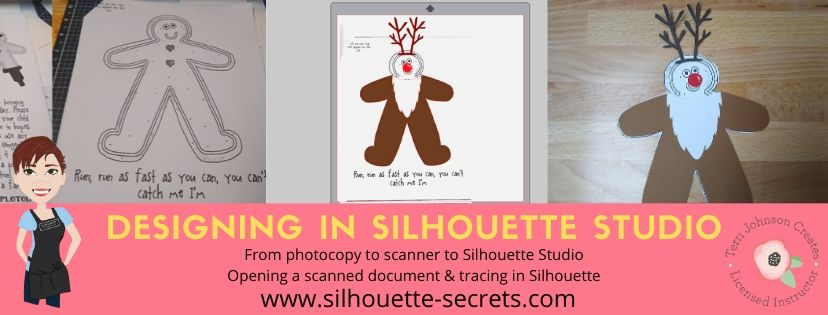
I took the Gingerbread man page, slipped it into my scanner and clicked scan. This saved the file to my computer as a PDF document. Then my little one was amazed when I used File > Open and found the PDF file and it opened up in my Silhouette software.
To open a PDF file, the Designer Edition upgrade or higher is required.

Gingerbread Scan copy.jpg

Once the design was in my Silhouette Software, I used the Basic Trace feature to trace around the outer edge of the Gingerbread man.

Basic Trace copy

I increased the threshold on the trace to get the design to show as much yellow on the outer edge of the design and keep it as smooth as possible.

Keep in mind that each design you work with will be different and there is no magic number for the threshold or adjustments to the features under the Trace Panel. Adjust it until you feel you have the best yellow around the area you want to trace as you can get.

Then, I clicked on the Trace Outer Edge because I only needed the outside edge of the Gingerbread Man.

Trace copy

Now you may notice a few extra things traced. This will depend on the image you are tracing. These artifacts should be removed or they will cut with your image. Again, each design you trace is going to react a little different. This image is a photocopy of a design, so it picks up the little shadows and such on the paper.

Right click on the design and choose Release Compound Path. Now, you will see each artifact in this design is now broken into separate objects.

Release Compound Path copy

While all of the pieces are selected, hold down the Shift key on the keyboard and click on the main part of the Gingerbread Man. This will deselect him and all the other artifacts will remain selected. Press the Delete key on the keyboard and the artifacts will be no more.

Delete artifacts copy.jpg

Next, I told my daughter I was going to cut his head off. She gasped and then started laughing.

I double clicked on the Gingerbread Man to bring up the Edit Points. These little gray dots may look intimidating when they show up, but they are very useful.
Check out the “Let’s Explore v4 – Edit Points” post for more information HERE.

The first thing I noticed is that there are a lot of edit points. This can happen on any object you trace. In the Edit Points Panel, click on the Simplify option and see if it helps decrease the edit points without changing the shape of the design too much.

Edit Points Simplify copy

Again, each design is going to vary in how it reacts.

Simplified copy.jpg

Keep in mind a few things when you trace. First, it traces each design around the edges of the yellow that you have on the screen when you do a trace. This means if the image is pixelated, then will trace all those pixels.
And, each of those edit points is a data point that the Silhouette machine has to hit when it is cutting. It is how it tells the machine how to cut around the design you send to it. If there are a lot of edit points, it can sound odd cutting and take a long time as it makes it’s way connecting all those dots.

Now, that I have fewer edit points, I can move the edit points, delete the ones not needed, and adjust their directional nodes to bring the neckline down on the reindeer costume.

Reindeer neckline copy

And there is our reindeer/gingerbread man body.

Next, we discussed that reindeer have a white stomach. I tried using the Line Drawing tool – Draw a Polygon to draw my own ruffly white belly, but I just wasn’t feeling it.

But, the Santa beard from the Santa & Friends Photo Props was ruffly. I copied it from my other file and pasted it into this design.

Knife tool copy.jpg

I then held the Shift key down and drew my knife across the beard to cut the mustache off. I selected the mustache and deleted it. Then I double clicked on the beard to bring up the edit points and deleted the ones in the center as those are not necessary.

To select multiple edit points at the same time, hold down the Shift key and drag the mouse across all the ones you want to select. This will select multiples at a time and you can then adjust or delete them.

Santa beard edited copy

Now, let’s add this to our reindeer.

Reindeer white copy

I used the bottom middle bounding box to elongate the white of the belly.

Next, I wanted the neckline to match with the brown reindeer part of the costume. Select both the brown and the white of the reindeer and make a copy. Drag this copy off the design mat. Select the brown and white reindeer on the design mat again and open the Modify Panel and choose Crop.

Modify - Crop copy.jpg

The new shape has taken on the color of the bottom layer. Change the color back to white using the Fill Color Panel and you have 2 pieces that will fit back together.

Reindeer body copy

Want to see how it will look as a finished design?

This is what is commonly referred to as a “mock up”. Taking the design you have creating and layering it on top of the original photo.

Mock Up copy

We cut all the pieces out of cardstock and my 6 year old helped with each part. She enjoyed taking the mat off the cardstock.
Tip: To help the cardstock to release from the mat, flip the mat over and peel the mat away from the cardstock. This will help the adhesive release, keep the paper from curling, and keep the adhesive on the mat.
Check out this post “Tips to Get the Most out of the Silhouette Mat” for more tips.

IMG_20191205_102446498 copy

Then my daughter used her scissor skills to cut out the gingerbread man and I asked if she wanted to go find a glue stick to attach the pieces and she says, “Mom, can you just use your good glue?” I had to laugh at that as I pulled out my Scrapbook Adhesives EZ Tape Runner. Of course, I’d much rather use that than a glue stick.

Check out this video below to go through the same steps I have walked through above.

And we had our cleverly disguised Gingerbread Man that we created together. I am amazed at the Silhouette software all the time. While I am no designer, once in awhile I may have an idea or two. And you never known when you will want to take a Santa beard and turn it into reindeer fur.

So for a recap of the tools used in the Silhouette software:
Basic Trace
Release Compound Path
Edit Points
Line Drawing Tool – Draw Polygon
– Knife Tool
Modify Panel – Crop
Fill Color Panel

It didn’t seem like that many as we worked through the project, but we covered a lot. The best way to learn is to continue to create and do things in the software.
All of the above features are linked to detailed posts in the “Let’s Explore v4” series. When you get a chance take a look and then play with something new that you learned.

I would love to see what you create, feel free to post on my Facebook group at Silhouette Secrets with EllyMae.

Enjoy!

SS_Signature copySS Logo snip it

**This post may contain affiliate links. What that means is that I may receive compensation if you purchase through the links I have provided. The price you pay for the product or service is not higher but I may get compensated for sharing.

Posted on 10 Comments

Let’s Explore the Mint & Silhouette v4

I have had this little machine for a while now, a couple years in fact. Before last weekend, I had only created 2 stamps.
Why? Time – there just isn’t enough time to do it all.

Mint Stamp machine copy

It all started with Christmas cards and one thing lead to another.
Check out my post last week for a FREE cut file for a Z Fold card that can be used for all occasions.

Now let’s see how it works!

Silhouette Mint Machine

The Silhouette Mint is a neat machine – find it out HERE.

What is the Silhouette Mint good for? Personalized stamps. And it’s so simple.

Create your design in Silhouette Studio. Open the design in the Mint Studio software. Choose the stamp size you are using. And follow the on screen directions to print your stamp. Ink it up and let the ink soak in for 5-10 minutes. Then stamp it off 20-30 times and you should be good to go. If the ink starts to fade, re-ink it and keep on stamping.

Done!

And you have unique stamps that you can use or give as gifts.

Ok, now let’s go into a little more detail.

Designing a Mint Stamp

First, I start in the Silhouette Studio software and design my stamp.

Do you know what the hardest part is for me? Settling on a design.

You would think it would be something software related, but no – it’s design related. I have a hard time committing to the design I like. I even sent this off to a friend to help me choose the design for these teacher stamps.

But, let me tell you when I do commit and put this little stamp through the machine, I do a little happy dance at the results.

Teacher stamp photo copy

I draw a box the size of the stamp I want to use and then place my design in it in order to see how it will look. Before I save the file, I delete the box.

I found it helpful to use the template (box) when designing and thought I would provide you with a FREE download of all the sizes.
Download it HERE or click on the photo.

Mint Stamp Template copy.jpg

Once I have the design I want on the stamp, I group the design together and then use File > Save As > Save to Hard Drive and choose a location to save the file to.

Save to Hard Drive copy

Open the Mint Studio software. I am using the v1.3.044 that is the most recent release of Mint Studio found on the Silhouette website HERE. I found it under the Beta section and it has worked beautifully.

When the initial window pops up, choose Open. Or use File Open in the Mint Studio and open the file that you saved from Silhouette Studio.

Mint Studio

In my design, I have 3 images that I will be creating stamps with.

Next, choose the stamp size you want to use.

Stamp Size copy.jpg

Select the design and then in the top left menu click on Object > Align > Center to Stamp.

Align Center copy

This will move the design into the center of the stamp area.

Align Stamp copy

I moved the other designs off the white space. Anything in the gray area is in the holding area and will not be used in the design of the stamp.

Once the design is placed how you like on the stamp space, click on the Send to Mint icon in the top right. 

Send to Mint copy.jpg

When you click on the “Send to Mint” icon, it will automatically mirror the image for the stamp and you will see that reflected on the screen.

Make sure the Mint machine is plugged into your computer, a power source, and turned on.

Next you will follow the Steps listed on the Send to Mint Panel.

Step 1 and 2

Step 1, in this case, I have no filters to check since I designed and opened it from Silhouette Studio.

Click on Start Mint in Step 2. The power button will flash on the Mint machine and in the bottom right of the software, the Mint machine icon it will start to register.

Start Mint copy

When it says Status: Insert Stamp Sheet, carefully place the stamp sheet arrow in to the back of the Mint Stamp Machine. Do not force the stamp sheet in. The machine will start to register it and pull it in as needed.

IMG_20191208_193554061 copy

And out pops a stamp. It’s magical!

Next, fold the chipboard back at the dotted line on the stamp sheet and peel the black stamp blank off.

IMG_20191208_195956817 copy

Then take the brown protective cover off the stamp block. Then carefully place the back of the stamp sheet onto the sticky side of the stamp block.

Carefully add Mint Ink to the stamps and let it soak in. Add another layer of ink if it soaks in quickly.

IMG_20191208_155350153 copy

I wipe any excess that didn’t soak in away with a paper towel and then stamp it off until the stamp is clear of excess ink.

And now you have a stamp made using the Silhouette software and Mint Studio. Both of these are free software programs that you can download HERE.
The possibilities are endless on what you could create with it.

Planner Stamps copy

Use it to create your own planner stamps or to create a unique gift to give.

Mint photo copy

Add a sentiment to a card.

IMG_20191209_112259954 copy

Check out last weeks blog post HERE on creating this Z-fold card with a FREE cut file.

Or grab one to give as a gift to someone HERE and then have a Mint stamping party!

You may have noticed that my Mint machine is not “naked” any longer. I have covered it with Cut Crawlers Sparkleberry Ink patterned vinyl using a file created by a friend & colleague Barbara Foster with Let’s Go Silhouetting.
Grab that file HERE!
It fits the Mint machine perfectly, right down to pieces that go on the usb & power cord.

eZy_watermark_31-08-2019_07-18-16

And that is not all. I have also created a short video following the steps listed above in creating a Mint stamp. You can view it on my Youtube channel HERE or below.

This only breaks the surface of all the neat things that you can do with the Silhouette Mint machine.
Check out this this video from Silhouette America HERE on more details when working with your Mint.

I would love to see what you create with your Silhouette software and Mint machine.  Feel free to post on my Facebook group at Silhouette Secrets with EllyMae.

Enjoy!

SS_Signature copySS Logo snip it

**This post may contain affiliate links. What that means is that I may receive compensation if you purchase through the links I have provided. The price you pay for the product or service is not higher but I may get compensated for sharing.

Posted on 7 Comments

Creating cards with your Silhouette

 I started my Silhouette journey as a paper crafter and that still has a big part of my heart. I love to play with paper and creating all kinds of projects with it. There is so much that can be done with the Silhouette but I feel that’s it’s just hard to do it all. And just like anyone else, I get a bug and have to go back to my roots.

I am also a Close to My Heart consultant and have been since right before we moved to Virginia 4 years ago. Gosh, I can’t believe it’s been that long. But I love to be able to combine the two. Close to My Heart has a great quality card stock and I love stamping as well.

So this year, I saw a card kit in the catalog and I just “had to have it”. Why? Who knows? But, it spoke to me and all the supplies to create it jumped in my cart.
That doesn’t happen to anyone else, right?

CTMH card kit.JPG

So this card kit has no Silhouette cuts in it. I didn’t use the software. I actually used the metal die Thin Cuts that come with the card kit and ran them through my Cuttlebug (although an svg file would be much easier if it were available).
So why am I writing about it?

IMG_20191205_105929398 copy

Well, even though I did nothing with my Silhouette for these cards, it gave me some creative inspiration. To be honest, I had hit a little bit of a slump.
I was testing & things weren’t going peachy, which can be frustrating.
So, I got busy doing, got busy creating, just followed the directions, and went with the flow. My kit arrived 2 days earlier than I expected and I dropped everything (including household chores) and started cutting, stamping, and assembling.

It took me longer than I thought to assemble the kit, but that was also because I thought it would be a great idea to make doubles. If I could make 15 cards, I might as well do 30 to send out. It always sounds like a good idea at the the beginning.

But one thing I do know, while I was working I was getting ideas of how to use these papers with my Silhouette and create a fold card design in the software. This was a design I had cut by hand a few years back when I was making card kits for my CTMH customers. I wasn’t focused on trying to come up with the ideas from scratch, they were just coming to me. All of a sudden it was “What about if I use these papers with my Z fold card design & stamp the images for the card?” or “What if I use a print and cut image on the front of the card?” and then “What if I created the file to give away?”
And it was back… that creative spark!

IMG_20191205_105313795 copy

And then one thing leads to another, the creative spark lights a fire. I remembered I had this little guy I had been saving to do Christmas Cards with for a long time.

I used the Print & Cut feature to cut out several Moose in Sleigh Christmas designs that would fit right on the front of the card.

Print & Cut Moose copy

This is Moose In Sleigh Christmas Print and Cut by Stinkin Cute Paper Piecings – Design #50960. And I have to admit, I have found him “stinkin’ cute”.

My new Cameo 4 registered and cut this design out beautifully.

IMG_20191204_141554050 copy

Adding it on to the front of this Z-fold card worked great!

IMG_20191205_105329983 copy

But maybe you don’t have time to create Christmas cards this year. That’s ok grab this FREE cut file below and create cards for all occasions throughout the year.

IMG_20191205_105338514 copy

I used Happy Birthday Layered by Deborah Stine – Design #57087 and turned the cut lines off, changed the color to match my patterned paper, set it up as a print & cut with the center front rectangle around it.

For more information on setting up a Print & Cut project check out Print & Cut – Part 1, Part 2 – Text, and Part 3 – Images.

Now, if you are still with me. Let’s get down to it – the FREE cut file. I hope this gets you excited to create your own cards.

Grab the FREE Z-fold cut file for this card HERE.

When you open the card file all of the pieces are stacked on top of each other so you can see where the pieces will be adhered after cutting. Move the pieces off and position them on the design cutting mat to cut each piece out. When I am cutting cards or layered designs, I like to cut several at a time and then I can sit and assemble them later while watching tv or when I just need a break.

Zfold card photo copy

Once all your pieces are cut, check out this video with tips to assemble the card.

This free z-fold card file was created by me completely in the Silhouette Studio software. I measured, drew rectangles, added score lines, and drew more rectangles to create the design. This is available to you for your own personal use and I hope that you enjoy creating with it.

I think we all hit a “creative block” sometimes and it is just good to stop and just create. Do something you love. Make something you’ve had on your list for awhile. Especially as we all go into this busy time of year, we can feel overwhelmed. Whether it’s because you just came out of an event, have continuous events going on, are filling orders, or just creating gifts for friends and family – stop and take a few moments for you today too! Whether that involves using your Silhouette or starting a project without it.
You never know when a creative idea will hit!

Now, off to get these addressed and mailed out for this year.

I would love to see what you create with this Z-fold cut file or any of your Silhouette projects that are bringing you joy today!

Feel free to post on my Facebook group at Silhouette Secrets with EllyMae.

Enjoy!

SS_Signature copySS Logo snip it

**This post may contain affiliate links. What that means is that I may receive compensation if you purchase through the links I have provided. The price you pay for the product or service is not higher but I may get compensated for sharing.

Posted on 27 Comments

Let’s Explore v4.3 – Page Setup Panel

It’s new! The new v4.3 software has been released and there are a few changes to how things look in the software. With the release of the new Cameo 4, a new software update had to be released in order for the Cameo 4 to be recognized in the software.

Today we are going to take a look at what the Page Setup Panel – Tab 1 looks like now in v4.3 software. If you have an older software version prior to v4.3, check out this post HERELet’s Explore v4 – Page Setup Panel – Page Size and Cutting Mat.

How do I know what software version I have?

First, let’s see what software version you are using.

On a PC, in the top left corner, click on Help > About Silhouette.

Software version

On a MAC, navigate to the top left menu, click on Silhouette Studio, and then click on About Silhouette.

MAC About Silhouette copy
(Thanks Libby Ashcraft for this MAC screenshot!)

This little window tells us a lot of information and is handy to have when troubleshooting an issue a user is having.

About Silhouette info copy

It tells me that I am using version 4.3.353 (currently a Beta version) and that I have Silhouette Studio Business Edition (ssbe) active on my computer.

Now, you may ask why I am using a Beta version? Well, I am part of the Silhouette Beta testing group and test the software releases that may have bug fixes or if I find bugs I can report those to the folks who need to know.
Do I recommend the Beta for the average user? NO
I only recommend the Beta version if someone is having an issue I know is resolved by updating to the Beta version or if you are very familiar with the software. The Beta version is a TEST version and with that can come unknown bugs.
The main thing I want you to find here is where to find your software version information.

Now that you know that information, you can tell if you are on a version prior to v4.2 or if you have a v4.3 software.

So let’s take a look at the differences between the Page Setup Panel – Tab 1 in v4.2 versus v4.3.

Page Setup Panel difference copy

So if you are a v4.2 or prior user, you will want to look at this post HERE for the Page Setup Panel look that matches your software.

If you are a v4.3 software user or just curious what v4.3 holds, keep reading as we go through the entire panel.

The Page Setup Panel is found in the top right corner of the Silhouette software and is one of the most important panels to get started designing.

Page Setup Panel Tab 1 copy

Let’s take a look at what each of these sections tells us.

Page Setup Panel details copy
  1. Machine – Select the machine that you want to design with. Now you can choose between a Cameo, Portrait, Curio, Alta, CE Lite, or none for the designated machine.
    Machine option copy
    This is great for Silhouette owners who may want to design on a Curio mat when they are not connected to the machine.
    It will allow the Curio mat to come up on the design page so a user can then design within that Curio mat versus having to go plug their machine in for it to be recognized.
    Curio mat copy.jpg
    This is the biggest reason for the Page Setup Panel change.
    However, something to note is that while you can select the machine to design with, you would still need to have plugged in a Curio and it be recognized by the software to unlock the Curio features such as the Emboss Panel.
  2. Cutting Mat – Choose the cutting mat size depending on what you are using.
    Each machine type selected will have a variety of options.
    Here are the Cameo options:
    Cutting mat copy

    Here are the Curio options:
    Curio cutting mat option copy

    Each drop down list will vary depending on what you have chosen in the #1 area.

  3. Media Size – this was previously known as page size and now has been changed to media as the materials you can use in your Silhouette has expanded. In the drop down are several preset sizes for the most common media sizes.
    Media Size copy

    Choosing a specific media size will adjust the media size on the screen and you will see a white “page” show up on the screen depending on the size chosen. White will appear for the media size if the transparency is at 0% – see below*
    Media Size white copy
    In the photo above, I have selected the Machine: Cameo, Cutting Mat: Auto (Cameo), and Media Size: Letter. Notice that the white has adjusted to match the Letter size paper of 8.5″ wide by 11″ height.

    Under this Media size section, you can also select a custom size by entering the dimensions into the Width and Height section.

    Custom width height copy
    Note: the width of the Media Size cannot be set larger than 12″ since the Silhouette Cameo cannot cut wider than 12″.
    If you try to adjust the width larger than 12″, it will revert it back to 12″.
    If you want to design with a page size larger than 12″, change the Cutting Mat to none & then you will be able to adjust the Media size larger than 12″ wide.

    Transparency – adjust the transparency of the media size you have selected. At 0% it shows as a solid white media on the screen. As you increase the transparency the white disappears and you will see the grid spacing of the cutting mat appear.

    This was formerly called “Reveal” under the cutting mat section.
    Transparency copy

  4. Orientation – change the orientation of the page to Portrait or Landscape orientation
  5. Rotate View – change the orientation of the entire design mat on the Silhouette software. This only rotates the view of the mat on the screen.
    Keep in mind that the black arrow is always the “top” of the mat or the “top” of the media. This is the first part of the media that is loaded into the machine.
    Rotate View copy

    Here is the view rotated to 270 degrees. No matter where the black arrow is pointing on the screen, that is always the top of the mat or media that is loaded into the machine.
    This is something to keep in mind when you are placing your design and media on the cutting mat.
    Rotate View 270 copy

  6. Show Print Border – check the box next this option to turn the Print Border on. It will show as a gray border on the screen and is set according to what printer is recognized by the computer
    Show Print Border copy
    The print border should have no affect on the cutting space, it shows what the printer margins are set to for the printer that is set up on your computer.
    If the gray lines are showing at a smaller size, most likely the print size has been changed in the Printer Setup within the software or within the Printer setup on the computer.
    Check under File > Print Page Setup for more details on the printer page size.
    Print Page Setup copy
  7. Show Cut Border – check this box to show the maximum cut border that you have to work with. A red cut border will appear around the media size you have selected.
    Show Cut Border copy

    There are 2 options for the cut border in the software. There is the Cut to Edge of Page, which is what I have my software set at as shown above. This option can be found under the Preferences options > Defaults tab in the software.
    Preferences copy

    Or there is the default, which places the cut border just a bit within the edges of the media size.

    Show Cut Border default copy
    It is all a matter of personal preference in how you have the software set up.

    I always have my Show Cut border checked, especially when doing a Print and Cut project.
  8. Print Bleed – this option can be selected for when a project is being printed through your printer to be cut. The Bleed radius can be adjusted in this section too.
    Print Bleed1 copy
    It will give the colors a bleed area (similar to an offset) around the design that is being printed. This is to help avoiding a white border around the design when it is cut.
    Print Bleed copy
    In this photo you can see that with the Print Bleed option chosen it bleeds the color out from the edges of the design.
    Print bleed final
    Here you can see the print bleed excess once the design is peeled away.

    Something to note about Print Bleed is that it does NOT show the bleed on the design screen. The bleed is only present when you have this option selected and print onto the material.

And there you have the new v4.3 Page Setup Panel. Now, if you made it all the way through the post and are scratching your head as to why your Page Setup Panel does not look this way. It could be that you are not yet on the v4.3 software version.
Check out this post HERE to see if that looks more like what you are seeing.

The next question you may be asking is – Why does it have to change?

Well, whether we like it or not, change can be good. New features, new machines, new techniques! It is a never ending learning process and I for one am grateful that the Silhouette company looks for ways to improve on things.
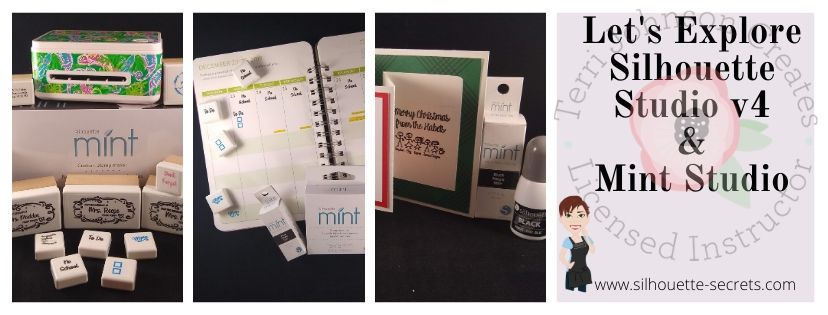
Check out the “Let’s Explore v4” section on the blog for more Silhouette software explanations HERE.
Header PDF file

I would love to see your projects & I know others in my group do too! Feel free to post on my Facebook group at Silhouette Secrets with EllyMae.

Save this post for future reference by pinning the image below.

Enjoy!

SS Logo snip it

**This post may contain affiliate links. What that means is that I may receive compensation if you purchase through the links I have provided. The price you pay for the product or service is not higher but I may get compensated for sharing.