Posted on 6 Comments

Scanning & Tracing in Silhouette Studio

Silhouette & School Projects

*this post was created using v4.3.353 of the Silhouette Studio software

My daughter came home from school and said, “Mom, I have homework and it says to do it as a family.”

Gingerbread homework copy

Permission granted. Silhouette to the rescue!
Note: affiliate links may be present in this post

The hardest part of this project was getting my 6 year old to decide what she wanted to disguise the gingerbread man as.

We went shopping in the Silhouette Design Store for disguises. She thought about a reindeer, an elf, Santa, a boy elf, a girl elf, and about a hundred other options. Guess what she settled on? A reindeer – the very first choice. Of course!

Of all the designs we viewed in the store, she chose one that I had already collected in my library. Santa & Friends Photo Props by Kolette Hall – Design #35760 was perfect.

Santa props file.JPG

Sometimes picking out the design is the longest part of a project.

But, once she settled on the reindeer she said, “But he won’t have a costume on the rest of his body.”

Well, we can fix that.

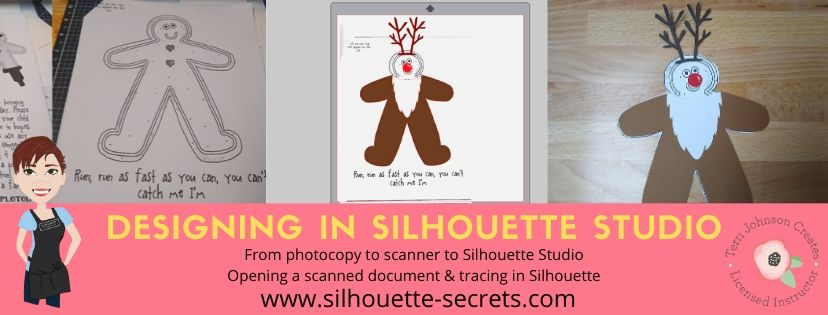
I took the Gingerbread man page, slipped it into my scanner and clicked scan. This saved the file to my computer as a PDF document. Then my little one was amazed when I used File > Open and found the PDF file and it opened up in my Silhouette software.
To open a PDF file, the Designer Edition upgrade or higher is required.

Gingerbread Scan copy.jpg

Once the design was in my Silhouette Software, I used the Basic Trace feature to trace around the outer edge of the Gingerbread man.

Basic Trace copy

I increased the threshold on the trace to get the design to show as much yellow on the outer edge of the design and keep it as smooth as possible.

Keep in mind that each design you work with will be different and there is no magic number for the threshold or adjustments to the features under the Trace Panel. Adjust it until you feel you have the best yellow around the area you want to trace as you can get.

Then, I clicked on the Trace Outer Edge because I only needed the outside edge of the Gingerbread Man.

Trace copy

Now you may notice a few extra things traced. This will depend on the image you are tracing. These artifacts should be removed or they will cut with your image. Again, each design you trace is going to react a little different. This image is a photocopy of a design, so it picks up the little shadows and such on the paper.

Right click on the design and choose Release Compound Path. Now, you will see each artifact in this design is now broken into separate objects.

Release Compound Path copy

While all of the pieces are selected, hold down the Shift key on the keyboard and click on the main part of the Gingerbread Man. This will deselect him and all the other artifacts will remain selected. Press the Delete key on the keyboard and the artifacts will be no more.

Delete artifacts copy.jpg

Next, I told my daughter I was going to cut his head off. She gasped and then started laughing.

I double clicked on the Gingerbread Man to bring up the Edit Points. These little gray dots may look intimidating when they show up, but they are very useful.
Check out the “Let’s Explore v4 – Edit Points” post for more information HERE.

The first thing I noticed is that there are a lot of edit points. This can happen on any object you trace. In the Edit Points Panel, click on the Simplify option and see if it helps decrease the edit points without changing the shape of the design too much.

Edit Points Simplify copy

Again, each design is going to vary in how it reacts.

Simplified copy.jpg

Keep in mind a few things when you trace. First, it traces each design around the edges of the yellow that you have on the screen when you do a trace. This means if the image is pixelated, then will trace all those pixels.
And, each of those edit points is a data point that the Silhouette machine has to hit when it is cutting. It is how it tells the machine how to cut around the design you send to it. If there are a lot of edit points, it can sound odd cutting and take a long time as it makes it’s way connecting all those dots.

Now, that I have fewer edit points, I can move the edit points, delete the ones not needed, and adjust their directional nodes to bring the neckline down on the reindeer costume.

Reindeer neckline copy

And there is our reindeer/gingerbread man body.

Next, we discussed that reindeer have a white stomach. I tried using the Line Drawing tool – Draw a Polygon to draw my own ruffly white belly, but I just wasn’t feeling it.

But, the Santa beard from the Santa & Friends Photo Props was ruffly. I copied it from my other file and pasted it into this design.

Knife tool copy.jpg

I then held the Shift key down and drew my knife across the beard to cut the mustache off. I selected the mustache and deleted it. Then I double clicked on the beard to bring up the edit points and deleted the ones in the center as those are not necessary.

To select multiple edit points at the same time, hold down the Shift key and drag the mouse across all the ones you want to select. This will select multiples at a time and you can then adjust or delete them.

Santa beard edited copy

Now, let’s add this to our reindeer.

Reindeer white copy

I used the bottom middle bounding box to elongate the white of the belly.

Next, I wanted the neckline to match with the brown reindeer part of the costume. Select both the brown and the white of the reindeer and make a copy. Drag this copy off the design mat. Select the brown and white reindeer on the design mat again and open the Modify Panel and choose Crop.

Modify - Crop copy.jpg

The new shape has taken on the color of the bottom layer. Change the color back to white using the Fill Color Panel and you have 2 pieces that will fit back together.

Reindeer body copy

Want to see how it will look as a finished design?

This is what is commonly referred to as a “mock up”. Taking the design you have creating and layering it on top of the original photo.

Mock Up copy

We cut all the pieces out of cardstock and my 6 year old helped with each part. She enjoyed taking the mat off the cardstock.
Tip: To help the cardstock to release from the mat, flip the mat over and peel the mat away from the cardstock. This will help the adhesive release, keep the paper from curling, and keep the adhesive on the mat.
Check out this post “Tips to Get the Most out of the Silhouette Mat” for more tips.

IMG_20191205_102446498 copy

Then my daughter used her scissor skills to cut out the gingerbread man and I asked if she wanted to go find a glue stick to attach the pieces and she says, “Mom, can you just use your good glue?” I had to laugh at that as I pulled out my Scrapbook Adhesives EZ Tape Runner. Of course, I’d much rather use that than a glue stick.

Check out this video below to go through the same steps I have walked through above.

And we had our cleverly disguised Gingerbread Man that we created together. I am amazed at the Silhouette software all the time. While I am no designer, once in awhile I may have an idea or two. And you never known when you will want to take a Santa beard and turn it into reindeer fur.

So for a recap of the tools used in the Silhouette software:
Basic Trace
Release Compound Path
Edit Points
Line Drawing Tool – Draw Polygon
– Knife Tool
Modify Panel – Crop
Fill Color Panel

It didn’t seem like that many as we worked through the project, but we covered a lot. The best way to learn is to continue to create and do things in the software.
All of the above features are linked to detailed posts in the “Let’s Explore v4” series. When you get a chance take a look and then play with something new that you learned.

I would love to see what you create, feel free to post on my Facebook group at Silhouette Secrets with EllyMae.

Enjoy!

SS_Signature copySS Logo snip it

**This post may contain affiliate links. What that means is that I may receive compensation if you purchase through the links I have provided. The price you pay for the product or service is not higher but I may get compensated for sharing.

Posted on 10 Comments

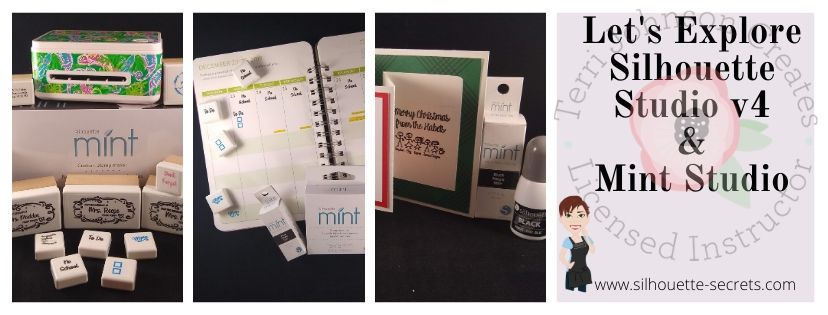
Let’s Explore the Mint & Silhouette v4

I have had this little machine for a while now, a couple years in fact. Before last weekend, I had only created 2 stamps.
Why? Time – there just isn’t enough time to do it all.

Mint Stamp machine copy

It all started with Christmas cards and one thing lead to another.
Check out my post last week for a FREE cut file for a Z Fold card that can be used for all occasions.

Now let’s see how it works!

Silhouette Mint Machine

The Silhouette Mint is a neat machine – find it out HERE.

What is the Silhouette Mint good for? Personalized stamps. And it’s so simple.

Create your design in Silhouette Studio. Open the design in the Mint Studio software. Choose the stamp size you are using. And follow the on screen directions to print your stamp. Ink it up and let the ink soak in for 5-10 minutes. Then stamp it off 20-30 times and you should be good to go. If the ink starts to fade, re-ink it and keep on stamping.

Done!

And you have unique stamps that you can use or give as gifts.

Ok, now let’s go into a little more detail.

Designing a Mint Stamp

First, I start in the Silhouette Studio software and design my stamp.

Do you know what the hardest part is for me? Settling on a design.

You would think it would be something software related, but no – it’s design related. I have a hard time committing to the design I like. I even sent this off to a friend to help me choose the design for these teacher stamps.

But, let me tell you when I do commit and put this little stamp through the machine, I do a little happy dance at the results.

Teacher stamp photo copy

I draw a box the size of the stamp I want to use and then place my design in it in order to see how it will look. Before I save the file, I delete the box.

I found it helpful to use the template (box) when designing and thought I would provide you with a FREE download of all the sizes.
Download it HERE or click on the photo.

Mint Stamp Template copy.jpg

Once I have the design I want on the stamp, I group the design together and then use File > Save As > Save to Hard Drive and choose a location to save the file to.

Save to Hard Drive copy

Open the Mint Studio software. I am using the v1.3.044 that is the most recent release of Mint Studio found on the Silhouette website HERE. I found it under the Beta section and it has worked beautifully.

When the initial window pops up, choose Open. Or use File Open in the Mint Studio and open the file that you saved from Silhouette Studio.

Mint Studio

In my design, I have 3 images that I will be creating stamps with.

Next, choose the stamp size you want to use.

Stamp Size copy.jpg

Select the design and then in the top left menu click on Object > Align > Center to Stamp.

Align Center copy

This will move the design into the center of the stamp area.

Align Stamp copy

I moved the other designs off the white space. Anything in the gray area is in the holding area and will not be used in the design of the stamp.

Once the design is placed how you like on the stamp space, click on the Send to Mint icon in the top right. 

Send to Mint copy.jpg

When you click on the “Send to Mint” icon, it will automatically mirror the image for the stamp and you will see that reflected on the screen.

Make sure the Mint machine is plugged into your computer, a power source, and turned on.

Next you will follow the Steps listed on the Send to Mint Panel.

Step 1 and 2

Step 1, in this case, I have no filters to check since I designed and opened it from Silhouette Studio.

Click on Start Mint in Step 2. The power button will flash on the Mint machine and in the bottom right of the software, the Mint machine icon it will start to register.

Start Mint copy

When it says Status: Insert Stamp Sheet, carefully place the stamp sheet arrow in to the back of the Mint Stamp Machine. Do not force the stamp sheet in. The machine will start to register it and pull it in as needed.

IMG_20191208_193554061 copy

And out pops a stamp. It’s magical!

Next, fold the chipboard back at the dotted line on the stamp sheet and peel the black stamp blank off.

IMG_20191208_195956817 copy

Then take the brown protective cover off the stamp block. Then carefully place the back of the stamp sheet onto the sticky side of the stamp block.

Carefully add Mint Ink to the stamps and let it soak in. Add another layer of ink if it soaks in quickly.

IMG_20191208_155350153 copy

I wipe any excess that didn’t soak in away with a paper towel and then stamp it off until the stamp is clear of excess ink.

And now you have a stamp made using the Silhouette software and Mint Studio. Both of these are free software programs that you can download HERE.
The possibilities are endless on what you could create with it.

Planner Stamps copy

Use it to create your own planner stamps or to create a unique gift to give.

Mint photo copy

Add a sentiment to a card.

IMG_20191209_112259954 copy

Check out last weeks blog post HERE on creating this Z-fold card with a FREE cut file.

Or grab one to give as a gift to someone HERE and then have a Mint stamping party!

You may have noticed that my Mint machine is not “naked” any longer. I have covered it with Cut Crawlers Sparkleberry Ink patterned vinyl using a file created by a friend & colleague Barbara Foster with Let’s Go Silhouetting.
Grab that file HERE!
It fits the Mint machine perfectly, right down to pieces that go on the usb & power cord.

eZy_watermark_31-08-2019_07-18-16

And that is not all. I have also created a short video following the steps listed above in creating a Mint stamp. You can view it on my Youtube channel HERE or below.

This only breaks the surface of all the neat things that you can do with the Silhouette Mint machine.
Check out this this video from Silhouette America HERE on more details when working with your Mint.

I would love to see what you create with your Silhouette software and Mint machine.  Feel free to post on my Facebook group at Silhouette Secrets with EllyMae.

Enjoy!

SS_Signature copySS Logo snip it

**This post may contain affiliate links. What that means is that I may receive compensation if you purchase through the links I have provided. The price you pay for the product or service is not higher but I may get compensated for sharing.
Posted on 7 Comments

Creating cards with your Silhouette

 I started my Silhouette journey as a paper crafter and that still has a big part of my heart. I love to play with paper and creating all kinds of projects with it. There is so much that can be done with the Silhouette but I feel that’s it’s just hard to do it all. And just like anyone else, I get a bug and have to go back to my roots.

I am also a Close to My Heart consultant and have been since right before we moved to Virginia 4 years ago. Gosh, I can’t believe it’s been that long. But I love to be able to combine the two. Close to My Heart has a great quality card stock and I love stamping as well.

So this year, I saw a card kit in the catalog and I just “had to have it”. Why? Who knows? But, it spoke to me and all the supplies to create it jumped in my cart.
That doesn’t happen to anyone else, right?

CTMH card kit.JPG

So this card kit has no Silhouette cuts in it. I didn’t use the software. I actually used the metal die Thin Cuts that come with the card kit and ran them through my Cuttlebug (although an svg file would be much easier if it were available).
So why am I writing about it?

IMG_20191205_105929398 copy

Well, even though I did nothing with my Silhouette for these cards, it gave me some creative inspiration. To be honest, I had hit a little bit of a slump.
I was testing & things weren’t going peachy, which can be frustrating.
So, I got busy doing, got busy creating, just followed the directions, and went with the flow. My kit arrived 2 days earlier than I expected and I dropped everything (including household chores) and started cutting, stamping, and assembling.

It took me longer than I thought to assemble the kit, but that was also because I thought it would be a great idea to make doubles. If I could make 15 cards, I might as well do 30 to send out. It always sounds like a good idea at the the beginning.

But one thing I do know, while I was working I was getting ideas of how to use these papers with my Silhouette and create a fold card design in the software. This was a design I had cut by hand a few years back when I was making card kits for my CTMH customers. I wasn’t focused on trying to come up with the ideas from scratch, they were just coming to me. All of a sudden it was “What about if I use these papers with my Z fold card design & stamp the images for the card?” or “What if I use a print and cut image on the front of the card?” and then “What if I created the file to give away?”
And it was back… that creative spark!

IMG_20191205_105313795 copy

And then one thing leads to another, the creative spark lights a fire. I remembered I had this little guy I had been saving to do Christmas Cards with for a long time.

I used the Print & Cut feature to cut out several Moose in Sleigh Christmas designs that would fit right on the front of the card.

Print & Cut Moose copy

This is Moose In Sleigh Christmas Print and Cut by Stinkin Cute Paper Piecings – Design #50960. And I have to admit, I have found him “stinkin’ cute”.

My new Cameo 4 registered and cut this design out beautifully.

IMG_20191204_141554050 copy

Adding it on to the front of this Z-fold card worked great!

IMG_20191205_105329983 copy

But maybe you don’t have time to create Christmas cards this year. That’s ok grab this FREE cut file below and create cards for all occasions throughout the year.

IMG_20191205_105338514 copy

I used Happy Birthday Layered by Deborah Stine – Design #57087 and turned the cut lines off, changed the color to match my patterned paper, set it up as a print & cut with the center front rectangle around it.

For more information on setting up a Print & Cut project check out Print & Cut – Part 1, Part 2 – Text, and Part 3 – Images.

Now, if you are still with me. Let’s get down to it – the FREE cut file. I hope this gets you excited to create your own cards.

Grab the FREE Z-fold cut file for this card HERE.

When you open the card file all of the pieces are stacked on top of each other so you can see where the pieces will be adhered after cutting. Move the pieces off and position them on the design cutting mat to cut each piece out. When I am cutting cards or layered designs, I like to cut several at a time and then I can sit and assemble them later while watching tv or when I just need a break.

Zfold card photo copy

Once all your pieces are cut, check out this video with tips to assemble the card.

This free z-fold card file was created by me completely in the Silhouette Studio software. I measured, drew rectangles, added score lines, and drew more rectangles to create the design. This is available to you for your own personal use and I hope that you enjoy creating with it.

I think we all hit a “creative block” sometimes and it is just good to stop and just create. Do something you love. Make something you’ve had on your list for awhile. Especially as we all go into this busy time of year, we can feel overwhelmed. Whether it’s because you just came out of an event, have continuous events going on, are filling orders, or just creating gifts for friends and family – stop and take a few moments for you today too! Whether that involves using your Silhouette or starting a project without it.
You never know when a creative idea will hit!

Now, off to get these addressed and mailed out for this year.

I would love to see what you create with this Z-fold cut file or any of your Silhouette projects that are bringing you joy today!

Feel free to post on my Facebook group at Silhouette Secrets with EllyMae.

Enjoy!

SS_Signature copySS Logo snip it

**This post may contain affiliate links. What that means is that I may receive compensation if you purchase through the links I have provided. The price you pay for the product or service is not higher but I may get compensated for sharing.

Posted on 27 Comments

Let’s Explore v4.3 – Page Setup Panel

It’s new! The new v4.3 software has been released and there are a few changes to how things look in the software. With the release of the new Cameo 4, a new software update had to be released in order for the Cameo 4 to be recognized in the software.

Today we are going to take a look at what the Page Setup Panel – Tab 1 looks like now in v4.3 software. If you have an older software version prior to v4.3, check out this post HERELet’s Explore v4 – Page Setup Panel – Page Size and Cutting Mat.

How do I know what software version I have?

First, let’s see what software version you are using.

On a PC, in the top left corner, click on Help > About Silhouette.

Software version

On a MAC, navigate to the top left menu, click on Silhouette Studio, and then click on About Silhouette.

MAC About Silhouette copy
(Thanks Libby Ashcraft for this MAC screenshot!)

This little window tells us a lot of information and is handy to have when troubleshooting an issue a user is having.

About Silhouette info copy

It tells me that I am using version 4.3.353 (currently a Beta version) and that I have Silhouette Studio Business Edition (ssbe) active on my computer.

Now, you may ask why I am using a Beta version? Well, I am part of the Silhouette Beta testing group and test the software releases that may have bug fixes or if I find bugs I can report those to the folks who need to know.
Do I recommend the Beta for the average user? NO
I only recommend the Beta version if someone is having an issue I know is resolved by updating to the Beta version or if you are very familiar with the software. The Beta version is a TEST version and with that can come unknown bugs.
The main thing I want you to find here is where to find your software version information.

Now that you know that information, you can tell if you are on a version prior to v4.2 or if you have a v4.3 software.

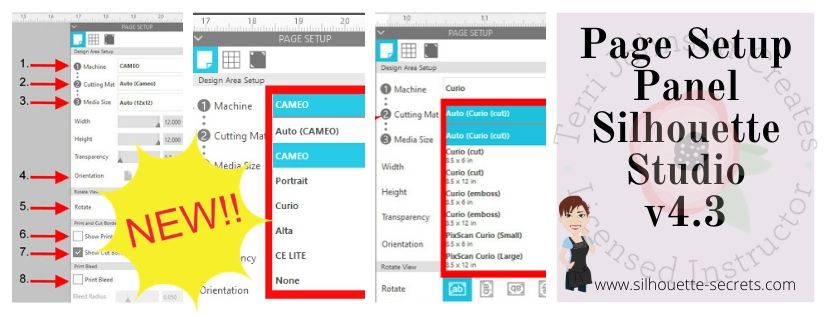
So let’s take a look at the differences between the Page Setup Panel – Tab 1 in v4.2 versus v4.3.

Page Setup Panel difference copy

So if you are a v4.2 or prior user, you will want to look at this post HERE for the Page Setup Panel look that matches your software.

If you are a v4.3 software user or just curious what v4.3 holds, keep reading as we go through the entire panel.

The Page Setup Panel is found in the top right corner of the Silhouette software and is one of the most important panels to get started designing.

Page Setup Panel Tab 1 copy

Let’s take a look at what each of these sections tells us.

Page Setup Panel details copy
  1. Machine – Select the machine that you want to design with. Now you can choose between a Cameo, Portrait, Curio, Alta, CE Lite, or none for the designated machine.
    Machine option copy
    This is great for Silhouette owners who may want to design on a Curio mat when they are not connected to the machine.
    It will allow the Curio mat to come up on the design page so a user can then design within that Curio mat versus having to go plug their machine in for it to be recognized.
    Curio mat copy.jpg
    This is the biggest reason for the Page Setup Panel change.
    However, something to note is that while you can select the machine to design with, you would still need to have plugged in a Curio and it be recognized by the software to unlock the Curio features such as the Emboss Panel.
  2. Cutting Mat – Choose the cutting mat size depending on what you are using.
    Each machine type selected will have a variety of options.
    Here are the Cameo options:
    Cutting mat copy

    Here are the Curio options:
    Curio cutting mat option copy

    Each drop down list will vary depending on what you have chosen in the #1 area.

  3. Media Size – this was previously known as page size and now has been changed to media as the materials you can use in your Silhouette has expanded. In the drop down are several preset sizes for the most common media sizes.
    Media Size copy

    Choosing a specific media size will adjust the media size on the screen and you will see a white “page” show up on the screen depending on the size chosen. White will appear for the media size if the transparency is at 0% – see below*
    Media Size white copy
    In the photo above, I have selected the Machine: Cameo, Cutting Mat: Auto (Cameo), and Media Size: Letter. Notice that the white has adjusted to match the Letter size paper of 8.5″ wide by 11″ height.

    Under this Media size section, you can also select a custom size by entering the dimensions into the Width and Height section.

    Custom width height copy
    Note: the width of the Media Size cannot be set larger than 12″ since the Silhouette Cameo cannot cut wider than 12″.
    If you try to adjust the width larger than 12″, it will revert it back to 12″.
    If you want to design with a page size larger than 12″, change the Cutting Mat to none & then you will be able to adjust the Media size larger than 12″ wide.

    Transparency – adjust the transparency of the media size you have selected. At 0% it shows as a solid white media on the screen. As you increase the transparency the white disappears and you will see the grid spacing of the cutting mat appear.

    This was formerly called “Reveal” under the cutting mat section.
    Transparency copy

  4. Orientation – change the orientation of the page to Portrait or Landscape orientation
  5. Rotate View – change the orientation of the entire design mat on the Silhouette software. This only rotates the view of the mat on the screen.
    Keep in mind that the black arrow is always the “top” of the mat or the “top” of the media. This is the first part of the media that is loaded into the machine.
    Rotate View copy

    Here is the view rotated to 270 degrees. No matter where the black arrow is pointing on the screen, that is always the top of the mat or media that is loaded into the machine.
    This is something to keep in mind when you are placing your design and media on the cutting mat.
    Rotate View 270 copy

  6. Show Print Border – check the box next this option to turn the Print Border on. It will show as a gray border on the screen and is set according to what printer is recognized by the computer
    Show Print Border copy
    The print border should have no affect on the cutting space, it shows what the printer margins are set to for the printer that is set up on your computer.
    If the gray lines are showing at a smaller size, most likely the print size has been changed in the Printer Setup within the software or within the Printer setup on the computer.
    Check under File > Print Page Setup for more details on the printer page size.
    Print Page Setup copy
  7. Show Cut Border – check this box to show the maximum cut border that you have to work with. A red cut border will appear around the media size you have selected.
    Show Cut Border copy

    There are 2 options for the cut border in the software. There is the Cut to Edge of Page, which is what I have my software set at as shown above. This option can be found under the Preferences options > Defaults tab in the software.
    Preferences copy

    Or there is the default, which places the cut border just a bit within the edges of the media size.

    Show Cut Border default copy
    It is all a matter of personal preference in how you have the software set up.

    I always have my Show Cut border checked, especially when doing a Print and Cut project.
  8. Print Bleed – this option can be selected for when a project is being printed through your printer to be cut. The Bleed radius can be adjusted in this section too.
    Print Bleed1 copy
    It will give the colors a bleed area (similar to an offset) around the design that is being printed. This is to help avoiding a white border around the design when it is cut.
    Print Bleed copy
    In this photo you can see that with the Print Bleed option chosen it bleeds the color out from the edges of the design.
    Print bleed final
    Here you can see the print bleed excess once the design is peeled away.

    Something to note about Print Bleed is that it does NOT show the bleed on the design screen. The bleed is only present when you have this option selected and print onto the material.

And there you have the new v4.3 Page Setup Panel. Now, if you made it all the way through the post and are scratching your head as to why your Page Setup Panel does not look this way. It could be that you are not yet on the v4.3 software version.
Check out this post HERE to see if that looks more like what you are seeing.

The next question you may be asking is – Why does it have to change?

Well, whether we like it or not, change can be good. New features, new machines, new techniques! It is a never ending learning process and I for one am grateful that the Silhouette company looks for ways to improve on things.

Check out the “Let’s Explore v4” section on the blog for more Silhouette software explanations HERE.
Header PDF file

I would love to see your projects & I know others in my group do too! Feel free to post on my Facebook group at Silhouette Secrets with EllyMae.

Save this post for future reference by pinning the image below.

Enjoy!

SS Logo snip it

**This post may contain affiliate links. What that means is that I may receive compensation if you purchase through the links I have provided. The price you pay for the product or service is not higher but I may get compensated for sharing.

Posted on 7 Comments

All Things Silhouette – 2019 November Highlights

It is always a bittersweet feeling after a weekend teaching at an event. We just wrapped up the All Things Silhouette November 2019 Conference and it was fantastic!

What is the All Things Silhouette Conference about? 

It’s about the people! The people who are all gathered together with the common interest of “Silhouette” in common.

We come together, we laugh, we learn, we connect, we share, and we laugh some more!

IMG_20191108_210747493 copy

We all work hard for months before the conference, during the conference, and yes even after the conference! It takes a great team to make all the pieces of the puzzle fit into place.

And it all started with this lady right here! Terri Johnson Creates is the vision & working power behind the All Things Silhouette Conference, TJC Licensed Instructor Program, and many other Silhouette related events.

IMG_20191109_081242523

While I have worked side-by-side with her for a couple years now, it is rare that we remember to take a photo during the event. That has to be the hardest thing for me to remember to do at an event is to take photos.

Check out the upcoming 2020 events that are planned on the Terri Johnson Creates website HERE.

The All Things Silhouette Conference brings together the top of the Silhouette Industry leaders who share their knowledge, techniques, testing, and skills with the conference attendees. Here are a few of us at the end of the conference. Again, photos of the entire group are rare. We are rarely in the same place at the same time the entire weekend.

FB_IMG_1573469140739
(left to right: Terri Johnson Creates, Libby Ashcraft, Sarah Cannon (Silhouette), EllyMae Habets (Silhouette Secrets+), Kelly Wayment (Finding Time to Create), Cindy Eckhoff (Smart Silhouette), Julie Huggins (Sew Craft N’Spired), Kathryn Geddy, Amy Robinson (Silhouette Design Store Designer), Lori Whitlock (Silhouette Design Store Designer), Mags Bonham, Cindy Pope

The connections that are made at the Silhouette events are priceless!

During this ATS event, I taught several classes using the Silhouette Curio.

If you are a Curio owner, you may have realized by now that it can create really cool projects. However, it can take some time to create those and those projects are not always possible to achieve in the hour & 15 minute class time during the regular ATS weekend. From feedback provided by the attendees, a Friday pre-ATS event has been added. This is an add-on to the regular ATS package called the Ultimate Experience.

This is the 2nd time I’ve taught a Curio Boot Camp session. It is very popular and sells out quickly once it’s posted. While it is posted as a 3 hour class, you just never know what will pop up in class and we did go over in time, but everyone was so involved in creating their own designs that you could hear a pin drop in the class. I don’t think they wanted to leave even after their project finished etching.

Curio Boot Camp project

This is a 4″ x 6″ acrylic panel from Craft Chameleon that is etched with the Silhouette Curio. This design is the Sunflower Heart Mandala by Jennifer Wambach in the Silhouette Design Store.
Thank you to both Craft Chameleon and Jennifer Wambach for sponsoring this class!

During the regular ATS weekend I taught the Basic Acrylic Etching class and I showed them how to set up the design to be etched. This design was created in the Silhouette software using basic shapes – check out this post on Drawing Tools to see how you can create your own snowflake too.

Sil_Secrets_Basic Etch

And then a little change of pace. We used the Foil Quill on a faux leather Traveler’s Notebook using the Silhouette Curio. I love the Curio because when you load the base properly, the cutting mat lines up exactly with the cutting mat on your Silhouette software screen. This means that you can place the design on your design screen and then place your materials in the same place on the cutting mat and it will line up.
Check out this The Curio – Getting Started for more information on the Curio.

Sil_Secrets_Foil Compasspic copy

Thank you to Lori Whitlock for providing the Compass design for this class.
It was a big hit!

Collage Travelers Journal copy

And then the final class I taught was a 2 hour class on Saturday evening. We created an etched snowflake home decor project on a 5″ acrylic disc using the Silhouette Curio.

Sil_Secrets_Etchedhomedecor

Thank you to our class sponsors:
Craft Chameleon for the 5″ acrylic disc and Diamond Tip Reamer
H & H Sign Supply for the Glass Etched Vinyl & Oratape Transfer Tape
Snapdragon Snippets in the Silhouette Design Store for the Snowflake Poem Design #72245

Unfortunately, due to some computer issues and things out of our control, we did not get to etch these ornaments in the Basic Acrylic Etching class. While we never like to see it happen, sometimes it does. And, I did not want them to leave empty handed, so I told them all to stop at the registration desk and pick up an etched ornament the next day.

IMG_20191110_073623821 copy

After my last class of the day on Saturday night, I utilized the Curio classroom and connected to 6 machines to etch the 30 ornaments. With the Silhouette Studio Business Edition upgrade, you can use multiple machines at a time. I really was not sure how many machines I would be able to use at once, especially when you are using an etch design as it can be a larger data file. It was either going to be a success or a fail. But, my computer easily ran the 6 Curios etching at the same time. Check out this post on Using Multiple Machines to see how to switch between machines in the software.

Next time, I’ll see how many I can really hook up to my computer and run. There is no limit to the number of machines that can be used with the Business Edition upgrade, except what your computer can handle. This will be dependent on your computer specifications and the number of usb ports you have available to connect to. If you have too many machines going it could max out your computer processing power and that could mean anything from a lag to a crash. But, you never know until you try something out.

And when I wasn’t teaching the class, I was helping out in the classes and every single one I learn something new in. I wish I could clone myself to be in them all.

I had a moment to jump on a Curio machine and complete this design on a Embossable Foil that Kelly Wayment with Finding Time to Create was teaching in the Basic Curio class. I had never used Embossable Foil before & I love it!
I’ve added this to my Black Friday shopping list – stay tuned for that announcement!

IMG_20191109_114859823 copy

It is absolutely amazing what these Silhouette machines are capable of! And I am so grateful for all the blessings that being a Silhouette owner has brought into my life. Now, that may sound odd but, as I started this post out – it is all about the people. Through the commonality of Silhouette I have met so many people who mean so much to me.

My biggest fault at these events is not getting enough photos, especially when I’m teaching. But here are a few I was able to snap.

Courtesy of Cindy Chapko a fellow TJC Licensed Instructor in Arkansas

IMG_20191110_075936352

A shirt made by Jane McClure. This reminds me of our recent trip to Salt Lake City, UT for the Cameo 4 launch except we were all in a mini van. Check out this post on the Silhouette Home Office Tour HERE.

IMG_20191110_082145384

Here is the backside of the shirts that Jane and her group made. These are amazing!

Dee and I had to do a couple retakes to show off her newly etched bracelet that she created in a Curio class with Mags Bonham. By the 3rd photo, no one looked like they were getting punched. We had some good laughs though!

IMG_20191110_135736347

And my hair made it on another shirt! Looks like it’s time for a little color for me.

FB_IMG_1573277476610

It was a fabulous weekend and each All Things Silhouette Conference keeps getting better and better! I was writing down class ideas before the weekend was even over!

Make sure to get signed up for the November 2020 All Things Silhouette Conference as soon as registration opens. It will fill quickly with only 1 conference next year. Sign up to be notified on Terri Johnson Creates blog HERE.

While the weekend is always physically exhausting because we are on the go, it is also creatively renewing. All the creative energy, the Silhouette love, the knowledge floating around, the ideas & techniques shared…. it renews & refreshes you in a way that is so hard to put into words.

It gets your wheels spinning and ideas flowing. And I typically hit the ground running or most times while the airplane wheels are still in the air, I’m typing away on my phone jotting down more ideas.

While I tell myself I am going to take a break after each event, I feel recharged after and don’t want those ideas to run away.

On with the research and testing for the next event.
Can’t wait to share the final projects with you all!

Now, while we have to wait a whole year for the next All Things Silhouette Conference, that doesn’t mean you cannot get inspired or spread inspiration to others.

I would love to see your projects & I know others in my group do too! Feel free to post on my Facebook group at Silhouette Secrets with EllyMae.

Enjoy!

SS_Signature copySS Logo snip it

**This post may contain affiliate links. What that means is that I may receive compensation if you purchase through the links I have provided. The price you pay for the product or service is not higher but I may get compensated for sharing.

Posted on Leave a comment

Acrylic Etching at ATS – November 2019

I’ve just arrived home from the November All Things Silhouette Conference for 2019 and so many ideas are hitting me. I am making notes for when I get a chance to start creating again.

I wanted to share a project I created and put in the Silhouette Showcase room at the conference.

This is an acrylic etched with the Silhouette Curio. It is a lighted base that can be found at Craft Chameleon and the acrylic is specifically sized for the base.
This is one of my favorite ones that I have etched for the base.

eZy_watermark_12-11-2019_03-23-14

Acrylic light base by Craft Chameleon found HERE

SilSecrets_lightedbase copy

There are several different acrylic shapes that fit in the lighted bases and also Curio Templates for all those shapes.
I LOVE the Curio templates to help hold my blanks in place!

Thank you to Craft Chameleon for allowing me “test” this one out for them to share with everyone at the ATS – Showcase.

I couldn’t stop there though. I etched 150 of the 15/16″ acrylic discs and gave those out to the attendees of all the Ultimate ATS attendees for the Friday classes in their goody bags.

SilSecrets_acrylic charm

For these I added a wine charm to the bag but they could also add it to a key chain or other type of hardware too!

I had a few extras and turned mine into a pair of earrings that I wore this weekend too!

SilSecrets_earrings

And yes, there is a Curio template for these charms too! I was able to etch 10 charms at a time.

And I want to share this with all of you because I think it is so neat.
I was able to use my Business Edition software to connect to 6 different Curio machines to etch 30 snowflake ornaments during the conference.
It’s a long story on why but where else do you get access to a room full of Curios.
Next time, I’ll try even more!

Are you just getting started with the Curio? I recommend starting with the Silhouette metal etching sheets and practicing first.
Here is a step by step tutorial on how I do that – Beginner Curio Etching Metal.

beginner curio Etching metal header copy

Want to learn how to etch on acrylic? I just recently launched an online class on my Teachable site to show you how.
Check it out HERE along with my other classes that are available.

SilSecrets Curio Etching copy

Or if that is not enough, come join us for a full weekend of Curio projects on May 1-3, 2020 at the Curio Retreat in Woodbridge, VA!
Grab your seat quick as we are already over 50% full!

SilSecrets_Curioworkshop.jpg

I would love to see your projects feel free to post on my Facebook group at Silhouette Secrets with EllyMae.

Enjoy!

SS_Signature copySS Logo snip it

**This post may contain affiliate links. What that means is that I may receive compensation if you purchase through the links I have provided. The price you pay for the product or service is not higher but I may get compensated for sharing.


Posted on 13 Comments

Silhouette Rotary Blade – First cuts

Silhouette Secrets+ with EllyMae

If you’ve been curious about how the Silhouette Rotary Blade works, you’re not alone! I recently made my first cuts using the Rotary Blade, and I’m excited to share the results. This specialty tool is designed to glide through soft, fibrous materials like felt, fabric, and crepe paper—without needing a backing or stabilizer. In this post, I’ll walk you through how the Rotary Blade works in Silhouette Studio, the key tips I discovered along the way, and how you can get clean, beautiful cuts right from the start. Whether you’re cutting fabric for appliqué or crafting adorable felt stuffies, this tool opens up a whole new world of creative possibilities!

On October 18, 2019 a package showed up in my mail box. My kids were excited, I was excited – we were all excited. While their excitement quickly wore off, mine has not.

Four Silhouette Cameo 4 tools packaged on a wooden surface, including a Punch Tool, Rotary Blade, 2 mm Kraft Blade, and Pen Holder.

Affiliate links may be present in the following blog post and as an Amazon Associate, I earn from qualifying purchases.

The new tools for the Cameo 4 had arrived. After attending the Silhouette Summit in May and learning about the new Cameo 4 release and the new tools to go with it, they are finally here.

Updated 6-15-25 – the Silhouette Rotary blade is compatible with the Silhouette Cameo 4 models, Cameo 5 models, and Curio 2.

From left to right they are: The Punch Tool, Rotary blade, 2 mm Kraft blade (Cameo 3 or 4), and the Pen Holder. The 3 mm Kraft blade was not in my box, but will be coming soon.

Today I’m going to show you my first cut with the Cameo 4 – Rotary blade.
It is a pretty simple cut.

Last week while I was finishing the prep for my Foil Quill on a Traveler’s Notebook class for the upcoming All Things Silhouette Conference, I was having a heck of a time getting the same foil results as I had with my original demo. I ended up having several traveler’s notebooks that were “sacrificed” in the testing process.
What was I going to do with all these “failed” tests?

A pink faux leather notebook cover featuring gold foil compass designs and the word 'Test' repeated vertically.

My fabric selection is very minimal, so I just grabbed the first one I found.

A faux leather traveler's notebook with a compass design, resting on a colorful fabric patterned with wine bottles, beside a Silhouette cutting machine.

And no joke, it was the first one I saw. This is leftover from a gift making session a few years back where I tried my hand at fabric key fobs.

Why not cover the journal as a test?
Cut this thin cotton fabric with the rotary blade and test it out. Perfect!

I measured out how big the traveler’s notebook was and then drew a rounded rectangle in the Silhouette software. I added a little bit to the measurements to allow for some overlap around the edges of the cover. In hindsight, I should have allowed a bit more.

So the first thing I want to mention is that when you get the Cameo 4 Rotary Blade, you want to twist the bottom to expose the blade. This is a safety feature so the blade is not exposed right out of the package.
And it won’t cut very well at all if you don’t twist the bottom to expose the blade. You’ll have to trust me on that one.

Close-up of a hand holding a white rotary blade tool for the Cameo 4, with a cutting mat in the background.

Once you install the Rotary blade in the Cameo 4 Tool 2, the software will recognize the tool has been installed with the new Tool Recognition and will give you the cut options for that tool.

Next, when you use the Cameo 4 Rotary blade, you will notice that you have these extra lines on your design mat when you go to the Send tab. This is so the rotary blade can orientate the blade to the correct position to cut the design out.

Journal cover copy

It is just like a hand held rotary blade and rolls across the material to cut.

A close-up of a Cameo 4 cutting machine with its tool holder, displaying a colorful fabric featuring wine bottle designs laid on a wooden surface.

Now, my design is a very simple rounded rectangle.

A close-up of a cutting mat with a piece of fabric featuring wine bottle patterns, positioned in front of a Silhouette Cameo cutting machine.

While it may be simple, it is a great way to test out the blade to see if it will cut this thin cotton fabric.

And success! There were a few threads that needed to be clipped around the edge, but I’m good with that. And it is improving. There are software updates coming that are improving the cut settings and allowing more possibilities to customize those settings because we all know that not all materials are created equal. As I found with Foil Quill foil, even in the same brand of items, not all will perform the same. The Gold Finch 4″ x 6″ sheets did not foil the same way as the foil that was included in the Foil Quill bundle or like the large roll of gold color did.

Now, I was so excited to test this blade out, that I didn’t really think how I was going to apply this piece of fabric to my traveler’s notebook, which is like a faux leather on the outside. So I reached out to my friend Libby for her advice. It was pretty much the answer I had thought – Heat & Bond or Fusible Stabilizer, but confirmation from a fabric user is always better.

Yes, it would have been much easier to put the Fusible Ez-Steam on the fabric and then cut it, it would have even cut with a regular blade since I had such a simple shape. But, it was a test to see how it would cut with the rotary blade and it was a success!

I can’t be the only one that has these hindsight moments on how to make the project easier….. after the first one is done. Or gets excited and just jumps in before thinking the project all the way through.

I ironed the fabric to get it nice and smooth. Then I peeled the paper backing off the Fuzible Ez-Steam and applied it to the backside of the fabric.

An iron is positioned beside a piece of fabric with a protective paper backing, set on a blue ironing board.

Then I placed the fabric on top of the travelers notebook and carefully ironed it on.

A close-up of a hand holding a small fabric cut piece with a backing, placed over a notebook cover that reads '1st Test' in gold lettering.

After I ironed the outside, I flipped it over and then carefully folded the edges over and ironed those down to the inside. The inside of the notebook is a paper material, so I didn’t hold the iron in the same place very long.

A fabric-covered traveler's notebook with a black backing, pinned edges, and an iron in the background.

You can see in the bottom right corner that the edge was a little bit small, this is where I would adjust for the next one and make it a little bigger for a little more edge allowance.

I poked holes through the fabric to thread and threaded the elastic cord back in the holes, added my notebooks back in, and have covered this “test” subject from my failed Foil Quill project.

A traveler's notebook covered in fabric featuring various wine bottle designs, resting on a wooden surface, with a seam ripper and a weeding tool beside it.

Of course, I couldn’t leave it at just that. I had to add a charm made from an 15/16″ acrylic circle and etched with the Silhouette Curio 1.

A traveler's notebook covered with fabric featuring various wine bottles and tags, accompanied by a charm that reads 'live love WINE'.

Can you see yourself using the Silhouette Rotary Blade in any future projects?

Next up on the testing list is leather, faux leather, more fabric or whatever I can find.
I can’t wait to share that too!

Additional Resources:

Save this for future reference by pinning the image below.

Silhouette Rotary Blade against a colorful background, showcasing its design and features.

Enjoy !

THANK YOU for your support! How can you help? Click HERE & buy a coffee.
Every little bit helps with the cost of running the site.

Silhouette Classes

Never stop learning! Let me help you take the anxiety out of learning with Silhouette and get to creating faster! My Silhouette classes are heavily focused on software, so you can take the skills & techniques taught and apply them to many future projects!

Silhouette step-by-step Classes by Silhouette Secrets+

Silhouette Secrets+ with EllyMae
**This post may contain affiliate links. What that means is that I may receive compensation if you purchase through the links I have provided. The price you pay for the product or service is not higher but I may get compensated for sharing.

Posted on Leave a comment

Designing in Silhouette – Split Name Shirts

Today I’m going to share some shirts I made a few weeks back.

Sil_Secrets_softball5 copy

Some times it just feels good to sit down and make a few projects just because.

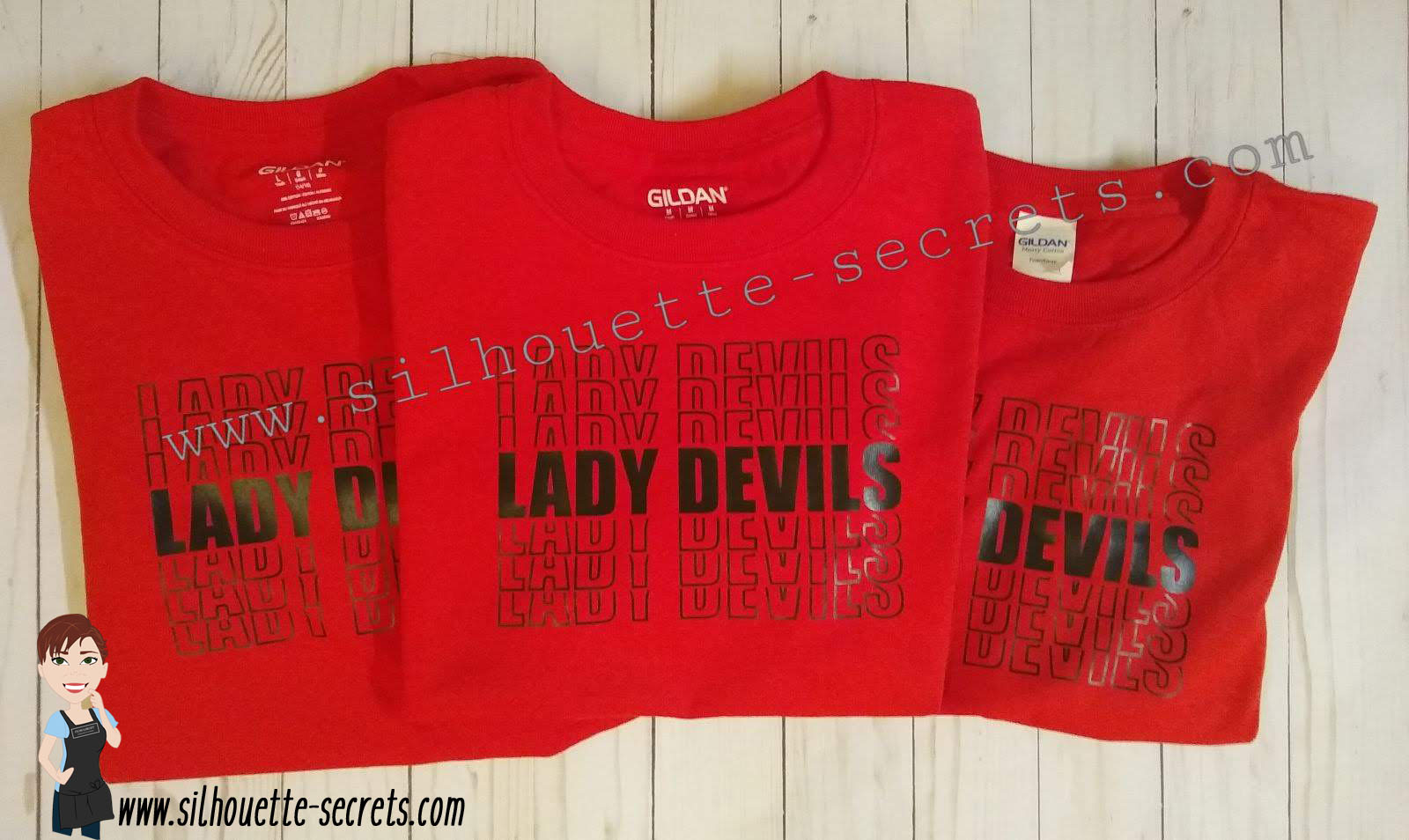
My daughter started on a new softball team this Fall season and I needed a few shirts. Red is not usually in my wardrobe, so new shirts were in need of some sprucing up. Libby Ashcraft with Libby’s Loft had just posted a Retro Words tutorial and it was one of those must-do projects. It is also extremely popular right now and the method she shows can be done with any bold font that you choose.

Sil_Secrets_softball1 copy

Check out Libby’s tutorial HERE on how to create this Retro Words.

I love that it uses several tools in the software such as: Offset, Guides, Knife tool, Align tool, Replicate Panel, Cut by Fill Color, and more.
Click on each of the words above for more information on that tool.

Sil_Secrets_softball6 copy

And I couldn’t just create my coaches shirts that were naked on the back, so it was perfect timing that these designs hit the Silhouette Design Store at the same time I was creating this project.

Sil_Secrets_softball4 copy

Don’t Stop When You’re Tired by Lori Whitlock – Design #302756
I did change the #Football to #Softball and it worked perfectly!

Sil_Secrets_softball3 copy

It’s How Big You Play by Lori Whitlock – Design #302758

And the favorite by everyone this season was this one.

Sil_Secrets_softball2 copy

If At First You Don’t Succeed by Lori Whitlock – Design #302764

The coaches and parents sure loved these shirts and I received a lot of compliments on them.

Sometimes, you just have to put everything else aside and just make a few projects for yourself! I hope that you have some time to play with your Silhouette machine soon!

Have you created this effect for yourself or others?

I would love to see your projects feel free to post on my Facebook group at Silhouette Secrets with EllyMae.

Enjoy!

SS_Signature copySS Logo snip it

**This post may contain affiliate links. What that means is that I may receive compensation if you purchase through the links I have provided. The price you pay for the product or service is not higher but I may get compensated for sharing.

Posted on 2 Comments

New! Silhouette Online Classes

I get a lot of requests to put my classes online. And it’s been a work-in-progress and a learning experience too!

I currently have 7 Silhouette classes available online on my Teachable site. These have been developed in response to requests by my students and followers.

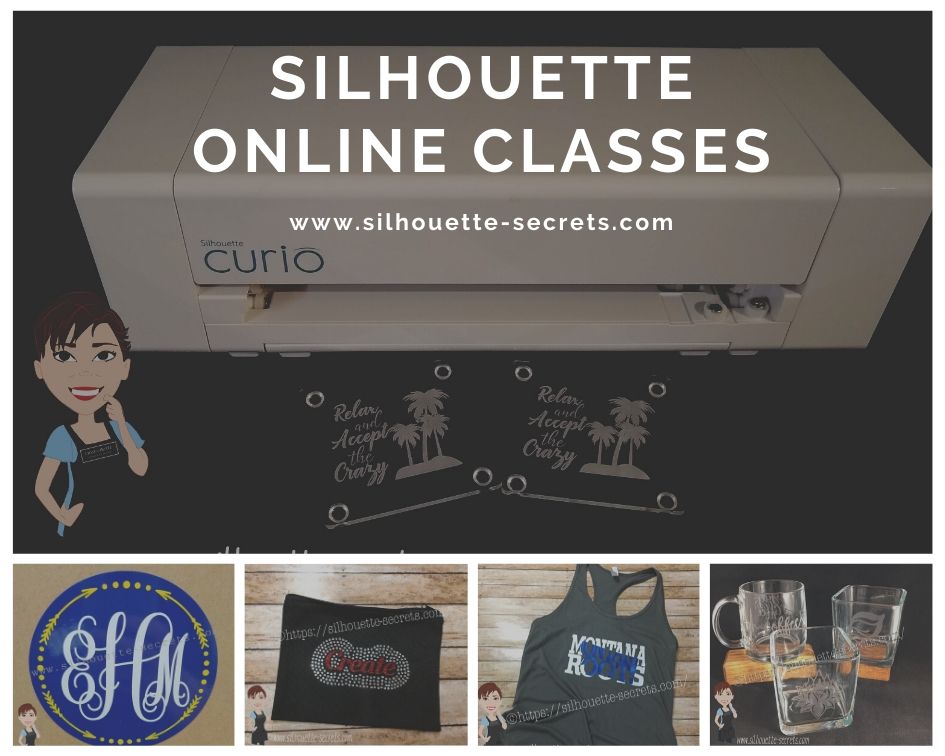
Silhouette online classes

These classes are created in the Silhouette Studio v4 software and include all my tips, tricks, and supply lists to complete each class. All of the classes are created using the same class content that I use when teaching a hands-on, in-person lesson and have as little video editing as possible, in order for you to get the full class effect.
You don’t want to hear me bumble over one tongue-twisting word 10 times, watch the Curio etch for 40 minutes, or see the frustration of a mic not working, so there are some areas that are edited or the speed increased (etching).

What are the online video classes available?

1. Basic Acrylic Etching with the Silhouette Curio

SilSecrets Curio Etching copy

This is a 1 hour video class that is step-by-step in setting up a design, setting up the Curio, and etching on acrylic using the Silhouette Curio.

The Silhouette Curio is an amazing machine that can accommodate thicker materials and works great for etching on metal and acrylic.
If you are just getting started or have an interest in the Curio, check out the
Let’s Explore the Curio – Getting Started post.

This little machine can definitely add that personal touch to projects that others cannot.
Check out this post on Silhouette Inspiration to see a few more projects I’ve created with the Silhouette Curio.

Silhouettesecrets+Curio_projects

2. Creating a vinyl decal & layering vinyl using the Silhouette

Sil_Secrets_layeredvinyl copy

This is a 1 hour class showing the entire process of creating, cutting, and layering an adhesive vinyl decal in the Silhouette Studio software.

This class uses the Monogram Script Arrow font by Rivka Wilkins to create a 3 color decal using Oracal 651 adhesive vinyl.

3. Cutting & Layering HTV in Silhouette Studio

Layered vinyl copy

This is a 45-minute video class that is a step-by-step process of cutting & applying a multi-color HTV design.

I used the Sparkle Like a Unicorn design by Sarah Hurley with Siser HTV to create this body suit gift in the video class.

4. Glass Etching with Silhouette

Silhouette-Secrets+_GlassEtchingPhoto copy

This glass etching video class is approximately 1 hour and 13 minutes showing the process of setting up a design to create a stencil for glass etching, cutting a stencil with Oracal 651 adhesive vinyl & Oramask 813, and using Etchall glass etching cream.

5. Heat Transfer Print & Cut with Silhouette

CQLG3491 copy

In this 35-minute video class go through the step-by-step process of creating a print & cut design, printing on heat transfer paper, cutting, and applying the heat transfer paper.
This class can apply to all print and cut projects no matter what material you are printing on.

I used a Flamingo Clipart Mega Pack for the design and JetPro SS Heat Transfer Paper from Heat Press Nation for this class.

6. Creating a Knockout Design with HTV
Bonus HTV & Subtract

SilSecrets_Knockout copy

This is a 1 hour video class to create a HTV Knockout design with Silhouette Studio, cutting, and applying the HTV. A short bonus software video with using HTV & subtracting the design is also included.

I used the USA States Dingbat Font by Sandi Idleman and Siser HTV in this class.

7. Creating a Rhinestone Design in Silhouette Studio

SilSecrets_Rhinestone copy

This is a 45 minute class creating a rhinestone design in the Silhouette software, cutting from rhinestone template material, and applying the rhinestone design to a zippered bag.

I used Siser Glitter HTV,  rhinestone materials from The Rhinestone World, and a Cotton Zipper bag from Craft Chameleon in this class.
The Designer Edition software upgrade or higher is required to create a rhinestone design in the Silhouette software.

Why online classes?

Every user is going to vary in where they are located. Maybe they cannot get to an in-person lesson with an instructor, a workshop, or an event. Maybe their schedule does not work for booking a lesson in-person. It can vary for all users.

Each user learns differently. Some people can learn by reading a tutorial and pick it up with no issues, while others prefer a video that they can pause and re-watch whenever they want. What I have learned by doing in-person lessons is that there can be a lot of information discussed during a 1 hour lesson and rarely do students remember everything that was discussed. This is one reason that I also provide a follow up email to my in person students to highlight some of the topics discussed. With a video lesson, you can control that and hear it again when you need to.

Video class suggestions

As I mentioned above, these classes were created at the request of students and followers. Feel free to provide suggestions on video classes that you would like to see by joining my Facebook group – Silhouette Secrets+ with EllyMae or sending an email to silhouettesecretsplus@gmail.com

I do keep a list of videos to create and there are several in the process, but they do take time to create. It has definitely been a learning process for me. I know the Silhouette software and love teaching that, but recording, video editing software, video hosting sites…. that is all a new world to me.

I would love to see how you are using your Silhouette machines!
Feel free to post on my Facebook group at Silhouette Secrets with EllyMae.

Enjoy!

SS_Signature copySS Logo snip it

**This post may contain affiliate links. What that means is that I may receive compensation if you purchase through the links I have provided. The price you pay for the product or service is not higher but I may get compensated for sharing.
Posted on 13 Comments

Cameo 4 Cover and more!

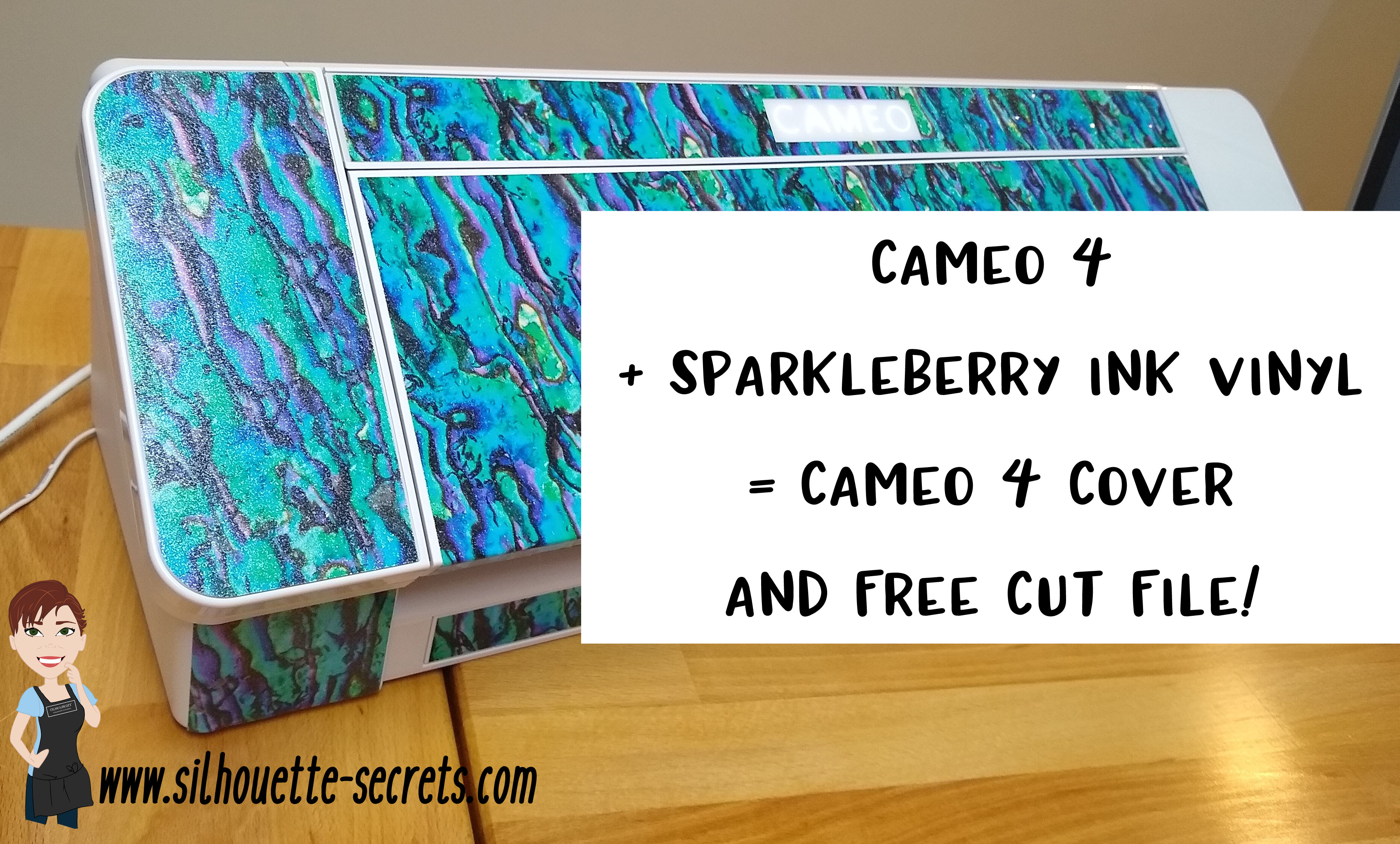
Look what I did!
(Read to the end and you’ll find a surprise!)

SilSecrets_Cover copy

*This post may contain affiliate links. Please see the bottom of the post for more information.

Now, usually I am not one who can decide what design to put on my machine. But, when I saw Sparkleberry Ink release this Laura’s Abalone design, I just knew what I wanted to do with it.

Note: you will need a piece of Sparkleberry Ink vinyl or other brand that is at least 12″ x 24″ long.

I created this Cameo 4 cover all by using a tape measure, the drawing tools in the Silhouette software, and cutting test cuts of the templates to make sure they would fit before cutting my precious Sparkleberry Ink vinyl.

So how did I do it?

I started out by measuring each space that I wanted to add a piece of vinyl to and writing that down.

IMG_20191016_190707132

Cameo 4 cover_updated copy

Then I chose the draw rectangle tool in the software and created a rounded rectangle (6.285″ x 2.420) for the top left panel (E).

Drawing rounded rectangle copy

Next, I drew a rectangle (6.285″ x 2.687″). I used the Align tools to center the rectangles together and then moved them together until the total width of the panel was 2.682″. Then I selected both the rounded and regular rectangle and made a copy, this way I have an original shape to go back to. And I’m so glad I did because I had to cut this one a couple of times to get the right rounded rectangle angles.

Next, I right clicked and chose Weld.

Weld copy

Then I cut it from cardstock to see how well it fit. Here are a few of the pieces I test cut to see how they would work for the panels.

IMG_20191016_165058335 copy

Then I continued to measure each and draw the shapes according to those measurements.

IMG_20191016_165117249 copy

By cutting it out of cardstock, I could place the cardstock up to the space available and see how it fit. If it was too big, I could scale it down. If it was too small, I could scale it up a little bit.

I added all my pieces of my design to a “working file” that I saved, just in case something happened.

Working file copy

Once I knew the piece would fit, I then moved it to my original cut file and positioned it on the mat, so I could get the most out of the 12″ x 24″ cutting space.

Silhouette file photo copy

Then I did something daring. I wanted mine to have sparkle to it. So I took a 12″ x 24″ piece of Glitter Laminate Overlay and I applied it to the top of the Sparkleberry InkLaura’s Abalone adhesive vinyl.

Why is this daring? Well, anytime you add a layer on top of another layer, you have the chance of getting bubbles. But, I went for it!

I followed these instructions HERE for using the Glitter Laminate Overlay and it worked! Would I recommend this for all users – No, probably not. I would definitely recommend practicing with a smaller piece first. But, sometimes you just have to go for it 😉 !

IMG_20191011_200646477 copy

Look at it sparkle!

This is definitely one of those times that you feel all giddy when a project is coming together. If you look really close on the right side in the photo above, you may even see a few bubbles. I’m good with that.

IMG_20191011_205303758 copy

After all the pieces were cut, I cut them apart, added transfer tape and started applying 1 panel at a time. I of course started with the largest panel first, the cover.
Well, at this point – might as well go big.

IMG_20191011_205311771 copy

Since this Laura’s Abalone pattern was directional, I realized after I cut the first one, I had turned a couple of the panels to fit on the mat and that affected the way the pattern was. So I ended up re-cutting a few pieces so the entire pattern matched.
(I corrected that in the final cut file – see below)

IMG_20191012_082222452 copy

I was happy with it as it shows above, however, my kids came to inspect it and my 10 year old said, “Mom, what about the top? Aren’t you going to do the top pieces, so when the lid is open, it all flows.”

Very good point!

Cameo 4 cover copy

And the final pieces were created.

Updated – 1/12/20 to include right panel & UK top panel option
IMG_20200112_093933194 copy

Now, is it perfect? Nope, it has a few bubbles in it. But, I’m ok with that and hopefully as it settles, those will work themselves out or I can help them a little bit.

But, I have to say I love it!
It sits on my desk next to my computer and just sparkles at me.

Now, I did all the measuring and test cutting, but you don’t have to!

Feel free to grab this free cut file of the Cameo 4 cover I created HERE.

Silhouette file photo copy

Cameo 4 cover FREE cut file

Header photo copy

Now, what if you do not have a Cameo 4 yet or don’t plan to buy one? Well, you can still use some pretty Sparkleberry Ink vinyl to add a little color to your Cameo if you would like, no matter what model you have.

I’ve updated and created a full cover file for the Cameo 3 model as well.
Grab this free cut file HERE

Cameo 3 cover example copy

I did cut without a mat when creating this one since it is a larger surface area, however, you could use a 12″ x 24″ cutting mat as well and arrange the pieces on it. Just keep in mind that if you pattern has a direction to it, you want to keep the same consistency in how the pattern goes across the cuts.

I’d also suggest going slow and taking your time when applying, especially on the lid. It is a large surface to get lined up. In this cut file, the pieces are designed slightly smaller than the actual panel sizes, so there is a little bit of machine color showing through to break up the pattern.

For more details on cutting without a mat, check out this post HERE.

Cameo 3 and 4 copy

Cameo 3-4 lid closed copy

I did not cover the inside of the Cameo 3 lid as it has some instructions inside. If you would choose to do so, I would recommend measuring the inside and then drawing a rectangle that same size. I used cardstock and cut out a piece that was the same length top to bottom and held it up to the machine to make sure it was the correct size, before I committed a full sheet of adhesive vinyl.

Or if you have other model machines, grab this Silhouette Cameo Cover Template from the Silhouette Design Store, some of your favorite Sparkleberry Ink vinyl & maybe some Glitter Laminate Overlay too and get to cutting.
*Note this file contains cuts for the Cameo 1 panels, Cameo 2 panels, and Cameo 3 lid.

Silhouette cover

I would love to see how you decorate your Silhouette machine!

Here is my Silhouette Mint Stamp machine decorated in another Sparkleberry Ink pattern called Cute Crawlers Lime.

IMG_20190831_190213600

Feel free to post your machine decoration or any Silhouette projects on my Facebook group at Silhouette Secrets with EllyMae.

Enjoy!

SS_Signature copySS Logo snip it

**This post may contain affiliate links. What that means is that I may receive compensation if you purchase through the links I have provided. The price you pay for the product or service is not higher but I may get compensated for sharing.