Posted on 2 Comments

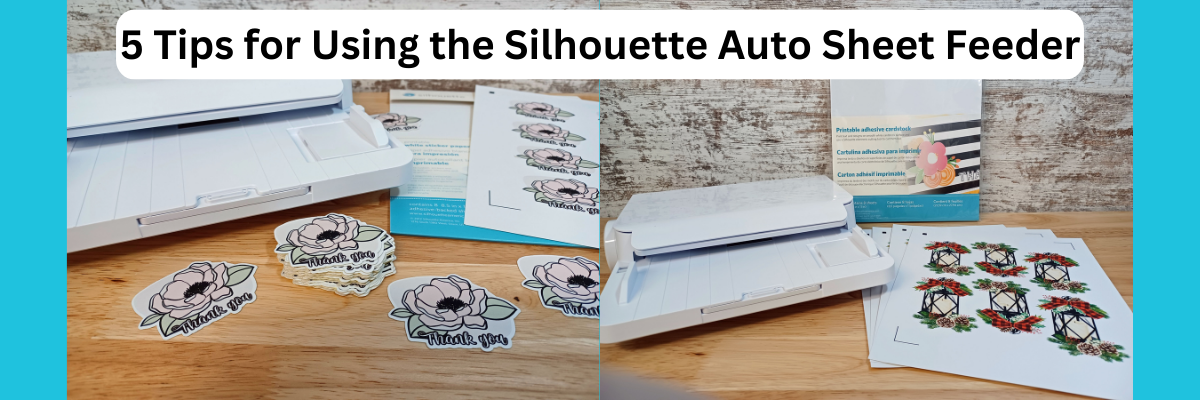
5 Tips for the Silhouette Auto Sheet Feeder

Silhouette Auto Sheet Feeder

Affiliate links may be present in the below and as an Amazon Associate I earn from qualifying purchases. What that means is that I may receive compensation if you purchase through the links I have provided. The price you pay for the product or service is not higher but I may get compensated for sharing.

Silhouette America recently released a new product called the Auto Sheet Feeder.

Thank You to CrafterCuts who sent me a Silhouette Auto Sheet Feeder in order to test and provide feedback on.

The Auto Sheet Feeders only work with the Portrait 3 or Cameo 4, Cameo Plus, or Cameo Pro Silhouette machine models.

There are 2 Sheet Feeders available.
1. Silhouette Auto Sheet Feeder for the Cameo 4 and Portrait 3 machine models.
2. Silhouette Auto Sheet Feeder for the Cameo Plus and Cameo Pro models.
Make sure you are buying the correct one for the machine model that you are using. The Auto Sheet Feeder is specific for the machine model.

Can the Auto Sheet Feeder Be Used with Older Model Silhouette Machines?

No.

While this may be a disappointment to those who own an older machine model, this is new technology and it is not possible to program that into the older Silhouette models for it to function properly.

Today, I’m sharing 5 tips for using the Auto Sheet Feeder.
Setup information and links are provided at the end of this post.

Check out the video of these tips on my Silhouette Secrets+ YouTube Channel HERE.
Both the written tutorial and video may contain a few different tips and I would recommend looking at both.

5 Tips for the Silhouette Auto Sheet Feeder

1 – Silhouette Studio Software Version & Firmware

In order to have access to the Silhouette Auto Sheet Feeder, you will need to be using a software version of v4.5.152 or higher.
However, I am recommending that you use version v4.5.155 in order to skip some bugs that are in the .152 version.

Depending on when you are reading this, will depend on what is the current software version or Beta version. Currently, the v4.5.155 is the Beta version as I write this. I normally do not recommend for users to use the Beta version as it’s a test version and there can be unknown bugs in it, however, in this case the bugs introduced in .152 are a pain in the butt.

Download the current Silhouette Studio Software version HERE.
Download the Legacy (older) or Beta software versions HERE.

The most important factor is that you HAVE to use a version of v4.5.152 or higher in order for the Auto Sheet Feeder to be available as a feature.

Firmware

If you do need to update the software, you will also most likely have to do a firmware update before you can use the Auto Sheet Feeder. The Cameo 4 and the Portrait 3 models check for firmware updates automatically on the Send tab.

In the bottom right corner of the Send tab, the software will notify you in orange if there is a firmware update available. This update HAS to be done before it will let you send a job to the machine to cut.

Firmware updates HAVE to be done by the usb cord and cannot be done by bluetooth.

2 – Silhouette Auto Sheet Feeder Connects by USB Only

In order to use the Silhouette Auto Sheet Feeder, you will need to connect it by the USB cords. There is one short cord with the Auto Sheet Feeder that connects between the Sheet Feeder and the Silhouette machine and then use the longer USB cord to connect from the Auto Sheet Feeder to the computer.

It cannot be used by Bluetooth.
If your computer does not have a usb port, you will need an adapter.

Please refer to the setup videos linked at the end of this post for more specific details.

3 – The Silhouette Auto Sheet Feeder Needs Space to Function Properly

The Silhouette Auto Sheet Feeder needs to be securely on a flat surface and fully supported.

When using the Auto Sheet Feeder with a Cameo 4, Cameo Plus, or Cameo Pro model machine, the feet under the front of the Sheet Feeder need to be extended and on a fully stable surface.

If the Auto Sheet Feeder is not set up properly, it will not feed properly.

Not only does the Auto Sheet Feeder need to have clearance in front of the machine for the feeder to sit securely, but it also needs to have clearance behind the machine that is the full length of the material that is being used.
The material cannot be hindered by hitting a wall, cords, or any other object or it can cause the media to jam in the machine or the cut to be off.

The Auto Sheet Feeder for the Cameo 4, Cameo Plus, and Cameo Pro ejects the material to a tray on the bottom of the Sheet Feeder when finished.

If using a Portrait 3 model machine, it ejects the material out the backside of the machine.

4 – Page Setup for the Auto Sheet Feeder & Registration Marks

When using the Auto Sheet Feeder, the Page Setup is very important and the registration marks CANNOT be expanded.

On the Page Setup Panel – Tab 1 make sure the Auto Sheet Feeder is selected and the correct page size that you are printing on.

Turn on the Registration Marks on the Page Setup Panel – Tab 3.
With the Auto Sheet Feeder, the registration marks are in a set location and you will notice that the options are grayed out and you cannot select or change this.

The only options you can change are the thickness and the length, which I do not recommend if you are just starting out or if you’ve had issues. The default registration marks are always the most accurate cut and eliminate things that would cause off-cuts.

The reason you cannot adjust the registration marks is because when you cut without a cutting mat, the machine has to have space on the material that is dedicated to being held securely in the machine.

It needs space on the left and right sides and 1″ of space at the bottom in order to securely hold the sheet of paper in the machine as it’s being cut.
When cutting without a mat, you cannot cut to the edge of the page or the machine cannot hold onto that material securely as it rolls back and forth.

When using the Auto Sheet Feeder, this is not an option you can change. It is set with these defaults for the best success for an accurate reading and cut.

You will need to design within this space and have the design within the red cut border on the page in order for success with your print and cut projects.

Check out the 5 Tips for the Auto Sheet Feeder video on the
Silhouette Secrets+ YouTube channel for a visual on this and how it differs from using a cutting mat.

What About Files Already Designed for Print and Cut?

If you have files that you currently use for print and cut and plan to use the Auto Sheet Feeder, you may want to test your files within the borders of the print and cut with the Auto Sheet Feeder selected.

You may need to redesign your files to fit within the confines of this new print and cut area with the Auto Sheet Feeder.

5 – Material Thickness, Curled Edges, or Static Affects

If the material is too thick, it will not feed through the Auto Sheet Feeder properly and either jam inside or not be successful in finishing the cut job.
I tested Oracal printable vinyl with the laminate overlay, it was too thick to feed through the Auto Sheet Feeder.

This would also affect sticker makers who add a laminate layer on top of their sticker paper before cutting. The only way to know if it will work with the products you are using is to test it.

If the material is too thin, it can also cause issues as well. When the material rolls through the Auto Sheet Feeder and touches the Silhouette machine rollers, if it is too thin and bends, it may not be successful. I tested a brand of sticker paper called iLabel off Amazon and it was too thin to feed properly.

In order to feed through the Auto Sheet Feeder correctly, the paper has to be completely flat and not static cling to the sheet below it.

If the printer curls the edges or causes the paper to curl after it’s printed, that can affect whether it will feed through the machine properly and have success.

What Materials Work With the Auto Sheet Feeder?

First, I am going to share links to the specs listed on the Silhouette America website that show what paper sizes will work for each size of the Auto Sheet Feeder.

Auto Sheet Feeder for Cameo 4 & Portrait 3 Specs – click HERE
Auto Sheet Feeder for Cameo Plus & Cameo Pro – click HERE

But, I also want to share the materials that I did test and had success with as well.
Check out the list below.

Silhouette White Sticker Paper
Silhouette Clear Sticker Paper
Silhouette Printable Adhesive Cardstock
*I really liked how this printed & plan to use it more.
Silhouette Brushed Metal Sticker Sheets
Silhouette Holographic Dots Sheets
*cuts were off a bit as it went down the page. I’d recommend testing the cut settings
Silhouette Printable Kraft Adhesive

*Find the Silhouette America products at CraftCuts or Silhouette America

Recollections White Cardstock 65 lb – I’m not a fan of the pop out cut, but it worked
Staples Sticker Paper – this has been my go to for years for personal use stickers
HTVRont Sticker Paper – the edges of the pages are sticky and it picked up ink as it went through the printer. Corners were more likely to curl
Online Labels Sticker Paper – worked well

I tested a lot of materials and some of them several times as I tested how many pages it would feed through in one job successfully, tested pop-out cutting with cardstock, and other factors that might affect a user’s success.

Overall, I have to say I am impressed with the Silhouette Auto Sheet Feeder.
It exceeded my expectations.

Personally, I think it’s application is limited to those who are cutting multiple sheets and that not all users will benefit from it. But, each user varies and there are some who may find they use it a lot. I do not have a sticker business or cut multiples of sticker sheets often, so it probably will not be one of my most used tools. However, I am very glad that I was able to test it and understand how it works better.

Additional Tips

How long does it take to cut?

There is no specific answer to this question.
Cutting time will depend on how detailed the cuts are and how many pages you are cutting. Each project can vary.
I did test using 5 sheets of the same sticker design and I think it was faster than manually doing it only because you do not have to load, unload, and mess with a cutting mat if you cut that way.

Do not leave the room while it’s cutting

I mention this one because if the material jams in the machine or there is an issue with feeding, the project can completely be derailed in seconds.

As most of use have experienced in one project or another, if you leave the room, something will surely go wrong.

Test Cut, Test Cut, Test Cut

Test your cut settings before sending a job through with the materials you are currently using for the print and cut. If the cut is too deep and cuts completely through, that can cause issues from feeding properly, jamming in the machine, or damage to the cutting strip.

Buy extra cutting strips!!!

The cutting strip is an important part of the Cameo models and if there is any damage to the cutting strip, it can affect your success with the cuts.

Cutting strip for the Cameo 4 HERE
Cutting strip for the Cameo Plus HERE
Cutting strip for the Cameo Pro HERE
Use code 10OFF to save 10% with the links above

There is no cutting strip on the Portrait 3 model.

For more information on the cutting strip and how to change it, check out this post
Silhouette Machine Cutting Strip

Barcode Scanning

There is the ability to cut different projects at the same time if the file has been set up & printed with the barcode option. The barcode contains the cut data and settings in order to read each printed page that is sent through.

I did test this and will have more details on it in the future.
Check out the Barcode Scanning video by Silhouette America HERE for more details.

Note: the barcode feature has been an option in the Silhouette Studio software for many years. However, it did not function properly in many versions. If you want to test the barcode feature even without an Auto Sheet Feeder, I would recommend updating to v4.5.155 or higher in order to have the best success with it.

More Resources on the Silhouette Auto Sheet Feeder

Here are some additional resources on the setup and function of the Silhouette Auto Sheet Feeder from Silhouette America

Everything You Need to know about the New Auto Sheet Feeder post

YouTube videos found at Silhouette America’s YouTube channel
Meet the Silhouette Auto Sheet Feeder
Auto Sheet Feeder – Getting Started
Silhouette Auto Sheet Feeder Quick Setup

————

I did a lot of testing and will have more coming out soon with the Silhouette Auto Sheet Feeder on the Silhouette Secrets+ YouTube channel.
Make sure to Like & Subscribe and ring the bell on YouTube if you’d like to be notified when there is new content posted.

If you’d like to grab the Silhouette Auto Sheet Feeder grab it HERE.
CrafterCuts offers free shipping on orders over $35

If for some reason they are out of stock, please check out the other Silhouette retailers in my Recommended Retailers tab HERE or at the top of the website.
Or check out my Amazon Store HERE where I have the links for both the Auto Sheet Feeders as well.

I would love to see what you are creating with your Silhouette software or machines!
Feel free to post on my Facebook group at 
Silhouette Secrets with EllyMae.

Save this for future reference by pinning the image below.

Enjoy !

This image has an empty alt attribute; its file name is logo.jpg

THANK YOU for your support! How can you help? Click HERE & buy a coffee.
Every little bit helps with the cost of running the site.

Or if you are looking for more in-depth, step-by-step classes, check out all of my online Silhouette classes on my Teachable site HERE.

SS Logo snip it
**This post may contain affiliate links. What that means is that I may receive compensation if you purchase through the links I have provided. The price you pay for the product or service is not higher but I may get compensated for sharing.

Posted on 1 Comment

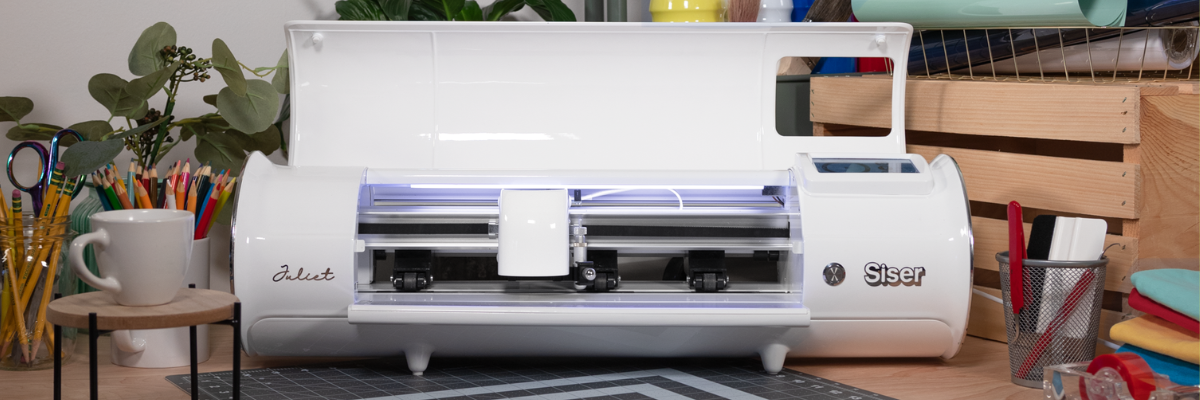
Siser® – Juliet® Cutting Machine

If you follow me on social media you may have seen that I’ve been testing a new machine called the Siser Juliet cutting machine.

While I’ve been bringing you Silhouette information for years, my experience in the craft industry has also lead to new connections and I’ve been getting requests to test products because of my experience. When I was asked by Siser North America if I’d like to test the Leonardo® Design Studio software and the Siser Juliet machine, I was honored. I chose to do so for several reasons but the 2 biggest ones were that I knew I would get questions about a new cutting machine on the market and I know that there are some Silhouette users who are looking to move to the next level. In order to be able to answer those questions, I knew I’d need experience to answer accurately.

Siser invited me to the official launch of Siser Juliet (and Romeo®) in Italy and I jumped on the opportunity. I didn’t even have a passport, but I started the process and all the puzzle pieces fell into place. Which means it was meant to be!
Italy was amazing and I loved seeing the behind the scenes of the Siser headquarters.
I hope to share more of that coming soon!

In addition to seeing Siser headquarters, we toured Venice, Verona, wandered around Vicenza, made connections in the industry, ate Italian meals, drank wine, laughed, celebrated, danced (if you can call what this gal did as dancing – more like wiggled and moved) and gave each other a hard time!

Selfies with Siser Joe and Sarah Clark (Silhouette Made)

I do think Venice was my favorite, but I think it was because of our tour guide. She was born and raised in Venice. She was amazing!
She had personal stories from the city and shared that over the years of touring she had been asked many, many times how she knew certain things.
She said she finally settled on an answer “Experience”.
I loved that!

It was an amazing trip and hearing from the Siser family directly about how passionate they are about this new launch but also about all of their products. They love what they do! When I was first told about this new machine and how they wanted to romanticize it and incorporate their Italian heritage, I was kind of like… what?
But, the more I talked with the Siser folks, I got it! I had the same feelings.
I know that will be hard to pass on to you, but I cherish the experience and seeing what I saw.

Photo by Siser at the Castelli di Giulietta & Romeo – Castle Juliet

I have been playing and testing with the Siser Juliet for the last couple of weeks and I have enjoyed the process of learning something new.
I do want to disclose that Siser did send me a Juliet cutting machine to test and I am also on the Siser Beta team so I can report feedback to them directly.
I am under no obligation from them and my opinions are my own.

Affiliate links may be present in the below and as an Amazon Associate I earn from qualifying purchases. What that means is that I may receive compensation if you purchase through the links I have provided. The price you pay for the product or service is not higher but I may get compensated for sharing.

Siser Juliet Cutting Machine

Where to find Siser Juliet & Romeo Cutters?

Siser Juliet and Romeo cutting machines and tools can be found here:
Vinyl Spectrum
Heat Press Nation
Pro World
Heat Transfer Warehouse
Amazon

Now, that I told you where you can find Siser Juliet, let’s take a closer look at her.

Siser Juliet is coming into the market to bridge a gap. This is a gap between the “craft” cutting machines and someone who is looking at a more professional machine which is a large investment & jump.

Siser is a company that manufactures materials that can be used with a wide variety of cutting machines, so they are not trying to come into the market to compete with any machine. Their products are used world wide by all kinds of cutting machine users from small to large.

Siser headquarters warehouse

I even tried to bring a roll home, but was caught in the act by a Siser employee.

Not only did we get a tour of the manufacturing side of things, but we also saw their lab and the testing room too!

This is a glimpse into the testing room. As I mentioned, Siser products are used with a variety of machines from the smallest craft cutter to the largest commercial machines.

I wished that I had counted the number of machines that they had in this one room.

Personally, I love the behind-the-scenes and learning more about different facets of the industry.

This is photo of what was on the testing table when we went through. That stack of materials is all labeled and tested with different machines in their testing room.

Ok, I could go on and on with photos and I hope to share a video tour here soon on the Swift Creek Customs YouTube channel and give a behind-the-scenes view of what I saw.

My goal is not to convince you that you need Siser Juliet, but to provide feedback and experience from working with her to be able to provide educated answers.

I have enjoyed playing…. um…. I mean testing…
Siser Juliet and the Leonardo Design Studio. I love to learn new things!

The biggest factor in the entire equations of using Siser Juliet will be YOU!
Juliet allows you to have more control over things, but YOU will need to learn how she works.

There are several differences in how Siser Juliet work. She operates more like a professional cutting machine vs a “craft” cutting machine.

I do NOT feel that at this time there is any way to accurately and fairly compare Siser Juliet to other machines. There are just too many variables and points to control in order to compare side-by-side.
And one of the biggest factors is YOU!

Here are a few differences:
– Blade style is a more professional style blade much like a CB09 blade. You replace only the blade tip and not the entire housing.
You set the blade depth. There are no numbers. You measure against your materials and set the depth manually according to what is needed.
– Juliet (and Romeo) are a WYSIWYG (what you see is what you get) when you go to load the material and cut. Where you leave the the blade housing is where she will cut.
It is NOT in relation to where the design shows on the screen.

Are you seeing a theme here?

YOU are in control of how she works and how successful she cuts.
She works, she cuts, she is a zippy little thing!

This is going to be the biggest factor in my opinion and experience with cutting machines in the last 17 years.

This is NOT going to be a cutting machine for everyone!
I’ll be 100% honest and up front about that right now.
Don’t get me wrong, Juliet is a machine that anyone can learn to use, as well as Leonardo Design Studio.
It is not hard!
Anyone can do it!
But YOU will need to invest the time into learning how to use her properly!

If I have intrigued you and you’d like to know more,
check out the Swift Creek Customs YouTube channel.

You can view all the videos on the main page HERE

or go directly to the Siser Juliet Playlist I’ve created HERE.

I go into more details about the machine and how it differs from a “craft” cutter in the video. This way you can actually see what I’m referencing about the blade and how to load the cutting mat.

I also shared a bit more information in this video on “Should You Get a Siser Juliet?”

Updated: 11/6/24 – Find more information and 100+ tutorials on Siser Juliet, Romeo & Leonardo Design Studio on the Swift Creek Customs Landing Page HERE

You can also find more details on the Siser website too!
Check it out HERE!

If you have questions, feel free to leave them in the comments below or join us on the Creating with Siser – Juliet & Romeo Cutting Machine Users Facebook Group HERE.

No matter what brand of cutting machine you have, I hope YOU use it!

Save this for future reference by pinning the image below.

Enjoy !

THANK YOU for your support! How can you help? Click HERE & buy a coffee.
Every little bit helps with the cost of running the site.

Silhouette Classes

Never stop learning! Let me help you take the anxiety out of learning with Silhouette and get to creating faster! My Silhouette classes are heavily focused on software, so you can take the skills & techniques taught and apply them to many future projects!

Silhouette step-by-step Classes by Silhouette Secrets+

Silhouette Secrets+ with EllyMae
**This post may contain affiliate links. What that means is that I may receive compensation if you purchase through the links I have provided. The price you pay for the product or service is not higher but I may get compensated for sharing.
Posted on Leave a comment

Silhouette Print and Cut with Waterslide

Do you try new things? At some point, you must have!
No one starts something and knows it from the beginning. At some point, you are a beginner at everything.

It’s that way with Silhouette, designing, cutting, new materials, and pretty much life!

At some point in it, you are a beginner and have never used a product before.

Affiliate links may be present in the below and as an Amazon Associate I earn from qualifying purchases. What that means is that I may receive compensation if you purchase through the links I have provided. The price you pay for the product or service is not higher but I may get compensated for sharing.

FAILURE OR SUCCESS?

Waterslide paper is new to me.

What do you do when something is new?
Practice and get extras because in my experience, things do not always work the first time!

I was asked if I wanted to test some products and this Koala Waterslide Decal Paper was in the list. So, why not?
Time to try something new!

And guess what? My first ones were a FAIL! A BIG FAT FAIL!
I tried on a plastic water bottle and it just flaked off. Since it was a plastic water bottle, I could not put it in the oven to cure, so I tried using a heat gun.

What happens when you fail at something? You try again and that is exactly what I did.

I grabbed some coffee mugs and tried again.

First, the Silhouette makes it so nice to get the designs a clean cut.
I set up the print and cut for the page and printed some extras too.

And then I let my Silhouette machine do the work.

I love print and cut, for more tutorials on setting up Print and Cut check out this section on the blog – HERE. I rarely have an issue with print and cut and that is because I follow the same steps every single time!

For me, that was the easy part! Now comes the stuff I am new at and need to practice!

For waterslide, you soak the image a bit to get it to release from the backing and then carefully slide it off the backing and on to the object.
This is the part that takes practice, at least for me. If you are too rough, the decal will tear. Also, if the design is round and you are placing on a conical shaped object, it increases the level of complexity a bit too.
And guess what I did? Round decals to go on a slightly conical shape.
Yep! I always choose the more difficult path!

In this case, I refer to the instructions. Over and over again because I want to get it right.

I did record my application process and you can watch that video on my YouTube channel HERE.

After I applied the decals I placed the mugs in the oven at the recommended time and temperature.

The results are….. SUCCESS!

Two of the decals I put on looks good, no rips, tears, or flaking.

But not all were successful – there were a couple FAILURES!

This one failed because I didn’t get it completely smooth. Again, round object on a slightly concave mug. Circular decals are some of the most difficult to work with on a conical shaped surface and you need to make sure it’s either small enough to be easier to work with or that you get it completely smooth before baking.

This failure could be affected by many different factors. I was testing to see if I could reuse a sublimation mug that didn’t turn out.
Factors that could have affected this one are the sublimation coating, the sublimation ink that is already on, and most likely also…. my technique and it wasn’t completely flat with all the air out of it.

The most important part is I learned a lot. And this is just going to take practice.

I have not given up on waterslide and I would encourage you to try it!
Always keep trying new things and testing.
You may not get it perfect the first or even the second time!
And that is OK!

If you are feeling adventurous to try new things, grab some of this Koala Waterslide paper and give it a go!

Waterslides are used often in modeling and in situations where you need some wiggle room in application when applying. With a sticker, you are pretty well committed once you stick the adhesive down, but with a waterslide, you have a little bit more forgiveness to position that decal.

You can also seal a waterslide with several methods after applying. That is beyond my expertise on this day and will be something new for me to learn in the future!

Here is a list of the designs I used in testing with this print and cut project:
Coffee Doesn’t Ask Silly Questions It Understands by Grace Lynn Designs – Design #395783
Coffee, Coffee, and more Coffee by Dawn Nicole Designs – Design #195664
Dead Without Coffee by Sophie Gallo – Design #420243
Not Without My Coffee by Sophie Gallo – Design #420297
This Good Mood Sponsored by Coffee by Sophie Gallo – Design #377578

I would love to see what you are creating with your Silhouette software or machines!
Feel free to post on my Facebook group at 
Silhouette Secrets with EllyMae.

Save this for future reference by pinning the image below.

Enjoy !

This image has an empty alt attribute; its file name is logo.jpg

THANK YOU for your support! How can you help? Click HERE & buy a coffee.
Every little bit helps with the cost of running the site.

Or if you are looking for more in-depth, step-by-step classes, check out all of my online Silhouette classes on my Teachable site HERE.

SS Logo snip it
**This post may contain affiliate links. What that means is that I may receive compensation if you purchase through the links I have provided. The price you pay for the product or service is not higher but I may get compensated for sharing.
Posted on 2 Comments

How to Install a Legacy Version of Silhouette Studio

Silhouette Studio Legacy Version? Say What?

What does “legacy” version mean?
It means an older version of the Silhouette Studio software.

There are multiple reasons that a user may do this for instance, a software bug that is detrimental to their workflow, their computer cannot handle a new update, or many other reasons that we find in troubleshooting user issues.

One of the great features about Silhouette is that they do not force you to update the software and they have the legacy versions available to go back to if needed.

Today, I have a quick video on how you can uninstall the current version on your computer and find and install a Legacy version of Silhouette.
The Silhouette America website had some changes a few months back and it is a bit more difficult to find where those Legacy versions are.
I share all that and more in the video below.

Check out this new video on my Silhouette Secrets+ YouTube channel HERE

For written instructions on the new Silhouette America website updates, check out this blog tutorial HERE.

Enjoy !

This image has an empty alt attribute; its file name is logo.jpg

THANK YOU for your support! How can you help? Click HERE & buy a coffee.
Every little bit helps with the cost of running the site.

Or if you are looking for more in-depth, step-by-step classes, check out all of my online Silhouette classes on my Teachable site HERE.
SS Logo snip it
**This post may contain affiliate links. What that means is that I may receive compensation if you purchase through the links I have provided. The price you pay for the product or service is not higher but I may get compensated for sharing.
Posted on Leave a comment

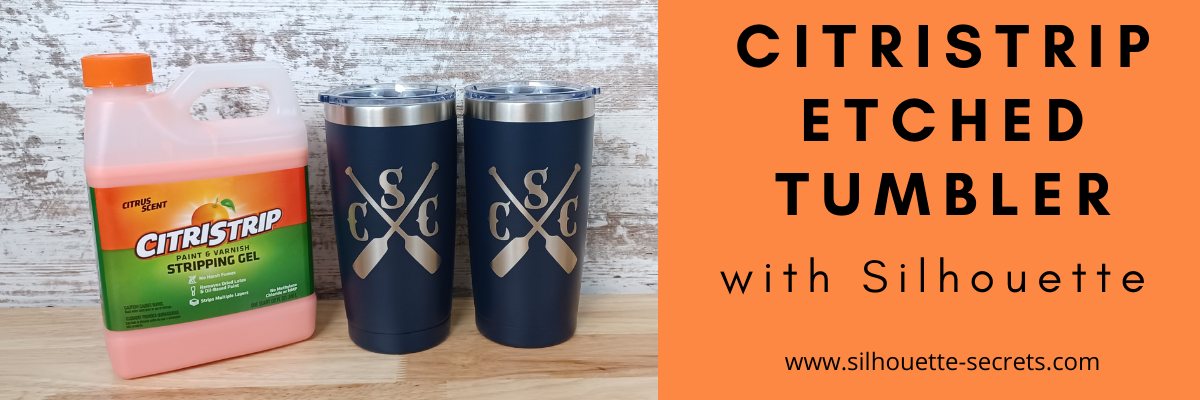
Etched (Engraved) Tumbler with Silhouette

Have you seen the etched powder coated tumblers using CitriStrip?

I’ve seen it popping up on social media and we always like to try something new!

It turned out fantastic!

I bought all the supplies needed and then set up to record how we did it, whether it was going to turn out or not, we were going to share.
We had so many microphone issues it took us several attempts to get it recorded.
All we could do was laugh!

Check out the full video HERE on the Swift Creek Customs YouTube channel.

We had a bit of fun while making the video!
You never know what you might see or hear in our videos.
We hope to bring you more project videos in the near future.
Make sure to Like and Subscribe to the Swift Creek Customs and Silhouette Secrets+ YouTube channels to be notified of new content!

Having a Silhouette machine makes it so easy to do custom things!

I cut a stencil using the Silhouette Cameo and Oracal 651 scraps.

When cutting a stencil vs a decal, you weed out the design so you are left with the negative space open, instead of weeding around the design.

Affiliate links may be present in the below and as an Amazon Associate I earn from qualifying purchases. What that means is that I may receive compensation if you purchase through the links I have provided. The price you pay for the product or service is not higher but I may get compensated for sharing.

Want to try it out?
Here are the supplies we used in the project:
4 Pack Travel Tumblers from Amazon
CitriStrip paint stripper – found at Lowe’s or Amazon
EK Tools Reverse Tweezers
– Cameo 4 cutting machine found at Silhouette retailers:
Silhouette America
Michaels
The Vinyl Spectrum

I love finding new ways to etch!

This process is the same as etching on glass with Etchall etching cream. Just a different product used for the etch process.

Check out more details on etching glass or slate here:
Glass Etching Silhouette Class

Love trying new things and testing!

I would love to see what you are creating with your Silhouette software or machines!
Feel free to post on my Facebook group at 
Silhouette Secrets with EllyMae.

Save this for future reference by pinning the image below.

Enjoy !

This image has an empty alt attribute; its file name is logo.jpg

THANK YOU for your support! How can you help? Click HERE & buy a coffee.
Every little bit helps with the cost of running the site.

Or if you are looking for more in-depth, step-by-step classes, check out all of my online Silhouette classes on my Teachable site HERE.

SS Logo snip it
**This post may contain affiliate links. What that means is that I may receive compensation if you purchase through the links I have provided. The price you pay for the product or service is not higher but I may get compensated for sharing.
Posted on 3 Comments

Become a Pro Troubleshooting Your Cameo Pro

The CAMEO Pro was released almost 2 years ago. I am one of the original testers of the CAMEO Pro before it was released and have hundreds of cut hours into this machine.
Since the release of the CAMEO Pro, we have troubleshot thousands of user’s cut issues.

Today I am releasing 2 new series for troubleshooting the CAMEO Pro.

The first series is a 5 part series that is on my Silhouette Secrets+ YouTube channel and it’s meant to be a quick view of the top 5 issues we have seen for cutting issues with the CAMEO Pro.

The second series is an in-depth look at the CAMEO Pro on my Teachable site.

Become a PRO at Troubleshooting Your CAMEO Pro

I want you to be the most successful you can be using your CAMEO Pro!

There are a lot of variable that can be the source of a cutting issue on the CAMEO Pro or any model Silhouette machine. If you do not find the exact issue that is causing the cut issue, you will most likely continue to experience inconsistent cuts until that is found.

Join me as we take an in-depth look at the CAMEO Pro!

Find the Cameo Pro 5 Tips for Cuttings Issues series on the
Silhouette Secrets+ YouTube channel

HERE

Make sure to Like and Subscribe on YouTube to be notified of future content!

Find the Cameo Pro In-Depth Troubleshooting Class on my Teachable site

HERE

This course is an in-depth look at the CAMEO Pro! I held nothing back.
I’ll be honest, some of you won’t make it through.
Some of you will give up!
But those of you who make it completely through the YouTube series and this Teachable course WILL be Pros at your Silhouette CAMEO Pro
AND
You will be able to troubleshoot 99% of the issues you have with this machine!

I want you to be successful with your CAMEO Pro!

I would highly recommend that you watch both all the way through, especially if you are a new user or if you are having cutting issues!

You can be a PRO at troubleshooting on the Cameo Pro and save yourself time & frustration!

Most times in our troubleshooting we find that it is just a few small things that need to be adjusted for a user to correct a cut or feed issues.

I would love to see what you are creating with your Silhouette software or machines!
Feel free to post on my Facebook group at 
Silhouette Secrets with EllyMae.

Save this for future reference by pinning the image below.

Enjoy !

This image has an empty alt attribute; its file name is logo.jpg

THANK YOU for your support! How can you help? Click HERE & buy a coffee.
Every little bit helps with the cost of running the site.

Or if you are looking for more in-depth, step-by-step classes, check out all of my online Silhouette classes on my Teachable site HERE.

SS Logo snip it
**This post may contain affiliate links. What that means is that I may receive compensation if you purchase through the links I have provided. The price you pay for the product or service is not higher but I may get compensated for sharing.
Posted on 3 Comments

FREE Tool Chart for Cameo 4, Cameo Plus, and Cameo Pro

Have you ever wanted a handy chart that shows what blades are what?
What is each blade used for?
Does it need an adapter or does it fit with no adapter?
What materials is each designed to cut?

Today I wanted to share a free resource that I’ve created that gives information on the current blades and tools available for the Cameo 4 , Cameo Plus, and Cameo Pro.

Cameo 4 , Cameo Plus, and Cameo Pro Tool Chart

This free PDF chart is is available as a free download exclusively for confirmed newsletter subscribers.

Join the Newsletter

Subscribe to get our latest content by email.
    We respect your privacy. Unsubscribe at any time.

    Download this to your computer and open it.
    Click the blue links in the chart for more resources on that particular tool.

    Print the PDF file out for visual reference as well.

    Don’t forget to check out the Silhouette classes on my Teachable site while you are there!
    Step-by-step classes taught for many Silhouette projects and software techniques.
    And the best part – once registered, you can access any time and as many times as you need to take the class!
    Never stop learning & creating!

    I also have more blog tutorials that I’ve published regarding specific Tool information.
    Check those out here
    Let’s Explore Cameo 4 – Tools
    New Tools for Cameo 4 models & Portrait 3
    15+ Tips for the Silhouette Kraft blades
    Cameo 4 Rotary Blade – First Cuts

    **Please note that these may be affiliate links which means that by using these links and/or codes, I may received a small compensation for sharing the links with you. The price you pay for the product or service is not higher. Thank you for using affiliate links as it provides a way for me to continue doing what I do as an Instructor, blogger, and event organizer.

    These Silhouette supplies can be found at Silhouette retailers in the U.S.
    Here are a few:
    Silhouette America
    The Vinyl Spectrum
    Heat Press Nation
    Michaels Crafts 
    Or outside the U.S. here are a couple Silhouette retailers
    – Graphtec GB https://www.graphtecgb.co.uk/
    – MDP Vinyl Supplier https://www.mdpsupplies.co.uk/

    I hope this helps you get to know your Silhouette Cameo machine a little bit better!

    I have lots more things on my project list to share in the future!

    I would love to see what you are creating with your Silhouette software or machines!
    Feel free to post on my Facebook group at 
    Silhouette Secrets with EllyMae.

    Save this for future reference by pinning the image below.

    Enjoy !

    THANK YOU for your support! How can you help? Click HERE & buy a coffee.
    Every little bit helps with the cost of running the site.

    Silhouette Classes

    Never stop learning! Let me help you take the anxiety out of learning with Silhouette and get to creating faster! My Silhouette classes are heavily focused on software, so you can take the skills & techniques taught and apply them to many future projects!

    Silhouette step-by-step Classes by Silhouette Secrets+

    **This post may contain affiliate links. What that means is that I may receive compensation if you purchase through the links I have provided. The price you pay for the product or service is not higher but I may get compensated for sharing.

    Posted on 1 Comment

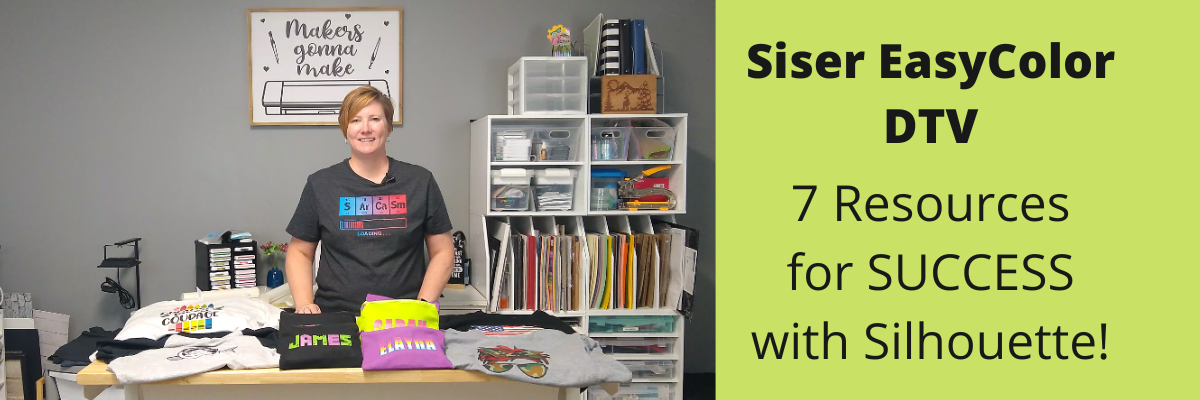
    Siser EasyColor DTV with Silhouette

    Have you heard?
    If you have been following me on my Facebook or YouTube channels I hope you haven’t missed it!

    Affiliate links may be present in the below and as an Amazon Associate I earn from qualifying purchases. What that means is that I may receive compensation if you purchase through the links I have provided. The price you pay for the product or service is not higher but I may get compensated for sharing.

    I have been having a ball playing with the NEW Siser EasyColor DTV – printable heat transfer vinyl!

    This combines one of my favorite features of Silhouette – Print and Cut – with the possibilities to put full color graphics on garments and objects with a home inkjet printer.

    Yes, you read that right! Your home inkjet printer will work.
    What printer do you need? Any high quality photo printer should work.

    I am using a Canon TS9521C Craft Printer but you do not have to have this exact one.

    I do like this printer because I have the capability to print on 12″ x 12″ cardstock, other large formats, and it has the rear feed tray.
    Check out this post on How To Print & Cut Larger for more tips.

    I wanted to drop in and share some of the tutorials and demos I’ve been doing with this Siser EasyColor DTV.

    I ordered mine from The Vinyl Spectrum who has super fast shipping and I added a few Silhouette Autoblades to my order to reach that free shipping minimum.
    For the super fast shipping I get, I’m happy to pay the shipping, however, I needed a few new blades anyhow.

    Now, let’s get on to the EasyColor Information!
    Check out each video description for more details and links to all the supplies used in each video.

    Let’s start with the update after washing because I know many are wondering about the lifespan. First wash and the colors look the same and no lifting on the vinyl.
    I did follow the care instructions on the Siser website.

    Siser has said that they were seeing 20-25 washes before they saw changes in the colors. It will take me awhile to get up to 20 washes, so I’ll update every so often.

    Now that you’ve seen the update and how it held up, let’s take a look at how I did this.

    I am using a process called Print and Cut with the Silhouette. I released a new video tutorial on Print and Cut in less than 15 minutes to share how I set up the file and was successful in my cutting.

    I also shared more tips on print and cut with Silhouette in this video,
    Tips for Silhouette & Siser EasyColor DTV.
    In the video, I share some of the most common reasons we see for cutting issues with Silhouette when using print and cut.

    And then I shared more tips in this video,
    Siser EasyColor DTV with Silhouette Print & Cut

    I shared a few more tips for masking and pressing the EasyColor DTV in this video,
    Siser EasyColor DTV Demonstration – Printable HTV

    And I couldn’t stop, so I also shared
    5 Tips for using Siser EasyColor DTV – Printable HTV

    Now, this new material is not limited to shirts even though that might be what you see in the majority of testing going on right now.
    I also used it on these cotton canvas zipper bags and I shared that HERE
    Back-to-School Goody Bags with Siser DTV.

    As you can tell, I’ve had a lot of fun with this new product!
    I have used several other brands in the past and even taught classes with printable heat transfer paper. The major difference here is that this is actual heat transfer vinyl (not paper) that is printable AND I’ve been successful in getting it to mask and transfer without losing ink.

    Make sure to check out the links in each video for the specific supplies I used and for more tips and tutorials on each one.
    I want you to be successful with this product!

    Grab some and just start playing with it!

    Check out the Siser Application Instructions HERE.

    I would love to see what you are creating with your Silhouette software or machines!
    Feel free to post on my Facebook group at 
    Silhouette Secrets with EllyMae.

    Save this for future reference by pinning the image below.

    Enjoy !

    This image has an empty alt attribute; its file name is logo.jpg

    THANK YOU for your support! How can you help? Click HERE & buy a coffee.
    Every little bit helps with the cost of running the site.

    Or if you are looking for more in-depth, step-by-step classes, check out all of my online Silhouette classes on my Teachable site HERE.

    SS Logo snip it
    **This post may contain affiliate links. What that means is that I may receive compensation if you purchase through the links I have provided. The price you pay for the product or service is not higher but I may get compensated for sharing.
    Posted on 1 Comment

    Back-to-School Goody Bags with Siser DTV

    Today I wanted to share the Back-to-School goody bags that I made up for my kids friends group! They have been a hit!

    This is something that could easily be done for teachers, birthday gifts, girls night out, teenager go bags, a moms gift, or many more ideas!

    I loaded these up with a few fun goodies for the kids to enjoy. Not necessarily to take to school with them, but just to have for fun.

    Affiliate links may be present in the below and as an Amazon Associate I earn from qualifying purchases. What that means is that I may receive compensation if you purchase through the links I have provided. The price you pay for the product or service is not higher but I may get compensated for sharing.

    I’ve been having lots of fun with this Siser DTV printable heat transfer vinyl and had to give it a try on the canvas bags.

    Siser EasyColor DTV can be used with a home inkjet printer and is vinyl, not paper.
    It can be found at authorized Siser Distributors and has been very popular since it’s release a few weeks ago.
    Here are a few suppliers that I recommend:
    Expressions Vinyl
    H & H Sign Supply
    Sparkleberry Ink – use code SILSECRETS to save 10%
    The Vinyl Spectrum

    DO NOT forget to add the TTD Easy Mask to your order also if you are planning to do a print and cut around designs. Solid color designs do not need the mask, but if your design has multiple pieces, you do need the mask to transfer it to your garment.

    Check out my YouTube channels at Silhouette Secrets+ & Swift Creek Customs for more information and demos on the Siser EasyColor DTV.

    Supplies used for this project:
    Siser EasyColor DTV – printable heat transfer vinyl
    TTDE Mask
    Cotton canvas zipper bags
    PixelCraft Color Font by Illustration Ink – Design #316342
    PickPocket Color Font by Illustration Ink – Design #330129
    Lint roller
    Heat Press or other heat source
    – Assorted Goodies to fill the bags

    My daughter picked out the Color fonts to use for the boys and girls bags. If you have never used Color Fonts before, they are fun to play with.
    Check out the Let’s Explore v4 – Color Fonts tutorial HERE.

    I set up the design as a print and cut project and rotated the names to fit as many as I could on the page.

    Print and cut is one of my favorite things to do with Silhouette. The color fonts are designed for print and cut projects and are not individual cut pieces.
    Grab some and start playing!

    For more tips on Print and Cut, check out these new videos I released on YouTube

    I would highly recommend when working with a product such as the Siser DTV which has a white background, that you utilize the Print Bleed feature in the Silhouette software. This adds a bit of color (called a bleed) around the outside edge of the design, so when you cut around the image, you shouldn’t be left with a white edge.
    Each design will vary in what print bleed distance works and looks good.

    As a note: print bleed is currently broken in the v4.4.9xx series of software versions as of this publishing date. I mention this a few times in the video tutorials above.
    You can always create your own print bleed by using the Offset Tool around your design. Adjust the distance of the offset as needed and fill it with color.

    I would recommend software version v4.4.554 found under the Legacy section if you do want a version that it works properly in.

    After printing, I weeded the designs. The Siser EasyColor DTV weeds so smooth with a good cut – it really is like butter.

    Next is to cut apart.

    Time to mask and press each of the names to the bags. I used a folded up towel inside the zipper bags to help bump up the area being pressed so the seams did not interfere with the pressure on the DTV.

    Then I lint rolled the bags, hung the edge of the zipper off the edge of the heat press platen, pre-pressed the bag, and then pressed the Siser DTV onto the bag using the recommended settings from the Siser website.

    I am using a Craft Pro 15″ x 15″ heat press with a slide out bottom platen.
    I love this thing!

    Ta-Da!

    Fill the bag with goodies and gift it to someone!

    The Siser EasyColor mask can be reused if no color has transferred from the print or fibers from the garment. I knew to watch for the ink, but the fibers caught me off guard. These black canvas bags, even when lint rolled, left fibers on the mask. These fibers then will transfer over to the next image being pressed.
    Just something to keep in mind!

    I shared this in my recent
    5 Tips for using Siser EasyColor DTV – Printable Heat Transfer Vinyl
    video too!

    These gift bags could be customized with regular htv, glitter htv, rhinestones, or even a combination of materials too!

    Check out the Creating a Rhinestone Design in Silhouette Studio video class HERE.

    What would you use these gift bags for?
    Leave a comment below or share on the Facebook group at 
    Silhouette Secrets with EllyMae.

    Save this for future reference by pinning the image below.

    Enjoy !

    This image has an empty alt attribute; its file name is logo.jpg

    THANK YOU for your support! How can you help? Click HERE & buy a coffee.
    Every little bit helps with the cost of running the site.

    Or if you are looking for more in-depth, step-by-step classes, check out all of my online Silhouette classes on my Teachable site HERE.

    SS Logo snip it
    **This post may contain affiliate links. What that means is that I may receive compensation if you purchase through the links I have provided. The price you pay for the product or service is not higher but I may get compensated for sharing.
    Posted on Leave a comment

    Larger than Mat Projects

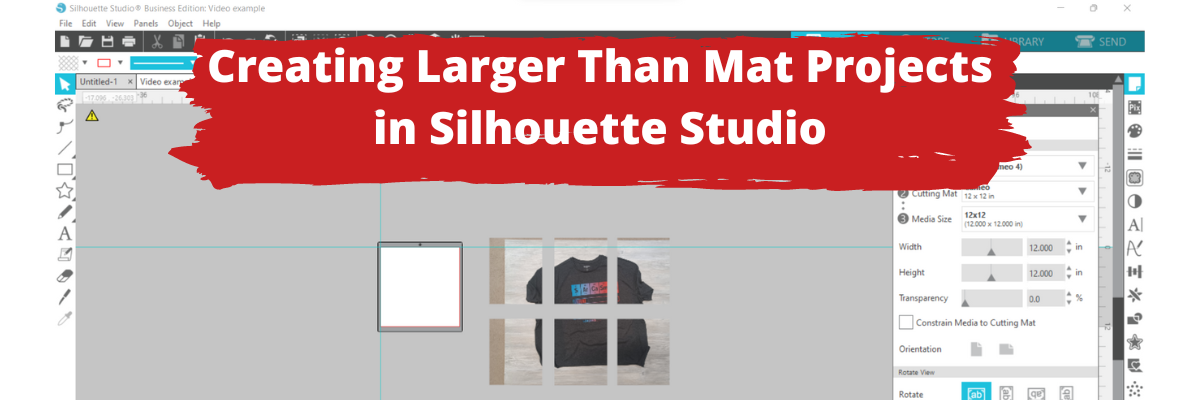
    Creating a Larger Than Mat Project in Silhouette Studio

    Have you ever wanted to create a larger than mat project?

    How do you cut apart an image that is larger than you can print or larger than you can cut on your Silhouette machine mat?

    This was a question asked on my Silhouette Secrets+ Facebook group this week and I created a quick YouTube video showing one way you can do this.

    Check out the new video tutorial HERE
    Don’t forget to Like and Subscribe to be notified of future video tutorials on
    my YouTube channel.

    I used a random photo from one of my recent projects I’ve been working on, but you can do this with any image. A jpeg or png file will be the easiest to work with since it’s a flattened graphics and consists of 1 layer. You could still work with a svg file, but it may require a bit more playing with it, since it’s made up of pieces.

    Check out the File Types for Silhouette tutorial HERE for more information on file types.

    Here are a few of the resources I posted in the video description to help with future projects:
    – New! Print and Cut Tutorial Video HERE
    – Silhouette Guides and Rulers HERE
    – Knife Tool Tutorial HERE
    – Knife Thickness Tutorial HERE
    – Print & Cut written Tutorial HERE
    – Printing Large Format Tutorial HERE

    Have you made a larger than mat project?

    I used it when I cut the black backing for this large reindeer gnome.

    Check out the post on Getting More Out of your Silhouette Designs HERE where I first showed the large reindeer gnome.

    Pop over to the new YouTube video tutorial HERE and then get to creating!

    I would love to see what you are creating with your Silhouette software or machines!
    Feel free to post photos or questions on my Facebook group at 
    Silhouette Secrets with EllyMae.

    Save this for future reference by pinning the image below.

    Enjoy !

    This image has an empty alt attribute; its file name is logo.jpg

    THANK YOU for your support! How can you help? Click HERE & buy a coffee.
    Every little bit helps with the cost of running the site.

    Or if you are looking for more in-depth, step-by-step classes, check out all of my online Silhouette classes on my Teachable site HERE.

    SS Logo snip it
    **This post may contain affiliate links. What that means is that I may receive compensation if you purchase through the links I have provided. The price you pay for the product or service is not higher but I may get compensated for sharing.