Posted on 2 Comments

A Guide to Silhouette Cameo 5 Blades and Tools + Free PDF Chart

Let’s talk tools. Tools for the Silhouette Cameo 5 and Cameo 5 Plus model machines specifically in this post.

Affiliate links may be present in the following blog post and as an Amazon Associate, I earn from qualifying purchases.

With the release of the Silhouette Cameo 5, a couple new tools were released that can be used with the new machines. These include the Embossing tools, Heat Pen Set, and Pen Holder Type C.

I’ve created a free PDF chart listing all the tools compatible with the Silhouette Cameo 5 and Cameo 5 Plus. This chart is available as a free download exclusively for confirmed newsletter subscribers.

Join the Newsletter

Subscribe to get our latest content by email.
    We respect your privacy. Unsubscribe at any time.

    I always recommend stocking up on extra blades and cutting mats to have on hand. It can be very frustrating to be in the middle of a project with a dull blade or and adhesive mat that is no longer sticky. It is also one of the fastest ways to rule out a cutting issue you might have.

    You can find blades & tools at Silhouette America, Crafter Cuts, or check out the other retailers in the Silhouette Secrets+ Recommended Retailers list HERE.
    *use code SECRETS at CrafterCuts to save 10% off supplies and free shipping on orders over $35

    Let’s take a look at all the blades and tools that can be used in the Silhouette Cameo 5. For some of the specialty tools listed below I have also included links for tutorials and more information on their usage as well.

    Silhouette Blades

    Silhouette Autoblade Type B

    Silhouette Autoblade – Type B
    Carriage 1
    Used for paper, cardstock, sticker sheets, adhesive vinyl, HTV, Chipboard, Acetate, and select specialty materials.
    Materials under 1 mm thick
    Available at Silhouette America or Crafter Cuts
    *This is the blade I use most often. Most cut issues occurring with this blade can be fixed by following the steps in this video HERE – Troubleshooting Cut Issues


    Silhouette 1 mm Manual Blade
    Carriage 1
    Used for paper, cardstock, sticker sheets, adhesive vinyl, HTV, Chipboard, Acetate, and select specialty materials.
    Materials under 1 mm thick

    Silhouette 1 mm Manual Blade

    Silhouette 2 mm Manual Blade

    Silhouette 2 mm Manual Blade
    Carriage 1
    Used for paper, cardstock, sticker sheets, adhesive vinyl, HTV, Chipboard, Acetate, Craft Foam, and select specialty materials.
    Materials under 2 mm thick


    Silhouette 2 mm Kraft Blade – Type B
    Carriage 1
    Used for chipboard, acetate, craft Foam, leather, and select specialty materials
    Materials up to 2 mm thick
    *15+ Tips for using the Kraft blade found HERE

    Silhouette Kraft blade 2 mm - Type B

    Silhouette Adapter Set

    Silhouette Tool Adapter Set
    Carriage 1
    Adapters are color coded for specific blades/tools
    Black adapter = Silhouette blade (ratchet) & Premium blade
    White adapter = 2 mm Kraft blade
    Gray adapter = Deep Cut blade
    Blue adapter = Silhouette Sketch pens


    Silhouette Blade – often referred to as a “ratchet” blade but the official name is Silhouette blade
    Carriage 1 with black adapter
    Used for paper, cardstock, sticker sheets, adhesive vinyl, HTV, Chipboard, Acetate, and select specialty materials.
    Materials under 1 mm thick

    Silhouette ratchet blade

    Silhouette Premium blade

    Silhouette Premium Blade
    Carriage 1 with black adapter
    Used for paper, cardstock, sticker sheets, adhesive vinyl, HTV, Chipboard, Acetate, and select specialty materials.
    Materials under 1 mm thick


    Silhouette Deep Cut Blade
    Carriage 1 with gray adapter
    Used for paper, cardstock, sticker sheets, adhesive vinyl, HTV, Chipboard, Acetate, Craft Foam, and select specialty materials.
    Materials under 2 mm thick

    Silhouette Deep Cut blade

    Silhouette Kraft Blade 2 mm

    Silhouette 2 mm Kraft Blade
    Carriage 1 with white adapter
    Used for chipboard, acetate, craft Foam, leather, and select specialty materials
    Materials up to 2 mm thick
    *15+ Tips for using the Kraft blade found HERE


    Silhouette 3 mm Kraft Blade
    Carriage 2
    Used for chipboard, acetate, craft Foam, leather, and select specialty materials
    Materials up to 3 mm thick
    *15+ Tips for using the Kraft blade found HERE

    Silhouette 3 mm Kraft blade

    Silhouette Rotary Blade

    Silhouette Rotary blade
    Carriage 2
    Used for fabrics, crepe paper, felt, wool, and select specialty materials
    *Rotary Blade Tutorial HERE

    Additional Silhouette Tools

    Silhouette Pen Holder Type B
    Carriage 1
    Use with a variety of pen styles to sketch onto materials such as cardstock, paper, faux leather paper, etc.
    *Step-by-step Sketching Class HERE
    **More tutorials on sketching HERE

    Silhouette Pen Holder - Type B

    Silhouette Punch Tool

    Silhouette Punch Tool
    Carriage 2
    Used with adhesive vinyl or HTV to punch a hole to designate where to weed the material out.
    Also used with the Cameo 5 for etching on Silhouette metal sheets.
    *12+ Tips for Etching with the Silhouette Cameo 5 HERE


    Silhouette black bodied sketch pens
    Carriage 1 with blue adapter
    Used to sketch onto materials such as cardstock, paper, faux leather paper, etc.
    *Step-by-step Sketching Class HERE
    **More tutorials on sketching HERE

    Silhouette Sketch Pens

    Silhouette Pen Holder Type C

    Silhouette Pen Holder – Type C
    Carriage 2
    Use with a variety of pen styles to sketch onto materials such as cardstock, paper, faux leather paper, etc.
    Type C Pen Holder has a broader barrel on the end so you can use wider bodied pens and markers


    Silhouette Embossing Tool Set – Type C
    Carriage 2
    Embosses onto materials such as cardstock, embossable foil, etc.
    Set includes a fine and wide tip.

    Silhouette Embossing Tools

    Silhouette Heat Pen Set

    Silhouette Heat Pen Set – Powered Tool
    Carriage 2
    Applies foil transfer material to surfaces of many materials such as cardstock, faux leather, etc.
    Cordless design and powered by the Cameo 5 Tool 2 housing – 1 mm & 2.5 mm tip
    *Heat Pen Setup & Foiling tutorials HERE

    Silhouette Heat Pen Super-Fine
    Carriage 2
    Applies foil transfer material to surfaces of many materials such as cardstock, faux leather, etc.
    Cordless design and powered by the Cameo 5 Tool 2 housing
    0.5 mm Super Fine Tip

    Additional Supplies

    There are a few additional supplies for use with some of the specialty tools listed above.

    Silhouette 12″ x 12″ Embossing Mat
    For use with the Silhouette Embossing Tools

    Silhouette Embossing Mat

    Silhouette Heat Transfer Foil

    Silhouette Heat Transfer Foil – Gold & Silver
    For use with the Silhouette Heat Pen Set
    2 heat foil rolls (3 in x 33 feet)
    *Heat Pen Setup & Foiling tutorials HERE


    Silhouette Electrostatic Bed
    Uses static electricity to hold materials in place while being cut with the Cameo 5 models
    *Tips for using the Silhouette Electrostatic Bed HERE

    Silhouette Electrostatic Bed

    Silhouette Electrostatic Protector Sheet

    Silhouette Electrostatic Protection Sheet
    12″ x 12″ – 2 per pack
    Protects the Electrostatic Bed from damage.

    There are a lot of options now available with the Silhouette Cameo 5 and Cameo 5 Plus.

    Grab the free PDF chart of all Silhouette Cameo 5 tools for future reference when you subscribe to the Silhouette Secrets+ newsletter.
    *chart is the current tools available for the Cameo 5 and Cameo 5 Plus January 2024

    Join the Newsletter

    Subscribe to get our latest content by email.
      We respect your privacy. Unsubscribe at any time.

      Find even more information on the Silhouette Cameo 5 HERE including an unboxing, setup, first cuts, and the Electrostatic Bed.

      Please let me know if you have any questions in the comments below.

      Save this for future reference by pinning the image below.

      Image of a tool chart for the Silhouette Cameo 5 and Cameo 5 Plus, featuring various cutting tools and their specifications, along with a 'Free PDF' label.

      Enjoy !

      THANK YOU for your support! How can you help? Click HERE & buy a coffee.
      Every little bit helps with the cost of running the site.

      Silhouette Classes

      Never stop learning! Let me help you take the anxiety out of learning with Silhouette and get to creating faster! My Silhouette classes are heavily focused on software, so you can take the skills & techniques taught and apply them to many future projects!

      Silhouette step-by-step Classes by Silhouette Secrets+

      **This post may contain affiliate links. What that means is that I may receive compensation if you purchase through the links I have provided. The price you pay for the product or service is not higher but I may get compensated for sharing.
      Posted on 1 Comment

      New machine release – Cricut Venture™

      Cricut® announced the release of a new machine called the Cricut Venture™ and I’ve been asked by several my thoughts on it. I figured this would be the easiest way to answer that.

      Thoughts on the new Cricut Venture™ Cutting Machine

      First, please understand these are my personal opinions only from my experience! And we can all be friends!!! No matter what cutting machine we choose to use, we can still be friends. Each user may have different purposes or reasons for the machine that they choose. The following information is my own personal opinion and not everyone will agree 100% with me…. AND that is OK!

      Next, please understand that I do not have a Cricut Venture™ machine and do not plan to get one as I publish this, as that is not the direction I am going. However, I do have years of experience with Cricut® products as that is what I started with almost 20 years ago and I work with many users who are still Cricut® owners, but might be utilizing the Silhouette Studio Business Edition software as an alternative to Cricut Design Space®.

      My ultimate goal is to help YOU choose a cutting machine that will be the best fit for YOU! The best one for YOU…. is the one YOU will take out of the box and use. If it just sits in the box, it isn’t doing anyone any good.

      On that note, whatever cutting machine you do get.
      GET IT OUT OF THE BOX!
      I say this for several reasons.
      First, it is not doing you any good just staring at the box. It’s not going to bite you and it’s not going to be magic straight out of the box! Get it out!
      Next, almost all cutting machines have a limited time warranty on them. All brands! Get it out of the box and start using it just in case there might be an issue with the machine! This is NOT machine specific, but in general!!! All electronic equipment has a chance of not working properly or having some random issue that happens.
      If you wait a year or two to open the box and you encounter an issue, there is NOTHING you can do about that! The machine warranty is over! You now have a giant paper weight and that is not the company/brands fault.

      I highly recommend this especially for a user buying a new machine that’s just been released! Get it out of the box and use it!

      Affiliate links may be present in the following blog post and as an Amazon Associate I earn from qualifying purchases.

      —————–

      Again, please understand this is my opinion only. If you are still reading, I hope that you will read the entire post completely so you’ll understand why I share what I do.

      I am going to cover some very basic things that stand out to me right off the bat. This will not be an in-depth comparison post, but hopefully will give you some thinking points to consider.

      First thoughts on the Cricut Venture

      The Cricut Venture™ was announced as a new innovative large format cutting machine with a unique space saving design.

      Price

      It comes in with a hefty price tag of $999.99 upon the initial release.

      Why do I use the word “hefty”?
      I add this adjective because it is quite a bit higher than other comparable machines on the market.

      As a comparison, the Silhouette Cameo Pro and the Siser Romeo machine both come in at a lower price point than the new Cricut Venture™.
      Silhouette Cameo Pro retail value $499.99
      Siser Romeo retail value $699.99
      *sale prices may be lower than the retail value

      Both the Silhouette Cameo Pro and the Siser Romeo are 24″ cutting machines that can cut matless with any lined material and with a cutting mat too!

      These 2 large format cutting machines have been on the market for a bit now. The Silhouette Cameo Pro was released in November 2020 and the Siser Romeo was released in November 2022.

      I do own, use, and am proficient in both of these 24″ cutting machines.
      No matter what machine you have, especially in a large format cutting machine, they do require a very specific setup for best success!
      We troubleshoot a lot with both Silhouette and Siser machine users and the biggest issue we see is someone not having the machine set up properly and not taking the time to learn it! Those are 2 of the most important factors with any machine!

      Limitations

      When comparing the new Cricut Venture™ to the Silhouette Cameo Pro or the Siser Romeo, I see several limitations right away.

      Software

      All Cricut® machines utilize the Cricut Design Space® software. This is an online software and they control it and whatever you create in it.

      This is ultimately the reason that I outgrew Cricut®. I had maxed out my capabilities with their software and I wanted more.

      Cricut Design Space® also does not allow you to export your work from their program. They control you and your work!
      This is a limit to any business owner in my opinion or even a crafter.
      For more information, I would highly recommend you read the Cricut® terms of use closely. No one does, but it might surprise you what is included in that fine print that you agree to.

      While they are now releasing a large format cutting machine that is being promoted for business owners, they still control YOU. If their server is down, so are you!

      I’ve had many argue with me that they do have an “offline” option as well, but it’s not really offline if you have to take special steps to save things into the “offline” form in order to be able to access offline. In my opinion, that’s not the true meaning of offline.
      Completely offline to me means that you do not need internet at all to use it!

      Do you need to have Cricut Access™ to use the new Cricut Venture™?

      I asked this question on the Cricut Facebook Page and the answer I received was
      “The Cricut Venture will use Design Space.” – Cricut.

      That does not answer my question and leaves me with even more.
      Anyone can use Cricut Design Space®, but there are certain features they have rolled out for Cricut Access™ only and you cannot use unless you have Cricut Access™.

      Since they did not say yes or no to my question, I’ll watch and see if you do have to pay for Cricut Access™ in order to use the new Cricut Venture™.

      *Update – I asked an influencer & Cricut Access is not needed.

      Materials

      The new Cricut Venture™ can cut matless, however, it is specifically designed to cut Cricut Smart Vinyl™. The Cricut Smart Vinyl™ comes in 13″ and 25″ widths.
      This is a major limitation in my opinion!
      One of the main reasons a user would invest in a large format cutting machine is to be able to cut matless.

      If we look at cost alone, especially for a business, bulk rolls of Oracal adhesive vinyl and Siser HTV are much more cost effective when selling or even just creating in general.

      There are 2 roller lock positions on the Cricut Venture™.
      At the 13″ width and the 25″ width. It was designed intentionally with these limits, so the Cricut Smart Vinyl™ is the only product that it can use matless.

      Find the Cricut Venture™ supplies available at Michaels HERE to compare prices.

      Cutting Mats

      The Cricut Venture™ has 2 sizes of cutting mats that can be used.
      A 12″ x 24″ and a 24″ x 28″ cutting mat.
      These are specially designed cutting mats for the Cricut Venture™ only.

      It CANNOT utilize the other Cricut cutting mats for older models.
      Now, on this point, I fully agree with specific cutting mats for the machine.

      The larger you go with a cutting mat, the heavier the mat is. This also means that the machine has to be designed in a way that it can securely grip the mat in the machine all the time. This means stronger rollers. And with the new design of the “space saving” feature, it is really going to have to hold on tight to work against gravity with the cutting mats. This also means that the cutting mats have to be designed to withstand the pressure of the stronger rollers too!

      Print then Cut

      This is one I’ve seen asked a lot with this new machine.

      Is the print then cut space larger?

      The answer is yes, if you have a larger format printer to allow you to print larger sizes.
      However, it doesn’t affect the print then cut space of smaller media types.
      There are still limits to the print then cut size on the average crafter size materials.
      Maybe they will change that in the future as it’s one of the things I see requested by users.

      Design

      One of the features of the new Cricut Venture™ is the unique 45° angle of the machine. This feature is designed as a “space saver” feature and being promoted that you do not need as much space to use the new machine as other 24″ cutting machines.

      My first thought is, that it does not seem like a good idea for functionality and lifespan, especially when working with a large format cutting mat. Now, working with rolls of vinyl, you may not have too many issues (Cricut Smart Vinyl™ of course).
      But, a cutting mat is a different monster!

      I’ve been using the Silhouette 24″ x 24″ cutting mat since before it was released in November 2020 as one of the original tester. It is the same thickness as a Silhouette 12″ x 12″ cutting mat but it is 4x the size. Extra size = extra weight.
      The Cricut Venture™ cutting mats are redesigned from the original Cricut® mats for durability with the Cricut Venture™.

      And we are all still living on Earth, so we are still affected by GRAVITY!
      Not only is the cutting mat heavy but gravity is also affecting that.

      Only time will tell how that affects the machines lifespan.
      But, lifespan on a machine has never been a goal of Cricut®, as we have seen several past models no longer supported.

      —————–

      Now, those are my first thoughts and my own personal opinion based on my experience with cutting machines.

      That does not mean it isn’t the right machine for YOU!

      It might be and that is great!
      I hope it does everything you want it to do and more!

      I was asked my thoughts several times and these are the things that jumped out at me first. Over time we will see what happens.

      I know there will be some who do invest in a Cricut Venture™ and I would love to hear your experiences with it! Both initially and down the road with extended use.

      I will be following along on the journey through other Cricut®bloggers as well.

      —————–

      If you are still reading this, thank you for sticking around and hearing my thoughts!

      I want to briefly touch on how most Cricut® users find and follow me.
      That is typically through the Silhouette Studio software!
      Well, not the software directly but the fact that I’ve been teaching and troubleshooting the Silhouette Studio software since 2016.

      If a Cricut® user starts to feel the limitations of designing or working in Cricut Design Space®, using outside software to design in is an option.
      Cricut Design Space® does allow the import of SVG files.
      This is great!

      With the Silhouette Business Edition upgrade, you can design and save SVG files.
      As with any new software program you are using, it does take time to learn!
      And that’s where my background is.

      The Silhouette Studio Business Edition upgrade can be found at these locations:
      Crafter Cuts (use code SECRETS to save 10%)
      Check for additional sales at Silhouette America The Vinyl SpectrumSwing Design

      Find more tutorials on the Silhouette Secrets+ website to help learn the Silhouette Studio Business Edition software HERE

      I also have step-by-step Silhouette classes available on my Teachable site HERE. While I use a Silhouette machine to cut, each class is heavy on designing in the Silhouette software and could be used to learn how to create files you can use and export as a SVG.

      For more details on how to Save as a SVG from Silhouette Studio Business Edition,
      check out this post
      Let’s Explore v4 – Save as a SVG

      No matter what cutting machine you choose, get it out of the box!
      And use it!

      If you are in the market for a large format cutting machine, where can you find it?
      Cricut Venture™
      Silhouette Cameo Pro – use code SECRETS to save 10%
      Siser Romeo

      Or you may be ready for a more professional plotting machine to invest in.

      If you are a Silhouette Cameo Pro user or a Siser Romeo user, I have more resources that can help too! Remember I said that the setup is one of the most important steps!

      Check out this video on the Swift Creek Customs YouTube channel
      Siser Juliet, Romeo, and Silhouette Cameo 4 Cutting Machines – 5 Differences

      Find more on the Silhouette Cameo Pro HERE
      Find more on the using Siser Romeo HERE

      Enjoy creating!

      THANK YOU for your support! How can you help? Click HERE & buy a coffee.
      Every little bit helps with the cost of running the site.

      Silhouette Classes

      Never stop learning! Let me help you take the anxiety out of learning with Silhouette and get to creating faster! My Silhouette classes are heavily focused on software, so you can take the skills & techniques taught and apply them to many future projects!

      Silhouette Step-by-Step Classes

      SS Logo snip it
      **This post may contain affiliate links. What that means is that I may receive compensation if you purchase through the links I have provided. The price you pay for the product or service is not higher but I may get compensated for sharing.
      Posted on Leave a comment

      Mega Sale at the Silhouette Design Store

      Affiliate links may be present in the following blog post and as an Amazon Associate I earn from qualifying purchases.

      Just a quick post to give you a heads up on the 50% off sale at the Silhouette Design Store.
      Check it out HERE.

      Sale is from now until May 30, 2023.

      Clear out that wish list, grab those favorite fonts you’ve been eyeing, or the more expensive projects you have wanted to try. Now is a great time to do that and save some $$

      Silhouette Design Store 50% off HERE

      TIP

      I recommend shopping early and don’t wait until the last minute…. there always seems to be a glitch at the end where millions of people are trying to shop and the store slows down.

      Enjoy !

      THANK YOU for your support! How can you help? Click HERE & buy a coffee.
      Every little bit helps with the cost of running the site.

      Looking for more in-depth, step-by-step classes, check out all of my online Silhouette classes on my Teachable site HERE.

      SS Logo snip it
      **This post may contain affiliate links. What that means is that I may receive compensation if you purchase through the links I have provided. The price you pay for the product or service is not higher but I may get compensated for sharing.
      Posted on 3 Comments

      Creating Templates in Silhouette Studio

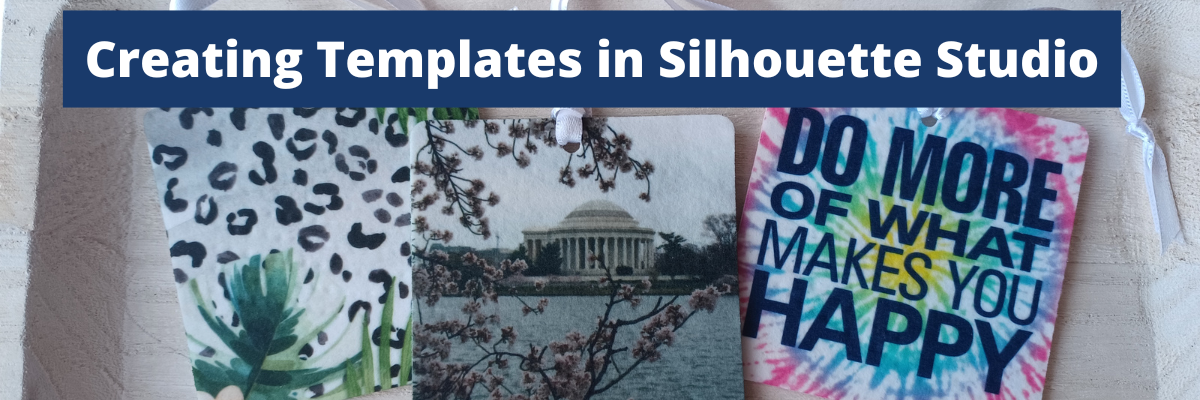
      In today’s tutorial I’m going to share how I create a template file in Silhouette Studio that can be reused for future projects. In this particular example, I’ll be using an air freshener sublimation blank. But, this same technique can be applied for all kinds of future projects.
      This is a great trick to have in your toolbox, especially if you are using the same blanks over and over.

      Affiliate links may be present in the following blog post and as an Amazon Associate I earn from qualifying purchases.

      Supplies used:

      Sublimation air freshener square blanks from Heat Transfer Warehouse
      Epson F170 sublimation printer
      Epson sublimation ink
      Sublimation paper
      Heat Tape
      Parchment Paper
      Heat Safe Gloves
      – Patterns or photos
      Patterns in demo below:
      Tie-Dye Pattern by Renee Jablow – Design #330722
      Tropical Watercolor Leopard Print by Sophie Galo – Design #416584
      Do More of What Makes You Happy Phrase by Lori Whitlock – Design #35309
      Sharpie Pen font by Flycatcher Design – Design #299019
      – Heat source – Siser Heat Press

      Optional:
      Artesprix Protective Pad (heat safe surface)
      Air Purifier (helps with any smells from sublimation)
      Tape dispenser

      Silhouette Step-by-Step Tutorials

      Check out the full written tutorial below or find a video tutorial on the Silhouette Secrets+ YouTube channel HERE.

      How to create a Template in Silhouette Studio

      Measure sublimation blank.

      Use drawing tools in the Silhouette Studio software to draw the shape needed.

      Use the Scale Tools under the Transform Panel or the Quick Access Toolbar (QAT) at the top to size the template as needed.

      With sublimation it is a good idea to make your print a bit larger than actual size, so you have a little wiggle room when placing your image on the blank. Add a small extra border to the exact measurement you took of the blank and use that as your template.

      If you plan to print several on the same page, make copies of the template shape.
      If needed, check the Show Print Border option on the Page Setup Panel – Tab 1 to see where your printer page margins are and make sure your design won’t get cut off.

      When you have the shape, save the file as your template file that can be reused in the future.

      When you are ready to use the template file, open it, then choose File > Save As and rename it for your current project.

      Now, we can fill the template shapes with the images or patterns for the project.
      If your sublimation blanks are double sided, you will need patterns for both sides.

      How to Fill in Template Shapes

      With Silhouette Studio you have so many options to design within your template shapes.
      Here are a couple ways.

      Use the Pattern Fill Panel to add a pattern to the shape

      Or access larger images of the Patterns folder from the Show/Hide library option by clicking the folder icon in the bottom left corner of the Silhouette Studio Design Tab.

      This will open up a split screen between the library and the design area. It can be easier to view things from the library, especially patterns at a larger size.

      Or drag and drop a photo from your computer into the shape too!

      Add any additional elements to the design you want.
      I added a text design Do More of What Makes You Happy Phrase by Lori Whitlock to the top and text for the location using Sharpie Pen font by Flycatcher Design to the bottom one.

      If you do add elements and you want both sides to match exactly, make a copy of the one you altered and delete the template. Then they will match exactly.

      Make sure to save your file often and keep in mind that the more graphics you add to a file it increases the size of that file. If you find your computer taking longer to process, it could be due to large photos and patterns.

      When you are ready to print, go to File > Print and follow the direction for printing to the sublimation printer you have.

      Check that the print came out properly. Any text should be mirrored when it prints because it’s an ink transfer.

      Sublimation on Air Freshener Blanks

      Cut the printed designs apart and secure the print to the sublimation blank with heat tape.

      Even though these are double sided, you still want to press each side separately. The side with the print should be the side that is against the top platen of the heat press, so it gets the adequate heat for a full transfer.

      Use a piece of parchment paper on the bottom of the heat press surface to protect it.
      Then place the sublimation blank on top with paper side up.
      Cover with another piece of parchment paper to protect the top platen of the press.

      Press the sublimation blank according to the manufacturer’s instructions.
      For these air fresheners it calls for 400 degrees F for 60 seconds with medium to firm pressure. Hot peel!

      Be very careful when removing the items after pressing as they will be hot.
      Throw out any parchment paper that has ink on it as it can transfer to the next blanks or your press.
      These are a hot peel and you better be quick about it!
      I would recommend having heat safe gloves ready to go. I had to run get mine the first time and it was not quick enough.

      I found it much easier to press 1 at a time and then after remove the sublimation paper quickly and press it down on my Artesprix Heat Safe Protective Mat to help it stay flat and not curl.

      I learned several things during this process.
      At first I tried to press 3 at a time. I wasn’t fast enough to remove the paper before they cooled and the paper stuck to the blank. I’ll work on ways to remove that in the future and see if I can save those blanks.

      Once cooled, secure the sublimation print to the blank with heat tape on the other side of the blank.
      Press again at the recommended time and temperature and quickly remove the sublimation paper.

      Important Tips

      Follow the instructions for any sublimation blank or material you are using.
      These specified “hot peel” and I definitely found that out the hard way. The first 3 I did, did not turn out because I wasn’t fast enough.

      Get extra blanks.
      Especially if it’s the first time you are working with a material! Extra blanks are always a good idea.

      Only press one air freshener at a time so you can work quickly.
      Unless you are pressing the entire sheet of fresheners with the same pattern. Then you can do the full sheet with a full printed sheet as Heat Transfer Warehouse showed in this tutorial HERE.
      They also share how to scent the fresheners there too!

      Keep in mind that when you are pressing a print to a surface, the surface can affect the final colors as well. You can see in my projects that my darker photo of Washington D.C. looks a bit darker and not as bright as the others. That is due to how the photo started and the surface of the blank too!

      I think this might be my favorite one!

      Save this for future reference by pinning the image below.

      Enjoy !

      THANK YOU for your support! How can you help? Click HERE & buy a coffee.
      Every little bit helps with the cost of running the site.

      Looking for more in-depth, step-by-step classes, check out all of my online Silhouette classes on my Teachable site HERE.

      SS Logo snip it
      **This post may contain affiliate links. What that means is that I may receive compensation if you purchase through the links I have provided. The price you pay for the product or service is not higher but I may get compensated for sharing.

      Posted on 2 Comments

      New! Silhouette Modify Panel Cheat Sheet

      Just a quick post today to share the NEW Silhouette Studio Modify Panel Cheat Sheet.

      This NEW cheat sheet is available as a free download exclusively for confirmed newsletter subscribers.

      Join the Newsletter

      Subscribe to get our latest content by email.
        We respect your privacy. Unsubscribe at any time.

        For more information on the Modify Panel check out these tutorials:
        Let’s Explore v4 Modify Panel – Part 1 HERE
        Let’s Explore v4 Modify Panel – Part 2 HERE

        I hope that this helps you in your design journey in Silhouette Studio.
        I’ll be honest and most times I just click the buttons until it does what I want it to do as each design can vary.
        The Undo function is your BEST FRIEND in any software program!

        Make sure to follow us on all the social media sites!
        You never know which one is going to show you the new content that is released.
        Algorithms are funny and complicated.

        Find me online at:
        Silhouette Secrets+ Blog
        Silhouette Secrets+ FB Page
        Silhouette Secrets+ FB Group
        Silhouette Secrets+ Instagram
        Swift Creek Customs FB Page
        Swift Creek Customs Instagram

        Save this for future reference by pinning the image below.

        Enjoy !

        THANK YOU for your support! How can you help? Click HERE & buy a coffee.
        Every little bit helps with the cost of running the site.

        Silhouette Classes

        Never stop learning! Let me help you take the anxiety out of learning with Silhouette and get to creating faster! My Silhouette classes are heavily focused on software, so you can take the skills & techniques taught and apply them to many future projects!

        Silhouette step-by-step Classes by Silhouette Secrets+

        Silhouette Secrets+ with EllyMae
        **This post may contain affiliate links. What that means is that I may receive compensation if you purchase through the links I have provided. The price you pay for the product or service is not higher but I may get compensated for sharing.
        Posted on Leave a comment

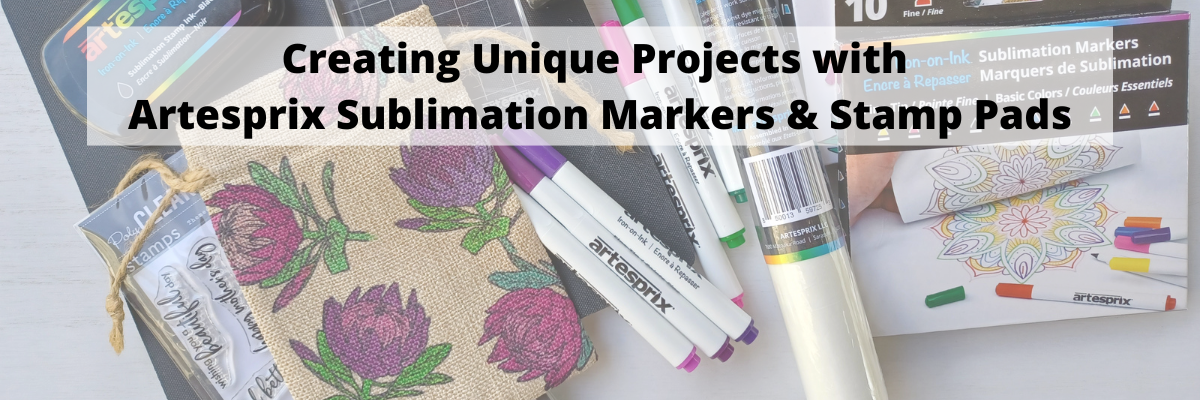
        Creating Unique Projects with Artesprix Sublimation Markers & Stamp Pads

        Silhouette Secrets+ with EllyMae

        This month, I’m diving back into the creative world of Artesprix, and it feels so good to get crafting again! There’s something incredibly satisfying about turning a blank canvas into a colorful, custom masterpiece—and today, it’s all about a personalized drawstring bag. Using Artesprix Sublimation Stamp Inks and Markers, I’ve created a vibrant and unique project that’s both fun and functional. Does anyone else do a little happy dance when a project turns out just right? Let’s jump into the details and make something amazing together!

        I have a new video on the Artesprix YouTube channel this month and let me tell you, while you couldn’t see it on camera, I was doing a happy dance when I revealed the project!
        While I am not going to win any awards for my dancing skills, I think this project deserves a happy dance!

        And the best part is…. YOU can do this too!

        Check out the new video HERE

        I am having so much fun using the Artesprix sublimation supplies and creating unique projects!
        I have more projects I’ve created to share soon! So stay tuned!

        Affiliate links may be present in the following blog post and as an Amazon Associate I earn from qualifying purchases.

        Artesprix Sublimation Supplies

        Here is a list of the supplies I mentioned and demonstrated in the new YouTube video:

        Happy Dance!

        Here are a couple others I made using the stamps and ink pads that I shared in the video tutorial as well.

        I hope you’ll watch the new video and that it sparks some creative ideas!!!!

        I’ll be sharing more so make sure to follow Artesprix on social media to see more projects!
        Artesprix YouTube channel
        Artesprix Blog
        Artesprix Facebook Page
        Artesprix Iron-on-Ink Inspirational Group

        Save this for future reference by pinning the image below.

        I absolutely love working with Artesprix products—they always spark my creativity and leave me inspired with even more ideas for future projects. Find more projects I’ve created using the Artesprix sublimation products HERE.

        Enjoy !

        THANK YOU for your support! How can you help? Click HERE & buy a coffee.
        Every little bit helps with the cost of running the site.

        Silhouette Classes

        Never stop learning! Let me help you take the anxiety out of learning with Silhouette and get to creating faster! My Silhouette classes are heavily focused on software, so you can take the skills & techniques taught and apply them to many future projects!

        Silhouette step-by-step Classes by Silhouette Secrets+

        Silhouette Secrets+ with EllyMae
        **This post may contain affiliate links. What that means is that I may receive compensation if you purchase through the links I have provided. The price you pay for the product or service is not higher but I may get compensated for sharing.

        Posted on Leave a comment

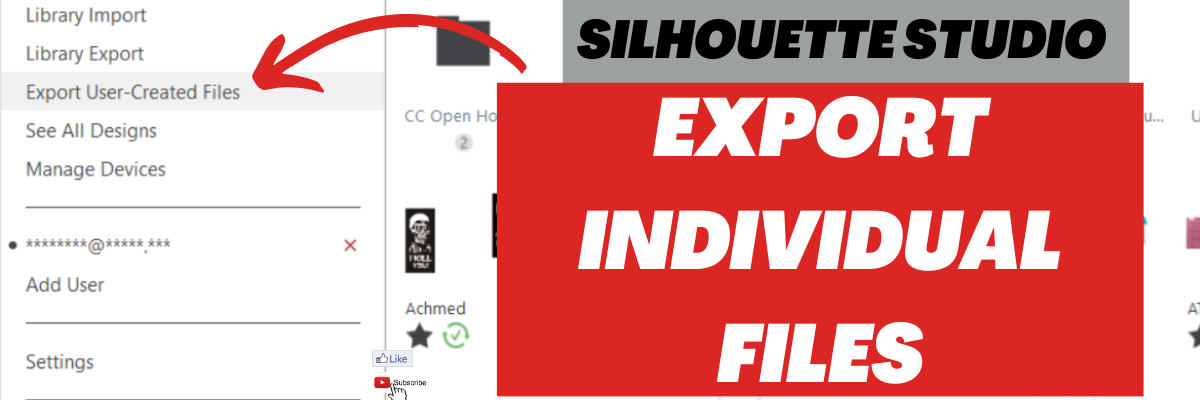
        Silhouette Library – Export Individual Files

        Did you know you can now export your personal user designs individually from the Silhouette library easily and fairly quickly?

        It has actually been available in the software since the release of v4.4.552 in May 2021. So it’s been available for quite some time, but I don’t think a lot of users know about it or how to do it.

        Good news! I have both a video tutorial available on the Silhouette Secrets+ YouTube channel and also a written tutorial on the blog too! Both show you step-by-step how you can do this and give you tips along the way.

        Check out the video tutorial on the Silhouette Secrets+ YouTube Channel HERE.

        And the written tutorial HERE

        This is a great option to make sure that you have all of your files that you have created or saved in the past, backed up to another location. Nothing is 100% safe except having files saved to multiple locations.

        Currently I am recommending the software version v4.4.554 for most users.
        If you are interested in a legacy version of the Silhouette Studio software, check out this tutorial
        Silhouette America Website Updates HERE

        If you already have a higher version, such as v4.5 installed, you can easily go back by following this video HERE

        Why am I not recommending software versions of 4.5 or higher right now?
        Simply because there are several bugs that are not good for most users work flow and I am waiting until those are resolved before recommending a version in the v4.5 range.

        For more tips & tutorials on organization with your Silhouette software, check out these tutorials here:
        Let’s Explore v4 – Silhouette Backups
        Let’s Explore v4 – Library Organization
        Let’s Explore v4 – File Organization

        Save this for future reference by pinning the image below.

        Enjoy !

        THANK YOU for your support! How can you help? Click HERE & buy a coffee.
        Every little bit helps with the cost of running the site.

        Looking for more in-depth, step-by-step classes, check out all of my online Silhouette classes on my Teachable site HERE.

        SS Logo snip it
        **This post may contain affiliate links. What that means is that I may receive compensation if you purchase through the links I have provided. The price you pay for the product or service is not higher but I may get compensated for sharing.
        Posted on Leave a comment

        Sublimation without a Sublimation Printer – Yes, you can!

        Did you know you can do sublimation WITHOUT having a sublimation printer?

        You can with the Artesprix Sublimation supplies!

        Sublimation with Artesprix

        This month I spent some time playing with all the different Artesprix Sublimation products and I’m sharing that with you on the Artesprix YouTube channel HERE.

        In this new video, I shared how you can easily create a watercolor effect using any of the Artesprix Sublimation supplies. No matter what is in your stash, whether it is the Artesprix sublimation markers, stamp pads, ink refills, or the paints, I shared how you can create a unique project.

        It is so much fun to play with and just see what will happen!

        Join me on the Artesprix YouTube channel HERE to see how easy it is to play!

        Affiliate links may be present in the following blog post and as an Amazon Associate I earn from qualifying purchases.

        Artesprix Sublimation Supplies

        You do NOT have to have all of these supplies and for my video I wanted to show how you can use any of them in the same way to get the same effect.

        Here is a list of the supplies I mentioned and demonstrated in the new YouTube video:
        Artesprix Sublimation Markers
        Artesprix Sublimation Stamp Pad
        Artesprix Sublimation Ink Refills
        Artesprix Sublimation Paints
        Artesprix Key Chain Blank
        Artesprix Siliconized Protective Paper
        Artesprix Heat Tape
        Artesprix Protective Mat
        Artesprix Sublimation Stamp Set
        Artesprix Stamp Block
        Artesprix Stamp Cleaner
        – Heat source to reaches 400 degrees F
        – Other supplies: paint brush, water spritzer/mister, paper towels, copy paper, pencil, scissors, plastic bag or plastic wrap

        I want to stress again, you don’t need all of the above and in the video I show each one being used. So no matter what you have in your stash or decide to invest in you can do the same technique.
        Grab an Artesprix Sublimation products, some siliconized protective paper, heat tape, copy paper, and a pencil to get started.

        I’ll be sharing more so make sure to follow Artesprix on social media to see more projects!
        Artesprix YouTube channel
        Artesprix Blog
        Artesprix Facebook Page
        Artesprix Iron-on-Ink Inspirational Group

        Save this for future reference by pinning the image below.

        Enjoy !

        THANK YOU for your support! How can you help? Click HERE & buy a coffee.
        Every little bit helps with the cost of running the site.

        Looking for more in-depth, step-by-step classes, check out all of my online Silhouette classes on my Teachable site HERE.

        SS Logo snip it
        **This post may contain affiliate links. What that means is that I may receive compensation if you purchase through the links I have provided. The price you pay for the product or service is not higher but I may get compensated for sharing.
        Posted on 6 Comments

        Sketching Supplies for Silhouette

        Sketching Supplies for Silhouette

        The Silhouette machines have some awesome features and tools, including sketching supplies to use with your Silhouette! With the right sketching supplies, you can create amazing things with your Silhouette machine. Whether that is for sketching out words or designs, it can do it all!

        Silhouette Sketching Examples

        Today I’m going to share some of the supplies I’ve tested with sketching with my Silhouette machines.

        Sketching Supplies for Silhouette

        Affiliate links may be present in the following blog post and as an Amazon Associate I earn from qualifying purchases.

        There are some differences between the different Silhouette model machines on the supplies you might need so I have broken it down into specific information for the machine models.

        *updated 12/31/23 to include new machine models & tools

        Silhouette Cameo 5, Cameo 5 Plus, Curio 2 owners

        a Silhouette Type C pen holder for Carriage 2 – Silhouette America, HPN

        Silhouette Type C Pen Holder

        The Cameo 5, Cameo 5 Plus & Curio 2 can also use the supplies listed below for the Cameo 4 as well.

        Cameo 4, Cameo Plus, Cameo Pro, Portrait 3, and Portrait 4 owners

        Either:

        a Silhouette blue sketch pen adapter (Silhouette America, CrafterCuts, Amazon)
        with Silhouette black bodied pens (Silhouette America, CrafterCuts, Amazon)

        Or

        a Silhouette Type B pen holder (Silhouette America, CrafterCuts, Amazon) and pens that fit
        Pens I’ve tested: Sharpie Pen S-Gel, Sharpie Pen Style, Pilot G2 Gel Fine 0.7 mm, Gelly Roll Classic 06 Black, Gelly Roll white, Gelly Roll Moonlight 10 Ice Cream Smooth

        Silhouette Type B Pen Holder and Pens

        The Silhouette Sketch Pens with adapter and Type B Pen Holder are Carriage 1 Tools as indicated with a 1 on the front of the tool.

        Cameo 3, Cameo 2, Cameo 1, Curio, Portrait 1 or 2 owners

        Either:

        Silhouette black bodied pens or white bodied pens
        (Silhouette America, CrafterCuts, Amazon)

        Silhouette Sketch Pens

        Or

        A Silhouette Type A pen holder (Silhouette America, Amazon) and pens that fit
        *pens listed above with links

        Silhouette Type A Pen Holder and Pens

        Sketching Resources

        I encourage you to grab the right supplies for your machine and just get to playing with it.

        But I also have some resources that can help on the blog.

        Silhouette Sketch Pens & Sketch Pen Design Class

        Silhouette Sketch Pen Class by EllyMae at Silhouette Secrets+

        Check out the full class HERE where we discuss pens styles, adapters, sketch designs, fonts, filling designs, and troubleshooting too!

        Sketching with Silhouette

        Sketching cards with Silhouette

        I created these cards following a class led by Kelly Wayment and hosted by Michaels – check it out HERE.

        Let’s Explore v4 – Line Effects/Sketch Panel

        Line Effects and Sketch Panel in Silhouette Studio

        Learn about the Line Effects/Sketch Panel and how to fill text or designs in with sketching HERE.

        Let’s Explore v4 – Send Tab – Line Option

        Silhouette Send Tab - Line Color Option

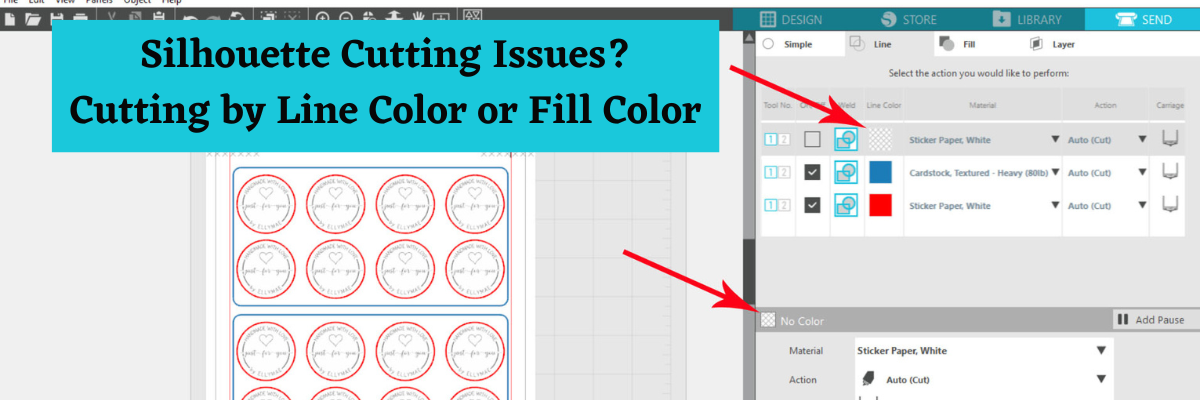
        In this tutorial, I am sharing how to cut and sketch by Line Color – find out more HERE.

        More resources on Sketching found on the A to Z resource list HERE.

        Save this for future reference by pinning the image below.

        Sketching with Silhouette

        Enjoy !

        THANK YOU for your support! How can you help? Click HERE & buy a coffee.
        Every little bit helps with the cost of running the site.

        Silhouette Classes

        Never stop learning! Let me help you take the anxiety out of learning with Silhouette and get to creating faster! My Silhouette classes are heavily focused on software, so you can take the skills & techniques taught and apply them to many future projects!

        Silhouette step-by-step Classes by Silhouette Secrets+

        **This post may contain affiliate links. What that means is that I may receive compensation if you purchase through the links I have provided. The price you pay for the product or service is not higher but I may get compensated for sharing.
        Posted on Leave a comment

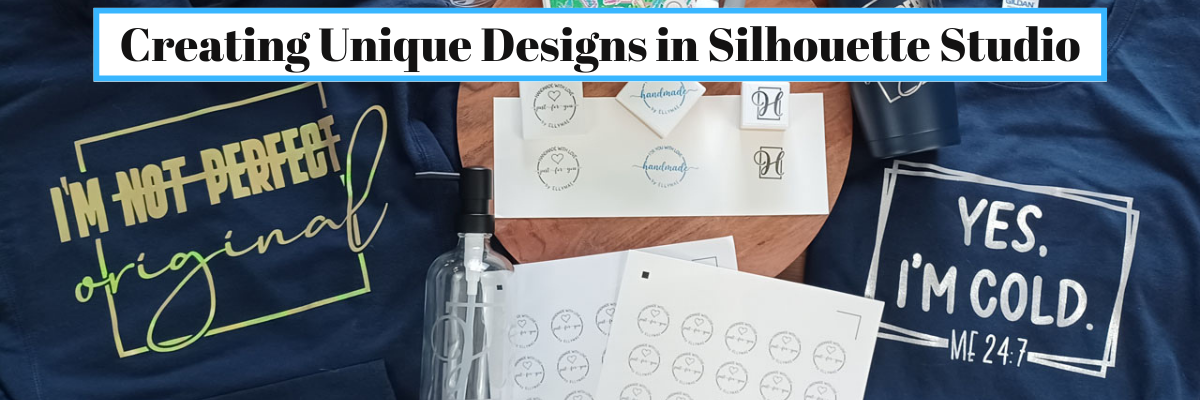
        Join me to Create Unique Designs in Silhouette Studio

        I have just released a new class and I’m so excited to share with you as we use many tools in the Silhouette Studio software to create unique designs.

        New Silhouette Class!!!

        Creating Unique Designs in Silhouette Studio – Choose Your Own Project

        In this class you will learn how to create all of these designs in the photo above and you can choose what you want to create as a finished project.
        Choose to make one or choose them all!

        In this step-by-step class, we put the Silhouette Studio tools to work for us! This class is designed for all levels of users to follow along and create. A few of the tools we will discuss and use are: drawing tools, compound paths, text, offset, knife, glyphs, text to path, and more!

        This is a custom design created by YOU could be used for all kinds of projects from adhesive vinyl, HTV, Mint stamps, stencils, and more!

        I share examples of different finished projects with the techniques used and include optional supplies for additional projects on the class supply list.

        As a bonus, I have also included a demonstration of Citristrip etching on a powder coated tumbler using a design created as the stencil.

        Check out all of the details for this class HERE

        Here are a few closer photos of the projects I created when testing and developing the class.

        Affiliate links may be present in the below and as an Amazon Associate I earn from qualifying purchases. What that means is that I may receive compensation if you purchase through the links I have provided. The price you pay for the product or service is not higher but I may get compensated for sharing.

        Sweatshirt created with:
        Siser Aurora HTV – Goldish
        I’m Not Perfect by Tanya Batrak – Design #326840

        Long Sleeve Shirt
        Siser Sparkle – Snowstorm White Glitter
        BFC Magic Marker Font by Blush Fonts
        BFC Shiplap Bold font by Blush Fonts

        Mint Stamps
        Mint Stamp Machine
        Mint Stamp Kit
        Mint Stamp Ink color of choice

        Stickers
        – Silhouette Sticker Paper – Silhouette or Amazon
        Staples Sticker Paper

        Fonts
        BFC Basically Semi Bold Handwriting Font by Blush Fonts
        Dahlia by Graphix Line Studio

        Glass Etching soap dispensers
        Babylone Script font by Almeera Studio

        And another Citristrip etched tumbler that turned out AMAZING!
        Supplies:
        Powder Coated Tumbler – not all tumblers work
        – Oracal 651
        – Transfer Tape
        Citristrip Paint Stripper
        Painters Tape
        – Gloves, paper towels, water, weeding tool
        – Optional:
        Artesprix Project Mat mentioned in the demo video – 2 size available

        While those are the projects I created, you could do anything you want! I’ve provided a list of supplies depending on what you would choose to do or you might even have other ideas after working through the class design portion.

        CLICK HERE FOR MORE CLASS INFORMATION

        Or check out all the Silhouette classes on my Teachable site HERE.

        I’d love to see what you create!
        Feel free to post on the Silhouette Secrets+ with EllyMae Facebook Group HERE.

        I also put out 2 new videos on the Silhouette Secrets+ YouTube channel with supporting information to this class.

        Setting up Stickers in Silhouette for Print and Cut

        Check it out HERE

        Silhouette Mint Stamp Machine – Step-by-step to Creating a Stamp

        Check it out HERE

        There are so many possibilities that you can do in the Silhouette Software!
        Get started today!

        Save this for future reference by pinning the image below.

        Enjoy !

        THANK YOU for your support! How can you help? Click HERE & buy a coffee.
        Every little bit helps with the cost of running the site.

        Silhouette Classes

        Never stop learning! Let me help you take the anxiety out of learning with Silhouette and get to creating faster! My Silhouette classes are heavily focused on software, so you can take the skills & techniques taught and apply them to many future projects!
        Silhouette step-by-step Classes by Silhouette Secrets+

        Silhouette Secrets+ with EllyMae
        **This post may contain affiliate links. What that means is that I may receive compensation if you purchase through the links I have provided. The price you pay for the product or service is not higher, but I may get compensated for sharing.