Posted on Leave a comment

How to Save As PNG in Silhouette Studio

Silhouette Secrets+ with EllyMae

If you’ve ever created a design in Silhouette Studio and wanted to use it outside the software—whether for DTF (Direct to Film) printing, sublimation, print-and-cut, or any high-quality print project—this guide is for you! With just a few simple steps, you can save your design as a transparent PNG file directly from Silhouette Studio. This method is perfect for uploading to services like Siser®’s Easy® Transfers for vibrant, press-ready DTF prints, but it’s also a great option for any project that needs a clean, high-resolution image. In the video below, I’ll walk you through how to export your design as a PNG and show you exactly how to upload it to the Siser Easy Transfers site to order custom DTF transfers—plus, you’ll get tips to ensure your file is properly formatted for print success. You’ll also find written step-by-step instructions below the video in this post to make it even easier to follow along.

Affiliate links may be present in the following blog post and as an Amazon Associate, I earn from qualifying purchases.

Find the video – How to Save as PNG in Silhouette Studio + Upload to Siser® Easy® Transfers for DTF Prints on the Silhouette Secrets+ YouTube channel HERE or click the image below.

Screenshot of Silhouette Studio showing a colorful 'create' design with export settings for saving as a transparent PNG file.

In the video linked above, I show how I created the design featured. I am going to skip right to the steps of saving as a PNG from Silhouette Studio Business Edition. If you would like to see how I create the design, check it out in the video HERE.

When creating your own designs, make sure you are starting with high resolution images. Photos and digital files that are 72 dpi are designed for internet quality images and you want 300 dpi for print quality.

How to Save As a High Resolution PNG File

In order to save as a PNG file type or any other file type, the Silhouette Studio Business Edition upgrade is needed. Find more details on Silhouette software upgrades HERE and how to activate an upgrade on the Silhouette software HERE.

Note: if you are on a MAC, the screenshots below may look a bit different as I am using a Windows computer, however, the process is the same.

Select all parts of the design to be saved. This can be done by left clicking and dragging across the entire design to “rubber band” select everything the mouse moves across.

Silhouette Studio workspace displaying a colorful 'create' design with a gradient background and the text in pink. The interface is shown with tools and options available.

In the top left corner of Silhouette Studio, select File > Save Selection > Save to Hard Drive.

Screenshot of Silhouette Studio showing the steps to save a design as a PNG, including the menu options 'File', 'Save Selection', and 'Save to Hard Drive'. The design features colorful text that says 'create'.

Using this method will save the design at the size created and not the entire art board. I explain and show a demonstration of why I recommend this method in the video tutorial HERE.

Choose the location you want the file to be saved, name the file, and change the Save as type at the bottom to PNG (or whatever other file type you’d like to save as).

Screenshot of the Silhouette Studio save selection window, showing options to save a design as different file types including PNG.

Silhouette has a default DPI (Dots per inch), this is NOT print quality. Highlight the number and change it to 300, then press the Enter key. You will notice that the Pixels for both Width and Height increase. Pixel size is directly related to DPI.

Check the box next to Transparent background if you want a transparent background.

Silhouette Studio export settings window showing options for width, height, dots per inch, and transparent background.

PNG and JPEG files are rectangle shaped files. If a PNG was not designed with a transparent background, it will show as a white rectangle behind the design. JPEG files do not have transparent backgrounds.

The maximum pixel size that can be saved for either width or height in Silhouette Studio is 10,000 pixels.

Make sure to press Enter after changing the DPI or the change will not take effect.

Click the Save button to save the file as a PNG.

Screenshot of Silhouette Studio showing the Export Bitmap settings with options for width, height, and DPI, along with a colorful design in the background.

Check the file in the saved location to make sure it saved as you want. On a Windows computer, in the Windows folder, move the mouse over the image and it will tell you the pixel size.

Screenshot of a computer window showing a file directory with a saved PNG design titled 'Create Shirt Demo Silhouette'. The design features a colorful gradient background with the word 'create' in pink cursive font.

To change how you view files in the Windows Folder, select View at the top and select how you want to see those files in the folder.

When using those steps, the design should be saved at 300 DPI from Silhouette Studio.

Upload your high resolution designs and order Siser® Easy® Transfers DTF prints HERE.

Supplies I used in the design featured:

Save this for future reference by pinning the image below.

Instructional graphic showing the steps to save a design as a PNG file in Silhouette Studio, with highlighted options for width, height, DPI, and a 'Save' button.

Enjoy !

THANK YOU for your support! How can you help? Click HERE & buy a coffee.
Every little bit helps with the cost of running the site.

Silhouette Classes

Never stop learning! Let me help you take the anxiety out of learning with Silhouette and get to creating faster! My Silhouette classes are heavily focused on software, so you can take the skills & techniques taught and apply them to many future projects!

Silhouette step-by-step Classes by Silhouette Secrets+

Silhouette Secrets+ with EllyMae
**This post may contain affiliate links. What that means is that I may receive compensation if you purchase through the links I have provided. The price you pay for the product or service is not higher but I may get compensated for sharing.

Posted on Leave a comment

How to Get the Free Weekly Design from the Silhouette Design Store

Silhouette Secrets+ with EllyMae

If you get files from the Silhouette Design Store, make sure to check out the Free Design of the Week! Each week, Silhouette offers a brand-new design file at no cost — perfect for your cutting machine projects. These free files are typically added on Fridays now along with the new featured designer spotlight. In this post, I’m sharing a quick video tutorial that walks you through exactly how to get the free file for FREE.

Affiliate links may be present in the following blog post and as an Amazon Associate, I earn from qualifying purchases.

The Silhouette Design Store recently added a new subscription to the store and it appears as an option to select on every single file in the store. We’ve had several users confused by how to get the free weekly design for free without signing up for another subscription.

My biggest concern for users is that they know what they are signing up for and are not getting into a program that they don’t want.

Check out this new video on the Silhouette Secrets+ YouTube channel HERE.
I’m sharing how you need to use Add to Cart for all files unless you want to sign up for the new Free Trial subscription being offered.

Image showing a graphic tutorial titled 'HOW TO GET THE FREE FILE FROM THE SILHOUETTE DESIGN STORE,' featuring an arrow pointing towards a free design listing.

To find out more details on this new Free Trial being offered, you can find the Free Trial button on the Silhouette Design Store website in the header.

Website navigation bar of the Silhouette Design Store, highlighting the 'Free Trial' button.

Or there is a button on every single design when you click on it in the store.

Screenshot of a Silhouette Design Store page featuring a flower design available for free download, with a red arrow pointing to the 'Download For Free' button.

Please make sure to read the terms of use and details of this program if you choose to sign up. You can find the details of the Free Trial HERE and the Terms of Use HERE.

Please note that the screenshots and video above are the current view as of this publication date 5/10/25 and Silhouette is still changing things on the websites. This means that while menu headers and designs will change from the screenshots, but the information is still relevant.

If you do sign up for the new Free Trial and do not want to continue or pay the monthly fee, please make sure you cancel in time. At the time of writing this, there are no instructions on the steps to cancel that I can find. I did ask for clarification and received no response. If you do need to contact Silhouette Support to cancel, please do so well in advance of the due date.

Want to help other Silhouette users? Please share this post and the video link with other Silhouette users.

Want to learn more about Silhouette? Check out these resources:

Save this for future reference by pinning the image below.

Graphic illustrating how to obtain a free design file from the Silhouette Design Store, featuring text and an arrow pointing to a free item.

Enjoy !

THANK YOU for your support! How can you help? Click HERE & buy a coffee.
Every little bit helps with the cost of running the site.

Silhouette Classes

Never stop learning! Let me help you take the anxiety out of learning with Silhouette and get to creating faster! My Silhouette classes are heavily focused on software, so you can take the skills & techniques taught and apply them to many future projects!

Silhouette step-by-step Classes by Silhouette Secrets+

Silhouette Secrets+ with EllyMae
**This post may contain affiliate links. What that means is that I may receive compensation if you purchase through the links I have provided. The price you pay for the product or service is not higher but I may get compensated for sharing.

Posted on Leave a comment

How to Craft Stunning Mixed Media Projects with Sarah Hurley’s Digital Files

Silhouette Secrets+ with EllyMae

Welcome to this edition of Crafting Creativity! In this edition, I am sharing the vibrant world of mixed media digital design with the talented Sarah Hurley! In this post, we’re spotlighting sharing inspiring ways to incorporate Sarah’s digital elements into your own creative projects. Whether you’re crafting cards, journals, or home décor, you’ll find plenty of ideas to spark your next masterpiece. Let’s explore how digital and traditional techniques can come together to make something truly magical!

Last month was the 2025 Creativation by NAMTA event in Seattle and I was able to connect with Sarah Hurley in person. I’ve known Sarah for a couple years now and always enjoy getting together with her to connect and collaborate.

Three women standing in front of a sign for the Sarah Hurley Academy Pavilion at a creative event.

The Sarah Hurley Academy Pavilion was on the trade show floor and I loved hearing her Trend Report during the event. I was madly typing my notes in my phone during her presentation.

It was the perfect month to collaborate again with Sarah’s designs for the Silhouette Secrets+ newsletter.

Affiliate links may be present in the following blog post and as an Amazon Associate, I earn from qualifying purchases.

If you missed these files in the April newsletter, you can find these mixed media files in the Mixed Media Dingbat Font – Volume 2 HERE.

Sign up for the Silhouette Secrets+ newsletter HERE for future free files & project inspiration.

Let’s Get Creative with Digital Mixed Media

Project #1 – Artist Trading Cards – Mixed Media Background Elements

One of the projects the Creative Professionals did at the 2025 Creativation was create “found art” and place them all over the trade show floor for people to find and keep. I designed it all in Silhouette Studio using a collection of different elements, including the mixed media designs by Sarah Hurley.

Artist Trading Card with Mixed Media Files by Sarah Hurley

I am not sure which one I like the most, but I love that I can create in the software and test things out before I print my projects. I wanted each one to be a bit different and I was able to achieve that easily.

Artist Trading Cards for Creativation with Digital Mixed Media by Sarah Hurley

I also designed these double sided so I could include my information on the backside.

NAMTA Creative Professional Backside of Found Art

The biggest thing about doing a double sided print and cut is your printer. Every printer is different and you have to figure out how the printer prints and how to insert the page back in the printer so everything lines up.

I printed these and then used my paper trimmer to cut to the size I needed. Since it was a simple rectangle I felt it was more efficient for this project. I cut between 60-70 cards to “hide” during the event.

Additional Resources:

Supplies Used:

Project #2 – T-shirt with Siser Metallic Puff HTV & Mixed Media Designs

This may be my new favorite shirt! Not only is the Siser Tiger Lily Metallic Puff HTV gorgeous, but the mixed media background really made this design unique!

A black t-shirt featuring a pink design with the word 'create' in a stylish font, surrounded by a dotted pattern.

I duplicated the mixed media design, scaled it up, and then subtracted an offset of the text from the background.

Here is a closer look at the design.

Close-up of a dark t-shirt featuring the word 'create' in a shiny pink metallic finish, surrounded by a pattern of smaller pink dots.

I just love how the mixed media design puffed up. I’ll definitely be using more mixed media designs for backgrounds!

Specialty materials with shine are always so difficult to photograph and really capture how beautiful it is. I have had great luck with the Siser Metallic Puff HTV living up to it’s puff. Regular puff HTV and I have had a few issues, but the Metallic Putt HTV is so easy to use.

I share how I created this design on the Silhouette Secrets+ YouTube channel HERE.

A black t-shirt featuring a textured 'create' design in pink puff HTV, surrounded by dotted embellishments, with a colorful gradient background for the text.

Additional Resources:

Supplies Used:

Project #3 – Digital & Physical Backgrounds – Cards

I added the mixed media files on top of a patterned background and set it up as a print and cut for a 4.25″ x 5.5″ card background.

Two artist trading cards designed with mixed media elements featuring vibrant backgrounds and the text 'Enjoy Every Moment'. The left card showcases a grid overlay with colorful bubbles, while the right card has a marbled background with a dotted pattern.

On the left side I used a pattern called Purple and Rainbow Bubble Background by Sarah Hurley, then placed the mixed media design on top on the left side. I used the eyedropper tool in the Fill Color panel to pull a color from the pattern and then adjusted it just a bit to make it pop.

On the right side, I used the background pattern created using the Gradient Fills in Silhouette from last month’s YouTube videos. I then added a different mixed media design on top and again pulled color from the pattern and adjusted to make it pop.

Check out more on how I created this background pattern in these videos:

I wanted the sentiment to stand out a bit so added that as a separate piece to the print and cut file so I could pop it up with foam tape.

Here is a look at the print and cut file I created in Silhouette.

A look at the Silhouette Studio software print and cut page with the mixed media card designs.

I used the Enjoy Every Moment by Sarah Hurley sentiment and added an offset around the design. For this design, I first made a larger offset to enclose everything and then made an internal offset to bring it back closer to the design. Once I had the offset as I wanted, I deleted the larger offset as it was not needed.

But I couldn’t stop there! These designs can be used for more than just digital projects too!

I cut these same designs from cardstock using the Silhouette Autoblade with the Cameo 5. Look at those cuts!

Close-up of a cutting machine with a mat displaying mixed media designs cut from cardstock.

Then I added the designs on top of a dark blue card base to make them stand out.

Two handcrafted greeting cards displayed on a wooden surface. One card features a purple polka dot design with the words 'You are' in a circular frame. The other card has a grid pattern in the same purple color with the words 'Best Wishes' arranged around a central circle.

Add a sentiment and you have a quick easy card design.

I did not just want to print and cut 2 designs, so I filled the page and had several options to choose from.

Screenshot of Silhouette Studio software showing a card design layout with circular sentiment designs.

I drew a circle and centered the design inside, then with both the circle and design selected, chose Cut Edge on the Send tab. Once it was cut, I added foam tape to the back of the sentiments to give the card a bit of dimension.

Additional Resources:

Supplies Used:

Project #4 – Stencils

Stencils can be from many different types of materials. I grabbed some scrap cardstock and also cut some plastic stencil material as well.

A Silhouette cutting machine positioned on a wooden surface, next to materials cut for stencils with a mixed media design.

Scrap cardstock is a very economical way to test out a stencil design and it can hold up and work for many projects too. I know I have a lot of scrap cardstock in my stash, so it’s perfect to test with.

I also see many who want to cut plastic stencil materials and I have both 6 mil and 7 mil stencil material on hand. Something to keep in mind with plastic stencil material is that plastics dull a blade differently and often quicker than other materials. All stencil material will vary in the cut settings that will work well with it.

A workspace featuring a white canvas with blue paint splatters, three bottles of DecoArt acrylic paint, a painter's brush, a color palette, and various art tools on a wooden surface.

The one above is 6 mil stencil plastic and I used the Stencil Material setting in the software with a used blade, but increased the passes to 3. I still had to pop the bits out of place, but it actually cut better than some of the smaller areas did on my fibrous cardstock.

And then just have fun! I grabbed some of the ​DecoArt Paints​ and a Dynasty EvoArt paint brush and just started stenciling a background. I don’t know how this will turn out yet, but I’m going to keep adding to it and see what speaks to me.

If you are cutting lots of stencil material, I’d recommend having extra blades on hand and also know that you will need to increase the cut settings as the blade dulls.

I am always looking for sales or bundles to stock up on blades or mats. Check out ​Crafter Cuts for a blade bundle HERE​ and use coupon code SECRETS to save 10% on supplies too!

A painted canvas displays splatter designs in teal, with stencils of mixed media designs.

I love this background pattern so much and still don’t know what I want to do with it. I asked for suggestions from my community and one of them was to scan it and save it as a digital background. YES! I love this idea.

Additional Resources:

Supplies Used:

A great big THANK YOU to Sarah Hurley for collaborating for the Silhouette Secrets+ newsletter!

Make sure to follow Sarah Hurley and watch for new designs:

Sign up for the Silhouette Secrets+ newsletter HERE so you don’t miss out on future collaborations.

Bringing mixed media designs by Sarah Hurley into your creative projects is a fantastic way to add personality, depth, and a unique flair to your crafts. Whether you’re layering textures, combining materials, or experimenting with color, these designs offer endless possibilities to explore your creativity. If you’ve enjoyed this project, be sure to check out the full Crafting Creativity series for even more inspiration, step-by-step ideas, and creative ways to make your projects truly stand out. Let your imagination lead the way—there’s always something new to discover! Check out the Crafting Creativity series HERE.

Save this for future reference by pinning the image below.

A collage showcasing various crafting projects featuring Sarah Hurley designs, including a black T-shirt with 'create' in pink, two colorful card designs, sheets with mixed media elements, and crafting supplies like paints and paper.

Enjoy !

THANK YOU for your support! How can you help? Click HERE & buy a coffee.
Every little bit helps with the cost of running the site.

Silhouette Classes

Never stop learning! Let me help you take the anxiety out of learning with Silhouette and get to creating faster! My Silhouette classes are heavily focused on software, so you can take the skills & techniques taught and apply them to many future projects!

Silhouette step-by-step Classes by Silhouette Secrets+

Silhouette Secrets+ with EllyMae
**This post may contain affiliate links. What that means is that I may receive compensation if you purchase through the links I have provided. The price you pay for the product or service is not higher but I may get compensated for sharing.
Posted on 2 Comments

Important Silhouette Library Storage Tips Every User Should Know

Silhouette Librar Storage Information
Silhouette Secrets+ with EllyMae

I am popping in to share some important information that I received direct from Silhouette about the Silhouette Studio Library Storage. I was asked to share and I am because this affects many Silhouette users.

Screenshot of the Silhouette Studio Library showing files and storage information with a label 'IMPORTANT INFO' highlighted.

Affiliate links may be present in the following blog post and as an Amazon Associate, I earn from qualifying purchases.

If you have ever stored files in the Silhouette library, please read below carefully.

I am going to copy the exact email from Silhouette below and then I’ll add in some important notes and information to clarify below the email text.

***Update 5/8/25 from Silhouette – storage removal will occur in batches, so user’s will not see it happen at the same time. ***

Email I received from Silhouette America on 4/28/25 at 6:19 pm CT regarding Silhouette library storage.

“Here’s what customers need to know:

​Club Silhouette​:

  • Customers who have canceled ​Club Silhouette​ will lose the 5GB benefit. It will be reduced to 1GB on May 1, 2025 unless they rejoin Club Silhouette before this date.

​Silhouette Design Store (SDS)​:

  • Current subscribers as of March 31, 2025, who have more than 1GB will retain 5GB — as long as they do not cancel, no matter the level of subscription.
  • New ​SDS subscribers​ after April 1, 2025, will receive 5GB only if they purchase a ​Diamond Subscription​.
  • Only the ​Diamond subscription​ at this time includes 5GB.
  • If a ​Diamond subscriber​ or anyone that is still receiving the 5G benefit cancels, it will automatically be reduced to 1GB. Grandfathered users with more than 1GB who cancel must follow the new subscription offerings when they re-join.
  • Designs purchased from the Silhouette Design store at any time are theirs to keep, they will not be affected by this change.

It is highly recommended that all customers export and back up their custom user content. User files will still be accessible on their own computer if they have exported them correctly.

How to Export User Made Designs:

  1. Log into the Silhouette account.
  2. Go to the Library.
  3. Click their name in the upper left corner.
  4. Select “Export User Made Designs.”
  5. Choose a location on their computer to save all their user-created content safely.

Thank you so much for helping us share this information! We need your help to convey to the customers how easy it is to export and backup their custom user content. This is a simple process, as long as they follow the steps above.

Those customers that are current subscription members that fall into the categories above don’t need to worry about this, but we do recommend that they always back up their files.

They can do a full library backup by clicking on their name and going to “export library”. “

*****

Clarifications for Accurate Information:

More information in this tutorial: ​Silhouette Studio: Export Individual Files​

  • Export User-Created Files is ONLY an option in software versions v4.4.552 or higher. If you are using an older version of software, you will either need to update (we’d recommend v4.5.812) or open each file and save using File > Save As > Save to Hard Drive.
    *how to install legacy versions HERE
  • We highly recommend exporting ALL user created files even if you are under the 1 GB limit for Silhouette library storage. This ensures you have a copy of files you have created. Silhouette has NEVER guaranteed that user created files can be recovered. I do not anticipate Silhouette helping users try to recover their files once they are deleted.
  • Exporting user-created files does NOT remove them from the Silhouette library storage. It simply exports a copy of your files. If you want to remove them completely, you have to delete them and empty the recycle bin, however, we have had reports of that not working and they come back when synced again.
  • A library backup is NOT the same as exporting individual files. A backup does NOT contain individual files and it CANNOT be opened outside the software.
    *more details on backups HERE
  • ​Club Silhouette Information HERE ​
  • ​Silhouette Design Store Subscription Information HERE​

Silhouette Secrets+ RECOMMENDATIONS

  • Export your user-created files ASAP!
  • Develop a method for saving files outside the Silhouette library storage and DO NOT rely on it to keep your files save.
  • The safest place for your files is in multiple locations. Save the files and have a backup of those files too!

I hope to reach as many user’s as I can with this information before Silhouette starts deleting user files. I have no control over what Silhouette does, but I can try to reach as many user’s as I can.

Save this for future reference by pinning the image below.

An image featuring a bright yellow background with bold black text reading "IMPORTANT INFO: SILHOUETTE LIBRARY STORAGE" and a downward red arrow pointing to a section showing storage details, including a sync status and used space.

THANK YOU for your support! How can you help? Click HERE & buy a coffee.
Every little bit helps with the cost of running the site.

Silhouette Classes

Never stop learning! Let me help you take the anxiety out of learning with Silhouette and get to creating faster! My Silhouette classes are heavily focused on software, so you can take the skills & techniques taught and apply them to many future projects!

Silhouette step-by-step Classes by Silhouette Secrets+

Silhouette Secrets+ with EllyMae
**This post may contain affiliate links. What that means is that I may receive compensation if you purchase through the links I have provided. The price you pay for the product or service is not higher but I may get compensated for sharing.

Posted on 2 Comments

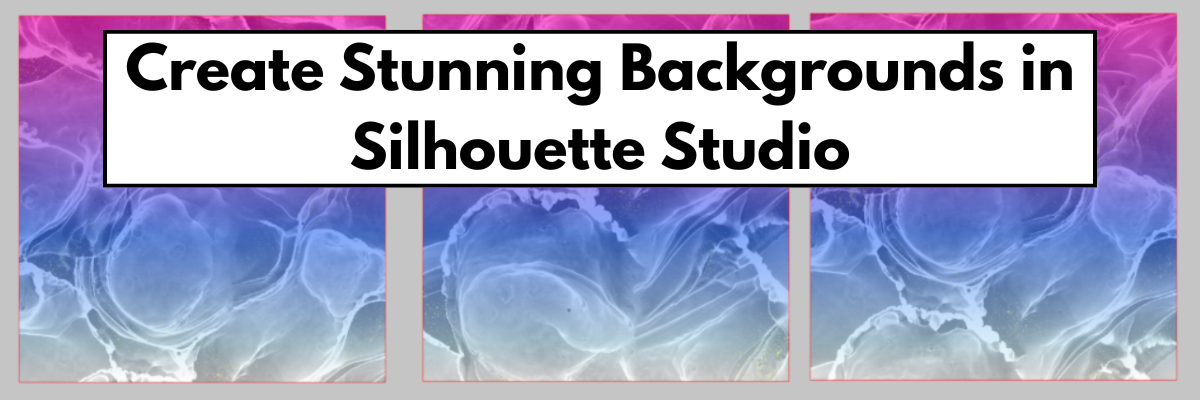
Create Stunning Backgrounds in Silhouette Studio Using Fill Gradients

Create Custom Backgrounds in Silhouette Studio
Silhouette Secrets+ with EllyMae

Have you ever explored the Fill Gradient panel in Silhouette Studio to create your own custom backgrounds? It’s a powerful feature that often flies under the radar—but it can completely transform your designs with just a few clicks. Recently, a fellow Silhouette user reached out asking for more details on how to use gradient fills for creating eye-catching backgrounds. So we explored exactly how the Gradient Fill Panel works —and I’ve got two great resources where I walk you through the process step-by-step. Whether you’re crafting cards, printable art, or layering cut designs, you’ll love what gradient fills can do!

Affiliate links may be present in the following blog post and as an Amazon Associate, I earn from qualifying purchases.

Note: all screenshots and references are using version v4.5.812 of Silhouette Studio. At the time of publication, I am not recommending the current version 5, as it has too many bugs and issues in it. Silhouette Studio version 5 does have a bit different look and some things have been moved around. If you are on version 5 and want to revert to a legacy version, see how HERE.

The Fill Color Panel in Silhouette Studio has 3 tabs that include the main Fill Color, Gradient Fill, and Pattern Fill Panels. It is located on the right side and looks like an artists palette.

Screenshot of the Fill Gradient panel in Silhouette Studio, showcasing color options and gradient settings.

Gradient Fills in Silhouette Studio

Let’s get right down to the resources on Gradient Fills in Silhouette Studio.

First up is the LIVE Silhouette tutorial called Mastering the Fill Gradient Panel in Silhouette

Graphic showcasing various gradient fills in Silhouette Studio with instructional text overlay 'CREATE STUNNING GRADIENTS IN SILHOUETTE'.

We covered the Gradient Fill Panel in depth and you can see the demonstration in real time. There are so many options that you can create and play with!

And then I couldn’t stop playing with the patterns and took it one step farther and created custom alcohol ink background patterns. I was so excited I had to share that in this video – How to Create Custom Background Patterns in Silhouette Studio | Easy Step-by-Step Tutorial

An illustrative guide showcasing gradient fills in Silhouette Studio, featuring a solid gradient square and three stunning background designs incorporating vibrant colors and textures.

I took one of the gradient patterns I made in the LIVE tutorial and then added an alcohol ink texture on top of it and created 3 different alcohol ink backgrounds.

A person holding two printed gradient background designs showcasing a blend of colors, with a wall and a calendar visible in the background.

I printed this on 12″ x 12″ cardstock and also on Epson Presentation Paper – Matte. Here is a look at both of those print outs. Notice how the colors are a bit different. The material surface you print on can affect the final colors. The ink soaks into the cardstock more than on the presentation paper, which shows in the final colors. Both can still be used for different projects.

A great way to test and see how colors will look on different materials with your printer is to print out a test. Check out this post – Silhouette Studio: Testing Print Colors for more information and tips.

A greeting card with the text 'Make a Wish' displayed on a cutting machine in a crafting workspace.

Custom created backgrounds can be used for many projects. I used the sheets I printed and cut the pieces for this scalloped step card design by Lori Whitlock. Then stamped a quick sentiment and now have an easy to assemble card.

There is so much you can do with the Silhouette Studio software. Want to learn more? Check out these additional resources below.

Has this sparked ideas of what you could create? Let me know in the comments below.

Save this for future reference by pinning the image below.

Screenshot showcasing gradient fills in Silhouette Studio, featuring colorful gradients and a 'Create' text overlay.

Enjoy !

THANK YOU for your support! How can you help? Click HERE & buy a coffee.
Every little bit helps with the cost of running the site.

Silhouette Classes

Never stop learning! Let me help you take the anxiety out of learning with Silhouette and get to creating faster! My Silhouette classes are heavily focused on software, so you can take the skills & techniques taught and apply them to many future projects!

Silhouette step-by-step Classes by Silhouette Secrets+

Silhouette Secrets+ with EllyMae
**This post may contain affiliate links. What that means is that I may receive compensation if you purchase through the links I have provided. The price you pay for the product or service is not higher but I may get compensated for sharing.

Posted on Leave a comment

DIY Watercolor Tote Bag with Artesprix Sublimation Inks

Silhouette Secrets+ with EllyMae

Looking for a fun and vibrant way to personalize your own tote bag? In this DIY project, I’m sharing how I combined techniques I recently learned from a class taught by my talented friend Tracy Weinzapfel to create a custom watercolor-inspired design using Artesprix Sublimation Inks. I took those creative watercolor techniques and transformed them into a one-of-a-kind sublimation design that pops with color on an Artesprix sublimation tote bag. Whether you’re new to sublimation or looking for fresh inspiration, this project is a perfect blend of art and function—let’s get creative and make something beautiful you can carry with pride!

Affiliate links may be present in the following blog post and as an Amazon Associate I earn from qualifying purchases.

You do not have to be an artist to do this! All you need is the ability to let yourself go and see what you can create. I share tips in the new video that help me create this and allow myself the freedom to just let it go.

Here is a look at watercolor image before I added in the black outlines with the Artesprix black sublimation marker.

The black sketched outline really makes it all pop and come together. Keep in mind that sublimation inks do not show their true colors until they are heat pressed for the full time and temperature. Once pressed, you will see those colors brighten and become vibrant.

Supplies for Custom DIY Watercolor Design Sublimation Tote:

Watch this tutorial HERE on the Artesprix YouTube channel.

I’m completely hooked on crafting with Artesprix products—every time I use them, my creativity sparks and fresh project ideas start flowing! Combine using Artesprix with your cutting machines or just allow yourself to play all on your own. There are so many possibilities.

I would highly recommend just playing around and see what you create, but if you just don’t feel comfortable drawing freehand, you can always set up your cutting machine to sketch with a pencil too.

Here is a sample I did using a mechanical pencil using a Flower Sketch design.

A Silhouette cutting machine set up on a table with a pencil in one of its slots, ready for sketching a design on paper.

Since it is pencil, it is harder to see. Here is a close up of this sketch flower design.

Close-up of a silhouette cutting machine, with a faint outline of a flower design on the paper below.

Since pencil does not transfer to the sublimation blank, I’m not worried about the drag marks, but you could adjust and play with settings to get it just right if you wanted. When using pencil, keep in mind that it will dull quickly, but you can always send it back through again as long as you do not unload the cutting mat.

Sketching with your machine can be done with any pen, marker, pencil that can fit in the pen adapters. Find more resources on sketching with Silhouette HERE and all about sketching supplies HERE.

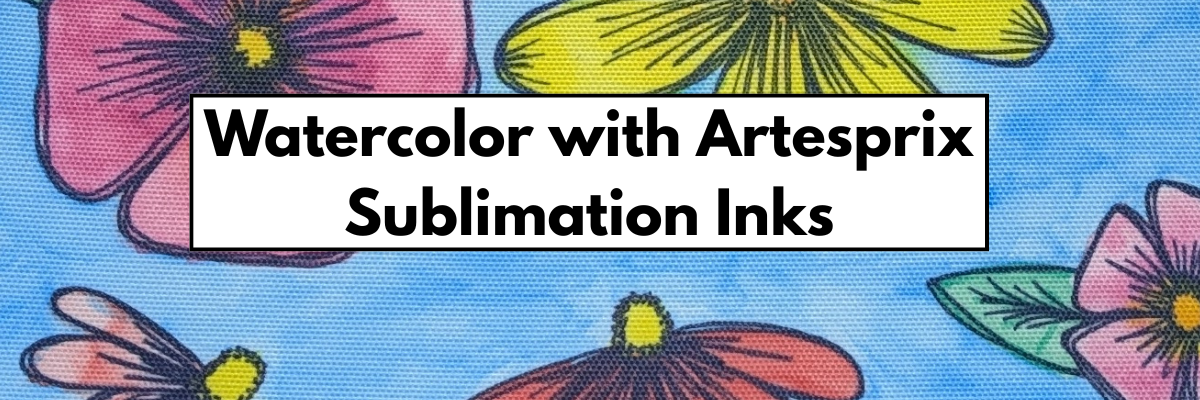
A vibrant watercolor illustration featuring colorful flowers, including pink, red, and yellow blooms against a light blue background, created on a sublimation tote bag.

This hand drawn design was inspired by Tracy Weinzapfel and her amazing talent as an instructor. I am so glad I signed up for her Fresh Start in Art 5 Day challenge when I saw it.

Check out more of my Artesprix sublimation creations HERE.

I’ll be sharing more so make sure to follow Artesprix on social media to see more projects!
YouTube channel
Blog
Facebook Page
Iron-on-Ink Inspirational Facebook Group

Save this for future reference by pinning the image below.

A custom sublimation tote bag featuring a colorful watercolor design with various flowers, alongside Artesprix sublimation inks and a pen on a wooden surface.

Grab some Artesprix sublimation products and get to creating today!

Enjoy !

THANK YOU for your support! How can you help? Click HERE & buy a coffee.
Every little bit helps with the cost of running the site.

Silhouette Classes

Never stop learning! Let me help you take the anxiety out of learning with Silhouette and get to creating faster! My Silhouette classes are heavily focused on software, so you can take the skills & techniques taught and apply them to many future projects!

Silhouette step-by-step Classes by Silhouette Secrets+

Silhouette Secrets+ with EllyMae
**This post may contain affiliate links. What that means is that I may receive compensation if you purchase through the links I have provided. The price you pay for the product or service is not higher but I may get compensated for sharing.
Posted on Leave a comment

Crafting Creativity with Nitwit Collections & Silhouette

Nitwit Collections Digital Kit
Silhouette Secrets+ with EllyMae

Welcome to this edition of Crafting Creativity! This time, we’re diving into the wonderful world of digital kits with an inspiring collection from Nitwit Collections. Their beautifully designed elements and papers make it easy to create stunning projects with Silhouette. From layered cards to custom decor and everything in between, we’ll explore creative ways to bring these digital designs to life. Get ready for a fun and crafty adventure as we showcase projects that highlight the versatility and charm of Nitwit Collections!

Affiliate links may be present in the following blog post and as an Amazon Associate, I earn from qualifying purchases.

Nitwit Collections Logo

If you missed these files in the March newsletter, you can find the Warm Embrace Knick Knack kit HERE. There are so many amazing kits available, make sure to check out the full shop HERE.

Sign up for the Silhouette Secrets+ newsletter HERE for future free files & project inspiration.

I have also released a new print and cut class: Master Print and Cut with Silhouette: Step-by Step Class that is available on my Teachable site HERE. The kit is provided in the class so you can use the same files I do and create amazing projects too!

Silhouette Print and Cut Class - Step-by-Step

If you are looking for step-by-step classes to learn more, check out all of the classes that are currently available on my Teachable site HERE.

Crafting Creativity with Nitwit Collections

Project #1 – Creative Card Designs: Make Every Greeting Uniquely Yours

Layered Card Design with Nitwit Collections Warm Embrace Kit

I just started playing around in the software to see what new card idea I could create after I finished the Print and Cut class. I like to make a mock-up in the software of a lot of projects before I actually cut. That means I will add all of the design pieces and play around with placement, elements, colors, and more right in Silhouette Studio.

Here is a look at my design file for this card in Silhouette Studio.

Silhouette Studio Design File of Framed Card

Once I have an idea of the card design layout, I can start cutting and in this case, printing, then cutting all the pieces.

Here is a close up look at the finished card with the 3-D layers.

Layered Card Design with Nitwit Collection Warm Embrace Knick Knack Digital Kit

But, I didn’t stop there! The creative ideas were still flowing and I decided to share how I created this card design in Silhouette with a LIVE tutorial on the Silhouette Secrets+ YouTube channel.

Designing in Silhouette Studio with Nitwit Collections Digital Kits

This session covers essential skills and techniques, including drawing tools, scaling tools, pattern fills, the Quick Access toolbar, Flexishapes, Draw Note, and more! Plus, with real-time viewer participation, questions were answered and demonstrated live to help you master these features. Check out the replay HERE on the Silhouette Secrets+ YouTube channel.

Don’t forget to Like and Subscribe if you want to be notified when new videos are released or Live tutorials are scheduled.

Additional Resources:

Supplies Used:

Project #2 – Seagull Card Design: A card to WOW!

I’ve been watching the Nitwit Collections Facebook group and saw that a member, Lisa Shaw, was doing a Live demo and I joined in. I was mesmerized by her demo of a flying seagull card! The moment I saw it, I knew everything else had to wait. I just had to dive in and create this card style as a 5″ x 7″ card!

Seagull Card design with Warm Embrace Knick Knack kit by Nitwit Collections

Immediately following the LIVE demo, I started working out the math to make a prototype of this card. It reminded me how much I love to design and create fun fold and 3-D cards. Now, I can’t say that I got it right the first few times, so there was a few sheets of cardstock that are now in my scraps pile, but I did get there eventually.

Seagull Card Creation Behind the Scenes look

After I made the prototype, I could then bring it all together in the Silhouette Studio software to create a cut file.

Seagull Card Creation Design File Process

And then I printed all the pieces and started assembly to see where the elements should go. Here is another behind the scenes look at creating this card.

Seagull Card Design with Nitwit Collections

Here is a collage of how this card looks finished out from a few different angles.

Seagull Card design with Nitwit Collections Photo Collage

The top photo shows how the card look when completely unfolded. The bottom left shows the card completely closed and then on the right is a top look showing the Seagull Design.

I shared some of the tools I used to create this card file in Silhouette in the LIVE tutorial – Silhouette Studio Secrets: Design Smarter with These Powerful Tools

Silhouette Secrets Tutorial - Design Smarter with These Powerful Tools

Additional Resources:

Supplies Used:

Project #3 – No Peeking Gift Bag Topper

These are so easy to create and can add a unique look to any gift bag. Plus it hides the contents until you are ready for the recipient to see it.

No Peeking Gift Bag Topper created with Nitwit Collections digital kit

Here is a close up look at these layered designs on the gift bag toppers.

Close Up of Custom Gift Bag Topper Layered Design with Nitwit Collections

Such an easy thing to add to make a gift bag stand out.

Custom Gift Bag Topper with Nitwit Collections Digital Kit

I shared how I created this design in Silhouette Studio in this video – DIY No Peeking Gift Bag Topper in Silhouette Studio on the Silhouette Secrets+ YouTube channel HERE.

No Peeking Gift Bag Topper YouTube video tutorial

Additional Resources:

Supplies Used:

Project #4 – Custom Sticky Note & Pen Holder

I love using this Sticky Note & Pen Holder file from Lori Whitlock and the Nitwit Collections kits work perfect for creating a custom cover. These make great gifts and work awesome for swaps at events too!

Custom Notepad & Pen holder with Nitwit Collections

Here is a close up look at the design layered on the front of the sticky note holder.

Close Up of Sticky Note & Pen Holder design by Lori Whitlock with Nitwit Collections

Supplies Used:

A great big THANK YOU to Nitwit Collections for collaborating for the Silhouette Secrets+ newsletter!

Make sure to follow Nitwit Collections for more amazing designs:

Sign up for the Silhouette Secrets+ newsletter HERE so you don’t miss out on future collaborations.

Unlock endless creative possibilities with a digital kit! In this edition of Crafting Creativity, we showcased a fabulous digital kit from Nitwit Collections and explored how a variety of unique projects. The Crafting Creativity blog series is your ultimate source for fresh ideas, practical tips, and expert techniques to take your crafting to the next level. Whether you’re transforming a go-to design, trying out new materials, or refining your skills, these posts are designed to ignite your creativity and help you bring your ideas to life. Check out the Crafting Creativity series HERE and discover where your imagination can take you!

Save this for future reference by pinning the image below.

Crafting Creativity with Nitwit Collections Digital Kits

Enjoy !

THANK YOU for your support! How can you help? Click HERE & buy a coffee.
Every little bit helps with the cost of running the site.

Silhouette Classes

Never stop learning! Let me help you take the anxiety out of learning with Silhouette and get to creating faster! My Silhouette classes are heavily focused on software, so you can take the skills & techniques taught and apply them to many future projects!

Silhouette step-by-step Classes by Silhouette Secrets+

Silhouette Secrets+ with EllyMae
**This post may contain affiliate links. What that means is that I may receive compensation if you purchase through the links I have provided. The price you pay for the product or service is not higher but I may get compensated for sharing.
Posted on Leave a comment

Create a Bright & Fun Custom Apron with Artesprix Sublimation Inks

Custom Apron with Artesprix Inks
Silhouette Secrets+ with EllyMae

Get ready to unleash your creativity with a one-of-a-kind project—no sublimation printer needed! In this tutorial, I’ll show you how I used Artesprix Sublimation Acrylic Paints, a Black Artesprix Sublimation Marker, and stencils to transform a plain apron into a bright, bold, and unique piece of wearable art. The best part? No two aprons will ever be the same, making this a truly custom creation. Whether you’re crafting for yourself or gifting it to a fellow maker, this vibrant apron is sure to make a statement in any creative space. Let’s explore the colorful world of sublimation painting and bring your artistic vision to life!

Affiliate links may be present in the following blog post and as an Amazon Associate I earn from qualifying purchases.

Artesprix Sublimation Acrylic Paints, Markers, and Stencils to Create a Custom Apron

I really wanted to go all in on this project and create a design across the entire white apron. And why not? Let yourself go and have some fun just creating and see what’s possible.

I’ll even admit that I messed up during the process and it wasn’t quite the same vision I has original started with, but it still worked out.

I used the Artesprix Heat Transfer Resist Mask, which has a lot of different ways it could be used. Each time I use it, I think of something new, but that usually is because I did it “wrong” and realize it too late. In this case, my goal was to have the area white underneath the Heat Resists Mask. However, I painted on top of the mask and then did not remove it before pressing, so the paint showed through. It was one of those moments that should have had a camera on my face when I realized what I did, but I just went with the flow and it’s unique.

However, it gave it an interesting and custom look in the end. It’s a good thing I added the sketched outline around it with the Artesprix Sublimation Marker or it wouldn’t have shown at all. That was another idea I was testing out to see how it would look.

Working with the Artesprix Sublimation products has been a great source of enjoyment & experimentation for me. I have learned to just go with the flow and not try to control things as much when creating. See what can happen and you never know… you might like the outcome better than you thought you would.

Here is a look at the full apron design

Artesprix Sublimation Apron Design by EllyMae

A bright colored, artistic art apron that is perfect to protect your clothes when making any mess. Oh wait – that might just be me that needs an apron full time.

Supplies for Custom Art Sublimation Apron:

Full Look at the Artesprix Custom Apron Design

And don’t throw away any extras!!! Save those and you can use that for future projects. Here is a look at my pages I picked up extra paint on and some of the extra stencil designs I had after making my apron.

Artesprix Sublimation Pages for Future Projects

Watch this tutorial HERE on the Artesprix YouTube channel.

I absolutely love crafting with Artesprix products—they never fail to ignite my creativity and inspire new project ideas! Check out more of my Artesprix sublimation creations HERE.

I’ll be sharing more so make sure to follow Artesprix on social media to see more projects!
YouTube channel
Blog
Facebook Page
Iron-on-Ink Inspirational Facebook Group

Save this for future reference by pinning the image below.

Sublimation Apron with Artesprix Sublimation Paints, Markers, and Stencils

Grab some Artesprix sublimation products and get to creating today!

Enjoy !

THANK YOU for your support! How can you help? Click HERE & buy a coffee.
Every little bit helps with the cost of running the site.

Silhouette Classes

Never stop learning! Let me help you take the anxiety out of learning with Silhouette and get to creating faster! My Silhouette classes are heavily focused on software, so you can take the skills & techniques taught and apply them to many future projects!
Silhouette step-by-step Classes by Silhouette Secrets+

Silhouette Secrets+ with EllyMae
**This post may contain affiliate links. What that means is that I may receive compensation if you purchase through the links I have provided. The price you pay for the product or service is not higher but I may get compensated for sharing.
Posted on Leave a comment

Silhouette Studio Tutorial: Designing Beautiful Projects with Digital Kits

Designing in Silhouette with Digital Kits
Silhouette Secrets+ with EllyMae


If you love designing in Silhouette Studio and want to take your projects to the next level, you won’t want to miss this new LIVE tutorial! In this session, we are Creating Stunning Projects with Nitwit Collections Digital Kits and Cut Files. Learn how to combine beautifully designed digital elements with cut files to craft unique, professional-quality designs. Whether you’re a beginner or an experienced user, this tutorial will walk you through step-by-step techniques to make your projects stand out. Plus, with viewer participation, questions were answered and demonstrated in real time, making it an interactive and engaging learning experience. Watch the replay now and get inspired to create!

Silhouette Studio Tutorial: Designing in Silhouette with Digital Kits

Skills & Techniques Covered in This Video:

Watch the New Video HERE on the Silhouette Secrets+ YouTube channel

In the video I share how I went about designing these cards with the Warm Embrace Knick Knack kit by Nitwit Collections.

Layered cards created with Warm Embrace digital kit by Nitwit Collections

Here is a closer look at this layered card. With the high quality graphics of the Nitwit Collections digital kits and layering with 3D foam tape, you can create amazing, unique cards and projects.

Close up - Layered cards created with Warm Embrace digital kit by Nitwit Collections

Supplies Used:

Additional Resources:

💡 Don’t forget to subscribe to the Silhouette Secrets+ YouTube channel and turn on notifications so you never miss a new tutorial!

Save this for future reference by pinning the image below.

Designing in Silhouette Studio with Digital Kits Pinterest

Want to learn even more about Silhouette? Check out the A to Z resource HERE.

Enjoy !

THANK YOU for your support! How can you help? Click HERE & buy a coffee.
Every little bit helps with the cost of running the site.

Silhouette Classes

Never stop learning! Let me help you take the anxiety out of learning with Silhouette and get to creating faster! My Silhouette classes are heavily focused on software, so you can take the skills & techniques taught and apply them to many future projects!

Silhouette step-by-step Classes by Silhouette Secrets+

Silhouette Secrets+ with EllyMae
**This post may contain affiliate links. What that means is that I may receive compensation if you purchase through the links I have provided. The price you pay for the product or service is not higher but I may get compensated for sharing.

Posted on 2 Comments

How to Create a Custom Signature Line in Silhouette Studio (Step-by-Step Video!)

Silhouette Secrets+ with EllyMae


Create a Unique Signature Line with Silhouette Studio! 🖋️✨

Want to add a personalized touch to your projects? Whether you’re crafting custom cards, digital designs, or branding your creations, a unique signature line can make all the difference! In my latest YouTube video, I’ll walk you through the process of designing your own signature line using Silhouette Studio (or other design software). You’ll learn how to use the Text Tool, explore different Font Families, adjust Edit Points, and apply creative effects like Offset and Weld to achieve a polished, professional look. Ready to elevate your designs?

I’m also sharing a look at how I used this to create a custom stamp after I made the video tutorial below.

Watch the full tutorial on the Silhouette Secrets+ YouTube channel HERE.

Creating a Unique Signature Line with Silhouette Studio

I used a font style called Haniberryku in the video tutorial – find it HERE.

Skills & Techniques Covered in This Video:

Watch the New Video HERE on the Silhouette Secrets+ YouTube channel

Silhouette Mint Machine

After I made the video, I used the file to create a custom stamp with my Silhouette Mint machine. I love this little piece of technology. While the Mint Stamp machine is no longer manufactured, it is still a very handy tool to have around if you can get the stamp kits.

Silhouette Mint Machine to create custom stamps

Check out this tutorial for creating with the Silhouette Mint Machine – Let’s Explore the Mint & Silhouette.

You can still find the Silhouette Mint available while supplies last.

I also found Mint Supplies at Vinyl Spectrum too! Check it out HERE.
Let them know EllyMae sent you in the order notes!

Silhouette Mint Machine

And I found the Mint Stamp Maker Bundle at CrafterCuts too – use code SECRETS and save 10% too!

While the Mint Studio software is no longer updated, it can still be used on most computers. I was able to connect to my Silhouette Mint machine with no problems with a Windows 11 computer. However, we have seen some issues connecting to some MAC systems, but not all and the only way to know is to test it.

Find the Mint Studio Software HERE. It’s like a step back in time to what Silhouette version 2 was like. Make sure to follow my tutorial for how you can design in Silhouette and then open in Mint Studio to create your stamp.

Additional Resources:

💡 Don’t forget to subscribe to the Silhouette Secrets+ YouTube channel and turn on notifications so you never miss a new tutorial!

Save this for future reference by pinning the image below.

Create a Unique Signature Line with Silhouette Studio

Enjoy !

THANK YOU for your support! How can you help? Click HERE & buy a coffee.
Every little bit helps with the cost of running the site.

Silhouette Classes

Never stop learning! Let me help you take the anxiety out of learning with Silhouette and get to creating faster! My Silhouette classes are heavily focused on software, so you can take the skills & techniques taught and apply them to many future projects!

Silhouette step-by-step Classes by Silhouette Secrets+

Silhouette Secrets+ with EllyMae
**This post may contain affiliate links. What that means is that I may receive compensation if you purchase through the links I have provided. The price you pay for the product or service is not higher but I may get compensated for sharing.