Posted on — 9 Comments

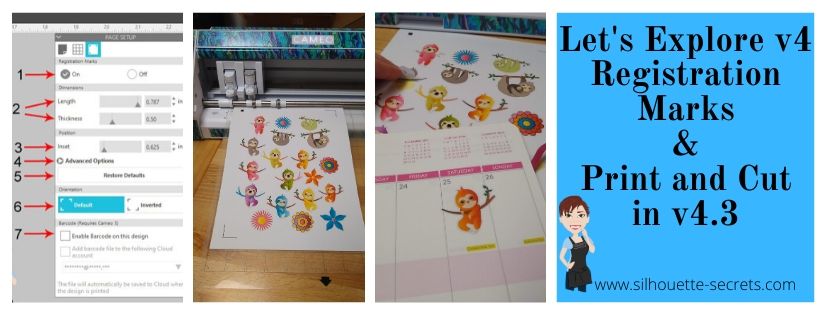
Let’s Explore – Registration Marks v4.3

If you are using a v4.3 software version, you may have noticed that there are a few changes in the software panels from prior versions.

One of those panels is the Page Setup Panel – Tab 3 – Registration Marks, so let’s take a look at the difference.

Registration Marks Panel difference copy

If you are using version 4.0 to version 4.2, then the Page Setup Panel – Tab 3 will look like the one on the left side in the photo above – check out this post HERE for details on that.
If you are using version 4.3, then the Page Setup Panel – Tab 3 – Registration Marks will look like the one on the right.

As you can see the Registration Marks Style section has changed to an On or Off position now in version 4.3. While this is the only change you can see in this panel, when you are looking at videos or older tutorials, it will show the step to choose Type 1. This is great to know if you are new user to Silhouette or for someone just updating to the version 4.3 software.

But, while we are here, let’s review the Registration Marks Panel and explain what it all means.

The Registration Marks Panel is the 3rd tab in the Page Setup Panel, which is the top right icon.

Registration Marks Panel copy

The print and cut registration marks can also be toggled on by the keyboard shortcut letter ‘M’. I see this happen often when a user is typing with text and then clicks off of the text, but still tries to type letters. This can activate keyboard shortcuts and the marks will toggle on and off.

Now, first before we go into the details of this panel, let’s first set up the page for the print and cut. I follow the same steps every single time I set up a print and cut project and I rarely have any issues. We will go through them here briefly, but check out this Print and Cut – Part 1 tutorial for more details – HERE. Keep in mind that this tutorial was written in a software version before the On and Off change in this panel.

Affiliate links may be present in the following blog post.

Setting up a Print and Cut Page

Step 1 – Open the Page Setup Panel – Tab 1
Step 2 – Choose the correct machine & cutting mat.
Step 3 – Choose the Media size. I choose “Printer” as the option when using letter size paper. You will find it at the bottom of the drop down box for Media Size.
Step 4 – Move transparency to 0%. This will help you see the page size better.
Step 5 – Choose the Portrait Orientation. This is the orientation I recommend as I see the least amount of issues with it.
Step 6 – Check the boxes next to Show Print Border and Show Cut border. This will show you the boundaries you have to work with.

Page Setup copy
Colorful Sloth – Stickers by Sandi Idleman – Design #312256

Now, that the page is set up, let’s move to the registration tab and turn the
Registration Marks On.

Registration Marks On copy

Some things to point out here.

When the Show Cut border box is checked on the Page Setup Panel – Tab 1, you will notice that the red cut boundary moves when you turn the registration marks On. Notice that the cut boundary is lined up with the registration marks that appeared on the page.

There is a cross-hatched area that shows up on the design screen. This does not print on your page. However, having a design, cut border, or background in this cross-hatched area can interfere with the optical eye reading the registration marks accurately. This can cause mis-cuts. Make sure that the design is away from the cross-hatched areas on the page.

Notice on the left and right side, I have circled and highlighted 2 problem areas. These would result in those 2 things not being cut completely, if there were no other errors because they are outside of the cut border.

I mentioned above, that I do the same exact steps every time I set up a print and cut project. The next step I do is click the Restore Defaults button.

Restore defaults copy

And I am ready to print. This Colorful Sloth – Stickers by Sandi Idleman – Design #312256 is set up as a print and cut design, so the cut lines are already there.
If you are creating your own cut file, you may need to trace or fill with color. Check out these posts on Print & Cut – Part 2 – Text and Print & Cut – Part 3 – Images for exactly how to do that.

I go to File > Print in the top left and make sure the printer is set up with the correct page settings for the printer I am using. If the Printer Setup has a Preview option, I would highly recommend using it to make sure that all of the registration marks will print correctly.

Printer Setup copy

But, what about all the other options on the Registration Marks Panel?

Yes, there are more options. However, I would highly recommend for a beginner with print and cut, if you’ve ever had problems with print and cut, or if you have a new printer to start with the defaults and establish a baseline.
This will eliminate so many things that could be an issue that gives you a registration error or mis-cut.

It printed beautifully on the Silhouette white sticker paper! Make sure to place the printed page in the top left corner of the cutting mat exactly as the page shows on the design screen. Place the page on top of the grid lines on the cutting mat or the Cameo may try to read the grid lines instead of the registration marks.

PNC Loaded copy

The left edge of the mat, should line up with the line on the left on the Cameo that the 2 arrows point to.

PNC Load line copy

Now, something I noticed after it printed was that the designer of the file had increased the line thickness of the cut lines, so when it printed the red lines printed too. This is not always desired, so make sure you double check the file before printing it out.

Line Thickness copy

I love print and cut and I rarely have an issue with it registering or mis-cutting. This is why I want to stress the importance of using the defaults at least the first time to set you up for the best chance of success.

PNC Cut copy

Registration Marks Panel Options

Once you have established a baseline with print and cut and have had success with the default settings, then I you can venture into testing the limits.

I often see users who have maxed out the registration marks to try to gain more space on their page and they end up with it not registering at all or if it does, the cut is far from accurate. While you can move the registration marks, each printer will vary in how far you can move those and still get an accurate cut.
This will take testing on your part to know what the limits are for your printer!
I rarely move my registration marks because I know at the defaults it cuts great every time. However, on the occasion I am feeling daring, I have moved them but tell myself the entire time that if it doesn’t cut, I will know why. While I’ve still been successful in moving the marks and getting accurate cuts, that is not what I see with the majority of users. So, just keep that in mind.

Registration Marks Panel detail copy

1 – On or Off – Turn the registration marks used for print and cut on or off by clicking the box next to each option.

2 – Length & Thickness – Adjust the length of the registration marks or the thickness of the marks.

3 – Inset – Adjust all 3 of the registration marks at the same time. The higher the number, the closer to the middle they move.

Inset example copy

4 – Advanced Options – Click on the arrow and it expands with more options to adjust the individual insets of the print and cut area.

Advanced Inset copy

5 – Restore Defaults – This will reset the registration marks to the default settings.
This is the #1 thing that I feel can make all the difference in getting an accurate cut. I highly recommend starting with the defaults first and then as you feel more comfortable, you can start changing things up. Especially on a file that you have purchased that is set up as a print and cut file. It may not have been saved with the default settings for the Silhouette. The designer may have been able to print it with their printer at those marks, but yours may not be the same. Or you could encounter someone who has just designed it but never printed it to test it.

6 – Orientation – Default vs Inverted – This changed the direction of the registration marks on the mat. Notice the direction of the arrow on the cutting mat. Inverted placed it on the opposite corner of the mat & moves the registration marks on the page.

Orientation demo copy

7 –Barcode  – This adds a barcode to the side of your page and it stores all of the cut settings data in the bar code that the Cameo 3 will read. This is a Business Edition feature only. There is also the option to save the information to the cloud account that is associated with the email address used to log in. 

I troubleshoot a lot on many platforms for print and cut and most often it is something that needs to be tweaked with the way the file is set up. Starting with those defaults will save you a lot of headache in the long run.

Don’t forget to Pin this image below to save these tips for the future!

Registration Marks pin

I would love to see the projects you have created feel free to post on my Facebook group at Silhouette Secrets with EllyMae.

Enjoy!

SS_Signature copySS Logo snip it

**This post may contain affiliate links. What that means is that I may receive compensation if you purchase through the links I have provided. The price you pay for the product or service is not higher but I may get compensated for sharing.
Posted on — 13 Comments

Silhouette “Secrets” for HTV – Beginner Tips & Tricks

HTV or Heat Transfer vinyl is vinyl that has a heat activated adhesive that can be applied to fabrics and other materials.

I always recommend starting with high quality products and in my experience, you will have less headache when creating your projects. Throughout the post I will share what brands I used on the shirts created, tips to cutting & applying, and share recommendations on where I buy those supplies.

Final product copy

Affiliate links my be present in the following blog post and as an Amazon Associate I earn from qualifying purchases.

The Basics of Cutting HTV with Silhouette

Step 1 – Create the design you want to cut.

Step 2 – Place the HTV correctly on the cutting mat in the same location on the grid as what shows on the Silhouette Studio software or load the vinyl directly into the machine to cut without a mat (click HERE for more tips on Cutting without a Mat).

For most HTV, you will place the shiny side down on the cutting mat. This is the carrier sheet and you are cutting through the backside of the vinyl. However this is not for ALL types of vinyl. For instance, some patterned vinyl it is laid pattern side up, cut through the front, and then a Heat Transfer carrier sheet is applied to transfer it to the shirt.

Step 3 – Mirror the design, if needed. This is for most HTV, but not all.

Step 4 – Choose the cut settings for the brand of HTV.

Step 5 – Send to the machine to cut.

Now, that we have the basics, let’s take a look at specific examples.

Ultimately, how you cut the design is going to be dependent and differ depending on the design you use. For instance, is it a one color design? Is it a multi-color design? Are parts of the colors overlapping? Is the design layered?
In this post, we will cover some basics and cut with 1 color.

My first tip for a beginner or for any of my students is that while you can cut without a mat with the Silhouette machines (except the Curio), I still recommend cutting with a mat until you get used to how the machine cuts. Then when you are feeling comfortable you can branch out and test the waters with cutting without a mat. This will help eliminate a few possible issues that can occur as a beginner because you are simplifying things.

Two resources I want to share here are:

Tips to Get The Most Out of Your Silhouette Mat
This will come in handy to make those mats last longer
Cutting Without A Mat
When you are feeling adventurous or a bit more comfortable with your machine you can test this out. While the tutorial is written with a Cameo 3, the tips will apply to all machines you can cut mat-less with.

Let’s start simple and work up from there.

Note: In the following photos, you will see me using a Cameo 4 machine to cut. While I used my Cameo 4, these tips will apply to all Silhouette machines. I am using software version v4.3.353 in this tutorial.

One color designs

Step 1 – Create or find the design you want and open it on the Silhouette Design mat and size it as needed.
I am using “I Tell Dad Jokes” by Honeybee SVG – Design #293250 from the Silhouette Design Store.

Dad Jokes design copyThe first thing I like to do is to change the Transparency  on the Page Setup Panel to 0%, so I can see the grid lines of my mat (in v4.2 & prior it is referred to as Reveal).
This is how I know how big of a piece of HTV that I will need. I will cut my HTV piece down to 12″ x 10″ and place it on my cutting mat shiny side down. I use a paper trimmer to cut down my 12″ vinyl to the size I need.

There are several reasons I do this, but the main one is that it helps make my cutting mats last longer. I am only placing my material on the mat where I am cutting and no peeling a full sheet of material off the mat each and every time.
Why use that adhesive where it is not going to cut?
For more tips on the cutting mat click HERE.

Step 2 – Flip the design (also called mirror) on the Silhouette Design screen. Right click on the image and choose Flip Horizontally or Object > Mirror > Flip Horizontal.

Flip Horizontal copy

Why do we need to mirror? For most HTV, the carrier sheet is attached to the vinyl. This means that you place the HTV upside down (shiny side down) on your cutting mat and you cut through the backside of the HTV.

Shiny Side Down copy

Now, there are exceptions to this and you will learn as you go and start working with different materials. One of these exceptions is some patterned vinyl, like Sparkleberry Ink HTV. It is amazing vinyl, but since it is printed with a pattern on it with a special printer, you will lay it pattern side up and cut through the top and then use a Heat Transfer Mask to transfer the vinyl to the shirt or other material.

Here is an example of Sparkleberry Ink printed vinyl found in this post using the Subtract feature with HTV. The patterned vinyl was cut pattern side up and a transfer mask applied and then the solid Siser Easyweed was cut the same as this tutorial.

temp_1

The next thing to note is that there is a “HTV Mirror” pop up that you will get when you use a preset cut setting in the Silhouette software. I prefer to mirror (flip horizontal) the object myself so I know exactly where it is going to cut on the cutting mat. Since I have flipped my image, when I get to that pop up, I choose “Send As Is“.

Send As Is copy

While you can let the software “mirror” it for you, it flips the entire mat and does not reflect that visually on the screen. For example if I have a smaller design than what I’m cutting above, if I let the software mirror the design by using the Pop up when I send to cut, it will cut where the yellow square is. So if I have placed my HTV material on the left side of my mat as it shows on the design screen, it is not going to cut on my material.

NOTE: I’ve recently found there is a new bug in the v4.4 software – when letting the software mirror the image, it will also mirror the objects that are off the cutting mat as well.
I would highly recommend right clicking and choosing Flip > Horizontal and mirror the design yourself to avoid either of these issues.

Mirror pop up copy
Wine Bottled Up by Jillibean Soup – Design #242851

And also, it’s just habit because the Mirror pop up was not always around. However, it does save me on occasion when I have forgotten to mirror the design myself.

Step 3 – Cut the HTV to size and place on the cutting mat. I am using Siser Easyweed HTV in white for this project.

HTV on cutting mat copy

Now, something to note here is that when you order vinyl on a roll, it may not always be 12″ wide. This is pretty common as it is cut from a bigger roll originally.
Just like wood is not the exact size.
It is also the reason that I did not cut without a mat using this roll of Siser Easyweed HTV. It just barely fit under my rollers and I didn’t want to take the chance that it wasn’t securely in the machine. Plus it gave me a little more cut-able space by cutting it down and placing on the cutting mat.

Resize the design and make sure that the design on the screen shows in the same place as it is placed on the cutting mat.

Step 4 – Click on the Send tab in the top right corner to set up the cut settings.
Choose the material type in the Material drop down box.
I am using Siser Easyweed HTV and find that the Heat Transfer, Smooth option works well.To be honest, I find that the preset cut settings work well for almost all materials. But, keep in mind that blade sharpness, cutting mat stickiness, etc can all affect cut quality too!

Send tab copy

Step 5 – Test cut – VERY IMPORTANT feature that can save you materials & time.
Any time I am cutting a new material, I will use the test cut to make sure that I will get a good cut.

There is nothing like cutting a full design on HTV, unloading the cutting mat, and finding out it didn’t cut well. It’s a great learning opportunity but let’s save some time & materials and get the habit of a test cut.
I promise it will help.

There are 2 ways I’ll share on how to do a test cut.

1. In the bottom right corner of the Send tab is a little button that says Test. This will cut a small square with a triangle out of it in the top left corner of the cutting grid.

Test Cut copy

If the first test cut doesn’t work, you can move it by using the directional arrows next to the Test cut button.

Test Cut buttons copy.jpg

You can also change which Tool does the Test cut by choosing 1 or 2.
On software versions prior to v4.3, it will show as a red circle (Tool 1) or a blue circle (Tool 2). This is for the Cameo 3, Cameo 4, and Curio machines only.

2. Make your own Test Cut.
I use a capital ‘B’ as my test cut object often. The biggest thing you want is something that has both corners and curves to it. This will give you a good indication of how it’s going to cut.

Test Cut B copy

Place the test cut object – the letter ‘B’ in a space on the HTV that will not be cut with the design, as shown by the bold red A above.

Next, select the design by clicking on it. This is very important. You will see a gray selection box appear around the object on the screen that is selected, as shown by the bold red B. If there is no object on the screen selected, it will not change the Action.
With the design selected, choose No Cut next the bold red C above. This will turn the cut lines OFF for the design and it will only cut the letter ‘B’ as the test cut.

If it cuts well the first time, you can either move the ‘B’ off the design mat or delete it. Then turn the cut lines back on for the design by selecting it again & choosing Cut.

If it doesn’t cut well, move the ‘B’ to a different free space on the HTV and adjust the cut settings to get a good cut.

Step 6 – Load the cutting mat. After double checking the settings, load the cutting mat in the machine. The left edge of the cutting mat should line up with the line on the left side that the 2 arrows on the machine point to.

Loading mat copy

When using a cutting mat, the rollers should roll on the left and right edges of the cutting mat as shown by the 2 top red arrows in the photo above.

Step 7 – Click on the Send button in the bottom right of the Send tab. When the cut lines are turned ON you will see bold red cut lines around the design, on this Simple cut option.

Send button copy

If the HTV Pop up appears, click ‘Send As Is’ if you have mirrored (flip horizontal) the design yourself.

Send As Is copy.jpg

Step 8 – Before you unload the mat check that it cut well.
This is another great habit to get into.

Before unloading copyIf for some reason that it did not cut well, you could send it back through again for a 2nd pass. However, if you remove the cutting mat, you will not get it lined up in the exact same place and it won’t cut in the same spot.

Step 9 – Unload the cutting mat. 

Step 10 – Place the protective cover shiny side up on the table and flip the cutting mat upside down on top of it. Carefully peel the cutting mat away from the material. This is another way to help the material release and extend the life of the cutting mat – more tips HERE.

Flip Mat copy

Why do I place the protective cover down on the table with the shiny side up? First, it protects the mat in any areas that have the adhesive exposed. By placing the shiny side (i.e. non-stick) side up, it will stick to my mat and debris won’t.

Why do I flip the mat over and peel the mat away from the material?
First, it helps to release the material from the adhesive with less force. Pulling up on the material from the mat, adds more force which can pull the adhesive off the mat. Second, it will help with the material not curling when it’s taken off the mat. This works especially well with cardstock and paper materials.

Step 11 – Weed away the excess vinyl from the design. I start with the outer edge of the design when I weed so that I know where my letters are and am not “picking” at the design.

Weeding copy

As you do it, you will develop methods that work for you. Such as weeding tools. My personal favorite are the reverse tweezers from EK Tools. I love them so much that I have 3 pair, just in case one is put in a really “safe” place and I can’t find it when needed. I love the sharp tip for getting the vinyl started and then the tweezers to help peel it off.

Each brand, color, type of HTV will vary in how much you can see the cut lines. Some colors or glitter HTV are harder to see on. The more you do it the more comfortable you will get at what works.

Make sure to get all the little pieces like the insides of the A, D, P, etc. If I have a question as to what needs to be weeded out vs what stays, I look at the design on the screen to see what is filled with color and what is not.

And go slow, it’s not a band-aid you rip off. If you go slow and watch, if there is a spot that didn’t cut well, you can still salvage the design most times.

Step 12 – Press the HTV onto the shirt or other fabric object using the manufacturer recommendations.
I love that Siser has this on their site and also a handy app too!
Check out the full Siser site HERE.
On the Left side of the home page, move the mouse over the HTV header and it will expand. Choose your HTV type and then scroll down the page for the Cutter Settings and Application settings.

Siser settings

I set my heat press to 305 for 15 seconds for Siser Easyweed and it works every time.

Final product copy

And there you have a single color design, cut with the Silhouette, and pressed onto a shirt.

Q & A

Let’s talk about a few more things because I’m sure you have a question or two.

Do I recommend a heat press? Yes.
I recommend a heat press if you plan press a lot of HTV.
Especially if you plan to do a bunch of shirts or plan to make a business of this.
It will save you time & muscle power

Why do I recommend a heat press?
1. It is easier. Set the time. Set the temperature. Press for 15 seconds (or recommended time). And done!
2. Even pressure and more accurate heat.

What heat presses do I own?
I started with a use 15″ x 15″ Power Press that I received. It was great! These are often found on Amazon, however, be very careful in reading the reviews on the seller. I don’t think they are as good as they used to be and have seen them arrived damaged or non-functional. Just like anything else, check out the reviews.

I gave that heat press to a friend when I found a great deal on another 15″ x 15″ Craft Pro Press from Heat Press Nation. I LOVE that this has a slide out drawer on it and it was something I couldn’t pass up. The slide out drawer helps in getting the design placed on the shirt easier, so you are not reaching in under the hot top platen of the press.
Is it a necessity? No, but it sure is nice.

Heat Press copy

Personally, I need to have a 15″ x 15″ press. The shirt I pressed above is a 4XL shirt and I make those sizes often, so I feel it is well worth it.

But, if you don’t need that size, there is a Craft Pro 9″ x 13″ press with the slide out drawer as well. Find that HERE.

I also have this smaller press. I use this one when I am traveling for classes as it weighs only 35 lbs. The 15″ x 15″ press above is not 35 lbs.

stx-craft-2

This Pink Craft Press can be found here at Heat Press Nation or Swing Design.

What other products would I recommend when using HTV?
Pressing pads or pillows. What are these? These are items that you place inside a garment such as a tshirt or bodysuit to lift up the area you are pressing to keep the seams from interfering with the pressure you are applying. If you press a shirt and there is a seam in between the top & bottom of the press, the press hits that seam and doesn’t get full pressure down on the area of the shirt or garment that is needed. This can interfere with getting a good, solid adhesion with the HTV.

I have the Tee Pad It from Heat Press Nation and love them. It is cost effective as you get all 5 sizes for 1 low price.

tee-pad-it-set_1

Slide these in to the shirt under where the design will be placed, adjust the pressure on the heat press, and get that good pressure needed for the HTV to adhere.

Pressing pillows are another option, but I found they are a lot more expensive and condense a lot more when you press them, which if pressing multiple items can take longer.

Teflon sheets – I get mine on Amazon and they last a long time. This will help protect your top platen of the heat press or an iron.

EZ Off cleaner for when you have a boo-boo and accidentally melt HTV to the top platen of the press. Shhhhh…… it happens.
It can be found here are Heat Press Nation or on Amazon.

Do you have to have a heat press to use HTV? General answer – No.
However, you want a brand of vinyl that can be pressed with a home iron if you do not have a press. Siser is one of those brands. The 2 biggest factors with HTV is heat and pressure. You have to have both or the HTV will not adhere to the material and last. Some brands like ThermoFlex are designed to be used with a heat press.

If you only have a home iron or a Cricut Easy Press, I recommend checking out this video – How to Iron On Siser HTV by Joe at Siser for great tips on what to do and what not to do.

Can you over press HTV? Yes.
Again I’m going to refer you to the experts here in this video – lots of great tips!
Check out this video by Siser called Over Pressing HTV HERE.

Now, that is a lot of links and recommendations to throw at you.

Do you need them all right now? No. But, I want you to have the resources to go to on where to find the same products that I recommend.

For other product recommendations check out my Amazon store HERE or feel free to ask on my Facebook group at Silhouette Secrets with EllyMae.

I hope that this helps provide you with some “secrets” to getting started with HTV. Or even if you have already been using HTV, maybe you picked up a few tips. I would love to hear if you did!

If you want to dive deeper into HTV check out these 2 video courses I have available. They are step-by-step courses taught just as I teach an in-person class, but available at your convenience.
Cutting & Layering HTV in Silhouette Studio – 45 minute video class
Creating a Knockout Design with HTV & Bonus HTV & Subtract in Silhouette – 1 hr class

Did this information help? Don’t forget to Pin it for future use!

Beginner HTV Pin

Enjoy!

SS_Signature copySS Logo snip it

**This post may contain affiliate links. What that means is that I may receive compensation if you purchase through the links I have provided. The price you pay for the product or service is not higher but I may get compensated for sharing.
Posted on — 3 Comments

Let’s Explore v4 – Overcut

The Overcut feature can be a great help in some difficult to cut designs.

This tutorial is written using version v4.3.353 of the Silhouette Studio software.

Overcut v4.jpg

If you are using a version prior to v4.3, then the Send tab will look just a little bit different and you will find the Overcut option on the right side of the cut settings as shown in this photo.

Overcut v4

What is Line Segment Overcut?

It is often just referred to as Overcut. This is a feature that when turned on, takes the blade a little bit past the end of a corner and then lifts the blade, changes directions and sets it back down a little before the start of the cut to make the corner.

If you look at the Overcut icon, you will see that the triangle shows the cut lines of the corners overlapping and this is exactly what it does with the blade.

Overcut zoom copy

The normal movement of the blade is to make one long continuous cut on a design with a solid line, however, for some designs or materials this doesn’t always result in a good cut. Corners get bunched up, the cut lines do not meet up, etc.
Each user may experience something different and each design can be different.

The Overcut option can allow for cleaner corners on a design.

For this example I used a Palm Tree by Silhouette – Design #1410 because there are many corners to this design.

Test Cut 1 - Overcut copy

On the left side you can see how the corners lifted or bunched up.
On the right side, it is a much cleaner cut.

Overcut demo copy

A couple things to note about the Overcut feature:
– Overcut sounds different than cutting without it on. This is because the blade is lifting and setting down again with each corner.
– Overcut will take longer to cut than without it turned on. This is again because the blade is lifting, moving, and setting down again.
And it will vary, depending on the design.
– Does it always work? No, sometimes you may find it doesn’t work well at all. For instance, sometimes when cutting vinyl, you may find that it will cause the corners to come up and stick to the blade more. But, this is going to vary depending on your design. If you are not getting clean corners it’s worth a shot and the best way to know is to test it out.

Line Segment Overcut Options

The default for the Line Segment Overcut feature is 0.10 mm. This means that it will go 0.10 mm past the point of the corner, lift the blade and move it to set back down at 0.10 mm before the start of the corner it is cutting.

If this is not enough of an overcut for the project, you can adjust this up to 0.90 mm.

Click on the More button on the Send tab (or the 3 dots on the Send tab in older versions)

Overcut Options copy

This will open up the Advanced Materials Panel and the distance can be increased for the Overcut.

Advanced Materials Panel copy

Hopefully this information will help you get a smoother cut on your projects in the future.

I would love to hear if you use this feature and see the projects you have created. Feel free to post on my Facebook group at Silhouette Secrets with EllyMae.

Save this post for future reference by pinning the image below.

Enjoy!

SS Logo snip it

**This post may contain affiliate links. What that means is that I may receive compensation if you purchase through the links I have provided. The price you pay for the product or service is not higher but I may get compensated for sharing.

Posted on — 6 Comments

Scanning & Tracing in Silhouette Studio

Silhouette & School Projects

*this post was created using v4.3.353 of the Silhouette Studio software

My daughter came home from school and said, “Mom, I have homework and it says to do it as a family.”

Gingerbread homework copy

Permission granted. Silhouette to the rescue!
Note: affiliate links may be present in this post

The hardest part of this project was getting my 6 year old to decide what she wanted to disguise the gingerbread man as.

We went shopping in the Silhouette Design Store for disguises. She thought about a reindeer, an elf, Santa, a boy elf, a girl elf, and about a hundred other options. Guess what she settled on? A reindeer – the very first choice. Of course!

Of all the designs we viewed in the store, she chose one that I had already collected in my library. Santa & Friends Photo Props by Kolette Hall – Design #35760 was perfect.

Santa props file.JPG

Sometimes picking out the design is the longest part of a project.

But, once she settled on the reindeer she said, “But he won’t have a costume on the rest of his body.”

Well, we can fix that.

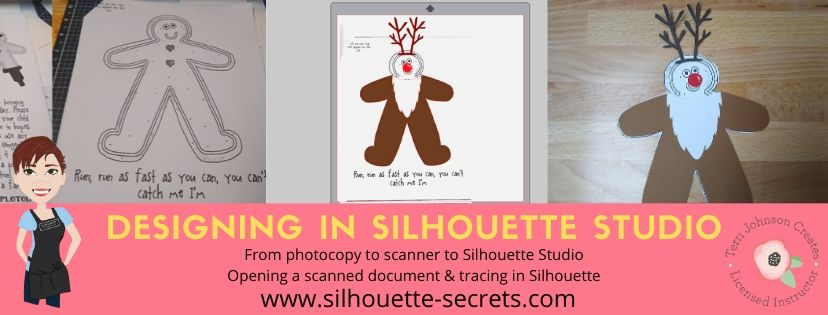
I took the Gingerbread man page, slipped it into my scanner and clicked scan. This saved the file to my computer as a PDF document. Then my little one was amazed when I used File > Open and found the PDF file and it opened up in my Silhouette software.
To open a PDF file, the Designer Edition upgrade or higher is required.

Gingerbread Scan copy.jpg

Once the design was in my Silhouette Software, I used the Basic Trace feature to trace around the outer edge of the Gingerbread man.

Basic Trace copy

I increased the threshold on the trace to get the design to show as much yellow on the outer edge of the design and keep it as smooth as possible.

Keep in mind that each design you work with will be different and there is no magic number for the threshold or adjustments to the features under the Trace Panel. Adjust it until you feel you have the best yellow around the area you want to trace as you can get.

Then, I clicked on the Trace Outer Edge because I only needed the outside edge of the Gingerbread Man.

Trace copy

Now you may notice a few extra things traced. This will depend on the image you are tracing. These artifacts should be removed or they will cut with your image. Again, each design you trace is going to react a little different. This image is a photocopy of a design, so it picks up the little shadows and such on the paper.

Right click on the design and choose Release Compound Path. Now, you will see each artifact in this design is now broken into separate objects.

Release Compound Path copy

While all of the pieces are selected, hold down the Shift key on the keyboard and click on the main part of the Gingerbread Man. This will deselect him and all the other artifacts will remain selected. Press the Delete key on the keyboard and the artifacts will be no more.

Delete artifacts copy.jpg

Next, I told my daughter I was going to cut his head off. She gasped and then started laughing.

I double clicked on the Gingerbread Man to bring up the Edit Points. These little gray dots may look intimidating when they show up, but they are very useful.
Check out the “Let’s Explore v4 – Edit Points” post for more information HERE.

The first thing I noticed is that there are a lot of edit points. This can happen on any object you trace. In the Edit Points Panel, click on the Simplify option and see if it helps decrease the edit points without changing the shape of the design too much.

Edit Points Simplify copy

Again, each design is going to vary in how it reacts.

Simplified copy.jpg

Keep in mind a few things when you trace. First, it traces each design around the edges of the yellow that you have on the screen when you do a trace. This means if the image is pixelated, then will trace all those pixels.
And, each of those edit points is a data point that the Silhouette machine has to hit when it is cutting. It is how it tells the machine how to cut around the design you send to it. If there are a lot of edit points, it can sound odd cutting and take a long time as it makes it’s way connecting all those dots.

Now, that I have fewer edit points, I can move the edit points, delete the ones not needed, and adjust their directional nodes to bring the neckline down on the reindeer costume.

Reindeer neckline copy

And there is our reindeer/gingerbread man body.

Next, we discussed that reindeer have a white stomach. I tried using the Line Drawing tool – Draw a Polygon to draw my own ruffly white belly, but I just wasn’t feeling it.

But, the Santa beard from the Santa & Friends Photo Props was ruffly. I copied it from my other file and pasted it into this design.

Knife tool copy.jpg

I then held the Shift key down and drew my knife across the beard to cut the mustache off. I selected the mustache and deleted it. Then I double clicked on the beard to bring up the edit points and deleted the ones in the center as those are not necessary.

To select multiple edit points at the same time, hold down the Shift key and drag the mouse across all the ones you want to select. This will select multiples at a time and you can then adjust or delete them.

Santa beard edited copy

Now, let’s add this to our reindeer.

Reindeer white copy

I used the bottom middle bounding box to elongate the white of the belly.

Next, I wanted the neckline to match with the brown reindeer part of the costume. Select both the brown and the white of the reindeer and make a copy. Drag this copy off the design mat. Select the brown and white reindeer on the design mat again and open the Modify Panel and choose Crop.

Modify - Crop copy.jpg

The new shape has taken on the color of the bottom layer. Change the color back to white using the Fill Color Panel and you have 2 pieces that will fit back together.

Reindeer body copy

Want to see how it will look as a finished design?

This is what is commonly referred to as a “mock up”. Taking the design you have creating and layering it on top of the original photo.

Mock Up copy

We cut all the pieces out of cardstock and my 6 year old helped with each part. She enjoyed taking the mat off the cardstock.
Tip: To help the cardstock to release from the mat, flip the mat over and peel the mat away from the cardstock. This will help the adhesive release, keep the paper from curling, and keep the adhesive on the mat.
Check out this post “Tips to Get the Most out of the Silhouette Mat” for more tips.

IMG_20191205_102446498 copy

Then my daughter used her scissor skills to cut out the gingerbread man and I asked if she wanted to go find a glue stick to attach the pieces and she says, “Mom, can you just use your good glue?” I had to laugh at that as I pulled out my Scrapbook Adhesives EZ Tape Runner. Of course, I’d much rather use that than a glue stick.

Check out this video below to go through the same steps I have walked through above.

And we had our cleverly disguised Gingerbread Man that we created together. I am amazed at the Silhouette software all the time. While I am no designer, once in awhile I may have an idea or two. And you never known when you will want to take a Santa beard and turn it into reindeer fur.

So for a recap of the tools used in the Silhouette software:
– Basic Trace
– Release Compound Path
– Edit Points
– Line Drawing Tool – Draw Polygon
– Knife Tool
– Modify Panel – Crop
– Fill Color Panel

It didn’t seem like that many as we worked through the project, but we covered a lot. The best way to learn is to continue to create and do things in the software.
All of the above features are linked to detailed posts in the “Let’s Explore v4” series. When you get a chance take a look and then play with something new that you learned.

I would love to see what you create, feel free to post on my Facebook group at Silhouette Secrets with EllyMae.

Enjoy!

SS_Signature copySS Logo snip it

**This post may contain affiliate links. What that means is that I may receive compensation if you purchase through the links I have provided. The price you pay for the product or service is not higher but I may get compensated for sharing.

Posted on — 7 Comments

Creating cards with your Silhouette

 I started my Silhouette journey as a paper crafter and that still has a big part of my heart. I love to play with paper and creating all kinds of projects with it. There is so much that can be done with the Silhouette but I feel that’s it’s just hard to do it all. And just like anyone else, I get a bug and have to go back to my roots.

I am also a Close to My Heart consultant and have been since right before we moved to Virginia 4 years ago. Gosh, I can’t believe it’s been that long. But I love to be able to combine the two. Close to My Heart has a great quality card stock and I love stamping as well.

So this year, I saw a card kit in the catalog and I just “had to have it”. Why? Who knows? But, it spoke to me and all the supplies to create it jumped in my cart.
That doesn’t happen to anyone else, right?

CTMH card kit.JPG

So this card kit has no Silhouette cuts in it. I didn’t use the software. I actually used the metal die Thin Cuts that come with the card kit and ran them through my Cuttlebug (although an svg file would be much easier if it were available).
So why am I writing about it?

IMG_20191205_105929398 copy

Well, even though I did nothing with my Silhouette for these cards, it gave me some creative inspiration. To be honest, I had hit a little bit of a slump.
I was testing & things weren’t going peachy, which can be frustrating.
So, I got busy doing, got busy creating, just followed the directions, and went with the flow. My kit arrived 2 days earlier than I expected and I dropped everything (including household chores) and started cutting, stamping, and assembling.

It took me longer than I thought to assemble the kit, but that was also because I thought it would be a great idea to make doubles. If I could make 15 cards, I might as well do 30 to send out. It always sounds like a good idea at the the beginning.

But one thing I do know, while I was working I was getting ideas of how to use these papers with my Silhouette and create a fold card design in the software. This was a design I had cut by hand a few years back when I was making card kits for my CTMH customers. I wasn’t focused on trying to come up with the ideas from scratch, they were just coming to me. All of a sudden it was “What about if I use these papers with my Z fold card design & stamp the images for the card?” or “What if I use a print and cut image on the front of the card?” and then “What if I created the file to give away?”
And it was back… that creative spark!

IMG_20191205_105313795 copy

And then one thing leads to another, the creative spark lights a fire. I remembered I had this little guy I had been saving to do Christmas Cards with for a long time.

I used the Print & Cut feature to cut out several Moose in Sleigh Christmas designs that would fit right on the front of the card.

Print & Cut Moose copy

This is Moose In Sleigh Christmas Print and Cut by Stinkin Cute Paper Piecings – Design #50960. And I have to admit, I have found him “stinkin’ cute”.

My new Cameo 4 registered and cut this design out beautifully.

IMG_20191204_141554050 copy

Adding it on to the front of this Z-fold card worked great!

IMG_20191205_105329983 copy

But maybe you don’t have time to create Christmas cards this year. That’s ok grab this FREE cut file below and create cards for all occasions throughout the year.

IMG_20191205_105338514 copy

I used Happy Birthday Layered by Deborah Stine – Design #57087 and turned the cut lines off, changed the color to match my patterned paper, set it up as a print & cut with the center front rectangle around it.

For more information on setting up a Print & Cut project check out Print & Cut – Part 1, Part 2 – Text, and Part 3 – Images.

Now, if you are still with me. Let’s get down to it – the FREE cut file. I hope this gets you excited to create your own cards.

Grab the FREE Z-fold cut file for this card HERE.

When you open the card file all of the pieces are stacked on top of each other so you can see where the pieces will be adhered after cutting. Move the pieces off and position them on the design cutting mat to cut each piece out. When I am cutting cards or layered designs, I like to cut several at a time and then I can sit and assemble them later while watching tv or when I just need a break.

Zfold card photo copy

Once all your pieces are cut, check out this video with tips to assemble the card.

This free z-fold card file was created by me completely in the Silhouette Studio software. I measured, drew rectangles, added score lines, and drew more rectangles to create the design. This is available to you for your own personal use and I hope that you enjoy creating with it.

I think we all hit a “creative block” sometimes and it is just good to stop and just create. Do something you love. Make something you’ve had on your list for awhile. Especially as we all go into this busy time of year, we can feel overwhelmed. Whether it’s because you just came out of an event, have continuous events going on, are filling orders, or just creating gifts for friends and family – stop and take a few moments for you today too! Whether that involves using your Silhouette or starting a project without it.
You never know when a creative idea will hit!

Now, off to get these addressed and mailed out for this year.

I would love to see what you create with this Z-fold cut file or any of your Silhouette projects that are bringing you joy today!

Feel free to post on my Facebook group at Silhouette Secrets with EllyMae.

Enjoy!

SS_Signature copySS Logo snip it

**This post may contain affiliate links. What that means is that I may receive compensation if you purchase through the links I have provided. The price you pay for the product or service is not higher but I may get compensated for sharing.

Posted on — 28 Comments

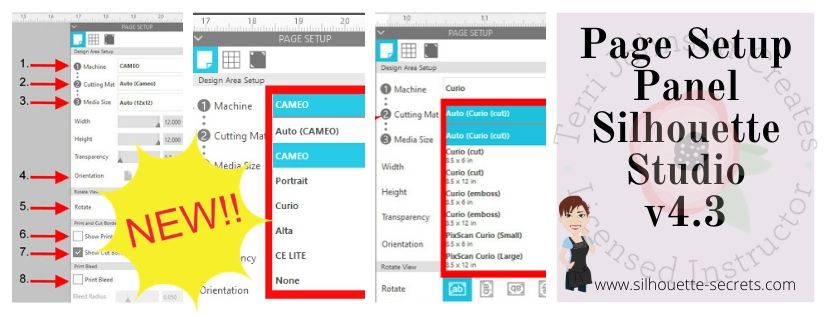
Let’s Explore v4.3 – Page Setup Panel

It’s new! The new v4.3 software has been released and there are a few changes to how things look in the software. With the release of the new Cameo 4, a new software update had to be released in order for the Cameo 4 to be recognized in the software.

Today we are going to take a look at what the Page Setup Panel – Tab 1 looks like now in v4.3 software. If you have an older software version prior to v4.3, check out this post HERE – Let’s Explore v4 – Page Setup Panel – Page Size and Cutting Mat.

How do I know what software version I have?

First, let’s see what software version you are using.

On a PC, in the top left corner, click on Help > About Silhouette.

Software version

On a MAC, navigate to the top left menu, click on Silhouette Studio, and then click on About Silhouette.

MAC About Silhouette copy
(Thanks Libby Ashcraft for this MAC screenshot!)

This little window tells us a lot of information and is handy to have when troubleshooting an issue a user is having.

About Silhouette info copy

It tells me that I am using version 4.3.353 (currently a Beta version) and that I have Silhouette Studio Business Edition (ssbe) active on my computer.

Now, you may ask why I am using a Beta version? Well, I am part of the Silhouette Beta testing group and test the software releases that may have bug fixes or if I find bugs I can report those to the folks who need to know.
Do I recommend the Beta for the average user? NO
I only recommend the Beta version if someone is having an issue I know is resolved by updating to the Beta version or if you are very familiar with the software. The Beta version is a TEST version and with that can come unknown bugs.
The main thing I want you to find here is where to find your software version information.

Now that you know that information, you can tell if you are on a version prior to v4.2 or if you have a v4.3 software.

So let’s take a look at the differences between the Page Setup Panel – Tab 1 in v4.2 versus v4.3.

Page Setup Panel difference copy

So if you are a v4.2 or prior user, you will want to look at this post HERE for the Page Setup Panel look that matches your software.

If you are a v4.3 software user or just curious what v4.3 holds, keep reading as we go through the entire panel.

The Page Setup Panel is found in the top right corner of the Silhouette software and is one of the most important panels to get started designing.

Page Setup Panel Tab 1 copy

Let’s take a look at what each of these sections tells us.

Page Setup Panel details copy
  1. Machine – Select the machine that you want to design with. Now you can choose between a Cameo, Portrait, Curio, Alta, CE Lite, or none for the designated machine.
    Machine option copy
    This is great for Silhouette owners who may want to design on a Curio mat when they are not connected to the machine.
    It will allow the Curio mat to come up on the design page so a user can then design within that Curio mat versus having to go plug their machine in for it to be recognized.
    Curio mat copy.jpg
    This is the biggest reason for the Page Setup Panel change.
    However, something to note is that while you can select the machine to design with, you would still need to have plugged in a Curio and it be recognized by the software to unlock the Curio features such as the Emboss Panel.
  2. Cutting Mat – Choose the cutting mat size depending on what you are using.
    Each machine type selected will have a variety of options.
    Here are the Cameo options:
    Cutting mat copy

    Here are the Curio options:
    Curio cutting mat option copy

    Each drop down list will vary depending on what you have chosen in the #1 area.

  3. Media Size – this was previously known as page size and now has been changed to media as the materials you can use in your Silhouette has expanded. In the drop down are several preset sizes for the most common media sizes.
    Media Size copy

    Choosing a specific media size will adjust the media size on the screen and you will see a white “page” show up on the screen depending on the size chosen. White will appear for the media size if the transparency is at 0% – see below*
    Media Size white copy
    In the photo above, I have selected the Machine: Cameo, Cutting Mat: Auto (Cameo), and Media Size: Letter. Notice that the white has adjusted to match the Letter size paper of 8.5″ wide by 11″ height.

    Under this Media size section, you can also select a custom size by entering the dimensions into the Width and Height section.

    Custom width height copy
    Note: the width of the Media Size cannot be set larger than 12″ since the Silhouette Cameo cannot cut wider than 12″.
    If you try to adjust the width larger than 12″, it will revert it back to 12″.
    If you want to design with a page size larger than 12″, change the Cutting Mat to none & then you will be able to adjust the Media size larger than 12″ wide.

    Transparency – adjust the transparency of the media size you have selected. At 0% it shows as a solid white media on the screen. As you increase the transparency the white disappears and you will see the grid spacing of the cutting mat appear.

    This was formerly called “Reveal” under the cutting mat section.
    Transparency copy

  4. Orientation – change the orientation of the page to Portrait or Landscape orientation
  5. Rotate View – change the orientation of the entire design mat on the Silhouette software. This only rotates the view of the mat on the screen.
    Keep in mind that the black arrow is always the “top” of the mat or the “top” of the media. This is the first part of the media that is loaded into the machine.
    Rotate View copy

    Here is the view rotated to 270 degrees. No matter where the black arrow is pointing on the screen, that is always the top of the mat or media that is loaded into the machine.
    This is something to keep in mind when you are placing your design and media on the cutting mat.
    Rotate View 270 copy

  6. Show Print Border – check the box next this option to turn the Print Border on. It will show as a gray border on the screen and is set according to what printer is recognized by the computer
    Show Print Border copy
    The print border should have no affect on the cutting space, it shows what the printer margins are set to for the printer that is set up on your computer.
    If the gray lines are showing at a smaller size, most likely the print size has been changed in the Printer Setup within the software or within the Printer setup on the computer.
    Check under File > Print Page Setup for more details on the printer page size.
    Print Page Setup copy
  7. Show Cut Border – check this box to show the maximum cut border that you have to work with. A red cut border will appear around the media size you have selected.
    Show Cut Border copy

    There are 2 options for the cut border in the software. There is the Cut to Edge of Page, which is what I have my software set at as shown above. This option can be found under the Preferences options > Defaults tab in the software.
    Preferences copy

    Or there is the default, which places the cut border just a bit within the edges of the media size.

    Show Cut Border default copy
    It is all a matter of personal preference in how you have the software set up.

    I always have my Show Cut border checked, especially when doing a Print and Cut project.
  8. Print Bleed – this option can be selected for when a project is being printed through your printer to be cut. The Bleed radius can be adjusted in this section too.
    Print Bleed1 copy
    It will give the colors a bleed area (similar to an offset) around the design that is being printed. This is to help avoiding a white border around the design when it is cut.
    Print Bleed copy
    In this photo you can see that with the Print Bleed option chosen it bleeds the color out from the edges of the design.
    Print bleed final
    Here you can see the print bleed excess once the design is peeled away.

    Something to note about Print Bleed is that it does NOT show the bleed on the design screen. The bleed is only present when you have this option selected and print onto the material.

And there you have the new v4.3 Page Setup Panel. Now, if you made it all the way through the post and are scratching your head as to why your Page Setup Panel does not look this way. It could be that you are not yet on the v4.3 software version.
Check out this post HERE to see if that looks more like what you are seeing.

The next question you may be asking is – Why does it have to change?

Well, whether we like it or not, change can be good. New features, new machines, new techniques! It is a never ending learning process and I for one am grateful that the Silhouette company looks for ways to improve on things.

Check out the “Let’s Explore v4” section on the blog for more Silhouette software explanations HERE.
Header PDF file

I would love to see your projects & I know others in my group do too! Feel free to post on my Facebook group at Silhouette Secrets with EllyMae.

Save this post for future reference by pinning the image below.

Enjoy!

SS Logo snip it

**This post may contain affiliate links. What that means is that I may receive compensation if you purchase through the links I have provided. The price you pay for the product or service is not higher but I may get compensated for sharing.

Posted on — Leave a comment

Acrylic Etching at ATS – November 2019

I’ve just arrived home from the November All Things Silhouette Conference for 2019 and so many ideas are hitting me. I am making notes for when I get a chance to start creating again.

I wanted to share a project I created and put in the Silhouette Showcase room at the conference.

This is an acrylic etched with the Silhouette Curio. It is a lighted base that can be found at Craft Chameleon and the acrylic is specifically sized for the base.
This is one of my favorite ones that I have etched for the base.

eZy_watermark_12-11-2019_03-23-14

Acrylic light base by Craft Chameleon found HERE

SilSecrets_lightedbase copy

There are several different acrylic shapes that fit in the lighted bases and also Curio Templates for all those shapes.
I LOVE the Curio templates to help hold my blanks in place!

Thank you to Craft Chameleon for allowing me “test” this one out for them to share with everyone at the ATS – Showcase.

I couldn’t stop there though. I etched 150 of the 15/16″ acrylic discs and gave those out to the attendees of all the Ultimate ATS attendees for the Friday classes in their goody bags.

SilSecrets_acrylic charm

For these I added a wine charm to the bag but they could also add it to a key chain or other type of hardware too!

I had a few extras and turned mine into a pair of earrings that I wore this weekend too!

SilSecrets_earrings

And yes, there is a Curio template for these charms too! I was able to etch 10 charms at a time.

And I want to share this with all of you because I think it is so neat.
I was able to use my Business Edition software to connect to 6 different Curio machines to etch 30 snowflake ornaments during the conference.
It’s a long story on why but where else do you get access to a room full of Curios.
Next time, I’ll try even more!

Are you just getting started with the Curio? I recommend starting with the Silhouette metal etching sheets and practicing first.
Here is a step by step tutorial on how I do that – Beginner Curio Etching Metal.

beginner curio Etching metal header copy

Want to learn how to etch on acrylic? I just recently launched an online class on my Teachable site to show you how.
Check it out HERE along with my other classes that are available.

SilSecrets Curio Etching copy

Or if that is not enough, come join us for a full weekend of Curio projects on May 1-3, 2020 at the Curio Retreat in Woodbridge, VA!
Grab your seat quick as we are already over 50% full!

SilSecrets_Curioworkshop.jpg

I would love to see your projects feel free to post on my Facebook group at Silhouette Secrets with EllyMae.

Enjoy!

SS_Signature copySS Logo snip it

**This post may contain affiliate links. What that means is that I may receive compensation if you purchase through the links I have provided. The price you pay for the product or service is not higher but I may get compensated for sharing.


Posted on — 13 Comments

Silhouette Rotary Blade – First cuts

Silhouette Secrets+ with EllyMae

If you’ve been curious about how the Silhouette Rotary Blade works, you’re not alone! I recently made my first cuts using the Rotary Blade, and I’m excited to share the results. This specialty tool is designed to glide through soft, fibrous materials like felt, fabric, and crepe paper—without needing a backing or stabilizer. In this post, I’ll walk you through how the Rotary Blade works in Silhouette Studio, the key tips I discovered along the way, and how you can get clean, beautiful cuts right from the start. Whether you’re cutting fabric for appliqué or crafting adorable felt stuffies, this tool opens up a whole new world of creative possibilities!

On October 18, 2019 a package showed up in my mail box. My kids were excited, I was excited – we were all excited. While their excitement quickly wore off, mine has not.

Four Silhouette Cameo 4 tools packaged on a wooden surface, including a Punch Tool, Rotary Blade, 2 mm Kraft Blade, and Pen Holder.

Affiliate links may be present in the following blog post and as an Amazon Associate, I earn from qualifying purchases.

The new tools for the Cameo 4 had arrived. After attending the Silhouette Summit in May and learning about the new Cameo 4 release and the new tools to go with it, they are finally here.

Updated 6-15-25 – the Silhouette Rotary blade is compatible with the Silhouette Cameo 4 models, Cameo 5 models, and Curio 2.

From left to right they are: The Punch Tool, Rotary blade, 2 mm Kraft blade (Cameo 3 or 4), and the Pen Holder. The 3 mm Kraft blade was not in my box, but will be coming soon.

Today I’m going to show you my first cut with the Cameo 4 – Rotary blade.
It is a pretty simple cut.

Last week while I was finishing the prep for my Foil Quill on a Traveler’s Notebook class for the upcoming All Things Silhouette Conference, I was having a heck of a time getting the same foil results as I had with my original demo. I ended up having several traveler’s notebooks that were “sacrificed” in the testing process.
What was I going to do with all these “failed” tests?

A pink faux leather notebook cover featuring gold foil compass designs and the word 'Test' repeated vertically.

My fabric selection is very minimal, so I just grabbed the first one I found.

A faux leather traveler's notebook with a compass design, resting on a colorful fabric patterned with wine bottles, beside a Silhouette cutting machine.

And no joke, it was the first one I saw. This is leftover from a gift making session a few years back where I tried my hand at fabric key fobs.

Why not cover the journal as a test?
Cut this thin cotton fabric with the rotary blade and test it out. Perfect!

I measured out how big the traveler’s notebook was and then drew a rounded rectangle in the Silhouette software. I added a little bit to the measurements to allow for some overlap around the edges of the cover. In hindsight, I should have allowed a bit more.

So the first thing I want to mention is that when you get the Cameo 4 Rotary Blade, you want to twist the bottom to expose the blade. This is a safety feature so the blade is not exposed right out of the package.
And it won’t cut very well at all if you don’t twist the bottom to expose the blade. You’ll have to trust me on that one.

Close-up of a hand holding a white rotary blade tool for the Cameo 4, with a cutting mat in the background.

Once you install the Rotary blade in the Cameo 4 Tool 2, the software will recognize the tool has been installed with the new Tool Recognition and will give you the cut options for that tool.

Next, when you use the Cameo 4 Rotary blade, you will notice that you have these extra lines on your design mat when you go to the Send tab. This is so the rotary blade can orientate the blade to the correct position to cut the design out.

Journal cover copy

It is just like a hand held rotary blade and rolls across the material to cut.

A close-up of a Cameo 4 cutting machine with its tool holder, displaying a colorful fabric featuring wine bottle designs laid on a wooden surface.

Now, my design is a very simple rounded rectangle.

A close-up of a cutting mat with a piece of fabric featuring wine bottle patterns, positioned in front of a Silhouette Cameo cutting machine.

While it may be simple, it is a great way to test out the blade to see if it will cut this thin cotton fabric.

And success! There were a few threads that needed to be clipped around the edge, but I’m good with that. And it is improving. There are software updates coming that are improving the cut settings and allowing more possibilities to customize those settings because we all know that not all materials are created equal. As I found with Foil Quill foil, even in the same brand of items, not all will perform the same. The Gold Finch 4″ x 6″ sheets did not foil the same way as the foil that was included in the Foil Quill bundle or like the large roll of gold color did.

Now, I was so excited to test this blade out, that I didn’t really think how I was going to apply this piece of fabric to my traveler’s notebook, which is like a faux leather on the outside. So I reached out to my friend Libby for her advice. It was pretty much the answer I had thought – Heat & Bond or Fusible Stabilizer, but confirmation from a fabric user is always better.

Yes, it would have been much easier to put the Fusible Ez-Steam on the fabric and then cut it, it would have even cut with a regular blade since I had such a simple shape. But, it was a test to see how it would cut with the rotary blade and it was a success!

I can’t be the only one that has these hindsight moments on how to make the project easier….. after the first one is done. Or gets excited and just jumps in before thinking the project all the way through.

I ironed the fabric to get it nice and smooth. Then I peeled the paper backing off the Fuzible Ez-Steam and applied it to the backside of the fabric.

An iron is positioned beside a piece of fabric with a protective paper backing, set on a blue ironing board.

Then I placed the fabric on top of the travelers notebook and carefully ironed it on.

A close-up of a hand holding a small fabric cut piece with a backing, placed over a notebook cover that reads '1st Test' in gold lettering.

After I ironed the outside, I flipped it over and then carefully folded the edges over and ironed those down to the inside. The inside of the notebook is a paper material, so I didn’t hold the iron in the same place very long.

A fabric-covered traveler's notebook with a black backing, pinned edges, and an iron in the background.

You can see in the bottom right corner that the edge was a little bit small, this is where I would adjust for the next one and make it a little bigger for a little more edge allowance.

I poked holes through the fabric to thread and threaded the elastic cord back in the holes, added my notebooks back in, and have covered this “test” subject from my failed Foil Quill project.

A traveler's notebook covered in fabric featuring various wine bottle designs, resting on a wooden surface, with a seam ripper and a weeding tool beside it.

Of course, I couldn’t leave it at just that. I had to add a charm made from an 15/16″ acrylic circle and etched with the Silhouette Curio 1.

A traveler's notebook covered with fabric featuring various wine bottles and tags, accompanied by a charm that reads 'live love WINE'.

Can you see yourself using the Silhouette Rotary Blade in any future projects?

Next up on the testing list is leather, faux leather, more fabric or whatever I can find.
I can’t wait to share that too!

Additional Resources:

Save this for future reference by pinning the image below.

Silhouette Rotary Blade against a colorful background, showcasing its design and features.

Enjoy !

THANK YOU for your support! How can you help? Click HERE & buy a coffee.
Every little bit helps with the cost of running the site.

Silhouette Classes

Never stop learning! Let me help you take the anxiety out of learning with Silhouette and get to creating faster! My Silhouette classes are heavily focused on software, so you can take the skills & techniques taught and apply them to many future projects!

Silhouette step-by-step Classes by Silhouette Secrets+

Silhouette Secrets+ with EllyMae
**This post may contain affiliate links. What that means is that I may receive compensation if you purchase through the links I have provided. The price you pay for the product or service is not higher but I may get compensated for sharing.

Posted on — 2 Comments

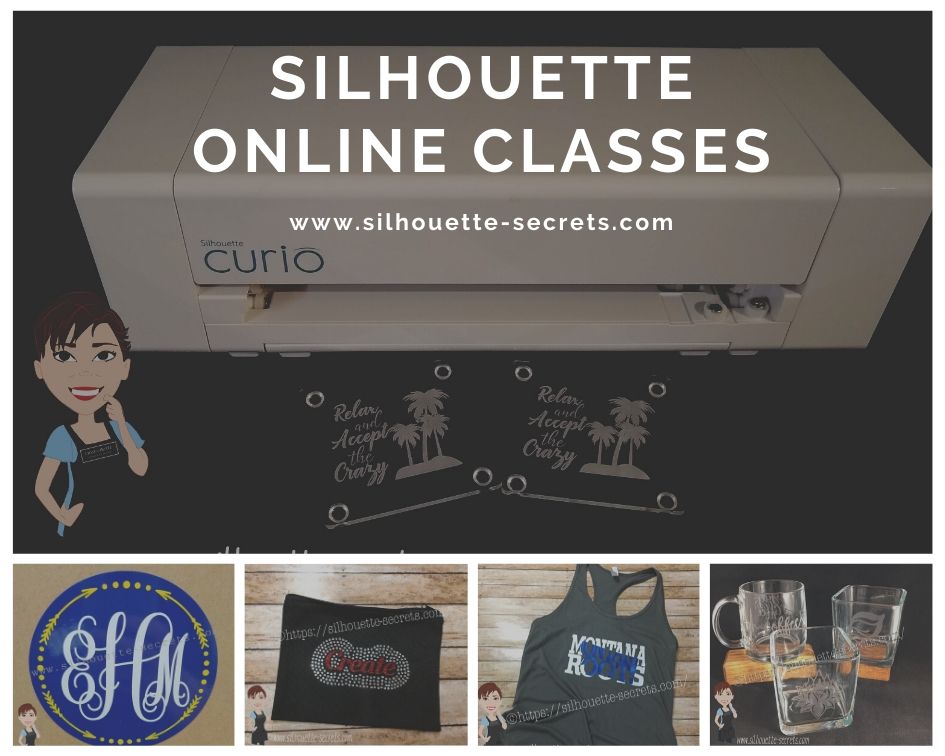
New! Silhouette Online Classes

I get a lot of requests to put my classes online. And it’s been a work-in-progress and a learning experience too!

I currently have 7 Silhouette classes available online on my Teachable site. These have been developed in response to requests by my students and followers.

Silhouette online classes

These classes are created in the Silhouette Studio v4 software and include all my tips, tricks, and supply lists to complete each class. All of the classes are created using the same class content that I use when teaching a hands-on, in-person lesson and have as little video editing as possible, in order for you to get the full class effect.
You don’t want to hear me bumble over one tongue-twisting word 10 times, watch the Curio etch for 40 minutes, or see the frustration of a mic not working, so there are some areas that are edited or the speed increased (etching).

What are the online video classes available?

1. Basic Acrylic Etching with the Silhouette Curio

SilSecrets Curio Etching copy

This is a 1 hour video class that is step-by-step in setting up a design, setting up the Curio, and etching on acrylic using the Silhouette Curio.

The Silhouette Curio is an amazing machine that can accommodate thicker materials and works great for etching on metal and acrylic.
If you are just getting started or have an interest in the Curio, check out the
Let’s Explore the Curio – Getting Started post.

This little machine can definitely add that personal touch to projects that others cannot.
Check out this post on Silhouette Inspiration to see a few more projects I’ve created with the Silhouette Curio.

Silhouettesecrets+Curio_projects

2. Creating a vinyl decal & layering vinyl using the Silhouette

Sil_Secrets_layeredvinyl copy

This is a 1 hour class showing the entire process of creating, cutting, and layering an adhesive vinyl decal in the Silhouette Studio software.

This class uses the Monogram Script Arrow font by Rivka Wilkins to create a 3 color decal using Oracal 651 adhesive vinyl.

3. Cutting & Layering HTV in Silhouette Studio

Layered vinyl copy

This is a 45-minute video class that is a step-by-step process of cutting & applying a multi-color HTV design.

I used the Sparkle Like a Unicorn design by Sarah Hurley with Siser HTV to create this body suit gift in the video class.

4. Glass Etching with Silhouette

Silhouette-Secrets+_GlassEtchingPhoto copy

This glass etching video class is approximately 1 hour and 13 minutes showing the process of setting up a design to create a stencil for glass etching, cutting a stencil with Oracal 651 adhesive vinyl & Oramask 813, and using Etchall glass etching cream.

5. Heat Transfer Print & Cut with Silhouette

CQLG3491 copy

In this 35-minute video class go through the step-by-step process of creating a print & cut design, printing on heat transfer paper, cutting, and applying the heat transfer paper.
This class can apply to all print and cut projects no matter what material you are printing on.

I used a Flamingo Clipart Mega Pack for the design and JetPro SS Heat Transfer Paper from Heat Press Nation for this class.

6. Creating a Knockout Design with HTV
Bonus HTV & Subtract

SilSecrets_Knockout copy

This is a 1 hour video class to create a HTV Knockout design with Silhouette Studio, cutting, and applying the HTV. A short bonus software video with using HTV & subtracting the design is also included.

I used the USA States Dingbat Font by Sandi Idleman and Siser HTV in this class.

7. Creating a Rhinestone Design in Silhouette Studio

SilSecrets_Rhinestone copy

This is a 45 minute class creating a rhinestone design in the Silhouette software, cutting from rhinestone template material, and applying the rhinestone design to a zippered bag.

I used Siser Glitter HTV,  rhinestone materials from The Rhinestone World, and a Cotton Zipper bag from Craft Chameleon in this class.
The Designer Edition software upgrade or higher is required to create a rhinestone design in the Silhouette software.

Why online classes?

Every user is going to vary in where they are located. Maybe they cannot get to an in-person lesson with an instructor, a workshop, or an event. Maybe their schedule does not work for booking a lesson in-person. It can vary for all users.

Each user learns differently. Some people can learn by reading a tutorial and pick it up with no issues, while others prefer a video that they can pause and re-watch whenever they want. What I have learned by doing in-person lessons is that there can be a lot of information discussed during a 1 hour lesson and rarely do students remember everything that was discussed. This is one reason that I also provide a follow up email to my in person students to highlight some of the topics discussed. With a video lesson, you can control that and hear it again when you need to.

Video class suggestions

As I mentioned above, these classes were created at the request of students and followers. Feel free to provide suggestions on video classes that you would like to see by joining my Facebook group – Silhouette Secrets+ with EllyMae or sending an email to silhouettesecretsplus@gmail.com

I do keep a list of videos to create and there are several in the process, but they do take time to create. It has definitely been a learning process for me. I know the Silhouette software and love teaching that, but recording, video editing software, video hosting sites…. that is all a new world to me.

I would love to see how you are using your Silhouette machines!
Feel free to post on my Facebook group at Silhouette Secrets with EllyMae.

Enjoy!

SS_Signature copySS Logo snip it

**This post may contain affiliate links. What that means is that I may receive compensation if you purchase through the links I have provided. The price you pay for the product or service is not higher but I may get compensated for sharing.
Posted on — 13 Comments

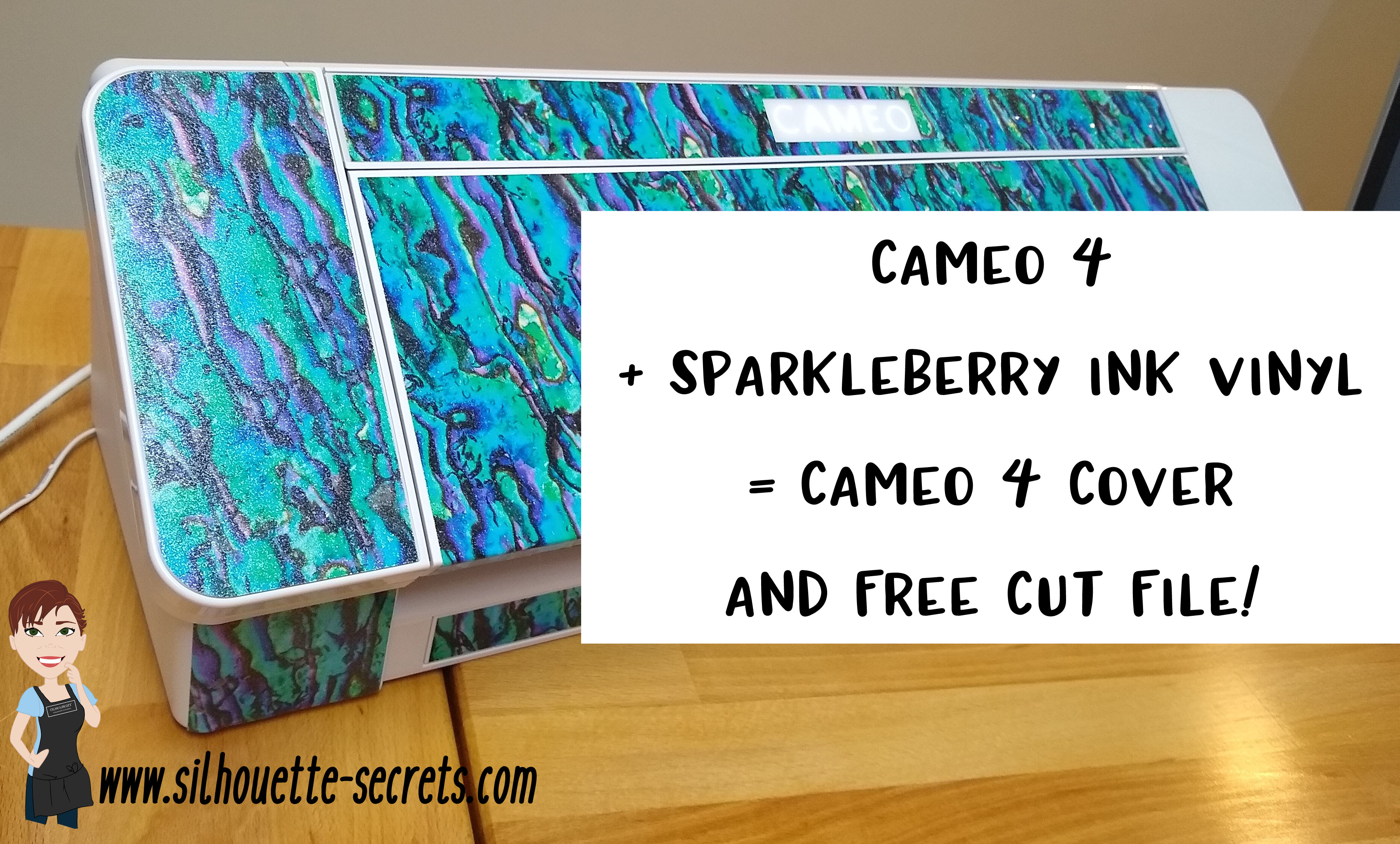
Cameo 4 Cover and more!

Look what I did!
(Read to the end and you’ll find a surprise!)

SilSecrets_Cover copy

*This post may contain affiliate links. Please see the bottom of the post for more information.

Now, usually I am not one who can decide what design to put on my machine. But, when I saw Sparkleberry Ink release this Laura’s Abalone design, I just knew what I wanted to do with it.

Note: you will need a piece of Sparkleberry Ink vinyl or other brand that is at least 12″ x 24″ long.

I created this Cameo 4 cover all by using a tape measure, the drawing tools in the Silhouette software, and cutting test cuts of the templates to make sure they would fit before cutting my precious Sparkleberry Ink vinyl.

So how did I do it?

I started out by measuring each space that I wanted to add a piece of vinyl to and writing that down.

IMG_20191016_190707132

Cameo 4 cover_updated copy

Then I chose the draw rectangle tool in the software and created a rounded rectangle (6.285″ x 2.420) for the top left panel (E).

Drawing rounded rectangle copy

Next, I drew a rectangle (6.285″ x 2.687″). I used the Align tools to center the rectangles together and then moved them together until the total width of the panel was 2.682″. Then I selected both the rounded and regular rectangle and made a copy, this way I have an original shape to go back to. And I’m so glad I did because I had to cut this one a couple of times to get the right rounded rectangle angles.

Next, I right clicked and chose Weld.

Weld copy

Then I cut it from cardstock to see how well it fit. Here are a few of the pieces I test cut to see how they would work for the panels.

IMG_20191016_165058335 copy

Then I continued to measure each and draw the shapes according to those measurements.

IMG_20191016_165117249 copy

By cutting it out of cardstock, I could place the cardstock up to the space available and see how it fit. If it was too big, I could scale it down. If it was too small, I could scale it up a little bit.

I added all my pieces of my design to a “working file” that I saved, just in case something happened.

Working file copy

Once I knew the piece would fit, I then moved it to my original cut file and positioned it on the mat, so I could get the most out of the 12″ x 24″ cutting space.

Silhouette file photo copy

Then I did something daring. I wanted mine to have sparkle to it. So I took a 12″ x 24″ piece of Glitter Laminate Overlay and I applied it to the top of the Sparkleberry Ink – Laura’s Abalone adhesive vinyl.

Why is this daring? Well, anytime you add a layer on top of another layer, you have the chance of getting bubbles. But, I went for it!

I followed these instructions HERE for using the Glitter Laminate Overlay and it worked! Would I recommend this for all users – No, probably not. I would definitely recommend practicing with a smaller piece first. But, sometimes you just have to go for it 😉 !

IMG_20191011_200646477 copy

Look at it sparkle!

This is definitely one of those times that you feel all giddy when a project is coming together. If you look really close on the right side in the photo above, you may even see a few bubbles. I’m good with that.

IMG_20191011_205303758 copy

After all the pieces were cut, I cut them apart, added transfer tape and started applying 1 panel at a time. I of course started with the largest panel first, the cover.
Well, at this point – might as well go big.

IMG_20191011_205311771 copy

Since this Laura’s Abalone pattern was directional, I realized after I cut the first one, I had turned a couple of the panels to fit on the mat and that affected the way the pattern was. So I ended up re-cutting a few pieces so the entire pattern matched.
(I corrected that in the final cut file – see below)

IMG_20191012_082222452 copy

I was happy with it as it shows above, however, my kids came to inspect it and my 10 year old said, “Mom, what about the top? Aren’t you going to do the top pieces, so when the lid is open, it all flows.”

Very good point!

Cameo 4 cover copy

And the final pieces were created.

Updated – 1/12/20 to include right panel & UK top panel option
IMG_20200112_093933194 copy

Now, is it perfect? Nope, it has a few bubbles in it. But, I’m ok with that and hopefully as it settles, those will work themselves out or I can help them a little bit.

But, I have to say I love it!
It sits on my desk next to my computer and just sparkles at me.

Now, I did all the measuring and test cutting, but you don’t have to!

Feel free to grab this free cut file of the Cameo 4 cover I created HERE.

Silhouette file photo copy

Cameo 4 cover FREE cut file

Header photo copy

Now, what if you do not have a Cameo 4 yet or don’t plan to buy one? Well, you can still use some pretty Sparkleberry Ink vinyl to add a little color to your Cameo if you would like, no matter what model you have.

I’ve updated and created a full cover file for the Cameo 3 model as well.
Grab this free cut file HERE

Cameo 3 cover example copy

I did cut without a mat when creating this one since it is a larger surface area, however, you could use a 12″ x 24″ cutting mat as well and arrange the pieces on it. Just keep in mind that if you pattern has a direction to it, you want to keep the same consistency in how the pattern goes across the cuts.

I’d also suggest going slow and taking your time when applying, especially on the lid. It is a large surface to get lined up. In this cut file, the pieces are designed slightly smaller than the actual panel sizes, so there is a little bit of machine color showing through to break up the pattern.

For more details on cutting without a mat, check out this post HERE.

Cameo 3 and 4 copy

Cameo 3-4 lid closed copy

I did not cover the inside of the Cameo 3 lid as it has some instructions inside. If you would choose to do so, I would recommend measuring the inside and then drawing a rectangle that same size. I used cardstock and cut out a piece that was the same length top to bottom and held it up to the machine to make sure it was the correct size, before I committed a full sheet of adhesive vinyl.

Or if you have other model machines, grab this Silhouette Cameo Cover Template from the Silhouette Design Store, some of your favorite Sparkleberry Ink vinyl & maybe some Glitter Laminate Overlay too and get to cutting.
*Note this file contains cuts for the Cameo 1 panels, Cameo 2 panels, and Cameo 3 lid.

Silhouette cover

I would love to see how you decorate your Silhouette machine!

Here is my Silhouette Mint Stamp machine decorated in another Sparkleberry Ink pattern called Cute Crawlers Lime.

IMG_20190831_190213600

Feel free to post your machine decoration or any Silhouette projects on my Facebook group at Silhouette Secrets with EllyMae.

Enjoy!

SS_Signature copySS Logo snip it

**This post may contain affiliate links. What that means is that I may receive compensation if you purchase through the links I have provided. The price you pay for the product or service is not higher but I may get compensated for sharing.