Have you seen all the possibilities with rhinestone designs?
In this post, I’ll share 3 ways you can work with rhinestones.
Affiliate links may be present in the following blog post and as an Amazon Associate I earn from qualifying purchases.
Enter your email address to follow this blog and receive notifications of new posts by email.
Let’s Add Bling! 3 Ways to Work with Rhinestones
1. Create Your OwnRhinestone Designs
If you have the Silhouette Studio software Designer Edition upgrade (or higher), you can easily create your own rhinestone designs that can be cut out of rhinestone flock.
I share how the Rhinestone Panel in Silhouette Studio Designer Edition works in this tutorial in the Let’s Explore v4 series Let’s Explore v4 – Rhinestones
I also have a step-by-step class where I share how to create 4 different rhinestone designs and give tips for working with pre-made rhinestone designs, how to make your own, and how make faux rhinestone designs as well!
And there are even more options! If you have the Silhouette Studio Business Edition upgrade, you can also create the rhinestone design and export as a svg file. This means that other cutting machine users could also use the svg file or you could use a different machine to cut the rhinestone flock for the template as needed. As always, you would need to test with your specific cutting machine to find out the cut settings that work best.
To create your own rhinestone designs does require some additional supplies. Here is a list of the supplies I used in the Designing with Rhinestones class.
These are as easy as ordering and pressing according to the instructions. Bing, bang, bling!
The most difficult part about rhinestone designs is getting a good photograph. It is so hard to capture the sparkle and bling on these designs. I have more to apply in the future too!
Do you have a custom design you want to have made with rhinestones? Maybe you don’t have all the colors of the rhinestones you need or it is just too complex or it is cheaper to purchase than to create?
And have fun! So many projects on my list for the future! Hope you’ll continue on this journey with me!
Save this for future reference by pinning the image below.
Enjoy !
THANK YOU for your support! How can you help? Click HERE & buy a coffee. Every little bit helps with the cost of running the site.
Silhouette Classes
Never stop learning! Let me help you take the anxiety out of learning with Silhouette and get to creating faster! My Silhouette classes are heavily focused on software, so you can take the skills & techniques taught and apply them to many future projects!
**This post may contain affiliate links. What that means is that I may receive compensation if you purchase through the links I have provided. The price you pay for the product or service is not higher but I may get compensated for sharing.
Are you a Silhouette owner and just got a new computer? Not sure where to go from there?
It is pretty easy to get setup and running with a new computer and I’m going to share a few tips.
First when you get a new computer, be prepared that it will take a little bit for it to be ready for you to start using. There will be some computer setup instructions for you to follow. And if you are a PC owner, you may find that you have a lot of Windows updates that need to install in order to get it ready for use. Be patient and let it setup correctly. I know you are excited, believe me, I was too when I got my new computer last year. But, there really is no rushing it. The updates will finish when they finish.
Silhouette Studio Software Installation
When you get a new computer, you will first need to download the software on to the new computer. This can be found on the Silhouette America website. Click on Software & then Get Software
Next, you will see a web page that will show all the software from Silhouette that’s available.
For the Silhouette cutting machines, you will select the Silhouette Studio option.
You will need to start with the Basic software. The current version is listed at the top.
For Legacy versions, continue scrolling down the page.
Choose the current version and then click on the either the Mac or the Windows option. This will download the installer to your computer and you will open that to start the installation.
Click HERE to go directly to the Software download page.
There may be some pop ups that come up that need approval in order to proceed. Watch the bottom task bar for any flashing shields if the pop up doesn’t actually pop up.
If a flashing shield appears, click on it and then approve all the pop ups.
Once the installation is complete, you can open the Silhouette Software.
If by chance you have a new Windows PC and it is running in S mode, it will not let any program that is outside of the Microsoft Store install on the computer. You will need to take it out of S mode in order to install any programs, including the Silhouette software. For more information on how to take it out of Windows S mode click HERE.
Silhouette Studio Upgrades
Affiliate links may be present in the following blog post and as an Amazon Associate I earn from qualifying purchases.
If you are using a software version of v4.4.554 or higher, you do not need to enter your upgrade codes in the software. Click on Help – Apply Upgrade Edition and enter your log in information. Do NOT enter your upgrade codes. Once you log in with your Silhouette account info, your upgrade should be active on any computer you log in to.
This is a new feature and is only available in software versions of v4.4.554 or higher. The upgrade can only be active on 3 computers at a time. If you log into a 4th computer, it will deactivate on the oldest computer that has not been active.
For older software, software upgrades do not automatically activate when you download the Silhouette software to a new computer. If you have ever entered an upgrade code, you will need enter the upgrade codes in the order that you purchased them for it to activate on the new computer. So if you purchased the Designer Edition and then the Business Edition later, you would need to enter the code for Designer first and then Business next. If you try to enter Business Edition first, you will get an error and it will not activate.
If you are a brand new user, there is a new system that is in process and you can activate the upgrade on the Silhouette America website to be used on any computer you log into. This is still very new and only available for those that are brand new and have never entered an upgrade code as of 10/15/21.
If you do not remember what the codes were, you can easily access them under your Silhouette account information in the Silhouette Design Store. Open the Silhouette Design Store, make sure you are signed in, move the mouse over the person icon in the top right corner, and then choose Account Settings.
Then click on the License Keys section.
Log into the Silhouette Library
Once the software is open, click in the top right corner on the Library tab.
Enter your Silhouette Account information and all of the files that are in the Silhouette Cloud should Sync up. It will depend on how many files you have in your Silhouette library on how long it will take to fully sync. Another hurry up and wait moment.
Plug in Silhouette machines to computer & turn on
If you have an older model Silhouette machine of a Cameo 3 or older, the free files download to the library once the machine is recognized. Plug in the Silhouette machine, turn it on, and click on the Send tab. Once it has recognized the machine, then the files will download to the library. You will need to do this for ALL machines that you have had plugged into your software to get those free files to download.
If you have multiple machines, click on the little machine icon in the bottom right corner of the Send tab to choose the machine you want active.
This will also unlock any panels that are associated with a particular machine such as the Emboss Panel for the Curio or the Stipple Panel for the Cameo 4, Cameo 3, Portrait 2, and Curio machines.
Exporting files on old computer
Note: this is only needed if files cannot be recovered in another way
If there are files that did not show up when you logged in and the library synced, the first reason would be they are the free with machine and I would suggest looking at the above information again. If you have done that, then it could be because those files were only stored on the Local User section of the old computer. This will be dependent on the Silhouette software version you were using before. If you were using a version prior to v4.1, you will find more tips on exporting the library in this post – Library Tips (v4.1).
If you have a library backup file, it can then be imported into the Silhouette library by clicking on your name in the top left of the Library and choose Library Import, then select the location of the file backup.
Screenshot from v4.4.892
But this only needs to be done if files are missing and you cannot get them to sync up any other way.
Install fonts on the new computer
Keep in mind that when you set up a new computer, you are starting from scratch. That means you will need to install any program or file that you were using on the old computer, if you want it on the new computer. This includes fonts. The new computer comes loaded with the default fonts only and these can vary by computer.
While I have heard of others being able to copy and paste the entire font file from their computer programs folders on the old computer and then pasting it into the new computer fonts folder, I was unable to do this on my new computer. I had to right click on the font and choose “Install for All Users”.
Luckily, I had saved all my font files that I’ve collected onto a folder in my external hard drive, so I could access them direct from the external drive. While I still had to install over 500 fonts, I did get to also pick and choose which ones I really “needed” on the new computer.
I have had 2 new computers in the last several years and on one I had to install each font and on the other, some worked by copy and paste.
Keep in mind that if you created designs using certain fonts, when you open the design file, if that font is not installed on the computer you are using to open the file, the font will revert to the default font style on that computer.
Export User Designs from Silhouette Library – New Feature!
If you have downloaded the current version or a version higher than v4.4.552, there is also a new feature that allows you to export all User Designs from the library as individual files.
Click on your name in the top left corner of the library tab and choose Export User Created Designs.
While I do NOT recommend storing your personal files in the Silhouette library, there are times that it is handy when you are accessing files on multiple computers or using Pattern Fills in the Silhouette software.
One big thing to note
when exporting these User Designs is that it will export the entire library folder structure. However, any designs from the Silhouette Design Store, the folders will be empty. Only the user created designs will be exported. This is due to the proprietary nature of the .studio files and to protect the designers of those files from theft.
I would HIGHLY recommend using this export feature when you update to the software of v4.4.552 or higher because it is a really nice feature. However, as a general note, I do not recommend that all users update to this version or higher. There are many factors that I consider before advising a user on whether they should update. It really comes down to the user’s choice, however, before I make a recommendation I do ask for more information. If you would like to know what I’d recommend for your situation, feel free to post on the Silhouette Secrets+ with EllyMae Facebook group and we can take a look at the factors.
Keep in mind that the Silhouette library is not designed as an all inclusive storage area but as a syncing device. This is one reason the Silhouette cloud storage is limited in size. All users get 1 GB of storage space, but if you are a Silhouette Club Member or a Silhouette Design Store Subscriber, you get 5 GB of storage.
I hope this helps you start enjoying that new computer and your Silhouette software a little bit quicker! The biggest tip I can say is to be patient! I am not the most patient person when it comes to setting up a new computer, but if I tell myself that in the beginning sometimes it helps.
We love seeing what you are creating with your Silhouette machines or software. Feel free to post photos or questions on my Facebook group at Silhouette Secrets with EllyMae.
Save this for future reference by pinning the image below.
Enjoy!
THANK YOU for your support! How can you help? Click HERE & buy a coffee. Every little bit helps with the cost of running the site.
Or if you are looking for more in-depth, step-by-step classes, check out all of my online Silhouette classes on my Teachable site HERE.
**This post may contain affiliate links. What that means is that I may receive compensation if you purchase through the links I have provided. The price you pay for the product or service is not higher but I may get compensated for sharing.
Have you ever wanted to see how a design might look on a blank before you cut it? Or use the exact image of the blank to gauge the size when designing? I will do this often when I’m creating a project to see how things will line up.
In Silhouette Studio we can do this easily.
The first thing to start with is setting up the blank to get a good, clear photo of it that can be used.
Select some sort of background for the blank. If using this as a mock up for customers or to advertise, I would highly recommend a professional looking background.
I have a few different poster board backgrounds or large bulletin board paper rolls that I will use and set up in an area that is well lit. The one I choose is usually dependent on the colors of the blank item, but I do have my favorites too.
Affiliate links may be present in the following blog post and as an Amazon Associate I earn from qualifying purchases.
Natural lighting is best if you can but I also have photo studio lights that I’ll use if I’m working after dark. These are the ones I have – Limo Studio Lighting Kit. Then take the most straight on, clear photo that you can. I always take several at a time while it’s all set up and then I have options if one didn’t turn out.
Here is one photo I took. After bringing it up on my computer, I realized that I could still see my finger marks from smoothing out the shirt. Depending on what you are using the image for take a few minutes to get it set up right, smooth, and looking it’s best. If you are using it for your own personal mock- up, then this would probably be ok. It never hurts to have extra photos of things you are working with.
I just use my phone to take most photos, but any good quality camera will work well too.
The next thing to do is to bring this photo into your Silhouette software. You can use File > Open and find where you saved the file or drag and drop the image from the My Computer folder onto the design workspace if you have the Designer Edition upgrade or higher.
What you may notice is that your photo comes in quite large. This is all dependent on the photo settings of the device you took the photo with.
Click on the photo to select it.
Then choose the Scale option either in the Quick Access Toolbar or under the Transform Panel – Tab 2 – Scale tab and select an option. For my photos, I choose the 33% and the image is still usually larger than I really need.
The first thing you will notice is that the photo may look like it disappears. Don’t panic, it’s just shrunk and is off the work space.
The easiest way to work with it is to immediately choose the Center to Page option. This will bring the design right back to the design mat. But, the most important thing here is to not click on the design space or the photo will no longer be selected to apply this action to.
Here is a quick video showing the steps outlined above
Once the photo is back in the design space area, you may still need to scale it down some to work with it. This will just depend on the size of the project you want to use it for.
This can either be done using the Scale tools again or by grabbing the corner bounding box on the image and dragging it in to make it smaller.
Next, eliminate the excess space around the background that you do not want. To do this, I draw a rectangle using the Drawing Tools. Place it on top of the photo image as desired.
Then Select both the image and the rectangle and choose Crop in the Modify Panel.
This eliminates all the excess around the design. You could “crop” the image to any shape that you would like.
Now we can add the design on top to get an idea of how it will look. Open the design and place it on top. Scale it down to the size you feel looks good.
Now, you will probably notice right away that there are red cut lines showing around the design. If you are using this as a mock up, you don’t want those to show.
There are a couple of ways to save this as a mock up that could be used outside the software.
The highest quality image will be if you have the Business Edition upgrade and can export as a jpeg file. This of course will also be dependent on the quality of the image that you are starting with.
Save as jpeg
With the Business Edition upgrade to the Silhouette software, it unlocks the ability to export a design as a jpeg file type. This is an image file.
Personally, I use the File > Save Selection option, but the File > Save As works the same too.
Select both the background image and the design.
Chose File in the top left corner > Save Selection > Save to Hard Drive.
Then a window comes up that asks how where to save and how to save.
Choose where you want to save the file and then change the “Save as type” at the bottom of the window.
This process will work the same for saving as a jpeg, png, pdf, and svg. 2 things to note here: 1. If the design contains a Silhouette Design Store file, it may give you a warning that it cannot save. More information can be found HERE on the for svg files – Let’s Explore v4 – Save as a SVG file 2. This option is only available in software versions higher than v4.1.197 of the Silhouette software and with the Business Edition upgrade.
And you have a photo of your “mock up” design without cutting the material and applying it.
Now my one suggestion if you are in this for a business or selling is, only create mock ups of products that you have actually made and have experience with. I see often where someone has taken an order and they have never created the actual product. This can be very stressful and frustrating when you have orders to fill.
Other Options to Save As
If you do not have the Business Edition upgrade, a couple other options for saving the image is to use the Snipping Tool on a Windows computer or using a screen shot and then cropping it in another program.
With this method you will need to test as the image quality is not always the greatest.
The Snipping Tool is on a Windows computer can be found by typing “Snipping Tool” in the search bar in the bottom left corner on your computer. Click on it to open it. It looks like this
I click on New. Draw a box around what I want to “snip” and then do File > Save. I have this little tool pinned to my bottom Windows taskbar and can open it at any time.
You could also use the Print Screen option on the computer keyboard, but then would need to crop the image in another program such as Photoshop or Paint.
On a MAC The magic keys on a MAC are “Shift Command 3” for a full screen shot or for a “snip” Shift Command 4 and this will only take a shot of a portion of the screen.
Using Images as Design Templates
You are not limited to using a photo of a blank as a mock up, but I will use them also for designing as well.
For instance, when I was working on the gunpowder wood-burned clock project HERE, I brought in the image of a stained wood round to use while I was designing it.
I scaled it down.
Then I drew a circle the same size as the wood round and adjusted the photo to fit.
And then I used the Modify Panel and Crop tool to take out the excess from around the blank.
Then I could use the image to work with when I was designing the clock pieces.
There are so many options when you are working with the Silhouette software.
I would just recommend grabbing a photo of one of your blanks and just start playing. Do a template of your next shirt design for yourself or just to walk through the techniques. You never know when the tools will come in handy for other project types as well!
Save this for future reference by pinning the image below.
Enjoy!
THANK YOU for your support! How can you help? Click HERE & buy a coffee. Every little bit helps with the cost of running the site.
Or if you are looking for more in-depth, step-by-step classes, check out all of my online Silhouette classes on my Teachable site HERE.
**This post may contain affiliate links. What that means is that I may receive compensation if you purchase through the links I have provided. The price you pay for the product or service is not higher but I may get compensated for sharing.
Today we are going to explore the difference between a dxf and svg file.
So let’s first look at the definition of each.
DXF files are a file type that was created in 1982 for AutoCad program. Which just means computer assisted design. So basically a computer drawing program. It really wasn’t designed as a “cut” file.
SVG files are scalable vector graphics. These are vector files that can be resized without losing image quality. These are “cut” files. They were created in 1999.
When you compare the 2 file types, there can be a BIG difference in the quality of a cut. While you can open DXF files with the Basic software, it can also be a big headache to cut a file. Because of the way DXF files are create, they can have massive amounts of edit points. Edit points are the data points that the Silhouette reads to complete a cut.
All these little gray dots are edit points that the Silhouette has to read to connect the dots. For more on edit points, check out this post here – Let’s Explore v4 – Edit Points.
Here are a couple things you may experience when opening and cutting a DXF file:
It may take a lot longer to open Let’s take a look at an example of opening a dxf file vs a svg file. This video shows opening the above mandala file in dxf format versus svg format. The dxf file took 38 seconds versus the svg file took just a couple seconds. This will also vary depending on the user’s computer and the dxf file. I have a higher than normal spec gaming computer that is used in the video below.
The software may crash or lock up when trying to open a dxf since it’s such a large data file. Due to the data size of a dxf file versus a svg file, the software may just crash as it’s working to try to open the dxf file. This will vary by dxf file and computer.
Software is slow to respond and the computer is “thinking” more with dxf files. Since it is a data heavy file it may take longer to make edits, resize, or work with the file in general.
A design takes forever to cut. Since it has massive amounts of edit points, the Silhouette has to hit every single one of those to complete the cut.
The machine sounds odd cutting, like it’s stuttering. This is because it is making short movements to connect the dots between those edit points.
The cut not completing cleanly because it has open edit points (red dots) and not complete lines If you double click on a design, no matter the file type and you see red dots in it, there is a problem. This means that the cut lines are not complete and it is a broken line. This will affect how it cuts and in turn how it weeds. I have drawn a simple rectangle below as an example- the red dot is a broken point. The cut line does not completely connect to complete a cut.
Those broken edit points will need to be connected in order to close the shape. If the points are close together, double clicking on the red dot can close it, but if they are not, then you will need to connect the dots to close that cut line.
Shapes that have broken edit points cannot be filled with color as they really are not a “shape” but a line since it is not completely closed.
More on edit points on a dxf file
Since a dxf may have massive amounts of edit points, let’s take a look at what happens to those edit points when you scale the design down.
M
Here is what the file looks like when it’s originally opened & edit points are activated. It opens at 9.528″ wide
Now if we scale that down, all of those edit points get squished closer together. They are still there but now you’ve taken those data points and squished them into a smaller space of 4.163″ wide. Since there was already more edit points than necessary in a small space, you’ve now crowded them in even more.
In most cases, cutting this dxf file will just result in a mess of your material.
In the Edit Points Panel, there is the option to “Simplify” and you can try that, but it doesn’t always work or it may change the shape of the actual design.
Each file will be different in how it responds and reacts because they are created differently and are made up of different data. Let’s compare another dxf file and svg file side by side.
On the left is the dxf file and the right is the svg file. In this example, the edit points are not too crazy, however, you can still tell a noticeable difference between the dxf and the svg. The svg file is a much cleaner cut file. Depending on the size you were to cut this file at, you may or may not notice a difference.
I highly recommend at least the Designer Edition upgrade to all Silhouette users and this is just one of the reasons why. The upgrade will save you time, headache, and frustration in the long run.
I hope this has made the differences between working with dxf and svg files a little bit clearer. In my experience, the svg file is almost always the cleaner cut file to use.
Save this for future reference by pinning the image below.
Enjoy!
THANK YOU for your support! How can you help? Click HERE & buy a coffee. Every little bit helps with the cost of running the site.
Or if you are looking for more in-depth, step-by-step classes, check out all of my online Silhouette classes on my Teachable site HERE.
**This post may contain affiliate links. What that means is that I may receive compensation if you purchase through the links I have provided. The price you pay for the product or service is not higher but I may get compensated for sharing.
Let’s Explore v4 Silhouette Studio Software Upgrades
Affiliate links may be present in the following blog post and as an Amazon Associate I earn from qualifying purchases.
I am seeing a bunch of new Silhouette user’s join us and there is so much information out there. Today let’s talk about software upgrades. I highly recommend this. Don’t be overwhelmed by all the options though! You do not have to learn it all at once, but if you upgrade it will be ready for you when you are ready to learn about it.
What is an upgrade?
A software upgrade is an code you purchase that unlocks additional features in the software. It is a one time fee that can be active on up to 3 computers per code.
I highly recommend at least the Designer Edition upgrade for all of my students. It makes life easier and saves you time and headache. Just being able to open a svg file and cut is well worth it.
But I LOVE the Business Edition upgrade because it unlocks it ALL and I never have to question if some tool/feature is available to me. Both are well worth the investment!
Don’t let the name “Business” edition fool you though – you do not have to have a business to use it or have it be useful. There are just some features that are helpful to those that run a business such as using multiple machines.
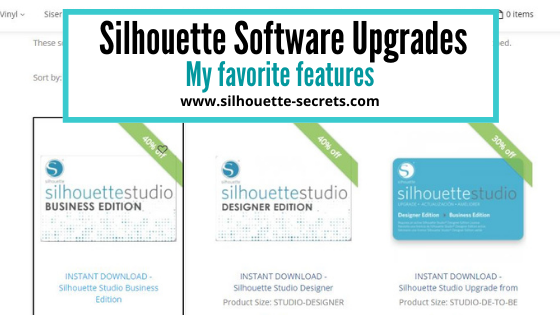
If you have the basic (free) software, you would want to purchase 1 of 3 options depending on what upgrade you want to go to: Option 1 – Silhouette Studio to Designer Edition (highly recommend at least this) Option 2 – Silhouette Studio to Designer Plus (unlocks a few more features – see below) In all honesty, if you are upgrading to Designer Edition Plus, you might as well go all the way and unlock it all Option 3 – Silhouette Studio to Business Edition (unlocks it all)
Now here is the important part, if you already have an upgrade, you only need to purchase the step up to the next level you want.
For instance, if you already have the Designer Edition upgrade but you want to go to Business Edition, you want to buy the Designer Edition to Business Edition upgrade. You do not need to buy the full upgrade. You would purchase the level that you need to go from to the level you want to be at.
Now, keep in mind, if you purchase the upgrades in steps it is no different than purchasing the upgrade all together, except that you will need to enter the codes in that same order if you install it on another computer or have to re-enter your codes for any reason.
What does each level of upgrade do?
Here are a few of my favorite features and the ones I find most might use in the software:
Business Edition unlocks all of the above and ….. – Import Ai/CDR/EPS Files – Weed Line Feature – Multi-cutter Support (I use this one all the time) – Multiple Undo/Redo (one of my favorites) – Export SVG, PDF, JPG – Edition Toggle (this is great for those of us who teach, so we can see exactly what the students see in their version) And more…..
Now, the list above is not the extensive list of all the features unlocked with each upgrade. However, it is a list of the features I find the most useful in each upgrade. For the complete comparison chart click HERE to go look at Silhouette America.
I want you to be successful and use your Silhouette software to the fullest! The Vinyl Spectrum has the upgrades to Designer Edition, Business Edition and from Designer to Business at a great price. These are digital codes, so are emailed directly to you after purchase. Check them out HERE. If you are in need of extra supplies too, I have been impressed with their super fast shipping too!
How to activate the upgrade
In the Silhouette software, click on Help in the top left menu. Then choose Upgrade and a pop up window will show up. Enter the information in the window and type the upgrade code exactly as you received it. Make sure you are entering the codes in the order that you purchased them in.
For example, if you ordered Designer Edition and then the Business Edition upgrade later. To activate it on a computer, you would need to enter it in that order. First the Designer Edition code and then the Business Edition code.
If for some reason the digital codes are “out of stock” at one retailer, you can buy the upgrades from another retailer. See my list of recommended retailers and sites HERE. Yes! Digital codes do go out of stock too because it is all an inventory item. The retailer has to purchase the codes from Silhouette America, just like any other product. So it’s not uncommon to see things go in and out of stock as more people buy it.
If you have question about an upgrade just let me know. Comment below or post on my Facebook group at Silhouette Secrets with EllyMae. I would love to see what you creating with your Silhouette machine!
Save this for future reference by pinning the image below.
Enjoy!
THANK YOU for your support! How can you help? Click HERE & buy a coffee. Every little bit helps with the cost of running the site.
Or if you are looking for more in-depth, step-by-step classes, check out all of my online Silhouette classes on my Teachable site HERE.
**This post may contain affiliate links. What that means is that I may receive compensation if you purchase through the links I have provided. The price you pay for the product or service is not higher but I may get compensated for sharing.
Let’s Explore v4 – Saving a file as a svg from Silhouette
Did you know that you can save a file as an svg file directly from the Silhouette Studio software if you have the Business Edition upgrade?
So first, what is a svg file?
A .svg is a Scalable Vector Graphic. This means that it is an image that can be scaled up or down without losing image quality.
In general, it is a common cut file that can be used by many different programs and platforms.
Affiliate links may be present in the following blog post and as an Amazon Associate, I earn from qualifying purchases.
There are a couple of things that have to be considered before you can save as a svg file.
1 – You must be using a software version of v4.1.197 or higher. This was the version released in August 2017, so it’s been available for quite some time.
2 – You must have the Business Edition upgrade in order to export from the Silhouette Studio as a svg file. For more information and specifics on software upgrades check out this post HERE.
3 – The design cannot contain any pieces or parts of a file from the Silhouette Design Store. If you try to export as a svg file with a part from the Design Store, it will give you an error message.
But, you can purchase the svg file from the Silhouette Design Store if it is an option and then download it direct to your computer and use it. This can be opened in Silhouette Studio to be added to and then exported as a svg or used direct in another program. If you have already purchased the .studio file for a design, you are only charged the difference from the .studio to .svg price when you checkout in the Silhouette Design Store for that svg.
How do you save as a svg?
Well, this is the easy part. As long as you meet the #1-3 above, then it’s as simple as File > Save As in the Silhouette software.
Design the file or open the file that you may have previously designed. Then choose File > Save As > Save to Hard Drive in the top left corner of the Silhouette Studio software.
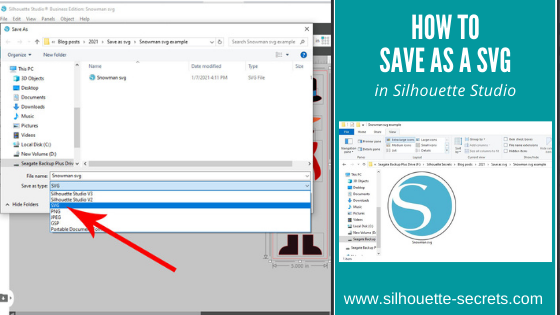
Then choose the location to save the svg file to. Choose the File Name and then change the File Type to whatever you want to save it as. In this case, choose svg.
And you are done! View the svg in the folder where you saved it as.
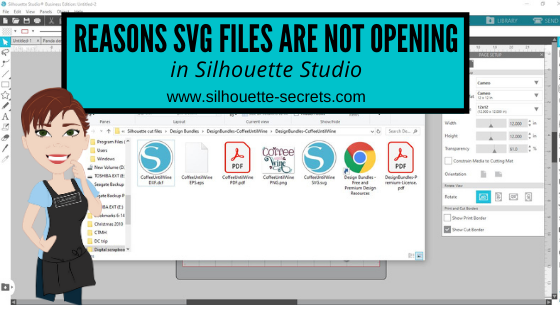
If your svg files are showing with a different icon than a Silhouette icon, it is most likely that your computer’s default program is not set to open a svg file direct with Silhouette. You can change that! Find step-by-step instructions on how to change that here in this post – Reasons svg files are not opening in Silhouette Studio.
Now, something to note here is that a user may need to turn the cut lines on when they open a svg file if they are using some versions of the Silhouette software. This is normal and not that the file has been saved wrong. It is just how it is and a simple step to turn them on.
Select the object by clicking directly on it or the red cut line.
Note: I’ve moved the pieces around to cut out of each color.
You can tell an object is selected because a gray selection box will appear around all selected objects.
Then click on the Send tab in the top right corner. If the cut lines are off, you will not see bold red cut lines around the design. The cut line designation is set to No Cut or they are turned off.
With the object selected, choose Cut and the bold red cut lines will turn on.
The BIGGEST factor here is that the object has to be selected in order to change the cut lines on or off. If nothing on the screen is selected you will not be able to change the Cut Action setting.
Make sure the object is selected by clicking on it first.
And you have created your own svg file that could be used in many other programs. I am seeing more and more users get the Silhouette Studio Business Edition to be able to design and save using the features of the Silhouette software, but use the files in other ways, such as with a Glowforge as an example.
I would love to see what you are creating! Feel free to post on my Silhouette Secrets+ Facebook group! Have questions? That is the best place to start troubleshooting too!
Save this for future reference by pinning the image below.
Enjoy!
THANK YOU for your support! How can you help? Click HERE & buy a coffee. Every little bit helps with the cost of running the site.
Or if you are looking for more in-depth, step-by-step classes, check out all of my online Silhouette classes on my Teachable site HERE.
**This post may contain affiliate links. What that means is that I may receive compensation if you purchase through the links I have provided. The price you pay for the product or service is not higher but I may get compensated for sharing.
This year has definitely been an interesting one. I haven’t really felt like pulling all of the Christmas decorations out, but still wanted to do something.
While cruising on Pinterest one night, I saw this and thought it would be perfect for a bit different look on our buffet in our dining area this year.
Affiliate links may be present in the following blog post and as an Amazon Associate, I earn from qualifying purchases.
This is a Christmas village that is constructed out of black cardstock and the window inserts on printable vellum. So it was fairly easy to put together. The file can be found HERE – on the Adventure in a Box website. I purchased the full file so I was able to get right to the project instead of creating my own images.
Now, they hand cut all of the files, but I’m not much up for that. Since you can open PDF files in the Silhouette software directly with the Designer Edition upgrade or higher, you can bring it right into the Silhouette software to set up to cut for you.
Let’s take a look at how that is done.
Make sure you are using the PDF file for this design. I used the png images for the silhouette parts and it was not the same size as the PDF file silhouettes, so they were a little bit big for the cutouts of the houses.
First, like I said above, you will need at least the Designer Edition upgrade or higher to open the pdf file.
Download the file, save it to a safe place, and then unzip/extract the file. Next, in the top left corner of the software choose File > Open in the Silhouette software and choose the PDF file.
When you open a PDF file, it will give you a couple of options. I always try the “Import as vector” first because in some cases, depending on how the file was created, it may open up with cut lines already done. The only way to know is to open as a vector and click on the Send tab to see if the cut lines are there.
If the PDF file has more than 1 page to it, you will want to choose which page to open first.
In this case, the first 3 pages are instructions, so we don’t need those at the moment. They can be handy for assembly if you need them. I chose Page 4 and then click on Import in the bottom right corner to open the file.
Now, use the Basic Trace, increase the threshold until it turns as smooth of yellow on the black as possible.
Now click Trace and then move the original design away. Since the original design does not have “score” lines to fold the building on for it to stand up, I added those in myself.
Using the Line Drawing tool on the left side, hold the Shift key down and draw a line that almost touches from one end to the next. I didn’t want the score line to cut edge to edge, so I made the line a little bit smaller. Next, on the Line Style Panel on the right side, change the Style of the line to a dashed line. This will act like a score line and not be fully cut through and the cardstock can easily be folded on this line. Adjust the line between the outer cut lines as needed.
Select the entire design and the score lines and then right click and choose Group, so the entire design moves as one piece. Using the Transform Panel – Rotate Tab, rotate the design 90 degrees on the page.
Fill it with color to see what it will look like when cut. Now, save the design.
You will do this for all of the pages with the house designs. Then I cut each out of black cardstock.
Next, we will open the next page of the PDF file for the silhouettes in the windows. Using File > Open once again, choose the PDF file, then page 5, and choose open as a vector.
This is how it will open up.
Next, using the Draw Rectangle tool on the left side, draw a rectangle around each of these window images. We do not need all of the black grid lines to print, only the images. Make sure to give yourself some clearance around the images so there is area to add glue to.
Now, select the entire design and drawn rectangles. You can either hit Ctrl+A to select all on the page or left click and hold the mouse button down and drag it across the entire design touching each object you want to select. Then open the Modify Panel on the right side and choose Crop.
I then opened up all of the silhouette files and cropped the images down. Then copied and pasted them all onto one design mat. And then we can set this file up as a Print and Cut project. I would suggest saving each Print and Cut page as a new design, just in case you have to go back and recut the pieces for some reason.
For tips on setting up a Print and Cut projects, check out this Print and Cut Basics post HERE. I recommend printing using all of the defaults for the print and cut, for the best results.
Once you have the page setup with the registration marks, print each page on printable vellum. I used this I found on Amazon HERE. I printed using the photo quality for matte paper. Printing at photo quality allows the ink to be laid down on the paper at a slower rate and allows it to dry better when working with specialty papers.
The first 2 pages I cut with had no issues what so ever and then the 3rd page would not cut correctly. I ended up printing it 5 times, just trying it over and over. When I should have done this little trick in the first place. Place white paper underneath the registration marks in each corner. This allows the optical eye a better chance at picking up only the registration marks printed and not other interference. Make sure the white paper is cut large enough that it would be the same size as the cross-hatched area for best results.
Keep in mind that the Silhouette optical eye is just a laser that turns on when you have registration marks on your page. This laser eye is looking for black marks on the page. However, it’s just a laser eye, it will pick up any black marks on the page. This includes the Silhouette grid lines if the paper is translucent or clear. This is also why the cross-hatched area around the registration marks is so important! And why, for the best results you should not have your design or cut lines in the cross-hatched area. As I said, it worked for the first 2 pages, but it didn’t like that 3rd page.
And that little trick was all it took for it to pick up the registration marks and cut accurately. Again, this is only something that might need to be added if the paper you are using is translucent or clear.
Once it’s all cut out of the black paper and the printable vellum, I used a bit of Scrapbook tape runner adhesive to glue it to the backside of the black cardstock, folded the score lines, and set it up.
I added some tea lights behind the designs to let it shine through and I have a new piece of holiday décor in our dining room.
Whether you create the same file, design your own silhouette images to fit in the Christmas Village, or follow the same techniques as I used above for another project; I hope you will share that on my Facebook group here Silhouette Secrets with EllyMae. If you have questions feel free to post below or on the Facebook group too!
Save this for future reference by pinning the image below.
Enjoy!
THANK YOU for your support! How can you help? Click HERE & buy a coffee. Every little bit helps with the cost of running the site.
Or if you are looking for more in-depth, step-by-step classes, check out all of my online Silhouette classes on my Teachable site HERE.
**This post may contain affiliate links. What that means is that I may receive compensation if you purchase through the links I have provided. The price you pay for the product or service is not higher but I may get compensated for sharing.
There are several reasons that a svg file may not open directly into Silhouette Studio.
Affiliate links may be present in the following blog post and as an Amazon Associate, I earn from qualifying purchases.
1 – To open svg files, the Designer Edition upgrade or higher is required to “unlock” this feature.
Getting the upgrade is the easiest way to open svg files direct and retain their svg properties. The svg file is usually the higher quality cut file compared to a dxf, a trace, or outside conversion programs.
After you purchase the upgrade and receive the code, enter it under Help > Upgrade in the software and it will be active. As you can see in this photo, my Upgrade option is grayed out because I have the highest level of Business Edition. This will show at the top of the software or under Help > About Silhouette (PC) or About Silhouette (MAC).
2 – The folder you are accessing the svg file from is not unzipped or extracted.
When you download files, they usually come as a “compressed” file. This is so that it can download faster. If files are not “compressed” or “zipped” it would take FOREVER to download as they can be large file types.
Extracting a downloaded folder
The first step to opening a .svg is to download the file from the source. Most files will come in a zipped (compressed) folder and this will need to be unzipped/extracted first. This will depend on your computer system but for me on a Windows PC, I right click on the folder and choose Extract All. Or select the file by clicking on it once and choose the Extract button at the top of the folder. MAC users if you double click on the folder, it should unzip the folder.
You can tell this is a compressed folder because it says at the top of the window and has a zipper on the file icon.
You will not be able to access the full design files unless the folder is unzipped/extracted.
Once you click the Extract All button, it will give you the options to choose where to save the Extracted file to. Select where and then click Extract.
Now, the folder can be fully accessed.
3 – The default program on a computer, especially Windows computers is set to open in a web browser. You will see it as a web browser icon next to the file name. This will be whatever web browser your computer is set to. For instance, on a PC I use Google Chrome but Microsoft Edge or Internet Explorer are other ones you may see.
Windows updates have a tendency to revert this back when they process. You will need to change this back on the computer, for it to show accurately.
If you open the svg file first in a web browser and then copy it to the software, you lose the svg properties. Changing it to open correctly is what I would recommend.
The computer will use the default program to open any file type when you double click it. What does this mean? You will most likely have to change the default program that the computer uses to open .svg files with a double click.
Here is how to change the default on your computer.
Changing the default program for .svg files on Windows
Right click on the .svg file name and choose Properties.
Under the General Properties tab, next to the “Opens with” section, click on Change.
Now, find the Silhouette program and choose it as the default. Scroll down to the bottom and choose More Apps if you do not see it in the list.
You may need to keep clicking to look further on the computer programs.
Once you find the Silhouette Program keep on clicking into the folder, then choose Silhouette Studio for the default to open .svg files.
NOTE: where the Silhouette Studio program can be found is dependent the software version you are using.
Versions of Silhouette Studio that are older than v4.3 will be found under the C: Program Data (x86)
Versions of Silhouette Studio higher than v4.3 the software is found under C: Program Data
Once you have set the default to use the Silhouette software to open a .svg file, then you will see the icon next to the file name change to the Silhouette icon.
And when you double click on that file, it will then open up in the Silhouette software.
NOTE: Save these instructions as you may need to do this again after a Windows update!
4 – If you have purchased a software upgrade, is it still active?
There are rare times where a software upgrade deactivates on a computer, for instance a Windows update may wipe it out.
The software upgrade would need to be activated again by entering the upgrade code under Help > Upgrade again.
New computer owners will also need to activate the software upgrades on the system when they install the software to the new computer. It is NOT automatic!
Click on the person icon in the top right corner for the Account Settings.
Then scroll down and click on the Silhouette Studio Keys and click on it. This will show all the upgrade codes you currently have registered to your account. NOTE: you will need to enter the codes in the same order that you purchased in. For instance, if you bought Designer Edition first and then Business Edition later, you need to enter the codes in the same order.
If you get an error code that it is already active, you may need to contact Silhouette support to have the codes reset. The codes can be active on up to 3 computers, but if you hit the 3 install limit and it is not active on more than 3 computers, they can reset the code for you.
Opening a .svg file in Silhouette Studio
Now that the downloaded file is fully accessible, it can be opened in Silhouette Studio. Again keep in mind, that you must have the Designer Edition upgrade or higher in order to open a .svg file in the Silhouette software.
As with a lot of the tools and features, there are several ways you can open files in the Silhouette software.
1. Use File and then Open in the Silhouette software.
Then choose where the file is located and click OK. Or double click on the file and it should open in the Silhouette software.
2. Drag and drop the file from the Computer folder.
With the Silhouette software open on the Design tab, open the My Computer/Windows Explorer folder where the file is saved.
Now grab the .svg file by left clicking the mouse and holding the mouse button down, then drag the file on to the design mat of the Silhouette software.
The design will show up on the Silhouette work space where you drag it to.
3. Double click the .svg file to open directly in the Silhouette software. If you have already set the default program on your computer to open svg files with the Silhouette software, then you should be able to double click the file and it will open in Silhouette Studio.
Hope this helps get you going with svg files!
If you have further questions, or something does not look quite right, please post on my Silhouette Secrets+ Facebook group and we can start troubleshooting why it is not working for you to extract/unzip the folder.
Save this for future reference by pinning the image below.
Enjoy!
THANK YOU for your support! How can you help? Click HERE & buy a coffee. Every little bit helps with the cost of running the site.
Or if you are looking for more in-depth, step-by-step classes, check out all of my online Silhouette classes on my Teachable site HERE.
**This post may contain affiliate links. What that means is that I may receive compensation if you purchase through the links I have provided. The price you pay for the product or service is not higher but I may get compensated for sharing.
It is so hard to just show one feature in a post. This post started out as a one to show you how to add patterns to your designs so that you can print unique creations and use digital papers. But, then it morphed.
Today we will talk about 3 features in the v4 software.
Adding patterns to your design to create unique projects
Print Bleed
Show/Hide Libary feature
What are patterns used for?
Patterns can add a unique element to your creations that you can print out.
Affiliate links may be present in the following blog post and as an Amazon Associate I earn from qualifying purchases.
Filling a design with a pattern can open a whole new world of possibilities. I have these card pieces on my design mat and I want to fill them with one of the new digital pattern that’s available at Sparkleberry Ink called Choose Happy Digital Pattern Collection. With everything going on right now, these patterns were released to bring out a little bright color and happiness. I saw them and knew I had to create something with them.
Select the objects you want to fill with the pattern and then in the Fill Color Panel – Patterns Tab (Tab 3), choose the Pattern you want to fill it with. And watch the magic happen.
I set up my page to do a Print and Cut and then printed a 12″ x 12″ page with my Canon TS9521C printer.
Adding patterns to the Silhouette library is a Designer Edition upgrade feature. Find out more about the Pattern Fill Panel HERE.
Print Bleed
Something that is new in the v4 software is a feature called Print Bleed. What this does is it will bleed the outside edge of your design color out away from the design. This helps when you are doing a print and cut to eliminate a white border that you may have around the design.
The Print bleed can be found in the v4.4 software on the Page Setup Panel – Registration Marks Panel.
Print Bleed in v4.4
In previous versions of v4, the Print Bleed is found on Tab 1 of the Page Setup Panel.
Once the Print Bleed option is checked, then you can adjust the distance you want the bleed to have from the design. However, something to note here is that the print bleed does not show up on the design screen and it applies to all objects on your screen.
As each design is different, it can also affect designs differently. For instance, a design that is made up of different parts that are all individual pieces and colors, it will bleed all of those colors of the individual pieces. Print bleed works well on a single object, a graphic file, or print and cut design.
This time when I added the pattern I used a different method though. On the Design tab in the bottom left corner, there is now a Show/Hide Library option.
Show/Hide Library on Design Tab
Click on this little folder and the Library will expand out from the left side, so you have a split screen and can see both designs in the library and on the design mat at the same time. Of course, your screen size will determine if this is a suitable feature for you to use or not.
Show Library Split Page Design Tab
Select the object on the screen and choose one of the patterns from the Patterns folder in the library and it will fill with that pattern. This will work for adding other designs to your current design mat in the software too. (Sometimes you may notice it will add an extra pattern piece, you can just delete what you don’t need.)
In the Advanced Options of the Fill Color Panel – Patterns tab (3rd tab), you will find options for panning the pattern, rotating it, or scaling it as well.
Sometimes I find it hard to see the little patterns that show up in the Patterns Tab on the Fill Color Panel. They are not well organized and the pattern photo is small, so using the Show Library split panel can be an option to make it easier to find a pattern you are looking for.
Cutting aftermath
Go big or go home, right? When I cut out papercraft projects that have several pieces to them, I tend to make extras. I can set these pieces aside to assemble at a later date or have extras on hand. In this case, I cut the pieces to make 6 each of 4 different pattern designs. So I have 24 cards that I can now send out to friends.
Card pieces
Once the file is set up in the Silhouette software is it just a matter of loading and unloading the cutting mat each time and I just started making piles for each set of cards.
Craftermath from cutting
A couple hours later and I had all the pieces to assemble these cards. About half way through I had the thought that I could hook up another machine and then cut from multiple machines at the same time to make it go faster. But, I was enjoying cutting with the Cameo 4 and didn’t go that route.
But it’s an option – check out how to use multiple Silhouette machines at the same time HERE.
24 finished cards
Now here is the really fun part!
Flip card video
I love being able to create custom designs with my Silhouette and make the cutting of all the pieces go so smooth. I embellished these cards with a few stamps from Close to My Heart and they are ready to send off.
What are you creating with your Silhouette today? I’d love to see it over on my Facebook group at Silhouette Secrets with EllyMae.
Save this for future reference by pinning the image below.
Enjoy!
**This post may contain affiliate links. What that means is that I may receive compensation if you purchase through the links I have provided. The price you pay for the product or service is not higher but I may get compensated for sharing.
Let’s Explore v4
Silhouette Studio Software Upgrades
Affiliate links may be present in the following blog post.
Software upgrades are on sale right now over at Swing Design. So let’s explore a little bit about them.
What is an upgrade?
A software upgrade is an additional purchase that gives you a code to unlock additional features in the software.
Do I need it?
That is all going to depend on each individual user. I highly recommend at least the Designer Edition upgrade for all of my students. It makes life easier and saves you time and headache. It is well worth the investment!
Which one to I get?
First, that depends on how far you want to go. Like I said above, I highly recommend the Designer Edition upgrade for all students. But, I love the Business Edition because all the features are unlocked and you never have to question if something is available to you.
Next, you have to consider if you already have an upgrade. There are different levels and you want to make sure to buy the correct level.
If you have the basic (free) software, you would want to purchase 1 of 3 options depending on what upgrade you want to go to: Option 1 – Silhouette Studio to Designer Edition (highly recommend at least this) Option 2 – Silhouette Studio to Designer Plus (unlocks a few more features – see below) Option 3 – Silhouette Studio to Business Edition (unlocks it all)
Now here is the important part, if you already have one of the upgrades above, you only need to purchase the step up to the next level you want.
For instance, if you already have the Designer Edition upgrade but you want to go to Business Edition, you want to buy the Designer Edition to Business Edition upgrade. You do not need to buy the full upgrade. You would purchase the level that you need to go from to the level you want to be at.
Now, keep in mind, if you purchase the upgrades in steps it is no different than purchasing the upgrade all together, except that you will need to enter the codes in that same order if you install it on another computer or have to re-enter your codes for any reason.
So how do you activate the code?
In the Silhouette software, click on Help in the top left menu. Then choose Upgrade and a pop up window will show up. Enter the information in the window and type the upgrade code exactly as you received it.
Make sure you are entering the codes in the order that you purchased them in.
To see the full comparison chart, click HERE to go directly to the Silhouette America website and see the full chart. Click on the video camera icon next to each feature to see a short demo.
But, lets briefly name some of the features I find the most useful in each of the upgrades.
Business Edition unlocks all of the above and …..
– Import Ai/CDR/EPS Files
– Weed Line Feature
– Multi-cutter Support (I use this one all the time)
– Multiple Undo/Redo (one of my favorites)
– Export SVG, PDF, JPG
– Edition Toggle (this is great for those of us who teach, so we can see exactly what the students see in their version)
And more…..
Now, the list above is not the extensive list of all the features unlocked with each upgrade. However, it is a list of the features I find the most useful in each upgrade.
For the complete comparison chart click HERE to go look at Silhouette America.
I am all about making a Silhouette user save time and frustration in working with their software AND getting the best cut possible. I would highly recommend at least the Designer Edition to all users, for the ability to open a svg file, as that is generally the higher quality cut file when you compare it to a trace or dxf file.
Check out this post – Let’s Explore v4 – How to open a svg
If you have question about an upgrade just let me know. Comment below or post on my Facebook group at Silhouette Secrets with EllyMae.
I would love to see what you creating with your Silhouette machine!
Enjoy!
**This post may contain affiliate links. What that means is that I may receive compensation if you purchase through the links I have provided. The price you pay for the product or service is not higher but I may get compensated for sharing.
THANK YOU for your support! How can you help? Click the link to buy a coffee. Every little bit helps in the cost of running the site.