Posted on Leave a comment

New Silhouette Class Released

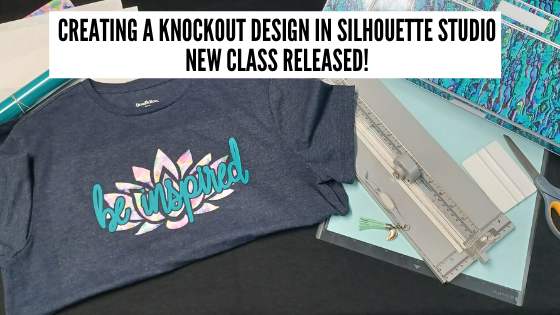
Come join me in learning about your Silhouette software and cutting HTV to create a knock out design. We will use several tools in the Silhouette Studio software to create this design.

Check out the full class HERE.

This is a step-by-step class from creating the knockout design, cutting patterned & solid HTV, pressing 2 layers of HTV, and bonus design tips for alternate designs ideas.

Class Supplies list

Affiliate links are present in the following supply list and as an Amazon Associate, I earn from qualifying purchases
 The cost to you is no different, but I may earn a commission by you using the links provided.

– Silhouette machine – any model will work
– Silhouette blade
– Silhouette cutting mat
Sparkleberry patterned HTV or pattern/color of your choice
Use code SILSECRETS to save 10% at Sparkleberry Ink
Heat Transfer Mask for patterned HTV (required if using Sparkleberry patterns or other types of patterned HTV without a carrier sheet)
*Note: patterned HTV and glitter HTV require 2 different masks – glitter requires a High Tack mask in case you decide to go with that
Siser Easyweed HTV solid
– Blank to put the design on – I am using a T-shirt
– Weeding tool – EK Tools Reverse Tweezers are my tool
Vinyl Squeegee
Scissors
– Heat Press – I am using a Craft Pro 15″ x 15″ heat press from Heat Press Nation
Teflon Sheet or Parchment Paper
Paper trimmer (optional – but handy)
T-shirt Ruler Placement Guide – (optional)
Heat Press Pads or Pillows – (optional) this helps with the seams on a blank if it cannot be placed off the press area

Find all the class details HERE on my Teachable site.

Find all of my Silhouette classes on the Teachable site HERE.

I would love to see what you are creating with your Silhouette software or machines!
Or if you have any questions, feel free to post photos or questions on my Facebook group at 
Silhouette Secrets with EllyMae.

Save this for future reference by pinning the image below.

Enjoy !

This image has an empty alt attribute; its file name is logo.jpg

THANK YOU for your support! How can you help? Click HERE & buy a coffee.
Every little bit helps with the cost of running the site.

Or if you are looking for more in-depth, step-by-step classes, check out all of my online Silhouette classes on my Teachable site HERE.

SS Logo snip it
**This post may contain affiliate links. What that means is that I may receive compensation if you purchase through the links I have provided. The price you pay for the product or service is not higher but I may get compensated for sharing.
Posted on Leave a comment

A Quick Gift Idea with Silhouette

This year I’m early. Last year I didn’t get the neighbor gifts completed until after Christmas. Check out the TP Snowmen & the file I shared a couple weeks ago from last year HERE.

This year, I decided to create something that I’ve seen pop up over and over the last few years. They are customized oven mitts with a cookie mix and spatula added to them.

I love that with the Silhouette machine you can customize anything and make it unique and your own.

Supplies used:
– Siser white HTV
– Pocket Oven Mitt – found mine at Dollar Tree
– Cookie mix
– Spatula
– Heat press or iron
Funny Christmas Pot Holder Bundle or other designs

How to Create

Measure the area where HTV would be applied.

Open the Silhouette Studio Software.
Using the Draw Rectangle Tool on the left side, draw a rectangle and then resize it to the size you measured. Use the Transform Panel – Scale Tab or Scale Tool in the Quick Access Toolbar at the top of the software to resize the rectangle.

This will give you an idea of the size you have for your design to fit in. I use basic shapes as templates all the time to gauge the size for my designs.

Open the design and then scale it down to fit in the template space you drew with the rectangle. Use the Align Tools to Center the design to get a feel for how it will look.

Now, we no longer need the rectangle that was drawn, unless you want to use it as your weeding box. This can make it easier to weed a design, especially when cutting multiples at a time. Check out more on Weeding Lines HERE.
You can either move the rectangle off the cutting mat or resize it to fit around the design better.

Duplicate your design as needed.
I like to start cutting with 1 or 2 of the design needed, just in case there are any issues I’ll run into, I can catch them before I’ve tried to cut 12 of the same design.
I also highly recommend test cutting prior to sending the design to cut.

Check out the “Silhouette Secrets Beginner HTV Tips and Tricks” post HERE for tips on cutting and creating your own test cut.

After my initial cuts and things were cutting well, I duplicated it a few more times for the number I needed.

This time, to maximize the HTV usage, I cut without a mat and used the roll feeder on the Cameo 4.

Check out tips for cutting without a mat in this post –
Let’s Explore the Silhouette Roll Feeder HERE
Or if you have an older model check out this post –
Cutting without a mat on the Cameo HERE

After cutting, weed out the design carefully. This means to remove the excess HTV from around the design.

If you happen to come across an area that didn’t cut well, don’t scrap the entire design. If you can save it, just recut the portion of the design that messed up.
This was the only part that didn’t weed well on this one cut piece. When I was finished weeding, I used a scrap of white HTV and cut just the part I needed.

I used a bin I had hanging around the house to keep them all in a quick location to be able to grab them as we need them.

And neighbor gifts are done for 2021.

I’d love seeing what you are creating with your Silhouette machines or software.
Feel free to post photos or questions on my Facebook group at 
Silhouette Secrets with EllyMae.

Save this for future reference by pinning the image below.

Enjoy!

This image has an empty alt attribute; its file name is logo.jpg

THANK YOU for your support! How can you help? Click HERE & buy a coffee.
Every little bit helps with the cost of running the site.

Or if you are looking for more in-depth, step-by-step classes, check out all of my online Silhouette classes on my Teachable site HERE.

SS Logo snip it
**This post may contain affiliate links. What that means is that I may receive compensation if you purchase through the links I have provided. The price you pay for the product or service is not higher but I may get compensated for sharing.
Posted on 1 Comment

HTV Sizing for T-shirts

Getting started with HTV can be overwhelming, but it doesn’t have to be.

One of the questions I see asked most often is,
“What size should I cut the design for my shirt?”

Affiliate links may be present in the following blog post and as an Amazon Associate I earn from qualifying purchases.

Basically, you can do any size you want since you can cut it on the Silhouette machine and adjust it as needed.

But there are a few things to keep in mind when you are doing it.
For instance, the design itself. Each design can vary in what might look good.
Another is, the size of the shirt you are adding the design too.
Larger is not always better.

Today I wanted to share a chart from Expressions Vinyl that can help in giving you an idea of what might look good.

Expressions Vinyl is an awesome company that offers a great selection of adhesive and HTV products.
I’ve worked with them in the past at the All Things Silhouette Conference and have had great success with my orders through them.

Today, I thought I’d share the HTV sizing chart that I am often referring to my students when they ask.
This will give you an idea of what to start with.

Now, a few things to keep in mind. This is a general idea to start with. The design itself can make a difference in what might look good or not. Every design can vary because it is made up of different aspects.

You may also notice that this sizing chart only goes up to a Large. What about bigger than that?

For shirts size of XL and up, I really do not go much larger.
The largest design I tend to use is just under 12″ x 12″, if it looks ok.
Why?
I was regularly making 3XL to 5XL shirts for my husband and most times I would ask him what he thought before I cut it. In our discussion he mentioned that for those larger size shirts, think of the person who is wearing it. He said he wanted the design to be front and center. He didn’t want people to have to walk around him to see the full design. When explained like this, it made complete sense.
The design should be completely visible when looking straight at the person who is wearing it.

Just something to keep in mind when making your own personal shirts.

Another thing to keep in mind when placing designs is busty women or in general a women’s bust area.
I’ve seen some designs popping up in the past year or two that are very specific to a bust area such as this
Hey Check Out My Pumpkins by Petra Studio Art – Design #384455.

In this design, the placement is very specific and on purpose.
However, what if that is not what you are going for.

I made this shirt with design Wine Tasting Team Captain by Megan Hardy Designs – Design #322093 but I was not thinking about the placement of the design aspects when I made it.

Now I just laugh about it when I wear it.

One other thing that I just purchased to hopefully help me get better placement of HTV is this T-shirt Ruler Placement guide.

Note: you do not press this in the heat press, it is only used for lining things up.

I was in the Craft Chameleon store for an event and thought it might be worth giving a try to see if it helps me get the design on straighter. It is a hard acrylic ruler and I’m hoping it helps me.
It never fails that I eyeball it and my design is just a little bit crooked, even if I press the center of the shirt. The ruler will hopefully give me that straight edge to line up the design with.
Or I’ll just continue standing a little bit off center so no one notices.
Things happen to us all!
Practice, practice, practice!
And have fun!

I hope those tips have helped in getting started with HTV cutting and your Silhouette!
Here are a few more posts with information and tips on cutting HTV:

Silhouette “Secrets” for HTV – Beginner Tips & Tricks

Cutting HTV on the Cameo 4, Plus, or Pro – Troubleshooting

Note: these tips will also work for all machine models, but the photos are very specific to the Cameo 4 model

Let’s Explore v4 – Mirrored HTV not Cutting Right

Want to get a little fancier in the design process?

Check out these 2 posts that feature layered HTV designs

Designing in Silhouette Studio

Subtracting Text for HTV in Silhouette v4

I’d love seeing what you are creating with your Silhouette machines or software.
Feel free to post photos or questions on my Facebook group at 
Silhouette Secrets with EllyMae.

Save this for future reference by pinning the image below.

Enjoy!

This image has an empty alt attribute; its file name is logo.jpg

THANK YOU for your support! How can you help? Click HERE & buy a coffee.
Every little bit helps with the cost of running the site.

Or if you are looking for more in-depth, step-by-step classes, check out all of my online Silhouette classes on my Teachable site HERE.

SS Logo snip it
**This post may contain affiliate links. What that means is that I may receive compensation if you purchase through the links I have provided. The price you pay for the product or service is not higher but I may get compensated for sharing.
Posted on 7 Comments

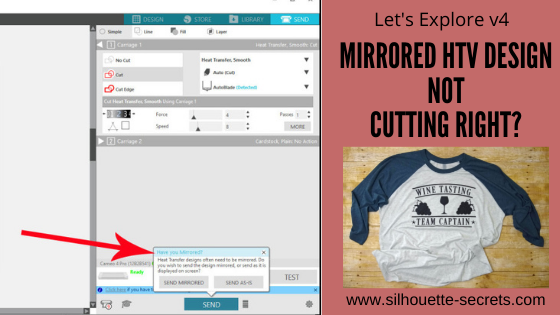
Let’s Explore v4 – Mirrored HTV not cutting right?

Having issues with mirroring HTV and it not cutting right?
Did you let the software mirror it for you and it still didn’t cut right?
Did it cut what was off the cutting mat in the holding area and not your design?

I’ve been seeing this pop up a lot and I originally posted this information at the bottom of an HTV troubleshooting post called
Cutting HTV with the Cameo 4, Plus, or Pro – Troubleshooting
However, it is at the end of the post and I am seeing many user’s post with questions on why it’s not mirroring it correctly.
Hopefully these details below will explain why and how to fix it for your project so you can get back to creating.

Affiliate links may be present in the following blog post and as an Amazon Associate I earn from qualifying purchases.

I would suggest reading through this next section entirely so you understand how this one works and also how to “fix” it.

In 2016, there was a new “pop-up” message that was released into the software for Heat Transfer materials called the Mirror pop up.

For heat transfer materials you are generally placing the material face down on the cutting mat and then cutting through the backside of the material. This means that you have to “mirror” the design so it will cut properly.
How many times have you cut heat transfer material only to have that “head smack” moment after when you realized you forgot to mirror the image?
So the idea behind the “pop-up” message is great!

If you have never cut HTV before or are just getting started, then I would suggest this
Silhouette “Secrets” for HTV – Beginner Tips & Tricks
blog post to get started.

However, this “new” Mirror pop-up released in 2016, did not just mirror the design in the exact place that it was on the design mat. It flipped the entire mat when it mirrored the image, but it does not show that on the screen. So the design that shows on the screen on the left side of the mat/material, is really going to cut on the right side if you choose
Send Mirrored” and let the software mirror it for you.

If you choose “Send As Is” it will send it to cut in the exact location and exactly as you see it on the screen.

Now, I know that may seem like “old news” since this “bug” has been in the software since 2016. Some users got used to it this way while other users would learn to flip the design themselves and just choose “send as is”.

Now, let’s move to the present.
A few months back, I started to notice users commenting that their HTV was not cutting as it should. They would tell the software to mirror it and it wasn’t cutting in the right spot. I reported the issue and found out that the old mirror “bug” was changed in February 2020 the software release.
Now, it would flip the design in the exact location you have it placed on the mat, but still does not show you that on the screen.
However, if you have anything else on the design file, it will mirror all of the objects. Whether they are in the “holding area” off the cutting mat or not.

If you choose “Send Mirrored“, it could mirror all of the designs on the file.
So when it flips it, this is how it would cut.

Now that would come as a complete surprise when you cut and it’s not what you thought it would be.
Note: the above screen shot is a representation of how it may cut, you do not see this change on the software screen at all.

This is present in the software versions from v4.4.247 until v4.4.438.

From v4.4.438 and higher, the software now is back to mirroring the design on the opposite side of the design mat than what shows on the screen.

How to work with this?

In the grand scheme of things, this is not a big deal, if you know about it and know how to work with it.

My suggestion to you is to mirror the design yourself.

The fastest way to do that is to right click on the design on the Design tab before you go to cut and choose Flip > Horizontal.

This will flip the image on the screen, in front of your eyes.

And it will then cut in that exact spot if you choose “Send As Is” on the Send tab.

If you do not have right click menus enabled on your computer, you can also find this in the top menus under Object > Mirror > Flip Horizontally too.

I use the Mirror Pop up as my final reminder and it has caught me several times when I forgot to mirror the design. Then I go back and mirror it myself before I’ve sent the design to cut.

Hopefully with those tips above, you will be well on your way to cutting HTV smoothly and being able to troubleshoot when you do have an issue.

Wine Tasting Team Captain by Megan Hardy Designs – Design# 322093

We would love to see what you are working on!
Feel free post on the
Silhouette Secrets+ Facebook Group.

Save this for future reference by pinning the image below.

Enjoy!

This image has an empty alt attribute; its file name is logo.jpg

THANK YOU for your support! How can you help? Click HERE & buy a coffee.
Every little bit helps with the cost of running the site.

Or if you are looking for more in-depth, step-by-step classes, check out all of my online Silhouette classes on my Teachable site HERE.

SS Logo snip it
**This post may contain affiliate links. What that means is that I may receive compensation if you purchase through the links I have provided. The price you pay for the product or service is not higher but I may get compensated for sharing.
Posted on Leave a comment

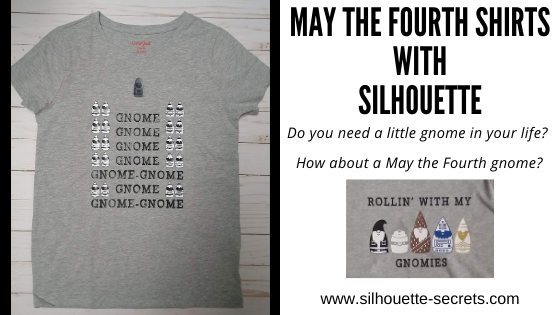
May the Fourth Family Shirts

May the Fourth Shirts

The Silhouette Design Store released this cute May the Fourth gnome inspired bundle in the store today and when they asked if I wanted to play with it, I said yes of course!
My husband and I have been brainstorming ideas, thinking “outside the box”. This was the perfect “team” project as he could make design suggestions and I could put them into action.

Affiliate links may be present in the following blog post and as an Amazon Associate I earn from qualifying purchases.

Check out all of the Silhouette Design Store bundles HERE.

Here are a few that I have made so far.

I showed my son his new gnome shirt and he loved it!
The expression on his face was so worth it when he read it out loud.
I used the May the Fourth bundle and Gnome font by Lori Whitlock – Design #307096

Here is one I made for my husband.
I used Siser Easyweed HTV with the PN In A Galaxy Far Away font by Illustration Ink – Design #111259 on the text.
The red and blue are Siser Electric HTV.

This was created using the PN In A Galaxy Far Away font by Illustration Ink – Design #111259 for the text. I used the Text to Path to shape the font around the space ship – find out more on Text to Path HERE.

And it’s a good thing that I only make shirts for my family, they don’t seem to mind that they might be a bit crooked. I really though I had it with this one, but I guess I was just too excited when I went to press it.
I’ll just tell them to stand a bit crooked.

I have so many ideas still on my list and I’m really considering declaring May the Fourth an “official” holiday in our house this year. We all need something to look forward to and celebrate I think.
I know the kid’s will be happy to have a break from virtual school and wear their new shirts for a movie marathon.

This gnome design bundle is so cute and these designs are exclusive to this bundle for the next month. After that you can pick up the designs individually in the store.
Grab the May the Fourth bundle HERE to make a May the Fourth design for yourself.
As a bonus, if you grab it in the first 24 hours, you get an additional 25% discount.
This applies to all new bundle releases, so keep your eyes out for one that fits your needs.

If you have never cut Heat Transfer Vinyl before check out more tips to get started here in this post
Silhouette “Secrets” for HTV – Beginner Tips

I love to see what you are creating with your Silhouette machines!
Feel free post on the
Silhouette Secrets+ Facebook Group.
We love to see what you are doing and creating with your Silhouette machines!

Save this for future reference by pinning the image below.

Enjoy!

This image has an empty alt attribute; its file name is logo.jpg

THANK YOU for your support! How can you help? Click HERE & buy a coffee.
Every little bit helps with the cost of running the site.

Or if you are looking for more in-depth, step-by-step classes, check out all of my online Silhouette classes on my Teachable site HERE.

SS Logo snip it
**This post may contain affiliate links. What that means is that I may receive compensation if you purchase through the links I have provided. The price you pay for the product or service is not higher but I may get compensated for sharing.
Posted on 5 Comments

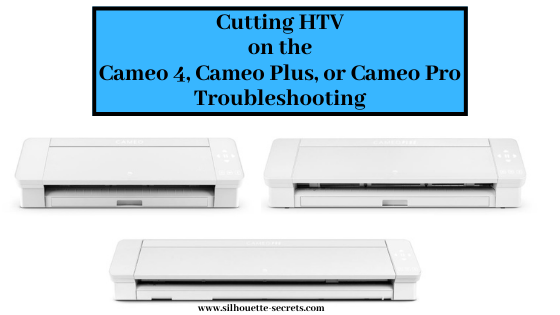
Cutting HTV on the Cameo 4, Plus, or Pro – Troubleshooting

Cutting HTV on the Cameo 4, Cameo Plus, or Cameo Pro
Troubleshooting

Are you having issues with getting HTV to cut properly on the Cameo 4, Cameo Plus, or Cameo Pro? Or are you noticing issues with the HTV feeding properly through the machine?

Recently, I was cutting HTV with my Cameo Pro and was having feed issues. I see several times each week on Facebook where users are having cut issues with their machines. I kept loading and unloading the HTV and began to notice a pattern.

Note: these tips will work for all Silhouette machines, but you may find that you notice it more on a Cameo 4, Cameo 4 Plus, or Cameo Pro models

If you are having cutting or feed issues with your Cameo machine
is your HTV curled?

As I watched the machine load and feed through, I noticed that the HTV was curled.
If it is, this will affect your cutting and HTV feeding through the machine 100%!
If you lay your HTV flat and the edge curls up, this can cause issues.

Typically, HTV comes in a roll and is shipped that way, especially if you are buying it in longer sections. Depending on how it’s rolled, it can retain that shape and then it will not roll flat through the machine.

Why do you have cut or feed issues?

Since the HTV is curled, it will catch inside of the machine as it rolls through.
This is not a machine fault, this is due to the HTV being curled.

First, the number one thing that needs to be checked is that the blade is installed properly. I cannot even tell you how many posts I see daily on Facebook that the blade is not installed properly. This is one of the best things you can learn to do for yourself & to save yourself headache in the future. It doesn’t matter if you are an experienced user or a beginner. If the blade is not installed properly with no gap and adjusting properly, you WILL have cut issues.

This is how the blade should be installed on a
Cameo 4, Cameo Plus, Cameo Pro, or Portrait 3.

There should be absolutely no gap between the lip of the blade and the housing.
AND the lock on the front of the blade needs to be pushed in completely.

Then watch as the machine does it’s “tap dance” at the beginning of the cut. Does the red line inside the blade adjust properly and to the correct number?

If it does not, we can start troubleshooting it with a photo of the blade installed with the cutting mat or vinyl loaded if you post on the Silhouette Secrets+ Facebook group or check out this video by Silhouette America on Cutting Machine Maintenance and how to Reset the Motor at 4:38 in the video. This should reset the housing so that it is properly aligned to hit the adjustment holes correctly.

Once the blade is installed properly and adjusting properly, the next place to look is where this curled HTV can cause issues.

3 places to watch for curled HTV catching

1 – The Roller bar
Is the HTV loading properly and straight?
If the HTV is curled too much, it may not be securely under the rollers and the machine cannot grip it well. This means that it may be pulling it in at an angle.

Here is an example of what it might look like if the HTV is not securely caught between both the rollers. One side may pull in more than the other.

It can also catch on the bottom of the blade in the Tool 1 or Tool 2 housing.
If the HTV is curled and you do get it loaded straight, the curl on it can catch on the bottom of the blade(s) as it rolls back and forth.

Here is an example of what it might look like if it gets caught on the bottom of the Tool(s).

If the material does not load straight, unload and try again. If it loads crooked, you will most likely have an issue with it feeding properly. It is better to try again until it is loaded straight or try one of the other solutions below.

2 – The middle bar in the machine.

If you look at your machine, you will see there is a white piece that sort of has a curl up on the front that runs behind where the blade housing moves. The curl on the machine is designed so when a material is loaded and moves toward the back, it directs the material down and through the machine.

However, if the HTV (or other materials) is curled, when it gets to the white piece in the machine, it will go up instead of going down. This means the HTV is not moving freely through the machine and may get caught. This can cause both cut and feed issues.

Watch as the HTV is moving through the machine to see if it’s catching here.

3 – The back of the machine

If it makes it past the first 2 areas, then the last place it might catch is the back of the machine and you may or may not see this as the vinyl coming up behind the metal bar that runs the length of the Cameo 4 models. If you listen close, you will be able to hear this when it catches or you might actually see it come up behind that metal bar as well.

All of these areas can affect the cut or feed of the HTV. Since the HTV is curled, it cannot roll smoothly and flat through the machine. The machine is functioning properly, but since the material is curled, it will catch.

Now, I’m sure you may be wondering how I figured this out. When I noticed there was an issue, I tested. And I tested. And I tested. I watched how the machine was grabbing the materials. I watched how it was moving through. And I watched what parts of the machine were moving when everything was happening.
This is a great way to learn your machine and what it doing!

Now, how do you fix it?

Solutions to curled HTV

Tip 1 – Feed the material through the machine until the curl is out the backside.

To advance the material through the machine, press the down arrow on the right touch panel on the Cameo 4, Cameo Plus, or Cameo Pro machine.

Or you can advance the material by using the down arrow key next to the Test Cut button on the Send tab in the software. This would work for all machine models.

Now, this is not always the most ideal or conservative way to work with your HTV roll because you will be advancing it into the machine about 4″ or more to get past that curl.

However, if you are pressed for time, it may be the fastest way to work with it.

Tip 2 – Roll the HTV backwards when you get it.

Once you have identified this as a possible issue you may have, you can then re-roll the HTV rolls when you receive your order. This can help the curl “relax” a bit. And then store the vinyl this way.

If the HTV roll came with a piece of tape on it, tape it securely so it will start to retain the new shape. When you want to use it, the inside of this roll will hopefully be relaxed a bit and less curled.

If you do not have the tape from the original roll, grab a core from an old roll and then place the new roll inside so it will conform to the shape more and be held securely.

Tip 3 – Use a cutting mat to hold the vinyl down.

If the design will fit on the cutting mat and you cannot get it to feed properly, then I would suggest a good sticky cutting mat to help hold that vinyl down as flat as possible.

I do know some users who will even use painter’s tape and tape the HTV so it lays flat. My only caution here is to not place the painter’s tape on the left or right edges where the rollers may roll over it as it may lose it’s grip because of the difference in surface area and cause the mat to skew.

If you do place tape in the roller paths, just be aware if the mat skews or the cut is off, that this could be one reason why. If the left roller is gripping a different material, say the smooth surface of the mat, but the right roller is rolling on painters tape, it can cause it to roll at different rates. This can cause the mat to twist in the machine.

This can also be the case if the right roller is rolling across the adhesive on the cutting mat. It can not only cause your roller to get gummed up, but can affect the feeding of the mat as well since it is rolling on the adhesive and not on the smooth edge of the cutting mat.

Tip 4 – Slow the speed of the cut down.

On the Send tab in the Silhouette software, you can adjust the speed. Faster is not always better. If you continue to have an issue, slowing the speed of the cut down can help not only in the cut, but in also being able to identify the cause of an issue.

Wine Tasting Team Captain by Megan Hardy Designs – Design# 322093

Tip 5 – Test cut with a capital B you type out placed below the design area.

If you are not doing test cuts before you send the design to cut, I highly recommend getting in the habit of it. It only takes a few seconds, but can save you time, wasted materials, and big headaches!

This is my favorite way to do a test cut!
I use the Text Tool on the left side and type out a capital B. Move the B to a place that is below your design or towards the bottom in the negative space.

Why so far down?

By placing the capital B test cut at the bottom of the design, you will be able to see how the machine and HTV will track as it goes. It will have to roll all the way to the bottom of where the design will be and perform the cut. By doing this, any issues may show up before you’ve actually tried to cut the full design and it didn’t work properly.

One More Tip

This one actually has nothing to do with the machine itself, but it more on the software.

I would suggest reading through this next section entirely so you understand how this one works and also how to “fix” it.

In 2016, there was a new “pop-up” message that was released into the software for Heat Transfer materials called the Mirror pop up.

For heat transfer materials you are generally placing the material face down on the cutting mat and then cutting through the backside of the material. This means that you have to “mirror” the design so it will cut properly.
How many times have you cut heat transfer material only to have that “head smack” moment after when you realized you forgot to mirror the image?
So the idea behind the “pop-up” message is great!

If you have never cut HTV before or are just getting started, then I would suggest this
Silhouette “Secrets” for HTV – Beginner Tips & Tricks
blog post to get started.

However, this “new” Mirror pop-up released in 2016, did not just mirror the design in the exact place that it was on the design mat. It flipped the entire mat when it mirrored the image, but it does not show that on the screen. So the design that shows on the screen on the left side of the mat/material, is really going to cut on the right side if you choose
Send Mirrored” and let the software mirror it for you.

If you choose “Send As Is” it will send it to cut in the exact location and exactly as you see it on the screen.

Now, I know that may seem like “old news” since this “bug” has been in the software since 2016. Some users got used to it this way while other users would learn to flip the design themselves and just choose “send as is”.

Now, let’s move to the present.
A few months back, I started to notice users commenting that their HTV was not cutting as it should. They would tell the software to mirror it and it wasn’t cutting in the right spot. I reported the issue and found out that the old mirror “bug” was changed in February 2020 the software release.
Now, it would flip the design in the exact location you have it placed on the mat, but still does not show you that on the screen.
However, if you have anything else on the design file, it will mirror all of the objects. Whether they are in the “holding area” off the cutting mat or not.

If you choose “Send Mirrored“, it could mirror all of the designs on the file.
So when it flips it, this is how it would cut.

Now that would come as a complete surprise when you cut and it’s not what you thought it would be.
Note: the above screen shot is a representation of how it may cut, you do not see this change on the software screen at all.

This is present in the software versions from v4.4.247 until v4.4.438.

From v4.4.438 and higher, the software now is back to mirroring the design on the opposite side of the design mat than what shows on the screen.

How to work with this?

In the grand scheme of things, this is not a big deal, if you know about it and know how to work with it.

My suggestion to you is to mirror the design yourself.

The fastest way to do that is to right click on the design on the Design tab before you go to cut and choose Flip > Horizontal.

This will flip the image on the screen, in front of your eyes.

And it will then cut in that exact spot if you choose “Send As Is” on the Send tab.

If you do not have right click menus enabled on your computer, you can also find this in the top menus under Object > Mirror > Flip Horizontally too.

I use the Mirror Pop up as my final reminder and it has caught me several times when I forgot to mirror the design. Then I go back and mirror it myself before I’ve sent the design to cut.

Hopefully with those tips above, you will be well on your way to cutting HTV smoothly and being able to troubleshoot when you do have an issue.

Wine Tasting Team Captain by Megan Hardy Designs – Design# 322093

For more tips on the Cameo Pro and troubleshooting check out this post
5 Steps to Setting Up the Cameo Pro & Troubleshooting
that also includes a free, downloadable PDF document for future reference.

I would love to hear if this helped you in identifying a problem or if you just learned something new in today’s post. Feel free to comment below or post on the
Silhouette Secrets+ Facebook Group.
We love to see what you are doing and creating with your Silhouette machines!

Save this for future reference by pinning the image below.

Enjoy!

This image has an empty alt attribute; its file name is logo.jpg

THANK YOU for your support! How can you help? Click HERE & buy a coffee.
Every little bit helps with the cost of running the site.

Or if you are looking for more in-depth, step-by-step classes, check out all of my online Silhouette classes on my Teachable site HERE.

SS Logo snip it
**This post may contain affiliate links. What that means is that I may receive compensation if you purchase through the links I have provided. The price you pay for the product or service is not higher but I may get compensated for sharing.
Posted on 3 Comments

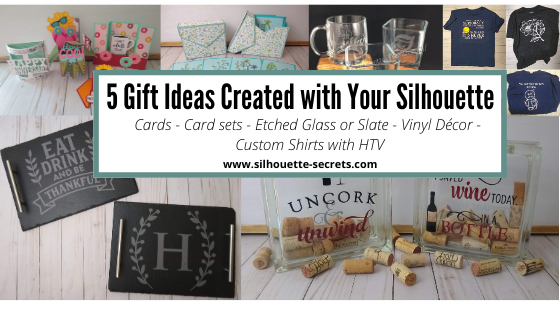
5 Gift ideas created with Your Silhouette machine

There are so many possible things that you can create using your Silhouette machine. Today let’s take a look at some possible gift ideas you can create.

Each one of these gifts can be tailored to your needs or personalized in their own way.

5 Gift ideas

1 – Cards
2 – Card sets
3 – Custom Etched projects
4 – Glass block décor
5 – Custom t-shirts with HTV

I’ve provided more details on each project below such as examples, supply lists, and resources. Perfect to get started with gifts for the year!

Gift idea details

Affiliate links may be present in the following blog post and as an Amazon Associate I earn from qualifying purchases.

1 – Cards

The great part about cards is anyone can do it!
They can be simple 2 color cards or range up in complexity.

A hand-made card is a special gift, no matter if the recipient appreciates that or not. It is because you created it! You used your time & talent to create it!

Supplies used:
Cardstock
Michael’s Recollection cardstock
Close to My Heart cardstock
– any high quality cardstock will work, cut settings may vary by brand
Adhesive
Scrapbook EZ Runner tape runner
Scrappy Tape or Score Tape
Xyron Sticker Maker
Glue Dots
Foam Tape
– I use a variety or combination of whatever is best for the project
Assorted Embellishments or Tools as needed
Silhouette sketch pens*
Watercolor pencils*
Water brush*
*used in the sketch cards above

You can use as little or as much as you want on the cards.

Resources:
Cards with your Silhouette
Cutting Cards with the Silhouette
Creating Cards with Your Silhouette – Free Z-fold card cut file
Let’s Explore v4 – Creating a Card – Free Fancy Fold Flip Card cut file
A Fun Card with Silhouette
Sketching with Silhouette

2 – Card sets

Need a special gift for someone who has everything.
A set of Thank You cards or Birthday cards might be the perfect idea!

Make a custom card box for the cards to be stored and gifted in to add to it.

Supplies used:
Floral Border Sketch by Silhouette – Design #67187
Sketched Florals by Silhouette – Design #334152
Sketch font of your choice
A2 Card Envelope box by Lori Whitlock – Design #315108
– Cardstock and Adhesive – *see card details above for suggestions

3 – Custom Etched Projects

Etched glass

Etched slate serving tray

Supplies used:

– Glass coffee mug from Target
– Glass candle holders from Dollar Tree
– Slate:
Serving tray in photo above from Johnson Plastics Plus
Other slate: Cheese board, hexagon coasters, circle coasters also can be found on Amazon
Etchall Etching cream
Some use Armour Etch, but I prefer Etchall and get a perfect etch each time. I have used Armour Etch in a pinch and it was ok, but highly recommend using in a well ventilated area for either.
– Oracal 651, 631, or Oramask 813 for stencil
– Transfer tape
Adhesive vinyl and transfer tape can be found at:
Expressions Vinyl, Heat Press Nation, Silhouette America or Swing Design
Pretty much anything that can stick and seal well so the etching cream does not seep underneath can be used as a stencil

Designs used:
Glass Etched designs:
Coffee Pulse by Sophie Gallo – Design #149882
Yay Coffee by Dawn Nicole Designs – Design #188578
Shells by Tanya Batrak – Design #205625
1 Piece Flower by Samantha Walker – Design #7833
Etched Slate designs:
Eat Drink and Be Thankful by Jillibean Soup – Design #280222
Monogram Family 6 by Lori Whitlock – Design #271080

Resources:
Step-by-step Glass Etching Class on Teachable

4 – Glass block décor

Supplies used:
– Glass blocks from Hobby Lobby or other (these have a hole to insert objects inside)
– Adhesive Vinyl and transfer tape
Adhesive vinyl and transfer tape can be found at:
Expressions Vinyl, Heat Press Nation, Silhouette America or Swing Design

Designs Used:
Uncork & Unwind Phrase by Kolette Hall – Design #142100
I Saved Some Wine Today Phrase by Kolette Hall – Design #131228

Resources:
Layering Vinyl
Layered Vinyl decal for a teacher gift
Layered Vinyl Acrylic Ornament
Creating a Vinyl Decal & Layering Adhesive Vinyl class on Teachable

5 – Custom shirts with HTV

Here are a few shirts I created for family members. Having the ability to customize and create designs in the Silhouette software is a big plus.

These VooDoo designs had jumped in my cart at some point in the past and it was perfect for a couple family members having surgery and who have chronic pain.
They loved them!

Supplies used:
– Shirts
– Siser HTV
Can be found at the following retailers:
Expressions Vinyl, Heat Press Nation, Michaels or Swing Design

Designs used:
LW Love Letters Font by Lori Whitlock – Design #240682
Smiley Face Whatever by Loni Stevens – Design #8114 with a yellow circle behind it
Magnolia Flower by Sophie Gallo – Design #341162
Voodoo Doodles by Jamie Lane Designs – Design #332386
CG Create Font by Carina Gardner – Design #290474

Resources:
Silhouette “Secrets” Beginner HTV Tips & Tricks
Subtracting Text for HTV
Cutting & Layering HTV in Silhouette Studio Class on Teachable
Creating a Knockout Design with HTV – Bonus Subtracting HTV Class on Teachable

Whether you go big or go small, the ability to create a custom or handmade gift with your Silhouette is awesome!

I always see user’s frantically creating gifts at the end of the year for the holidays, but why not start now. Use these gift ideas for birthdays, anniversaries, house warming gifts, and holiday gifts as well!

I would love to see what you create with your Silhouette!
Feel free to post on my Facebook group
Silhouette Secrets with EllyMae.
If you have questions feel free to post below or on the Facebook group too!

Save this for future reference by pinning the image below.

Enjoy!

This image has an empty alt attribute; its file name is logo.jpg

THANK YOU for your support! How can you help? Click HERE & buy a coffee.
Every little bit helps with the cost of running the site.

Or if you are looking for more in-depth, step-by-step classes, check out all of my online Silhouette classes on my Teachable site HERE.

SS Logo snip it
**This post may contain affiliate links. What that means is that I may receive compensation if you purchase through the links I have provided. The price you pay for the product or service is not higher but I may get compensated for sharing.
Posted on 13 Comments

Silhouette “Secrets” for HTV – Beginner Tips & Tricks

HTV or Heat Transfer vinyl is vinyl that has a heat activated adhesive that can be applied to fabrics and other materials.

I always recommend starting with high quality products and in my experience, you will have less headache when creating your projects. Throughout the post I will share what brands I used on the shirts created, tips to cutting & applying, and share recommendations on where I buy those supplies.

Final product copy

Affiliate links my be present in the following blog post and as an Amazon Associate I earn from qualifying purchases.

The Basics of Cutting HTV with Silhouette

Step 1 – Create the design you want to cut.

Step 2Place the HTV correctly on the cutting mat in the same location on the grid as what shows on the Silhouette Studio software or load the vinyl directly into the machine to cut without a mat (click HERE for more tips on Cutting without a Mat).

For most HTV, you will place the shiny side down on the cutting mat. This is the carrier sheet and you are cutting through the backside of the vinyl. However this is not for ALL types of vinyl. For instance, some patterned vinyl it is laid pattern side up, cut through the front, and then a Heat Transfer carrier sheet is applied to transfer it to the shirt.

Step 3 – Mirror the design, if needed. This is for most HTV, but not all.

Step 4 – Choose the cut settings for the brand of HTV.

Step 5 – Send to the machine to cut.

Now, that we have the basics, let’s take a look at specific examples.

Ultimately, how you cut the design is going to be dependent and differ depending on the design you use. For instance, is it a one color design? Is it a multi-color design? Are parts of the colors overlapping? Is the design layered?
In this post, we will cover some basics and cut with 1 color.

My first tip for a beginner or for any of my students is that while you can cut without a mat with the Silhouette machines (except the Curio), I still recommend cutting with a mat until you get used to how the machine cuts. Then when you are feeling comfortable you can branch out and test the waters with cutting without a mat. This will help eliminate a few possible issues that can occur as a beginner because you are simplifying things.

Two resources I want to share here are:

Tips to Get The Most Out of Your Silhouette Mat
This will come in handy to make those mats last longer
Cutting Without A Mat
When you are feeling adventurous or a bit more comfortable with your machine you can test this out. While the tutorial is written with a Cameo 3, the tips will apply to all machines you can cut mat-less with.

Let’s start simple and work up from there.

Note: In the following photos, you will see me using a Cameo 4 machine to cut. While I used my Cameo 4, these tips will apply to all Silhouette machines. I am using software version v4.3.353 in this tutorial.

One color designs

Step 1Create or find the design you want and open it on the Silhouette Design mat and size it as needed.
I am using “I Tell Dad Jokes” by Honeybee SVG – Design #293250 from the Silhouette Design Store.

Dad Jokes design copyThe first thing I like to do is to change the Transparency  on the Page Setup Panel to 0%, so I can see the grid lines of my mat (in v4.2 & prior it is referred to as Reveal).
This is how I know how big of a piece of HTV that I will need. I will cut my HTV piece down to 12″ x 10″ and place it on my cutting mat shiny side down. I use a paper trimmer to cut down my 12″ vinyl to the size I need.

There are several reasons I do this, but the main one is that it helps make my cutting mats last longer. I am only placing my material on the mat where I am cutting and no peeling a full sheet of material off the mat each and every time.
Why use that adhesive where it is not going to cut?
For more tips on the cutting mat click HERE.

Step 2 – Flip the design (also called mirror) on the Silhouette Design screen. Right click on the image and choose Flip Horizontally or Object > Mirror > Flip Horizontal.

Flip Horizontal copy

Why do we need to mirror? For most HTV, the carrier sheet is attached to the vinyl. This means that you place the HTV upside down (shiny side down) on your cutting mat and you cut through the backside of the HTV.

Shiny Side Down copy

Now, there are exceptions to this and you will learn as you go and start working with different materials. One of these exceptions is some patterned vinyl, like Sparkleberry Ink HTV. It is amazing vinyl, but since it is printed with a pattern on it with a special printer, you will lay it pattern side up and cut through the top and then use a Heat Transfer Mask to transfer the vinyl to the shirt or other material.

Here is an example of Sparkleberry Ink printed vinyl found in this post using the Subtract feature with HTV. The patterned vinyl was cut pattern side up and a transfer mask applied and then the solid Siser Easyweed was cut the same as this tutorial.

temp_1

The next thing to note is that there is a “HTV Mirror” pop up that you will get when you use a preset cut setting in the Silhouette software. I prefer to mirror (flip horizontal) the object myself so I know exactly where it is going to cut on the cutting mat. Since I have flipped my image, when I get to that pop up, I choose “Send As Is“.

Send As Is copy

While you can let the software “mirror” it for you, it flips the entire mat and does not reflect that visually on the screen. For example if I have a smaller design than what I’m cutting above, if I let the software mirror the design by using the Pop up when I send to cut, it will cut where the yellow square is. So if I have placed my HTV material on the left side of my mat as it shows on the design screen, it is not going to cut on my material.

NOTE: I’ve recently found there is a new bug in the v4.4 software – when letting the software mirror the image, it will also mirror the objects that are off the cutting mat as well.
I would highly recommend right clicking and choosing Flip > Horizontal and mirror the design yourself to avoid either of these issues.

Mirror pop up copy
Wine Bottled Up by Jillibean Soup – Design #242851

And also, it’s just habit because the Mirror pop up was not always around. However, it does save me on occasion when I have forgotten to mirror the design myself.

Step 3 – Cut the HTV to size and place on the cutting mat. I am using Siser Easyweed HTV in white for this project.

HTV on cutting mat copy

Now, something to note here is that when you order vinyl on a roll, it may not always be 12″ wide. This is pretty common as it is cut from a bigger roll originally.
Just like wood is not the exact size.
It is also the reason that I did not cut without a mat using this roll of Siser Easyweed HTV. It just barely fit under my rollers and I didn’t want to take the chance that it wasn’t securely in the machine. Plus it gave me a little more cut-able space by cutting it down and placing on the cutting mat.

Resize the design and make sure that the design on the screen shows in the same place as it is placed on the cutting mat.

Step 4 – Click on the Send tab in the top right corner to set up the cut settings.
Choose the material type in the Material drop down box.
I am using Siser Easyweed HTV and find that the Heat Transfer, Smooth option works well.To be honest, I find that the preset cut settings work well for almost all materials. But, keep in mind that blade sharpness, cutting mat stickiness, etc can all affect cut quality too!

Send tab copy

Step 5Test cut – VERY IMPORTANT feature that can save you materials & time.
Any time I am cutting a new material, I will use the test cut to make sure that I will get a good cut.

There is nothing like cutting a full design on HTV, unloading the cutting mat, and finding out it didn’t cut well. It’s a great learning opportunity but let’s save some time & materials and get the habit of a test cut.
I promise it will help.

There are 2 ways I’ll share on how to do a test cut.

1. In the bottom right corner of the Send tab is a little button that says Test. This will cut a small square with a triangle out of it in the top left corner of the cutting grid.

Test Cut copy

If the first test cut doesn’t work, you can move it by using the directional arrows next to the Test cut button.

Test Cut buttons copy.jpg

You can also change which Tool does the Test cut by choosing 1 or 2.
On software versions prior to v4.3, it will show as a red circle (Tool 1) or a blue circle (Tool 2). This is for the Cameo 3, Cameo 4, and Curio machines only.

2. Make your own Test Cut.
I use a capital ‘B’ as my test cut object often. The biggest thing you want is something that has both corners and curves to it. This will give you a good indication of how it’s going to cut.

Test Cut B copy

Place the test cut object – the letter ‘B’ in a space on the HTV that will not be cut with the design, as shown by the bold red A above.

Next, select the design by clicking on it. This is very important. You will see a gray selection box appear around the object on the screen that is selected, as shown by the bold red B. If there is no object on the screen selected, it will not change the Action.
With the design selected, choose No Cut next the bold red C above. This will turn the cut lines OFF for the design and it will only cut the letter ‘B’ as the test cut.

If it cuts well the first time, you can either move the ‘B’ off the design mat or delete it. Then turn the cut lines back on for the design by selecting it again & choosing Cut.

If it doesn’t cut well, move the ‘B’ to a different free space on the HTV and adjust the cut settings to get a good cut.

Step 6Load the cutting mat. After double checking the settings, load the cutting mat in the machine. The left edge of the cutting mat should line up with the line on the left side that the 2 arrows on the machine point to.

Loading mat copy

When using a cutting mat, the rollers should roll on the left and right edges of the cutting mat as shown by the 2 top red arrows in the photo above.

Step 7 – Click on the Send button in the bottom right of the Send tab. When the cut lines are turned ON you will see bold red cut lines around the design, on this Simple cut option.

Send button copy

If the HTV Pop up appears, click ‘Send As Is’ if you have mirrored (flip horizontal) the design yourself.

Send As Is copy.jpg

Step 8Before you unload the mat check that it cut well.
This is another great habit to get into.

Before unloading copyIf for some reason that it did not cut well, you could send it back through again for a 2nd pass. However, if you remove the cutting mat, you will not get it lined up in the exact same place and it won’t cut in the same spot.

Step 9Unload the cutting mat. 

Step 10 – Place the protective cover shiny side up on the table and flip the cutting mat upside down on top of it. Carefully peel the cutting mat away from the material. This is another way to help the material release and extend the life of the cutting mat – more tips HERE.

Flip Mat copy

Why do I place the protective cover down on the table with the shiny side up? First, it protects the mat in any areas that have the adhesive exposed. By placing the shiny side (i.e. non-stick) side up, it will stick to my mat and debris won’t.

Why do I flip the mat over and peel the mat away from the material?
First, it helps to release the material from the adhesive with less force. Pulling up on the material from the mat, adds more force which can pull the adhesive off the mat. Second, it will help with the material not curling when it’s taken off the mat. This works especially well with cardstock and paper materials.

Step 11Weed away the excess vinyl from the design. I start with the outer edge of the design when I weed so that I know where my letters are and am not “picking” at the design.

Weeding copy

As you do it, you will develop methods that work for you. Such as weeding tools. My personal favorite are the reverse tweezers from EK Tools. I love them so much that I have 3 pair, just in case one is put in a really “safe” place and I can’t find it when needed. I love the sharp tip for getting the vinyl started and then the tweezers to help peel it off.

Each brand, color, type of HTV will vary in how much you can see the cut lines. Some colors or glitter HTV are harder to see on. The more you do it the more comfortable you will get at what works.

Make sure to get all the little pieces like the insides of the A, D, P, etc. If I have a question as to what needs to be weeded out vs what stays, I look at the design on the screen to see what is filled with color and what is not.

And go slow, it’s not a band-aid you rip off. If you go slow and watch, if there is a spot that didn’t cut well, you can still salvage the design most times.

Step 12Press the HTV onto the shirt or other fabric object using the manufacturer recommendations.
I love that Siser has this on their site and also a handy app too!
Check out the full Siser site HERE.
On the Left side of the home page, move the mouse over the HTV header and it will expand. Choose your HTV type and then scroll down the page for the Cutter Settings and Application settings.

Siser settings

I set my heat press to 305 for 15 seconds for Siser Easyweed and it works every time.

Final product copy

And there you have a single color design, cut with the Silhouette, and pressed onto a shirt.

Q & A

Let’s talk about a few more things because I’m sure you have a question or two.

Do I recommend a heat press? Yes.
I recommend a heat press if you plan press a lot of HTV.
Especially if you plan to do a bunch of shirts or plan to make a business of this.
It will save you time & muscle power

Why do I recommend a heat press?
1. It is easier. Set the time. Set the temperature. Press for 15 seconds (or recommended time). And done!
2. Even pressure and more accurate heat.

What heat presses do I own?
I started with a use 15″ x 15″ Power Press that I received. It was great! These are often found on Amazon, however, be very careful in reading the reviews on the seller. I don’t think they are as good as they used to be and have seen them arrived damaged or non-functional. Just like anything else, check out the reviews.

I gave that heat press to a friend when I found a great deal on another 15″ x 15″ Craft Pro Press from Heat Press Nation. I LOVE that this has a slide out drawer on it and it was something I couldn’t pass up. The slide out drawer helps in getting the design placed on the shirt easier, so you are not reaching in under the hot top platen of the press.
Is it a necessity? No, but it sure is nice.

Heat Press copy

Personally, I need to have a 15″ x 15″ press. The shirt I pressed above is a 4XL shirt and I make those sizes often, so I feel it is well worth it.

But, if you don’t need that size, there is a Craft Pro 9″ x 13″ press with the slide out drawer as well. Find that HERE.

I also have this smaller press. I use this one when I am traveling for classes as it weighs only 35 lbs. The 15″ x 15″ press above is not 35 lbs.

stx-craft-2

This Pink Craft Press can be found here at Heat Press Nation or Swing Design.

What other products would I recommend when using HTV?
Pressing pads or pillows. What are these? These are items that you place inside a garment such as a tshirt or bodysuit to lift up the area you are pressing to keep the seams from interfering with the pressure you are applying. If you press a shirt and there is a seam in between the top & bottom of the press, the press hits that seam and doesn’t get full pressure down on the area of the shirt or garment that is needed. This can interfere with getting a good, solid adhesion with the HTV.

I have the Tee Pad It from Heat Press Nation and love them. It is cost effective as you get all 5 sizes for 1 low price.

tee-pad-it-set_1

Slide these in to the shirt under where the design will be placed, adjust the pressure on the heat press, and get that good pressure needed for the HTV to adhere.

Pressing pillows are another option, but I found they are a lot more expensive and condense a lot more when you press them, which if pressing multiple items can take longer.

Teflon sheets – I get mine on Amazon and they last a long time. This will help protect your top platen of the heat press or an iron.

EZ Off cleaner for when you have a boo-boo and accidentally melt HTV to the top platen of the press. Shhhhh…… it happens.
It can be found here are Heat Press Nation or on Amazon.

Do you have to have a heat press to use HTV? General answer – No.
However, you want a brand of vinyl that can be pressed with a home iron if you do not have a press. Siser is one of those brands. The 2 biggest factors with HTV is heat and pressure. You have to have both or the HTV will not adhere to the material and last. Some brands like ThermoFlex are designed to be used with a heat press.

If you only have a home iron or a Cricut Easy Press, I recommend checking out this video – How to Iron On Siser HTV by Joe at Siser for great tips on what to do and what not to do.

Can you over press HTV? Yes.
Again I’m going to refer you to the experts here in this video – lots of great tips!
Check out this video by Siser called Over Pressing HTV HERE.

Now, that is a lot of links and recommendations to throw at you.

Do you need them all right now? No. But, I want you to have the resources to go to on where to find the same products that I recommend.

For other product recommendations check out my Amazon store HERE or feel free to ask on my Facebook group at Silhouette Secrets with EllyMae.

I hope that this helps provide you with some “secrets” to getting started with HTV. Or even if you have already been using HTV, maybe you picked up a few tips. I would love to hear if you did!

If you want to dive deeper into HTV check out these 2 video courses I have available. They are step-by-step courses taught just as I teach an in-person class, but available at your convenience.
Cutting & Layering HTV in Silhouette Studio – 45 minute video class
Creating a Knockout Design with HTV & Bonus HTV & Subtract in Silhouette – 1 hr class

Did this information help? Don’t forget to Pin it for future use!

Beginner HTV Pin

Enjoy!

SS_Signature copySS Logo snip it

**This post may contain affiliate links. What that means is that I may receive compensation if you purchase through the links I have provided. The price you pay for the product or service is not higher but I may get compensated for sharing.
Posted on 3 Comments

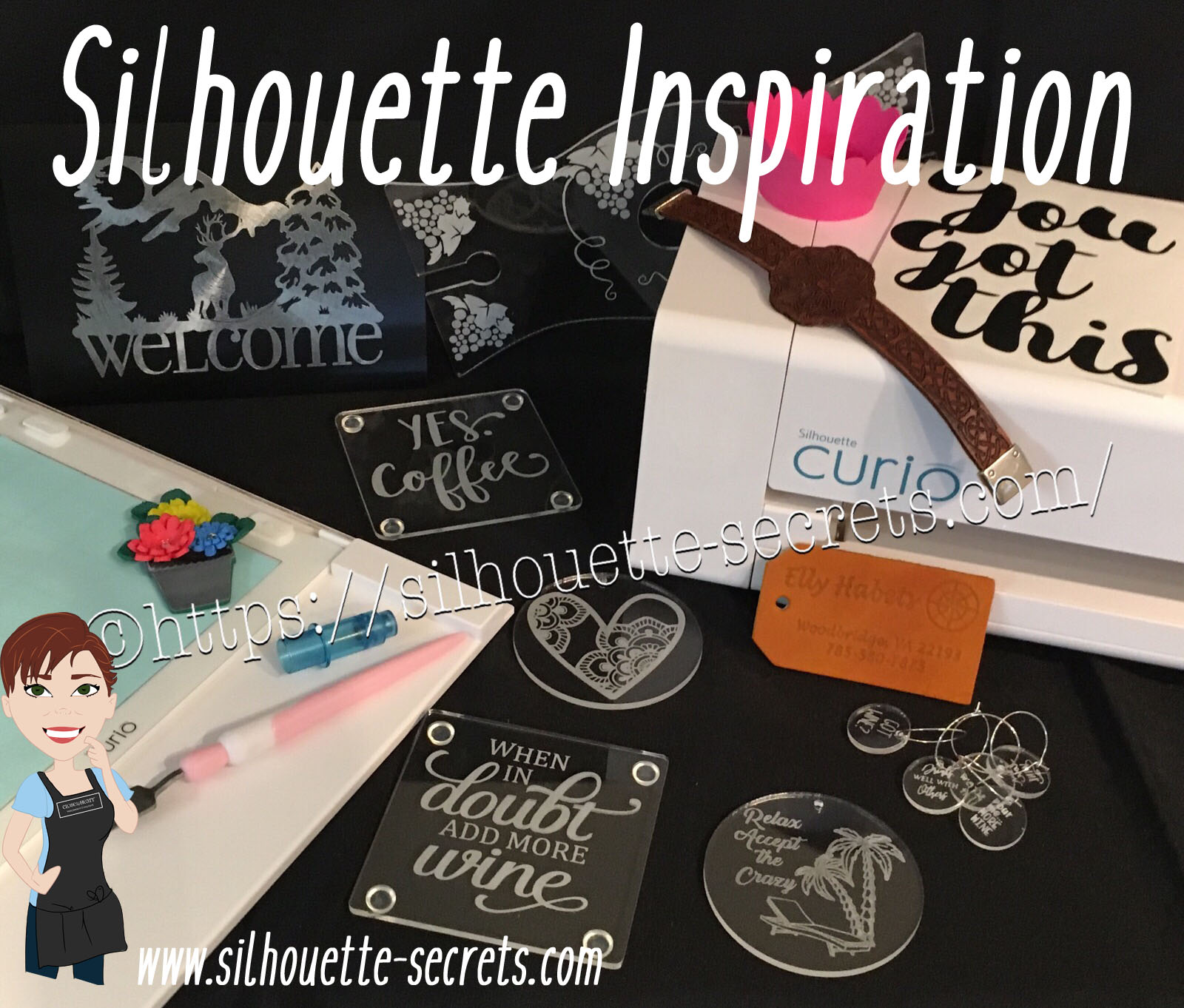
Silhouette Inspiration

Today I am headed out to the June 2019 All Things Silhouette conference and I have to tell you while it may be a lot of work to prep and set up for the conference, I always come back knowing more than I did before & feeling inspired by all that I see at this conference.

So today, I’m going to share a few projects I’ve been working on and hope I can pass on some of this inspiration that I feel when I attend the conference.

First, here are a few acrylic etching projects that I’ve completed with my Silhouette Curio in preparation for the classes I’m teaching at the All Things Silhouette Conference & for display during classes.

SilhouetteSecrets_Coaster_ATS19 copy

This is an acrylic coaster from Craft Chameleon and I created a design and added text to it to be etched on the backside of the coaster. These come in a set of 4 coasters and it is the perfect gift to customize.

Curio template coaster copy

I love that Craft Chameleon has Curio templates that have been created to work specifically with their acrylic shapes. While the Curio is amazing in the fact that it can return to the exact spot & continue working even after the platform is unloaded (if the platform is loaded correctly), these templates are so helpful in being able to make sure the designs are in the same place the material is placed.

SilhouetteSecrets_Phone_ATS19

An Acrylic phone stand etched with the Silhouette Curio.

These are another great gift idea as pretty much everyone has a phone. And if any of you are like me, I will set my phone down on my desk and it is soon under some notebook or stack of papers. It even has a slot for the charging cord to keep your phone charging as it’s on the stand. And both pieces of the acrylic stand can be etched as the Curio template has a space to fit both pieces.

I love that there are so many possibilities and the ability to create custom items with the Silhouette machines.

Acrylic disc

This is a 5″ acrylic disc that is etched with a Beach Blessing by Deborah Stine – Design #62386 from the Silhouette Design Store.

Something to keep in mind when you are etching acrylic or any raised surface, is to keep the Silhouette tool away from the edges or any holes in the material. This 5″ disc has a hole in the top for adding a means to hang or attach it to an item. If the Silhouette tool comes near the hole or edge, it can hang up on it and cause the blade housing to move out of alignment, which can alter where the design etches. The more you design & work with the Curio, you will get a feel for what that safety zone is and how the tool housing moves.

Since I could not etch close to the edges and hole of the acrylic disc, I cut a Rope Frame from adhesive vinyl to add to the front of the disc. Once the vinyl was added, I took a little round file and poked out the hole so the disc could still be hung.

This is just another way you can mix and match different materials.

The Curio can accommodate thicker materials with it’s unique platform system. This means that not only can it etch on acrylic & metal but it can still cut paper, vinyl & HTV. The difference is in how you stack the platforms. For thin materials under 1 mm, all of the platforms must be stacked in order for the machine to cut properly. That means that a 2+2+1+cutting mat are all required to get a clean cut.

For more tips on getting started with the Silhouette Curio, check out this post HERE.

Here are a couple more items I created this week before packing my Curio up for the trip. It never fails that I want to get “just one more” project done before I have to pack.

These are 15/16” clear discs that work well as bracelet charms or wine charms, they are also from Craft Chameleon.

IMG_20190605_084648543 copy

This is a Honu Turtle design by Suzanne Cannon from the Design Store.
The Honu turtle is a symbol of wisdom and good luck. Who doesn’t need more of that?

I found this design while trying to decide what to put on my beach tote bag for my recent trip to the Silhouette Summit. I love that you can use the designs in many ways and for more than 1 project.
Check out all the neat things I experienced at the 2019 Silhouette Summit HERE.

IMG_20190505_192112821

Here is another charm I created for my new bracelet. This one is a design that LeighBee Designs created specifically for my class attendees at the All Things Silhouette Conference.

IMG_20190605_095913145 copy

Make sure to grab the Curio template for these discs too! It makes it so easy to line up the project.

There are so many fun things you can create. For anyone with a Silhouette Curio machine, I would suggest just getting it out and playing with it. It is the best way to learn.

Silhouettesecrets+Curio_projects

Now while so far, most of the photos shown have all been created with the Curio, I love all my Silhouette machines equally (shhhhhh don’t tell them).

Another one of my favorite things to do is print and cut projects. I have had so much fun creating with Colorjet III printable Heat Transfer material by Specialty Materials in preparation for my class at the ATS conference.

Silhouette_Secrets+PNC

This tote bag was created by using Colorjet III Heat Transfer paper for light materials and the Silhouette Cameo 3. I used the Summer Flower Bundle by Echo Park from the Silhouette Design Store and set the project up as a Print and Cut project. Check out these tips HERE on this Print and Cut Part 3 – Images post to see exactly how I set it up.

I’ll be sharing more projects I created with this Colorjet III Heat Transfer next week after my class at the June 2019 All Things Silhouette Conference.

I hope that this post has inspired you in some way and you get time to create with your Silhouette machines soon!

Feel free to post your comments and questions below or on my Facebook group at Silhouette Secrets with EllyMae.

Enjoy!

SS_Signature copySS Logo snip it

**This post may contain affiliate links. What that means is that I may receive compensation if you purchase through the links I have provided. The price you pay for the product or service is not higher but I may get compensated for sharing.
Posted on 2 Comments

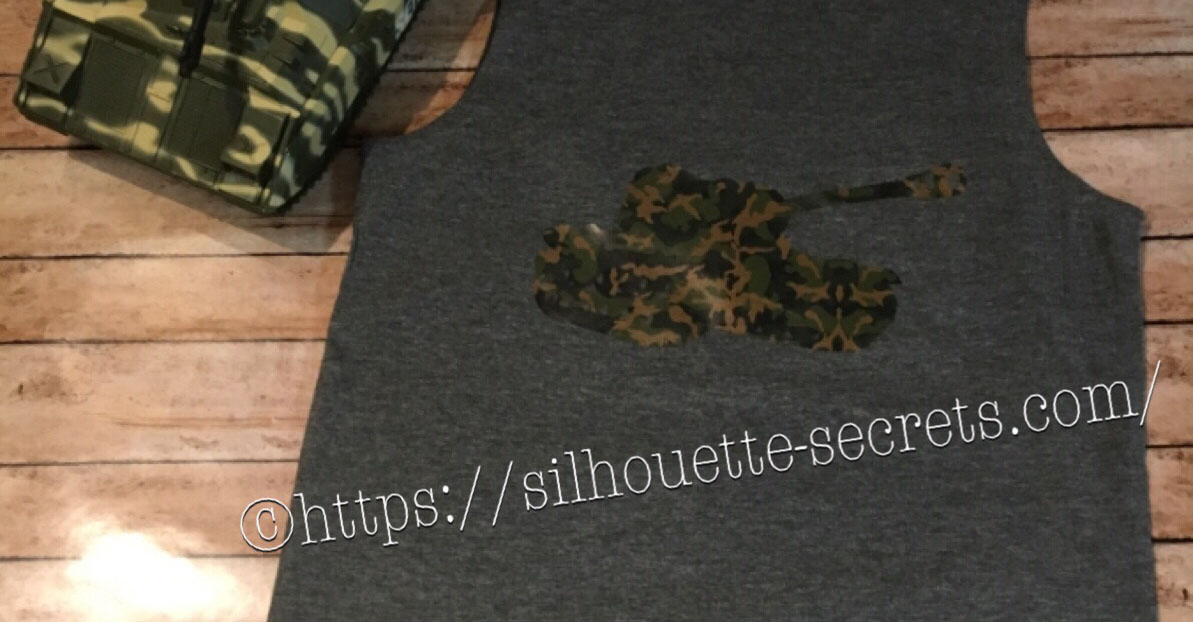
“Tank” top

I created this shirt for my son to wear on vacation. He is all about Army and tanks at 6 years old and picked out this Military Set by Studio Ilustrado – Design #83790 in the Silhouette Design Store.

Design Store file

When this file is opened there are multiple designs so I had to right click on it then chose  ungroup and deleted the designs I did not want.

Design file ungroup copy

Then I always fill my design with color, so I can see how it will look when it’s cut.

Fill with color

And now came time to add this Camo Sparkleberry Ink HTV my cutting mat.

Sparkleberry ink camo

It turned out perfect.

temp

And as you can see, he loved it.

He told everyone the entire weekend of camping “Look at my Tank Top – get it? Tank Top”

IMG_4733

Feel free to share the creations you make on my Facebook group at Silhouette Secrets+ with EllyMae.

Enjoy !

THANK YOU for your support! How can you help? Click HERE & buy a coffee. Every little bit helps with the cost of running the site.

Looking for more in-depth, step-by-step classes, check out all of my online Silhouette classes on my Teachable site HERE.

SS Logo snip it

**This post may contain affiliate links. What that means is that I may receive compensation if you purchase through the links I have provided. The price you pay for the product or service is not higher but I may get compensated for sharing.