Have you ever tried tracing an image in Silhouette Studio only to find the result wasn’t as clean or precise as you’d hoped? You’re not alone! Many users struggle with getting a smooth, accurate trace that leads to a successful cut file. We see questions about this all the time, and that’s why I’ve created an in-depth tutorial to help you master tracing and cleaning up your designs in Silhouette. Whether you’re working with complex images or simple shapes, these tips and techniques will help you put the tools in the Silhouette Studio software to work for you!
Find this FREE in-depth video tutorial on the Silhouette Secrets+ YouTube channel HERE.
Every single image that you trace can be different because each one is made up of different colors, gradients, shading, etc. In the video tutorial, I take you along for the journey and it is step-by-step exactly how I would work with a file that needs clean up. The only way to actually know if the file will be a successful cut file in the end is to cut it, so I included my tips after cutting and shared exactly what I would change after I finished the cut to make it even more successful for the final project.
The original traced image started with 24,528 edit nodes and through the clean up process, I was able to get that down to 1,848. That makes a huge difference in the cuttability of a file.
My goal through the entire process was to maintain as much of the character of the image as possible. This makes a great way to make unique projects & gift ideas.
Check out the full in-depth video to learn more about how you can make the tools in the Silhouette Studio software do what you want.
I hope you pick up a few tips to mastering tracing in Silhouette Studio and how to clean up a file for a cuttable design!
Silhouette Tutorial: In-Depth Guide to Tracing & Cleaning Up Detailed Images – Step-by-Step Video on the Silhouette Secrets+ YouTube channel HERE
For more in-depth tutorials and inspiring projects, explore our comprehensive A to Z of Silhouette section on the website HERE, where you’ll find years of creative resources to help you master your Silhouette skills!
Save this for future reference by pinning the image below.
Enjoy !
THANK YOU for your support! How can you help? Click HERE & buy a coffee. Every little bit helps with the cost of running the site.
Silhouette Classes
Never stop learning! Let me help you take the anxiety out of learning with Silhouette and get to creating faster! My Silhouette classes are heavily focused on software, so you can take the skills & techniques taught and apply them to many future projects!
**This post may contain affiliate links. What that means is that I may receive compensation if you purchase through the links I have provided. The price you pay for the product or service is not higher but I may get compensated for sharing.
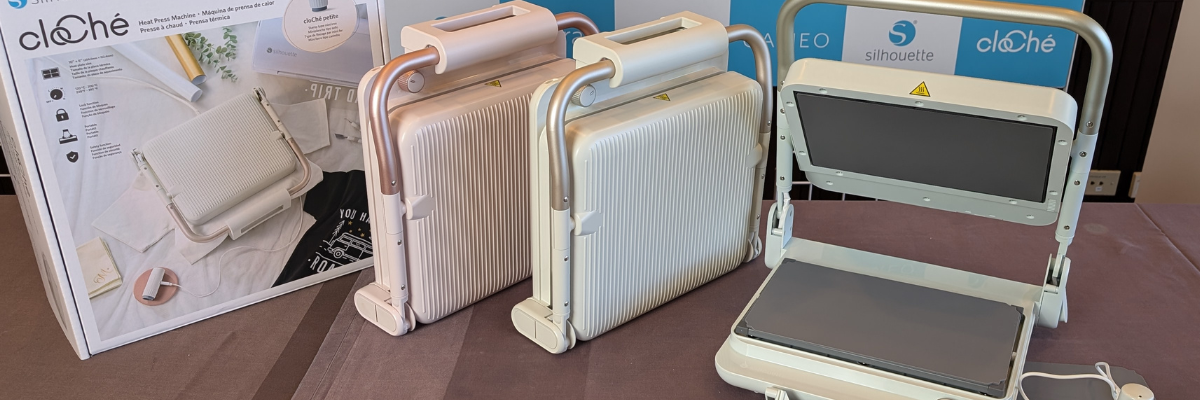
I’m back from the Silhouette Summit 2024 event and will be sharing more information that I learned in the demo room and classes at the Summit event. There is a lot of information so it will be a series of blog posts to share all the details. Part 1 will include details about the new Silhouette cloChé (clo-shay) Heat Press and cloChé Petite.
Affiliate links may be present in the following blog post and as an Amazon Associate, I earn from qualifying purchases.
It is cute, stylish, and has a slim line design that can be stored on a shelf when not in use. It is a heat press designed for the hobby crafter.
Silhouette cloChé Heat Press
It will be released in 3 colors – Milky White, Chiffon Pink, and Ice Green. Additional colors may become available if retailers choose to have an exclusive option in the 7 additional options.
You can get a glimpse of those colors in the live video I shared walking the Silhouette Summit demo floor found HERE.
L – M – H heat settings with options in between L – 250° F M – 320° F H – 400° F There is no digital display. In order to gauge the actual temperature, you would need a digital thermometer to read the temperature of the top platen.
45 second timer There is no digital display and the timer is not adjustable.
0.5 mm maximum thickness of materials pressed
Locking mechanism on the front
Voltage setting on backside of heat press
Silhouette cloChé Petite hand held press included with Silhouette cloChé Heat Press
Retail price $249.99 (price given at Summit ’24)
Release Date – Coming Soon
Here is a look at the temperature dial on the Silhouette cloChé heat press. It has a L, M, and H setting, but can also be set in between those as well. (L = 250° F, M = 320° F, H = 400° F)
Here is a look at the front locking mechanism. When the lid is closed, then it will fold up over top of the top platen handle and lock into place. Be gentle with the handle and do not force it closed or open. It will take some practice to get the hang of how it locks and unlocks.
Here is a view from the side of the Silhouette cloChé Heat Press. The maximum thickness for materials is 0.5 mm. I would not recommend using thicker materials than what is recommended in the press.
Recommended Usage of Heat Press
Heating
To turn machine on, open heat press and then turn the dial. The Silhouette cloChé heats up with the lid open and comes to temperature fairly quickly from what we saw in the Summit demo.
Pressing Time
In the demos shown at the Silhouette Summit, the Silhouette cloChé they pressed the garment with HTV for 45 seconds as the first press, then said to cold peel the carrier sheet, then add a parchment paper on top and press another 45 seconds for a finishing press.
We did question this length of time and why they are using 45 seconds when most HTV is 15 seconds on average. There was never really a definite answer except, that’s what worked for the Silhouette cloChé heat press. We did not see the product packaging for the HTV they were using.
If you are using other brands of HTV, please test your garments and I’d recommend starting with the recommended settings for the actual HTV you are using. Grab a timer and set it for the recommended setting of the HTV brand.
I’d also recommend getting a digital thermometer so you can check the heat platen for an accurate temperature reading.
Auto Shut Off
There is an auto shut off when the Silhouette cloChé heat press is not in use. If the lid is open, after 15 minutes it will auto shut off. If the lid is closed, it will shut off after 2 minutes.
Duration of Use
It was stated that the Silhouette cloChé heat press was designed with a use time of 1 hour and then it needs a 30 minutes cool down period.
Silhouette cloChé Petite Handheld Press
The Silhouette cloChé Petite shown on the right side of the photo above that is plugged into the heat press is a handheld press that has a heat platen approximately 1/2″ in diameter. It is designed for usage with small designs or rhinestones.
The Silhouette cloChé Petite is not sold separately at this time. We did recommend that it be considered as an option to sell separately.
The Silhouette cloChé Petite does have to be plugged when using. It can be plugged directly into the Silhouette cloChé Heat Press or other suitable power sources. Please read the instructions that come with the Silhouette cloChé Petite for specific instructions.
It comes with a USB C to USB C cord that also can be stored on the backside of the Silhouette cloChé Heat Press. The Silhouette cloChé Heat Press does not have to be turned on for the Silhouette cloChé Petite to be used, but the heat press does need to be plugged in to an electrical outlet.
Recommended Usage of the Silhouette cloChé Petite
The Silhouette cloChé Petite does include instructions in the box and I would recommend reading through those thoroughly before use.
For use with HTV, cover the HTV with a protective sheet such as parchment paper and then tap the cloChé Petite on the HTV until adhered. For use with rhinestones, cover the rhinestone with protection and press the Silhouette cloChé Petite down until rhinestone is adhered. It is recommended to use a silicone mat or heat safe surface to press on top of with the Silhouette cloChé Petite. The silicone mat that comes with the Silhouette heat press can be used or I would recommend the Artesprix Protective Mat as well. I use the protective mat for many different projects.
We did receive a Silhouette cloChé Petite at the Silhouette Summit.
Overall, the new Silhouette cloChé Heat Press is cute and light weight. I’ve had several group members already comment with ideas for how to use it in their hobby craft business. It is designed for the hobby crafter and I would not recommend it for commercial use.
I have also created a Silhouette Summit playlist on the Silhouette Secrets+ YouTube channel that can be found HERE. I have a couple more to add to the video playlist on YouTube once they are edited, so make sure to like, subscribe, and click that bell for notifications.
THANK YOU for your support! How can you help? Click HERE & buy a coffee. Every little bit helps with the cost of running the site.
Silhouette Classes
Never stop learning! Let me help you take the anxiety out of learning with Silhouette and get to creating faster! My Silhouette classes are heavily focused on software, so you can take the skills & techniques taught and apply them to many future projects!
**This post may contain affiliate links. What that means is that I may receive compensation if you purchase through the links I have provided. The price you pay for the product or service is not higher but I may get compensated for sharing.
I’ve wanted to write a faux leather tutorial with tips for Silhouette for a long time, but other things seemed to jump in front of it on my to-do list. So when Amy announced her Faux Leather event, I made it a goal to really dive in and create with some faux leather.
Affiliate links may be present in the following blog post and as an Amazon Associate, I earn from qualifying purchases.
Amy Romeu, hailed as the Queen of Faux Leather by many, recently hosted an event that I attended. I had a great time crafting along with her videos and picked up a lot of great tips that can help in being successful in cutting faux leather with any cutting machine.
Before we get too far in, let’s cover a few things about faux leather that will help in the process.
Faux Leather Information
Can Silhouette machines cut faux leather? Yes! Can Silhouette machines cut ALL faux leather? NO! Can all cutting machines cut ALL faux leather? NO!
Faux leather is such a broad term, just like “genuine” leather is. Cutting some faux leathers is easy, some pose greater difficulty, and others simply do not cut well at all.
Factors influencing whether a Silhouette or another machine can cut faux leather include:
Color – Yes! Many users don’t know this, but color affects how materials cut. Different colors go through different processes in the production and that can affect how it cuts. Some can be tougher than others due to coloring.
Backing – Faux leathers can have a variety of backing on it. Some don’t have any and are soft and pliable. While others can have a mesh, woven backing which can be difficult to cut through.
Texture – Faux leathers can come in all kinds of textures such as embossed, glitter, sequins, etc. This will affect how it cuts. Just think of a blade trying to bounce over a texture material to cut a clean line. Texture affects it! The texture also influences the ease of cutting by hand. The same is true for a cutting machine.
Thickness – There is a wide array of thicknesses for faux leather. Super thin ones can be too pliable and just smoosh around on the cutting mat. Thicker ones may need multiple passes to cut through and a longer blade such as the Deep Cut blade.
Composition – Faux leather is such a broad term. The definition of “faux” is artificial or fake. So keep in mind that faux leather is fake leather. What it is made of? A wide variety of things. Plastic mostly. For instance, I ordered some leather on Amazon and it is PU Leather. It is by definition, artificial leather, crafted from a thermoplastic polymer commonly employed in the production of furniture or shoes. Faux leather = fake leather = plastic
Silhouette 2 mm Manual Blade (this is what I used – more info below), Premium blade or Deep Cut blade, Silhouette Autoblade, 1 mm Manual blade, Silhouette blade available at CrafterCuts (code SECRETS for 10% off) or Silhouette America (code 10OFF for 10% off)
So the first place to start is to gather your supplies for whatever you are working on. I was so excited for these projects and I knew I would be creating several, so I pulled out all my faux leathers and my scrap HTV. I have several boxes of scrap HTV and it’s a great way to use it by adding it to faux leather projects.
Keep it a secret, but I actually obtained more faux leather than shown because I needed to test several during these projects. And once I went down that rabbit hole, I found many patterns I wanted to collect.
Cut the faux leather down to size and give yourself some extra space for taping down the edges to the cutting mat.
Place the faux leather front facing down on the cutting mat, so you are cutting through the backside first. **NOTE: if cutting real leather, DO NOT place it face down or you can ruin the finish on the real leather. That can be a very expensive mistake!
Utilize a reliable sticky cutting mat to secure the materials in place during the cutting process. Using a brayer to smooth the materials down to secure it. If the materials shift during the cut, the cut may fail, or your blade might become stuck.
Securely tape down the material edges. I found that using longer pieces of tape not only ensured a better hold but also reduced the risk of it getting caught in the machine during cutting. You can also reuse painter’s tape if removed carefully at the end.
For best results, keep the painters tape away from the edges of the cutting mat so it is not going under the rollers. Any change in the surface area under the rollers and it can cause it to lose grip or the left and right roller to not move at the same rate, which can cause issues.
When using a Silhouette cutting mat, you can use the grid for exact placement for lining up your materials and your design. If you load the mat properly, the on-screen design will align with the Silhouette cutting mat. Third party cutting mats may not line up and it will be a guessing game for design placement and alignment.
Give yourself a good allowance and grace because you may still mess up, just like I did in the photo above. I would recommend that you cut a little bit excess of the faux leather and not try to cut through the painters tape as it can affect the cut results. The cut was ok in this instance, but it went off my faux leather, so I ended up cutting another truck piece.
For tips on lining things up check out this tutorial HERE. I use this method all the time and still make mistakes. Remember to “measure twice, cut once.” But, I find I make the most mistakes if I’m rushing or I tell myself it will be just a quick project.
Test cut, test cut, test cut!!!
I used a 2 mm Manual blade for all of my faux leather cuts. This blade is the equivalent of the older style Premium blade, it’s just redesigned to fit directly into the newer model machines housing without needing an adapter. The 2 mm Manual blade (or Deep Cut blade) allows you to go from 1-20 in the blade depth settings. All faux leather will vary and some can be cut with a regular blade that is 1-10 settings, while others may need a higher blade depth than 10. Test cuts are the way you will know.
Do not unload the mat after you cut!!! Check to see how well it cut. Having a thread or two is not a bad thing! Grab a sharp pair of scissors and simply snip it.
If it does not lift easily or has more than just a few threads hanging on, send the cut again. If you have not unloaded the cutting mat, it should cut again in the exact same place. If you unload the cutting mat, it will be a hope and a prayer trying to get it lined up perfectly again to cut in the same place.
Some faux leathers may take more than 1 pass and this is why test cutting is such an important step. I write down the settings that worked for each of the materials I test and keep a log so I can refer back to it. It is not a bad thing to use more than 1 pass with certain projects. I find with thicker materials, you can get a cleaner cut when you are not trying to force the machine to do it all at once time. However, for thinner materials such as adhesive vinyl or regular cardstock, multiple passes shouldn’t be necessary if the blade is installed properly.
This is white faux leather from Craft Chameleon. I used the 2 mm Manual blade (equivalent of the Deep Cut blade) . Blade depth – 9 Force – 30 Passes – 2
For more details on what blade depth and force are, check out this in-depth tutorial on the Silhouette Send tab HERE.
Once the cut is successful, unload the mat, remove the painter’s tape – it can be reused and carefully peel away the excess. Snip any threads as you carefully remove the excess so you do not stretch the design.
When cutting, check the blade regularly for debris stuck to it or inside the cap. The fibers of the faux leather can hinder the cut results.
It is perfectly normal to have to increase the settings of the blade as you cut materials. A blade cutting any material is going to dull with usage. Keep in mind that you are cutting through plastic and fibers. That will cause a blade to wear differently than other materials.
For this design I used the Red Truck Ornament file from Amy Romeu and there is a front and back layer cut from faux leather that will be glued together. The rest of the design is cut from HTV, so I swapped out my blade for my HTV blade and set up my cutting mat to cut different colors of scraps at the same time.
I used the Cut by Fill Color so I could set up different cut settings for my Smooth HTV versus my Glitter HTV. The Autoblade did all the work to change the settings once set up. Check out this tutorial HERE for tips on cutting by line or fill color – they are the same.
And then I set up my cutting mat to match exactly what I had set up on the Silhouette software. Check out tips on cutting multiple colors at the same time HERE.
Then I simply weeded the design and pressed the pieces on according to Amy’s instructions. I also cut this design out of cardstock and adhesive vinyl too! The faux leather ornament is on the left and the cardstock ornament is on the right.
Check out Amy Romeu’s YouTube video HERE for instructions on the assembly. Even though she is using a Cricut machine to cut, the process and tips are useful.
I was having so much fun cutting faux leather that I couldn’t stop and wanted to test more!
I followed the same tips as above and taped it securely to my cutting mat.
If you compare this photo to the first one, you’ll notice that the backing differs on the white versus this silver embossed piece. That can affect the cut settings and results. The woven backing texture can be a bit more difficult to cut and may require higher settings and more passes to cut cleanly.
I used the 2 mm Manual blade (equivalent of the Deep Cut blade). Blade depth – 9 Force – 30 Passes – 2-3 however, that was still not a clean cut, so I then increased the Blade depth to 11 and did 2 more passes.
In this case, the Embossed texture on the front is uneven and can affect the cut.
I did not have all the supplies to finish this out as Amy did, so I used what I had on hand and made my own holly berries and leaves. The holly leaves are drawn from scratch in Silhouette Studio. If you want to learn how, I show step-by-step in the Designing in Silhouette Studio – Creating Keepsake Ornaments class HERE. I cut the leaves from cardstock, painted some small craft balls, and then glued it all onto the ornament.
In both the designs shown above, the faux leather was cut for the front and the backside and then glued together so it had a finished look. But for this next project, I used Siser Metal HTV and adhered it to the backside of the white faux leather from Craft Chameleon before cutting.
I pressed it once with the carrier sheet on and then a second time without the carrier sheet for just a few seconds. The second press allows the texture of the faux leather to show through and it is gorgeous! Photos do not do it justice.
But keep in mind, anytime you add something to a material, that can change the cut settings.
I used the 2 mm Manual blade (equivalent to the Premium blade). Blade depth – 10 Force – 30 Passes – 1 And I probably could have done one more pass.
Now, what you’ll notice is that all of the pieces are still attached. However, they easily popped out and I only had a few threads to snip. This actually worked better for the next steps as I could keep it all organized in one place until I was ready to press.
I loved the finished look of the Siser Metal HTV on the backside! And I used up a few scraps of Glitter HTV, not much, but it is the perfect project for those scraps that you might have.
I had so much fun creating along with this event and now have faux leather for many more projects.
I hope those tips help you to be successful with cutting faux leather with your Silhouette machine.
You can still purchase the VIP package for the Faux-La-La Crafting Fun and join in on the fun. You get the files for all the projects, all the videos in one place, a printable guide, and more! Check it out HERE for all the details.
Save this for future reference by pinning the image below.
Enjoy !
THANK YOU for your support! How can you help? Click HERE & buy a coffee. Every little bit helps with the cost of running the site.
Silhouette Classes
Never stop learning! Let me help you take the anxiety out of learning with Silhouette and get to creating faster! My Silhouette classes are heavily focused on software, so you can take the skills & techniques taught and apply them to many future projects!
**This post may contain affiliate links. What that means is that I may receive compensation if you purchase through the links I have provided. The price you pay for the product or service is not higher but I may get compensated for sharing.
Check out the new video on the Silhouette Secrets+ YouTube channel HERE showing how to set up in the Silhouette Studio software for the auto crosscut and watch the machine in action and continue reading below for more information below the video link.
Affiliate links may be present in the following blog post and as an Amazon Associate, I earn from qualifying purchases.
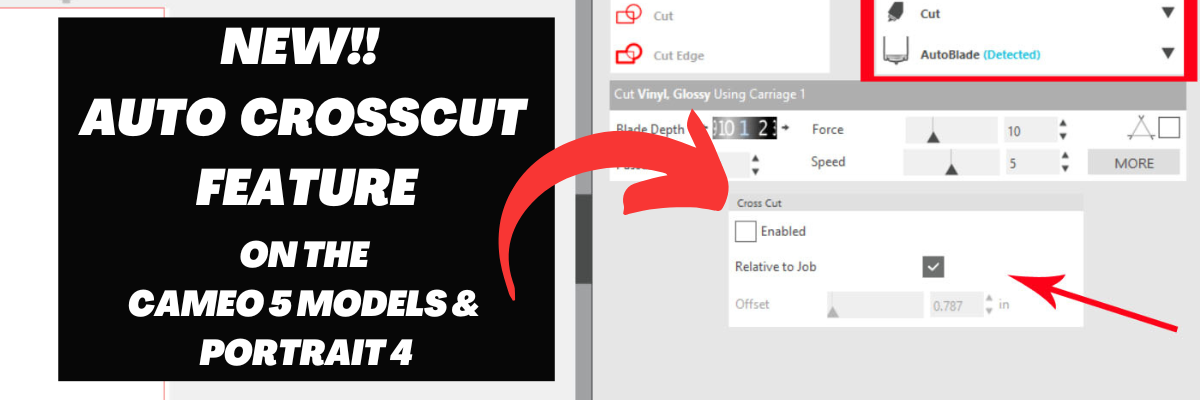
The Silhouette Portrait 4 and Silhouette Cameo 5 models are now equipped to cut the vinyl off using the Autoblade after a cut has been completed for certain materials when set up properly.
The setup for the Auto Crosscut is very specific. It is for use with the Autoblade and when cutting off of a material roll such as adhesive vinyl or HTV.
Note: you should never cut completely through a material such as cardstock, etc. without the proper setup for pop-out cutting or when using the Auto Crosscut feature. Cutting through a material without the proper setup can damage your machine. The reason you can cut matless with adhesive vinyl, HTV, and kiss-cut sticker sheets is because you are only cutting through the top layer and not completely through.
On the Page Setup Panel – Tab 1, choose No Mat under #3 and set the custom media height size to the length of the roll you are cutting from on #4.
Click on the Send tab in the top right corner.
Then the following will need to be set up in order for this feature to show up:
Compatible material selected such as Vinyl – Glossy or Heat Transfer Vinyl
Once those things are completed, you will see a Cross Cut window show up below the cut settings on the Simple Tab where this feature can be enabled and adjusted.
Note: if a custom cut setting is used, the Crosscut option will show under the Cut Settings area when setup to cut without a mat.
After the cut is complete, the Silhouette Autoblade will adjust the blade depth for a complete cut through. The Crosscut action will be performed in several cuts so it can keep the material in place while it cuts through. Once complete, the cut vinyl can be pulled from the backside of the machine.
The Crosscut feature is performed in the channel that runs underneath the blade housing, so it does not damage the machine when it cuts completely through.
Save this for future reference by pinning the image below.
Enjoy !
THANK YOU for your support! How can you help? Click HERE & buy a coffee. Every little bit helps with the cost of running the site.
Silhouette Classes
Never stop learning! Let me help you take the anxiety out of learning with Silhouette and get to creating faster! My Silhouette classes are heavily focused on software, so you can take the skills & techniques taught and apply them to many future projects!
**This post may contain affiliate links. What that means is that I may receive compensation if you purchase through the links I have provided. The price you pay for the product or service is not higher but I may get compensated for sharing.
I’ve had so much fun with the Siser Glow HTV! If you missed Part 1 – check it out HERE. Siser Glow HTV can be cut with any cutting machine and I was swapping back and forth in my creations between Silhouette and Siser machines. Sometimes I had both going at the same time.
Affiliate links may be present in the following blog post and as an Amazon Associate I earn from qualifying purchases.
I had Siser Juliet set up in one room cutting away, while my Silhouette Cameo was cutting next to my computer (shown in Siser Glow HTV Part 1). With the Siser Juliet connected through WIFI, I regularly cut from one room to the next. The Juliet roll holder came in handy for these projects and my rolls of Siser Glow HTV.
One of the most important steps you can do is – test cut, test cut, test cut. It seems like such a basic step, but it can save you!!! Siser machines make it so easy to perform this simple action directly on the touchscreen and it will save you so much in time, materials, and frustration.
I think I found my new favorite shirt for awhile. I’ve been collecting these designs by Sophie Gallo just waiting for the perfect projects. Find this design HERE. Here is a look at the back of the shirt.
I don’t know why I have never really decorated the back of my shirts and I hadn’t ever though about it until I started following MammaBearKay and watching her post her shirts. She runs an awesome business with adult humor shirts.
Here is a look at the Siser Glow HTV in the dark.
And the same shirt under the blacklight.
I’ve already several compliments on it when I have worn it out. Everyone gets a good laugh.
Here is a look at the front. I just took the little guy out of the original design and cut him smaller for the front. If I did this over, I think I’d put him on the other side, but it’s done now and I can always make another.
Let’s light him up!
After dark
And under the blacklight.
But I didn’t stop there…..
My son loves games, so this design from Leonardo Design Studio was perfect!
What kid doesn’t like a glow-in-the-dark shirt? Unless they are playing hide-and-seek or kick the can of course!
I was having so much fun creating. Little green men should glow right?
And I couldn’t leave Siser Romeo out of the fun! As soon as I had the Siser Glow HTV in my hands I had a BIG idea. It was only after I created the design that I realized I didn’t have Siser Glow HTV in the size I needed. So I called in a special request at The Vinyl Spectrum and ordered larger sizes.
Save this for future reference by pinning the image below.
If you missed Part 1 of the Siser Glow HTV – check it out HERE.
Enjoy !
THANK YOU for your support! How can you help? Click HERE & buy a coffee. Every little bit helps with the cost of running the site.
Silhouette Classes
Never stop learning! Let me help you take the anxiety out of learning with Silhouette and get to creating faster! My Silhouette classes are heavily focused on software, so you can take the skills & techniques taught and apply them to many future projects!
**This post may contain affiliate links. What that means is that I may receive compensation if you purchase through the links I have provided. The price you pay for the product or service is not higher but I may get compensated for sharing.
I have been having a lot of fun…. maybe too much, but once I get started, it’s hard to stop.
Here is a little behind-the-scenes look at what my studio looked like a few weeks back when I was in the middle of all my creations.
Affiliate links may be present in the following blog post and as an Amazon Associate I earn from qualifying purchases.
Siser Easy Glow HTV arrived and I went creative crazy! So many ideas came to mind and I just started designing and cutting. I have lots I want to share with you, but I’ll have to split it into 2 parts to share it all. I may have also made myself my new favorite shirt too! (see Siser Glow Part 2)
The first thing to do is test cut! Let me say it again so it sinks in – test cut, test cut, test cut. I started with the recommended settings on the Siser website for Easy Glow and did my test cuts. Your machine, blade life, and many other factors go into what cut settings will work for you in that moment.
For tips more tips that will save you time and frustration check out this post on Test Cuts and also Perfect Cut Settings.
And then I was off and cutting once I knew I wouldn’t waste materials. My kids are getting older and Trick or Treating is still big in our area, no matter their age. But the little cute plastic buckets aren’t doing it anymore.
Check out this awesome video from Siser North America – I love it!
Grab some Siser Glow HTV and see what creative ideas you can come up with! It is currently available in 5 colors. I’ve included my supply list below for these new trick or treat bags.
Save this for future reference by pinning the image below.
Want more tips, projects, and tutorials delivered right to your inbox? Never miss out of information by signing up for the Silhouette Secrets+ Newsletter. Every Friday (or that’s my goal), I will have a new newsletter released sharing Silhouette information that can help you in your projects and learning more! Sign up below and make sure to confirm your subscription to get the newsletter!
Silhouette Secrets+ Newsletter
Never miss out on the news, tips, “secrets”, deals, classes, and more that I share on Silhouette Secrets+. Sign up for the newsletter and get information delivered to your inbox every Friday. Unsubscribe at anytime.
THANK YOU for your support! How can you help? Click HERE & buy a coffee. Every little bit helps with the cost of running the site.
Silhouette Classes
Never stop learning! Let me help you take the anxiety out of learning with Silhouette and get to creating faster! My Silhouette classes are heavily focused on software, so you can take the skills & techniques taught and apply them to many future projects!
**This post may contain affiliate links. What that means is that I may receive compensation if you purchase through the links I have provided. The price you pay for the product or service is not higher but I may get compensated for sharing.
There are a lot of letters out there floating around in the industry right now and lots of places to get confused about what they all mean.
So let’s take a look at the basics of what each of these terms mean and then you may have a better idea if you want to look into each one a little bit further.
Affiliate links may be present in the following blog post and as an Amazon Associate I earn from qualifying purchases.
What is what?
HTV = Heat Transfer Vinyl
Heat transfer vinyl is a product that can be applied to fabric. The adhesive on heat transfer vinyl is heat activated and the adhesive melts into the fabric.
The primary purpose of HTV is for fabric and materials, however, you will see some apply it to other surfaces as well. I see mixed results with these methods and it is always good to test what you plan to do.
For more details, tips, tutorials, projects, and classes on HTV Click HERE
Siser DTV is great for being able to add graphics or multi-color designs using a home printer without having to cut and layer multiple colors of HTV. Grab some Siser EasyColor DTV in a variety of sizes at The Vinyl Spectrum HERE.
Make sure to follow the instructions from Siser on printing, pressing, and washing for best results!
Direct to Film is a printer that prints onto a film that is used to transfer the design to a blank. This can be a great for heavy graphic images that you do not want to layer or if you have a lot of one design that you are using for a project.
Here is a sheet of DTF prints I ordered to test from 143Vinyl.com. Cut them apart and heat press to your shirt or blank. Done!
Here is a look at the backside of a DTF print.
This is not your everyday at home printer, but can be useful if you run a business. If you are interested in investing in a DTF printer, you can find more details on printers and supplies at Heat Transfer Warehouse or Swing Design.
If you are like me and don’t want to invest in a DTF printer or have no need to, then I’d recommend ordering some DTF prints to try out. Check out 143vinyl.com and order today! (Note: 143Vinyl is currently upgrading equipment as this post is published and DTF ordering is on hold)
You can either upload your own image or use their image library. I chose to use the Image library for my first round to test it out, but mostly because it takes me forever to decide on a design that I want and even longer to create it.
Make sure to follow all their instructions for submissions if you upload your own images.
I have also seen a lot of mention about DTF “hacks”. Keep in mind that it may or may not have the same results or longevity. It is all a process of experimentation. The only way to know is to test it, if you decide to go down that road.
DTG = Direct to Garment
Direct to garment is another specialized printer and not your ordinary, average home printer. This printer type allows you to print directly onto a shirt or other blank.
Both a DTF or a DTG printer are a serious investment, so I would recommend doing a bit of research before diving into that, but it can be a great option for a small business that is growing.
For me as an everyday crafter, a DTF or DTG printer are not in my list of must haves for my studio as I do not think they would be utilized enough.
Vinyl
Vinyl is a general term that can be used in reference to many different products. Often times it is used so generically, that we have to clarify what the user is wanting to do before we can advise on information they are looking for.
There is adhesive vinyl, HTV, specialty vinyl, and also things like sticker paper and heat transfer paper that get lumped into the “vinyl” category.
If you are looking for more on adhesive vinyl, check out these tutorials HERE.
I wanted to keep this very basic in explaining what each meant. It can be very confusing when you see the terms thrown out there and sometimes used incorrectly.
I hope this information helps to give you an idea if you would like to explore more on a certain area that might be helpful to your future projects or business!
Save this for future reference by pinning the image below.
Enjoy !
THANK YOU for your support! How can you help? Click HERE & buy a coffee. Every little bit helps with the cost of running the site.
Silhouette Classes
Never stop learning! Let me help you take the anxiety out of learning with Silhouette and get to creating faster! My Silhouette classes are heavily focused on software, so you can take the skills & techniques taught and apply them to many future projects!
**This post may contain affiliate links. What that means is that I may receive compensation if you purchase through the links I have provided. The price you pay for the product or service is not higher but I may get compensated for sharing.
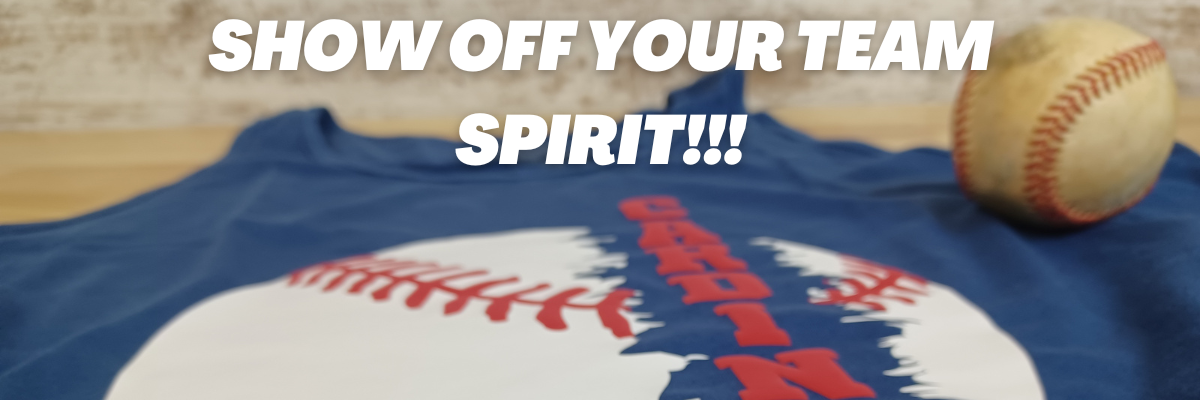
If you have a cutting machine, the possibilities are wide open for being able to show off your team spirit! You could make or embellish anything from shirts, bags, earrings, decals, and so much more!!!
And you can do it without using any trademarked images too! I see so many trademark infringements daily and it’s such as hot topic that I wanted to share some ways that you can show your team spirit with other design ideas.
I have always been a sports fan and played several different sports growing up. Moving locations across the U.S. over the years we have gotten into supporting the local teams where we move. When we moved to the St. Louis region, my friends warned me… Don’t become a Cardinals fan! I had no idea what they were talking about. I didn’t really follow baseball.
And then the first thing the Orthodontist told us was, “The only thing to do around here is watch baseball.” And that the rest is history!
Now I am a baseball fan. In fact, I’m watching right now as I type this post.
No matter what your team or sport, we can still be friends and you can find designs that you like and will show your team spirit off.
I hope this sparks some creative thinking for your future projects! Here are just a few that I’ve created.
Affiliate links may be present in the following blog post and as an Amazon Associate I earn from qualifying purchases.
I am so excited for this one! Like jump up and down, spin around in a happy dance excited!!! I have tried and tried to get Siser Easy Puff to look good and puff up correctly. And I did it! Yay! I think my past problems were my press and getting accurate temperature.
This time I used my new Siser Heat Press and it worked! Even when I had to press it a 2nd time, I didn’t lose the puff completely!
It would probably be a bit puffier if I didn’t have to press that 2nd time, but I am still doing a happy dance that I got it to puff up. I know what errors I was making and I will continue to “perfect the puff”.
Siser Easy Puff is such a neat texture on blanks and I cannot wait to make more!
Don’t give up! If you’ve had issues with a project, just keep trying. Figure out what might be wrong and then try again. The Siser Easy Puff does require a very specific temperature, time, and pressure. But, I knew someday I would get it, if I just kept trying.
I actually have this one already printed on Siser Easycolor DTV but just haven’t settled on what to put it on or how to position it.
Anyone else get something cut and then have a hard time committing? Or maybe you get hung up deciding on a design to cut, that’s also what takes me a long time to decide on. I really don’t know what my hold up is. It is just a t-shirt and I could always print and cut more Siser EasyColor DTV. I just have to do it!
If you have not played with Siser EasyColor DTV, I love it! I have made quite a few shirts with it and have had great results. Find more information on Siser EasyColor DTV HERE.
But you may not like my style or you may find other designs that catch your eye or are looking for a completely different sport! Check out the list of recommended design sites HERE and search for your topic of choice at each. Add them to your wishlist if you don’t want to buy right now so you can come back to easily find them later.
Save this for future reference by pinning the image below.
THANK YOU for your support! How can you help? Click HERE & buy a coffee. Every little bit helps with the cost of running the site.
Silhouette Classes
Never stop learning! Let me help you take the anxiety out of learning with Silhouette and get to creating faster! My Silhouette classes are heavily focused on software, so you can take the skills & techniques taught and apply them to many future projects!
**This post may contain affiliate links. What that means is that I may receive compensation if you purchase through the links I have provided. The price you pay for the product or service is not higher but I may get compensated for sharing.
We received a box with some supplies inside and are tasked with creating a project. The rules were simple. We could only use products from the package we received, we had to use at least 3 products from the package, and our theme was Mental Health.
So first, here is my challenge submission.
Everyone approaches a project differently and I thought I’d share how I tackled this one. Keep in mind there is more than one way to get things done, so my process might not be the same as yours. You do what works for you!
These are the items we received in our challenge package and the only ones we could use for the challenge.
Step 2 – Brainstorm Ideas
I do most of my brainstorming sitting in front of the TV with my Ipad in hand and browsing Pinterest and design websites. And then I start a list of possibilities and any idea I think of goes on the list. Most times, my list will not make much sense to anyone but me and sometimes even I can’t remember what I was thinking when I wrote it.
I had to think about this one a bit with the theme of mental health. I searched and searched for designs with this theme and as I did, I found I was drawn to things that speak to me. And this may not make sense to anyone but me, but isn’t that what it is all about? You can’t pour from an empty cup and each person has to find what fills them back up. All of these items speak to me in one way or another. I settled on the Honu turtle, hibiscus flowers, and I felt the Turtle New Day new Beginning saying fit perfectly with this category – for me.
Your design may be something completely different or maybe it isn’t even craft related at all.
Step 3 – Create a Mock Up
When I’m designing I will use shapes or images of the actual blank I’m working with to see how it will look.
In this case, it helped me to get an idea of how the designs would look on the Bella Canvas Fleece Shorts and also a little bit of an idea on how the colors might look too!
I took measurements of the brim of the hat on the outer edge and the inner edge. Then drew 2 circles that size and center aligned them. Then I could design around the brim of the hat with the waves and turtle design.
Next I measured the width of the bucket part of the hat and the diameter so I could draw a long rectangle and use that to design within.
This gave me a pretty good idea of what would fit and how many I needed to cut.
Step 4 – Get Started Cutting
Once I have settled on a design – which can be the longest part of the process for me – it’s time to start cutting!
And then it’s time to weed the designs.
And then time to press it all and see how it comes together!
Pressing on the hat was interesting and I just continued to work around the hat in small sections using a pressing pillow.
Step 5 – Final Photos
And then taking the photos of the finished projects!
This may be the part I struggle with the most and I just continue taking photos until I get some with good lighting. That could be setting up in my studio with photo lights or using natural lighting outside.
Now I’ve shared a behind-the-scenes look at how I work when I’m creating a project! Do you have a method in how you approach a project? Let us know in the comments below.
Save this for future reference by pinning the image below.
Enjoy !
THANK YOU for your support! How can you help? Click HERE & buy a coffee. Every little bit helps with the cost of running the site.
Looking for more in-depth, step-by-step classes, check out all of my online Silhouette classes on my Teachable site HERE.
**This post may contain affiliate links. What that means is that I may receive compensation if you purchase through the links I have provided. The price you pay for the product or service is not higher but I may get compensated for sharing.
Creating a Custom Knockout Design in Silhouette Studio
New Silhouette class available on my Teachable site HERE.
This class is one I created for the May 2022 All Things Silhouette Conference and it was a hit! The attendees took the class ideas and ran with it. I loved seeing all of their creations and it really inspired me to want to create even more.
I’ll be honest and typically after all the time that goes into the testing, recording, and editing to create a new class – I usually am “over” the class topic and it might be awhile for me to do it again. For instance, my Foil Quill didn’t get unpacked for a year after teaching at an ATS conference a few years back. But, this class has been different as I see all the creations coming in. I am sharing a few of those below the class information so make sure to keep scrolling below.
This is a step-by-step class that explores the complete process of creating your own unique design. We start with downloading an image, tracing, discuss compound paths, text, offset, and the modify-subtract tools. This class is jam-packed with information that will help you in many future projects!
I am including the list of supplies I used in the class below. Affiliate links may be present in the below and as an Amazon Associate I earn from qualifying purchases.What that means is that I may receive compensation if you purchase through the links I have provided. The price you pay for the product or service is not higher but I may get compensated for sharing.
I have also included a list of the class content in the description on Teachable. There is a lot of information packed into this class. The best part is once you are registered, you can watch at your convenience and as many times as needed to really soak in the information. Check out all the details HERE.
During the All Things Silhouette Conference attendees will post their completed project photos in our private Facebook group and WOW! I was blown away with their creations and the variety of different patterns, shapes, and text used in this class.
It truly shows that the techniques learned in the class can be used in many different ways for all users.
Custom Knockout Show & Tell
Here are a few that I received permission from the creators to share with you all.
There were so many fabulous creations! It is a good thing it was not a contest as I could not have picked just one!
When creating a class, I always have several demos that I’ve created in the testing and recording times of the course. Here are a few more I created using this same technique.
I do not necessarily like the feel of glitter HTV on a shirt that I wear, but I still love the look of glitter. This is Siser Glitter HTV applied to a piece of fabric and then I glued the fabric to the photo backing.
Here is the same design with a different pattern on a tote bag.
And once you start, sometimes it’s hard to stop, especially when you have a stash of patterned HTV.
And one more!
I have had this patterned HTV for several years and never found a design that I wanted to use it for. This pattern reminds me of a Lisa Franks design and it was perfect for this Inspire and Create design by Donna Downey – Design #32502.
And now after seeing all the creations from those who’ve already done the class, I have so many more ideas. I’ll have new shirts for the rest of the year!
And I would love to see what you create with it! I’d love to see what you are creating with your Silhouette software & machines! Feel free to post on my Facebook group at Silhouette Secrets with EllyMae.
Save this for future reference by pinning the image below.
Enjoy !
THANK YOU for your support! How can you help? Click HERE & buy a coffee. Every little bit helps with the cost of running the site.
Or if you are looking for more in-depth, step-by-step classes, check out all of my online Silhouette classes on my Teachable site HERE.
**This post may contain affiliate links. What that means is that I may receive compensation if you purchase through the links I have provided. The price you pay for the product or service is not higher but I may get compensated for sharing.
THANK YOU for your support! How can you help? Click the link to buy a coffee. Every little bit helps in the cost of running the site.