Posted on — 2 Comments

Using multiple files to create a design

Where do you find your ideas?

I am a big Pinterest lover. I pin a lot of things of all categories and sometimes just sit and pin ideas for hours. I find it relaxing. Do I make all the pins I save? No – but I have made quite a few.

Check out my Pinterest boards HERE and maybe you’ll get some ideas.

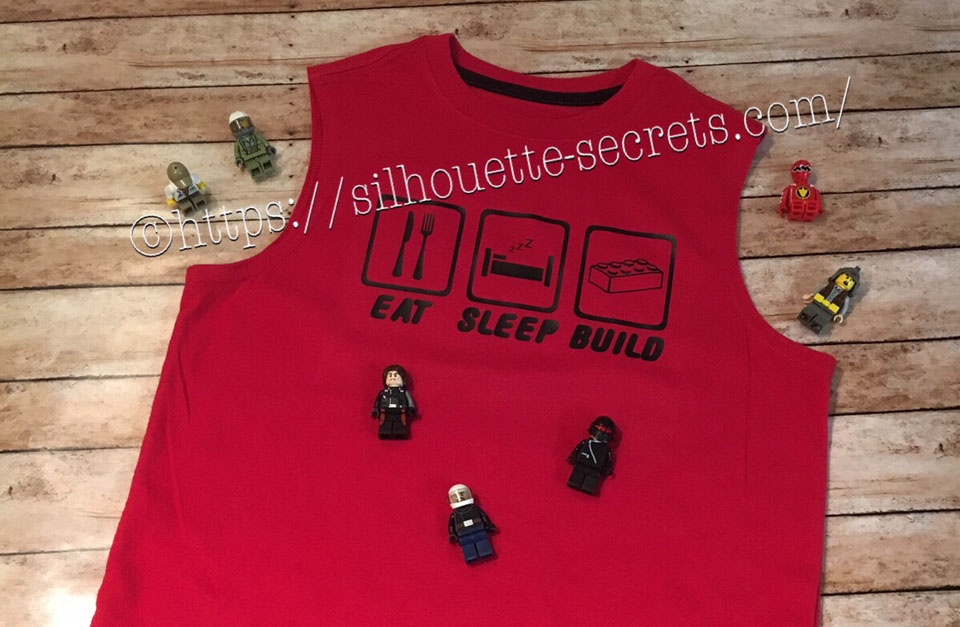
My son was looking for something to put on a shirt and he found one he really liked. I realized I could re-create it with designs from the Silhouette Design Store. My son loves Legos. He will wake up and create something before his eyes are fully opened. And he is good! I have to have directions to follow to make something and that goes for anything – I just don’t have that engineering mind. He can just imagine something and then create it out of Legos. It’s amazing and love that at 6 years old, he is doing that.

While creating this shirt, I used many of the features we have already reviewed in the “Let’s Explore v4” series. Watch for links throughout this post that will explain more about each function I used in designing the shirt.

temp_1

First, I went shopping in the Silhouette Design Store and here are the designs I picked up:

Sleep Icon by Rhonna Farrer – Design #200750 Sleep photo DS

ZP Brick Blocks Print by ScrapNFonts – Design #120497 ZP Brick Blocks Print

Building Block by Snapdragon Snippets – Design #34936 Building Block DS

Kitchen Dingbats by Lori Whitlock – Design #215176 Kitchen Dingbats by LW

Now, I am ready to create my design. I opened each of the designs from my Silhouette library and have them on my mat.

Designs on page1

Now I can start editing them to delete the pieces I do not need.

By releasing and making compound paths, I was able to alter both of these designs to ones that I could use in with HTV on the shirt.

Designs on page1

You can find more information on Compound Paths HERE.

Altered designs

I like to fill all my designs with color as it makes it easier to work with the design and you can see it better. Check out more information on the Fill Color Panel HERE.

Next, I took the drawing tools on the left side and drew a rounded rectangle.

Rounded Rectangle copy

Then I right clicked on the rectangle and chose “Convert to Path”.

Convert to Path copy

This will set the design as a solid rectangle. Before convert to path is chosen, the red dots can still be moved in the top left corner and this will change the angle of the rounded rectangle corners.

Now, make an offset of the rounded rectangle. Find more information on creating an Offset HERE.

Offset

Then select both rectangles, right click and choose “Make Compound Path“. Then fill with color and now there is a rectangle outline.

Rectangle outline

Then the rectangle can be replicated 2 more times for design. Check out more information on the Replicate Panel HERE.

Replicate rectangle

Next, I used the Lori Whitlock Kitchen Dingbats for my fork and knife.

I accessed the Dingbat font in the Text Style Panel under the Glyphs panel and double clicked on the character I wanted.

For more information on accessing glyphs directly in the software click HERE.

LW Dingbats copy

Then I right clicked and chose “Release Compound Path“, deleted the spoon, moved the fork to the right side, selected both and grouped them back together.

Now I have all my designs and just need to resize them to fit inside the rectangles.

Transform Panel - Align

Now that the designs are sized how I like, I can use the Transform Panel – Align tools to make sure they are centered and the spacing between each section is the same. Check out more information on using the Align tools HERE.

All that is left is to create my text. For this, I used the ZP Brick Blocks Print by ScrapNFonts from the Silhouette Design Store.

Block font

I used the Text Style Panel to choose the font that I wanted and then used the Transform -Align Panel to center the words to each rectangle.

Once I have everything centered and aligned how I want it, I select it all and then Group it together, so it moves as one object.

Flip Horizontal

Then I right clicked on the design and chose “Flip Horizontal”, since I am cutting this from Heat Transfer Vinyl. I prefer to flip the image myself and then tell the software to “Send As Is” when it gives me the pop up after clicking on Send, so there is no issue with it flipping it to the wrong side of my mat.

Flip copy

And now you are ready to send this to cut after making sure you blade is installed right and choosing the correct material.

This design is cut out of Siser Easyweed Black HTV and I applied it using my heat press with a Siser Pressing pillow to help raise the design area above the seams.

IMG_4003_edited

My son loved his shirt and I loved creating it by combining several designs.

temp

Are you not finding the exact design that you envision for a project? Why not create your own? Combine designs that you buy, create your own or a combination of both.

Feel free to share the creations you make on my Facebook group at Silhouette Secrets+ with EllyMae.

Enjoy !

THANK YOU for your support! How can you help? Click HERE & buy a coffee. Every little bit helps with the cost of running the site.

Looking for more in-depth, step-by-step classes, check out all of my online Silhouette classes on my Teachable site HERE.

SS Logo snip it

**This post may contain affiliate links. What that means is that I may receive compensation if you purchase through the links I have provided. The price you pay for the product or service is not higher but I may get compensated for sharing.

Posted on — 1 Comment

Master the Nesting Panel in Silhouette Studio

Silhouette Secrets+ with EllyMae

Affiliate links may be present in the following blog post and as an Amazon Associate, I earn from qualifying purchases.

Let’s Explore v4 Tutorial – Nesting Panel in Silhouette

If you have the Designer Edition upgrade to the Silhouette Studio, the Nesting Tool is available in the software.

This feature allows you to “nest” the design together to either conserve material or create a new design.

Nesting feature copy

Let’s Explore the Nesting Panel.

Nesting detailed copy

Set Selected Shape as Boundary – Select a shape to be the nesting boundaries.
Make copies of the design across the page, then draw a rectangle.

Set Selected Shape as Boundary1

Select the rectangle and choose Set Selected Shape as Boundary.


Set Selected Shape as Boundary

The rectangle turned blue and is now the nesting boundary. Then select all the designs and choose Nest.

.Set Selected Shape as Boundary3

It will nest the design within that shape.

Use Cut Area or Use Selected – With a shape selected as a boundary, the “Use Selected” option is checked.

Use Selected

If the entire page size is being used, then the “Use Cut Area” is checked.

Use Cut Area

Only Shapes on Media – Choose whether you want to include all the designs that are on the design page, no matter where they are, such as the holding area or only designs on the Media.With Only Shapes on Media checked, it will only nest the designs showing on the design mat.

Only Shapes on Media

If Only Shapes on Media is unchecked, then it will nest all the designs, no matter where they are on the page.


Only Shapes on Media2

Align – This will align as many designs with each other as possible. Here align is unchecked and the Rotations is increased to 4.

Align1

With Align checked, it gives a different nesting option.


Align2

Padding – Increase or decrease the amount of space between each design when it’s nested.Above the Padding is at 1 and below the padding has been changed to 5 and allows extra spacing or padding between each design.

Padding

Rotations – Choose how many times a design can be rotated to make it nest with another design. Here the rotations have been increased to 12 and changes the nesting a little bit.

Rotations

Nest – Choose this when you are ready for the design to nest according to the settings you have chosen.

    Why would you use this?

    Do you have a piece of material that is 5″ x 7″ and you want to fit as many of a design as you can on the material without manually adjusting each design? The nesting tool will help, let the software work for you.

    Material size

    Or how about nesting a design within a larger design?

    Shape filled

    This would be a great start to filling the shape with words and then you can add more to it.

    Keep in mind that you do need the Designer Edition software upgrade or higher to access this feature.

    Designs used in this post:
    I Love Wine by Sophie Gallo Design #208790

    Have fun playing with this fun tool!

    Check out the A to Z resource to learn even more about Silhouette HERE.

    Save this for future reference by pinning the image below.

    Screenshot of Silhouette Studio showing the Design Page Nesting settings with options for boundary selection and cut area usage, featuring a design with text and heart motifs.

    Enjoy !

    THANK YOU for your support! How can you help? Click HERE & buy a coffee.
    Every little bit helps with the cost of running the site.

    Silhouette Classes

    Never stop learning! Let me help you take the anxiety out of learning with Silhouette and get to creating faster! My Silhouette classes are heavily focused on software, so you can take the skills & techniques taught and apply them to many future projects!

    Silhouette step-by-step Classes by Silhouette Secrets+

    Silhouette Secrets+ with EllyMae
    **This post may contain affiliate links. What that means is that I may receive compensation if you purchase through the links I have provided. The price you pay for the product or service is not higher but I may get compensated for sharing.

    Posted on — 2 Comments

    Let’s Explore v4 – Pop Up Panel

    Today we are exploring the Pop Up Panel. Did you know there was such a thing? If you have v4.1.197 or higher of the Silhouette software, then this is available to you.

    This is a neat feature that you can take a design and make it pop out of base shape, such as a card.

    Pop Up Panel copy

    Let’s take a look at how we can go from this

    Pop Up Card1

    to this

    temp

    First, I started with my Page Size set at 5.5″ x 8.5″ for my card base and turned it to a Portrait Orientation.

    Page Setup copy

    Next, I drew a 5.25″ x 8.25″ rectangle to fit inside my card base. I used the Scale Tab to get the exact dimensions I wanted for my inner rectangle.

    Scale tab copy Then, I used the Align Tool to Center the design to my Page.

    Transform Panel copy

    Then, I pulled down a vertical Guide (blue line) from the top to line it up with the center fold line of my card at 4.25″. Guides are a Designer Edition upgrade feature and you can turn them on and off under the Page Setup Panel – Tab 2.

    Guide

    Now, open the design you want to use for the Pop up card.

    Pop Up Card 2

    We are now ready to take a look at the Pop Up Panel features.

    Pop Up Panel detail copy.jpg

    1. Convert Selected Shapes to Popup – Select the Design and click this to create your Popup shape on your base. Lines will show up on the design at the top and towards the bottom.Pop Up Card4The bottom line is the score line for the center of the card. Match the score line up with the Guide created at 4.25″When the design is selected, a directional arrow in the center appears & that can be used to move and adjust the design and pop up features and vary the length of the design to pop out of the base.Pop Up Card5.JPGThe farther down you pull the arrow, the more the features adjust. Pop Up Card6 Pull the red dots on either side of the score line out to the edges of the card, so it will score a fold line to the edge of the card. Score line extension
    2. Restore Original Shapes – This will restore the shape to the original design. This is great if you decide you don’t like it and want to start fresh.
    3. Release Popup – This releases the design into individual cut lines, which can be used to further manipulate the design how you like it.Pop Up Card7 Each line will now become it’s own separate piece and can be moved or deleted, as you see fit.
    4. Base Width – This will adjust the base width of the score line on the bottom edge of your design where it meets the card.Base widthHere I increased it to 57% to show you how it looks. Each design will vary in how it looks and the look you want to achieve.
    5. Min. Strut Width – This adjusts the Popup tabs at the top of the design. As the number increases the number of tabs goes down.Min Strut WidthI increased the Min. Strut Width to 0.269″ and it changes so there are only 5 tabs at the top of my design.
    6. Dash Pitch – Dash pitch adjusts the score line width and how far each line will cut before skipping to the next one.Dash pitch copy

    And here is the final view on the Send tab before you go to cut the Popup design.

    Send tab

    Send your design to cut and assemble the card.

    temp

    This PopUp feature is amazing! So many options & so much fun to create with.

    What is the best way to learn? Play, play, play!!! Will you make mistakes? YES! Everyone makes mistakes! But you learn as you go!

    Now, set aside some time and play, play, play!

    PopUp Panel

    This card was created with Happy Face One Design #147176 by Sarah Bailey from the Silhouette Design Store, Close to My Heart cardstock, and Oracal 651 vinyl.

    Yes, you read that right. I used Oracal 651 vinyl on a card. This would not work with all cardstock as it will depend on the fibers of the cardstock but a high quality, smooth cardstock you should have no issues using transfer tape to apply your design.

    I would love to see what you create – feel free to post on my Facebook group at Silhouette Secrets+ with EllyMae.

    Enjoy !

    THANK YOU for your support! How can you help? Click HERE & buy a coffee. Every little bit helps with the cost of running the site.

    Looking for more in-depth, step-by-step classes, check out all of my online Silhouette classes on my Teachable site HERE.

    SS Logo snip it
    **This post may contain affiliate links. What that means is that I may receive compensation if you purchase through the links I have provided. The price you pay for the product or service is not higher but I may get compensated for sharing.

    Posted on — 42 Comments

    Let’s Explore v4 – Modify Panel – Compound Paths Explained

    Silhouette Studio - Compound Paths

    So last week we talked about the differences in welding, subtract, subtract all, intersect, divide and crop in the Modify Panel – Tab 1. This week we are moving on to something that I think is very often more confusing than it should be – Modify Panel – Part 2 – Compound Paths.

    First, if you are just joining us, the Modify Panel is on the right side of the Silhouette Studio v4 software.

    Modify Panel copy

    Last week we dove into the top section of the panel under the Modify header and this week we are going to look at the bottom section – Compound Paths and Detach Lines.

    Modify Panel details copy

    So first, what is a compound path?

    A compound path is a way 2 shapes interact with each other.

    For example – let’s look at the letter ‘O’.

    Compound path explaination.

    The letter ‘O’ is made up of 2 ovals on top of each other that are a compound path (left). If you release the compound path, then you have 2 ovals stacked on top of each other (right).

    Both of these will still cut the same, but a compound path design when filled with color, will look more like the end result of what you are cutting.

    Let’s take another look:

    Compound path example

    I have used the USA State Dingbat Font by Sandi Idleman in the Silhouette Design Store, to create my state shape. Then I used the Text Tool to write out Montana and placed it across the design.

    On the top, the 2 designs are layered on top of each other, they are treated as 2 designs.  The middle design is still just 2 designs that have been filled with a color. And the bottom design I selected both shapes and choose Make Compound path. This has taken and cut the Montana out of the bottom state shape, now they are one design.

    Now, let’s look at them on the Send Panel.

    Compound path Send panel

    They all have the same bold cut lines. All of them will cut the same, the difference is how they look in the software when you are designing.

    Now that we know a little more about how the Compound path works, let’s finish the Modify Panel.

    Modify Panel details copy

    7. Make Compound Path – This will take 2 or more designs and combine the paths making them 1 design.

    For instance, some files from the Silhouette Design Store will open and you will notice if you fill it will color, that it looks odd. This is a Camera design by Amy Tangerine – Design #181402.

    Make Compound Path

    All of these camera designs will cut the same, but how they look on the design screen is affected by choosing Making Compound Path.

    8. Release Compound Path – This will take 1 design and releasing it into multiple shapes.

    For example, if I wanted to use this Fish Mandala design by Zigi Design Studio but I just want the outline of it, I can choose Release Compound Path.

    Fish compound path demo

    This will take the design from 1 layer and release all the layers. You may need to Ungroup the Design at this point, it just depends on how the Designer created and saved the file.

    Ungrouped

    Now, you can see all the selection boxes that are highlighted. The Compound Paths have been released and it is now in many layers.

    Note: When you do this on such a complex design, it increased the amount of data in that file because each piece is now an individual layer. So keep that in mind when you do this, in case your computer seems sluggish or with a really complex design, you may get a Not Responding message. It’s a lot of date, so be patient.

    Outline pulled away

    There are many reasons why you would want to do this and it can be helpful to know how to “break up” a design by releasing the compound paths.

    With these tools, you can make the designs you have go farther.

    Make compound path fish copy

    For example, after I released the Compound Path and moved the outline away, then I could add text in the middle of the design, select both and choose Make Compound Path and it would then cut the Montana text out of the center of the fish.

    9. Detach Lines – If the image is filled with color, this option will separate the colored parts of the design from the lines of the design. This is a Spring Butterfly Set by Sophie Gallo – Design #56994.

    Detach Lines

    You could use this option when doing a Print and Cut project versus changing the line color on each design.

    If you click on the Send tab, you will see that they both have Cut lines on the design, but one is the lines and one is the image with the fill.

    Detach Lines Send tab

    Here is the same idea but the Butterflies were filled with a pattern and then detach lines was chosen.

    Detach Lines pattern

    And there you have all the tools in the Modify Panel. Check out Part 1 of the Modify Panel HERE.

    Modify Panel - Part 2

    Now, the best way to learn is to play, play, play. Go find a design and see what compound paths do!

    Share with us what you create with your Silhouette – post photos on my Facebook group at Silhouette Secrets+ with EllyMae.

    Enjoy !

    THANK YOU for your support! How can you help? Click HERE & buy a coffee. Every little bit helps with the cost of running the site.

    Looking for more in-depth, step-by-step classes, check out all of my online Silhouette classes on my Teachable site HERE.

    SS Logo snip it

    **This post may contain affiliate links. What that means is that I may receive compensation if you purchase through the links I have provided. The price you pay for the product or service is not higher but I may get compensated for sharing.

    Posted on — 12 Comments

    Let’s Explore v4 – Replicate Object on Path

    Replicate Panel – Object on Path

    I am sure you have seen other projects where people had a design replicated multiple times in a shape and you’ve said “How did they do that?”

    Well, today we are going to explore how to do that right in the Silhouette Studio v4.

    The Replicate Object on Path tab can be found under the Replicate Panel on the right side and is tab 3 on the panel.

    Replicate Object on Path copy

    First add the design and the shape you want the design to follow onto the design mat.

    For this design, I drew a heart using 2 circles and a square turned 45 degrees, then placed them overlapping and welded them. I resized the heart down to a manageable size. And then drew a perfect circle by holding down my Shift Key and dragging my Draw Ellipse tool out.

    Replicate Object start

    Now let’s take a look at the Object to Path tab.

    Replicate Object detailed copy

    1. Show Grab Handle – Click on the Object you want to move to the shape to select it, then click on Show Grab Handle button in the panel. A grab handle will appear in the object and you click and drag that towards your shape.Show Grab Handle copyWhen you drag it on to the shape, it will replicate copies of that object around the shape. And you get another little circle (drag handle) on the shape to the right of the original object. By clicking and dragging on this drag handle you can increase or decrease the spacing between the objects on the path, this will also change the number of objects around the shape.

      *If for some reason the object will not snap to the path, try this – right click on it and choose Make Compound Path. Sometimes strange things happen and even though a design isn’t really a compound path at all, this seems to work to help it to decide it can snap to a path. 

      Drag to shape copy

      Here I moved the drag handle so there is more space between the objects. Notice that the numbers change on the panel as well under the Position.

      Drag copies copy

    2. Perpendicular – Change the orientation of the object on the path by leaving this box checked or un-check it to change the angle of your object.Perpendicular copy
    3. Start Angle – Change the rotation angle of your object on the path to an exact angle.Start Angle copy
    4. Increment Angle – Change how each object is placed in relation to the previous object. In this case, each heart is rotated 90 degrees from the previous heart.Increment angle
      This creates a pattern of your design around the shape. With this option, you can make many variations of the same design.
    5. Start Position – Change the position of the original object on the shape by changing. In this photo, I have changed the position to 0, which places the original object at the 3 o’clock position. You can also move the grab handle on the original object and move it manually too.Start Position copy
    6. Section Length – Changes the length between the beginning and end object on your path.Section Length copy
    7. Number of Repeats – Change the number of times the object is replicated on the path.Number of repeats copy
    8. Step length – Change the distance between each object on the path by adjusting this figure. This will change number of objects on the path.Step Length copy
    9. Release Copies – When the design is complete, click on this to release the objects from the path and remove the shape your were using as your path.Release CopiesAt this point, all of your objects are now single objects, as you can see by the selection boxes around each. I would suggest grouping these together before you go further, so you don’t accidentally move one.Release copies 2

    And there you have the Replicate Object on Path – how cool is that?

    What will you do with this neat feature?

    Replicate final

    Want to start at the beginning of the Let’s Explore v4 series – click HERE.


    Enjoy !

    THANK YOU for your support! How can you help? Click HERE & buy a coffee. Every little bit helps with the cost of running the site.

    Looking for more in-depth, step-by-step classes, check out all of my online Silhouette classes on my Teachable site HERE.

    SS Logo snip it
    **This post may contain affiliate links. What that means is that I may receive compensation if you purchase through the links I have provided. The price you pay for the product or service is not higher but I may get compensated for sharing.

    Posted on — 2 Comments

    Layered vinyl decal for a teacher gift

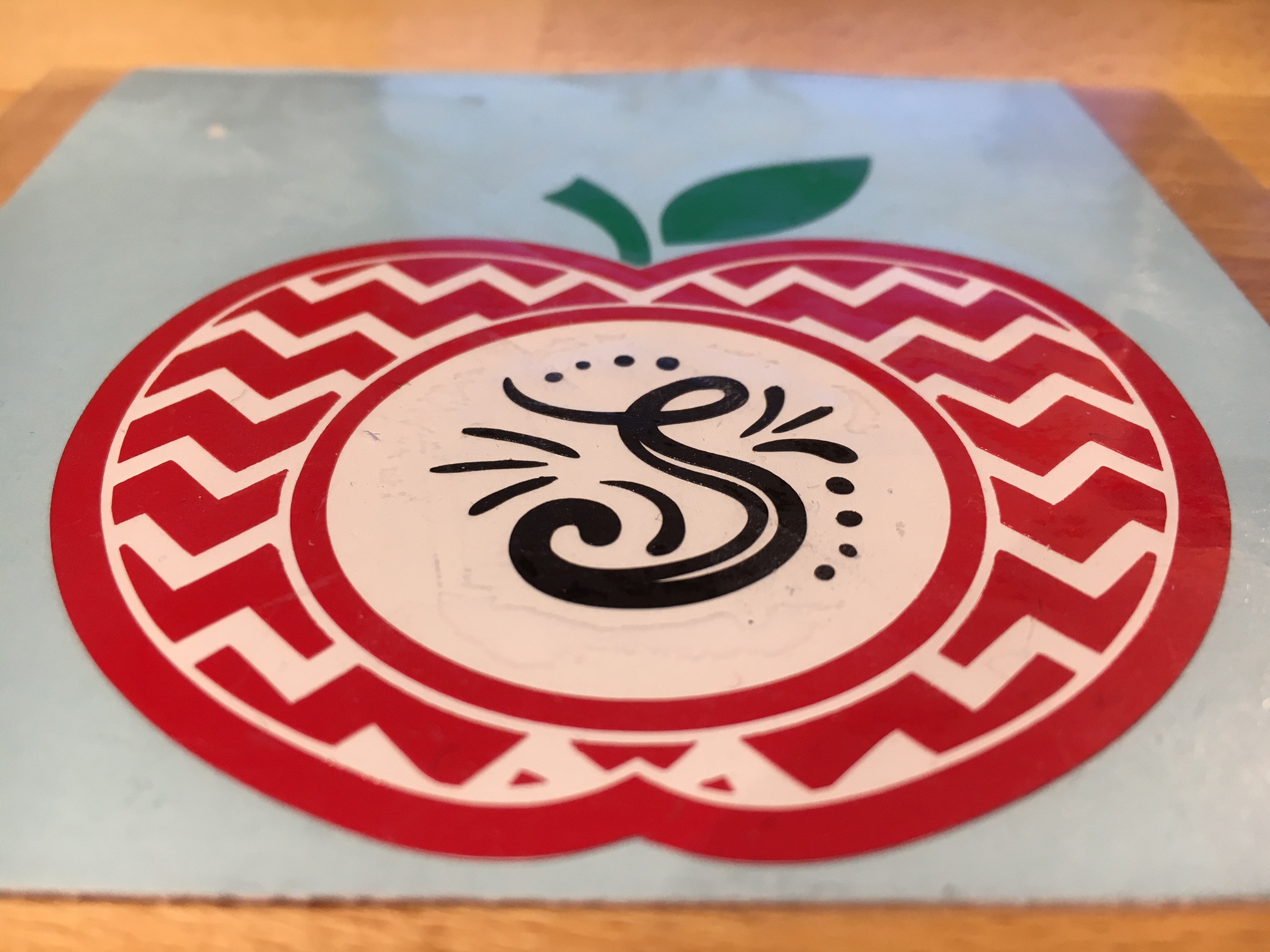
    Today I am creating a vinyl decal that could be applied to a variety of items that would be great for a teacher.

    Vinyl decal

    For this decal, I am combining 2 files found in the May Bundle at SoFontsy – Apple Monogram Frames and A-Z Hand lettered Initials.

    Measure and create your design to the size you want. I added an apple layer of white behind the red, so that gives this design 4 colors to layer.

    The mat is revealed at 50% here so I can see where on the cutting mat my decal would fit.

    Vinyl decal demo copy

    Since there are 4 colors to this decal, replicate the design with the registration marks so there are 4 copies on your design mat.

    Replicate copy

    Check out more information on the Replicate Panel HERE.

    Move the copies to separate areas on your design mat, then un-group the design and delete the color on each copy that you do not want to cut. Make sure you do not move the design in any way when you are deleting the layers, as it is lined up properly with those registration marks.

    It’s also helpful to pull off another copy of the original to the side of the mat, just in case you need to go back.

    Vinyl decal copies

    Now, you have all the layers of your decal ready to cut on one cutting mat. Cut your material or grab your scraps of vinyl and place them in the same location on the cutting mat as they are on the design screen. I am using Oracal 651 vinyl for my decal.

    You’ll notice that I did not weed the bottom black layer. Since it had some small dots in the design I chose to apply the Oracal transfer tape first and use the Reverse weeding technique on it to keep those pieces in place.

    IMG_3165

    The first time I used the reverse weeding I did not like it as the vinyl stuck to me. But, it definitely has it’s uses and works great for those detailed images. With a little practice, you get the hang of it.

    When you are layering the vinyl, you want to start with the top layer first and then work your way down. I started with the black, then green, then red and then white.

    IMG_3167

    I love how this decal turned out.

    What would you apply it to? A coffee mug? An acrylic blank?

    Enjoy !

    THANK YOU for your support! How can you help? Click HERE & buy a coffee. Every little bit helps with the cost of running the site.

    Looking for more in-depth, step-by-step classes, check out all of my online Silhouette classes on my Teachable site HERE.

    SS Logo snip it

    **This post may contain affiliate links. What that means is that I may receive compensation if you purchase through the links I have provided. The price you pay for the product or service is not higher but I may get compensated for sharing.

    Posted on — 18 Comments

    Let’s Explore v4 – Replicate Panel

    Want to make a copy of your design, font or an object? Then the Replicate Panel can be very helpful!

    This is found on the right side of the Silhouette Studio v4.

    Replicate panel copy

    This tool works great if you are wanting to replicate several copies of your design. Let’s Explore the Replicate panel!

    Replicate panel detailed copy

    1. Duplicate – Choose which way you want 1 copy of your design to replicate left, right, down or up.
    2. Rows or Columns – Choose to Replicate 2 copies right, 3 copies right, 2 copies down or 3 copies down.Replicate rows columns copy
    3. Fill Page – Choose to Replicate the design as many times as it takes to fill the page.Fill Page copy
    4. Mirror – Choose to Mirror 1 copy of the design down, up, left or right.MirrorSomething to note about the Replicate and Mirror tools above is that it may look like the designs are overlapped, however, they are placed just perfect so when you cut, it will cut both lines.Replicate placement As you can see in the photo above, there is no overlap in the cut lines and both copies will cut just fine.
    5. Rotate Copies – Choose to Replicate and rotate 1 copy, 2 copies, 3 copies or 5 copies.Rotate copies

    The second tab under the Replicate Panel gives you even more options on choosing how many and where to replicate the design to.

    Number of Copies tab copy

    Number of Copies detailed copy

    1. Number of copies – Choose how many copies you would like to replicate of your design.
    2. Position of each Copy – Choose what direction you would like the copies to replicate in.
    3. Rotate each Copy – Choose a certain degree to replicate those copies to.Rotate number copies copyIn the photo above, I chose to make 3 copies, rotated to the right at 30 degrees. So each copy will rotate 30 degrees from the previous one.

    There is so much that you can do with this Silhouette software and every time I open it, I love seeing what it can do.

    The design I used in my example can be found in the May bundle at SoFontsy – it’s called Sports Ball Love/Mom Hearts by Svg Cuttables.

    Web

    I hope you have fun playing with the Replicate Panel – it can really come in handy when you are designing.

    Enjoy !

    THANK YOU for your support! How can you help? Click HERE & buy a coffee. Every little bit helps with the cost of running the site.

    Looking for more in-depth, step-by-step classes, check out all of my online Silhouette classes on my Teachable site HERE.

    SS Logo snip it

    **This post may contain affiliate links. What that means is that I may receive compensation if you purchase through the links I have provided. The price you pay for the product or service is not higher but I may get compensated for sharing.

    Posted on — 7 Comments

    Let’s Explore v4 – Transform = Move

    Did you know that you can Move objects on your Silhouette Design mat specifically into place?

    Pretty neat when you start to look at it.

    Under the Transform Panel on the right side, then the 4th tab at the top of the Panel is the “Move By” tab.

    4-25 Transform -Move copy

    This allows you to move an object to an exact location on the Design mat.

    4-25 Transform -Move detail copy

    1. Directional arrows – Move left, move right, move up, move down – choose which direction you want to move your design.
    2. Distance – Set the exact distance you want your design to move.
      Here is the original design placed on my design mat:
      Distance before
      *Running Out Wine Cardio design #222003 by Megan Hardy Design

      Now see how it moved exactly 3.25″ when I select the design and click on the Move right directional arrow.

      Distance after

    3. X and Y coordinates – Set the exact X and Y location of your design on your mat.
      If you look in my above photo, when I moved it 3.25″ to the right, it also added in the X and Y coordinates. This means that I can also move something by changing those numbers. Here I entered my X as 5, so it moved it 5″ from the left side and my Y as 3″, so it moved it 3″ down from the top.X and Y

      You can also choose how it applies the X and Y coordinates by selecting the position on the square that you want it to apply from.
      My photo above has it applied in the top left corner.X Y position copy
      But you can choose what position works best for you, whether it’s the Center of the design or another location as well.

    4. Apply – Click here to apply the Move or hit Enter.

    And that is how you can move things on your design screen to the exact location you want.
    Can you move it manually? Yes, you sure can!
    Drag and move it where you want.
    Or you can use the Move tools and place it exactly.
    Just like so many other functions in the Silhouette software – there are multiple ways to do things!

    Enjoy !

    THANK YOU for your support! How can you help? Click HERE & buy a coffee. Every little bit helps with the cost of running the site.

    Looking for more in-depth, step-by-step classes, check out all of my online Silhouette classes on my Teachable site HERE.

    SS Logo snip it
    **This post may contain affiliate links. What that means is that I may receive compensation if you purchase through the links I have provided. The price you pay for the product or service is not higher but I may get compensated for sharing.

    Posted on — 13 Comments

    Let’s Explore v4 – Rotate

    Hi everyone! This week we are continuing on our journey to explore more of Silhouette Studio v4.

    We are looking today at the Transform Panel – Rotate tab. You will find this on the right side of the Silhouette Studio v4 as shown below.

    Rotate main copy

    If  you want to manually rotate an object, you can do that on the design screen by grabbing the green circle at the top of the design when it’s selected and hold down the mouse button and drag it left or right.

    Manual rotate copySoftball Mom by SM Designs

    But if you want something more precise, then you want to use the Rotate tab on the Transform Panel.

    Let’s take a look at how this can help.

    Rotate detail copy

    1. Rotate to 0, 90, 180 or 270 degrees – Choosing one of these options will rotate your object to the exact degree you choose.Rotate 90 degrees copy
    2. Custom – Change the numbers in the box to a specific degree you would like it to rotate to.Custom rotation copy
    3. Rotate by 45 or 90 degrees, 180 degrees, -90 or -45 degrees – Using this option will move the design exactly the distance you select. For example, in my photo above, I have it selected at 30 degrees. If I now choose -45, it will rotate it to the left exactly -45 degrees from where it started at 30 degrees, placing it at 345 degrees.Rotate by -45 copy
    4. Custom – Type in a custom amount if you want something in between the standard options.
    5. Apply – You can click this after changing the custom amount or just hit the Enter key.

    There are many reasons that you would use these rotate tools.

    For instance, let’s draw a heart. Now, you’ll notice that the Drawing tools on the left side does not have a heart shape. So let’s make one. Select the Draw and Ellipse tool and then hold down the Shift key and drag your mouse on the design mat. This will draw a perfect circle. Now, let’s fill it with color so it’s easier to work with. (Check out the Let’s Explore Fill Panel here)

    Draw heart

    Next, make a copy of your circle. There are several ways to do this – Ctrl+c and Ctrl+v, right click & choose copy and then again for paste or hold down the Alt key and drag a copy off, or use the toolbar (QAT) at the top.

    And then draw a perfect square by choosing the Draw a Rectangle tool and holding the Shift key down. Fill your square with color as well.

    Draw heart2

    Now let’s use the Rotate tab to turn our square to a 45 degree angle.

    Draw heart3

    Next move the square up to meet the circles and align them how you like it. You may need to enlarge your circles (select them both and resize) to get the dimensions of the heart to align.

    Draw heart final

    And there you have drawn a heart shape using just the basic shapes in the Silhouette software and the Transform panel – Rotate tab. Make sure to select all your shapes and choose weld or it will cut out the individual shapes.

    Heart no weld.JPG

    After you weld the shapes together you will have your heart design.

    Heart weld

    And there is one way you would use the Rotate tab and as a bonus you learned how to draw a heart from basic shapes.

    Hope you’ve enjoyed the Let’s Explore v4 session today! Check out all the previous panels we’ve explored HERE.

    Enjoy !

    THANK YOU for your support! How can you help? Click HERE & buy a coffee. Every little bit helps with the cost of running the site.

    Looking for more in-depth, step-by-step classes, check out all of my online Silhouette classes on my Teachable site HERE.

    SS Logo snip it

    **This post may contain affiliate links. What that means is that I may receive compensation if you purchase through the links I have provided. The price you pay for the product or service is not higher but I may get compensated for sharing.

    Posted on — 7 Comments

    Let’s Explore v4 – Text Style – Glyphs

    Have you heard of Glyphs? These are special characters that some fonts have included with them. Glyphs can be flourishes, fancy letters, punctuation or characters with accents, shapes, etc.

    Glyph

    With the software Silhouette Studio version of v4.1.197 and the Designer Edition software upgrade, came the option to unlock the glyphs feature in Silhouette Studio. This is amazing as I had such a hard time with the small Character map on my PC.

    Access the Glyphs panel on the second tab of the Test Style Panel on the right side of Silhouette Studio v4.

    Glyphs panel copy

    Let’s Explore the glyphs tab in the Text Style Panel!

    Glyphs detailed copy

    1. Text Search bar – Just like on Tab 1,  the name of the font that is selected will appear in this box or you can highlight it and type a name in the box and it will select that font.
    2. Glyphs – This area is where you will see the glyphs of the font that you are using show up. Note: sometimes not all the glyphs will show up here and you will need to access those through Character Map (PC) or Fontbook (Mac).  It just depends on how the font was created.
    3. Recently Used Glyphs – This handy feature shows the ones you have recently accessed.
    4. Icon size – You can change the size of how the Icons appear in the glyphs panel. And when you hover over a glyph it magnifies it as well. Large vs small icons copy

    Now, there is still 1 more tab option in the Text Style Panel and it’s a good one.

    Spellcheck

    If you type out a word that is either not in the dictionary or is not spelled correctly, you will see a green squiggly line show up under it. Here I’ve typed my business name with no space. That is not in the dictionary, so it let’s me know that.

    Spell check copy

    If I want to add that word to my dictionary, I can right click on it and choose “Add ‘SilhouetteSecrets’ to Dictionary”.

    Add to Library copy

    Once it is added to the dictionary, the green line disappears.

    Added

    So let’s explore the Spelling Panel.

    Replace text copy

    If you type out several words which are misspelled (which is very hard for me to do on purpose), you will notice the green squiggly lines under those that are not in the dictionary.

    Click on Replace and it will pop up a list of suggestions to replace it with. Choose the one you want, click on Replace again and it will change it.

    If you know the word is spelled correctly, choose Add to Dictionary and the green line will disappear. This word has now been added to your Silhouette dictionary.

    The Arrows at the top of the panel are the Undo and Redo buttons, in case you picked the wrong replacement word, you can simply Undo it.

    Undo Redo copy

    And then you have some Advanced options.

    Advance Dictionary copy

    1. Automatic Spellchecking – check it on or off.
    2. Select Language – Select your default language.
    3. Custom Dictionary – Any words you add to the dictionary will appear here.
    4. Text box – Type in a new word to add it to your dictionary.

    If you ever need to delete a word you have added to the Dictionary, click on the word and the delete option will show up.

    Dictionary delete

    And there you have all of the Text Style Panel. Keep in mind that the Glyphs panel is an option available to you when you upgrade the software to Designer Edition or higher.

    Check out the other posts in the Let’s Explore v4 Series HERE.

    Enjoy !

    THANK YOU for your support! How can you help? Click HERE & buy a coffee. Every little bit helps with the cost of running the site.

    Looking for more in-depth, step-by-step classes, check out all of my online Silhouette classes on my Teachable site HERE.

    SS Logo snip it

    **This post may contain affiliate links. What that means is that I may receive compensation if you purchase through the links I have provided. The price you pay for the product or service is not higher but I may get compensated for sharing.