Posted on 9 Comments

Leatherette Earrings & Earring Card Projects

Affiliate links may be present in the following blog post and as an Amazon Associate, I earn from qualifying purchases.

Who doesn’t love a surprise? And that is just what I received when Silhouette America asked if I wanted to check out their new Mystery box.

When I opened the box, look what I saw:

IMG_5534

Plus a pack of the Kraft Adhesive paper that arrived on my doorstep, it must have forgotten to jump in the box and was just another bonus to the mystery box.

Kraft Paper

And now the fun part of playing with these materials.

I grabbed some designs from the Silhouette Design Store and tackled something I’ve had on my project list.

IMG_5560_edited

I used the Leatherette package and the sketch pens to create these earrings and earring cards.

First, I started off making the earring holders.
I cut several different styles but I ended up really liking Design #14057 by Loni Stevens.

Earring holder file

But, I knew I could add to the earring holder, so I decided to dress them up a bit with the Silhouette sketch pens. I received the Metallic set in my mystery box and after testing several, the silver was my favorite.
I could have told you that before I tested, but I still gave all the colors a chance.

Zoom on stitches and name

To make the dashed sketch line:
– Make a copy of the outer edge of the earring holder design
Resize the copy a little smaller – either by the Scale panel or by dragging the corner bounding box
– Use the Line Style Panel and change the style of the line to a dashed line
– Also under the Line Style Panel change the color of the line to black.
– Select the dashed line, click on the Send Tab and then click on the
Action by: Line at the top –
this means the Cameo will perform the actions we tell it to by the Line Color
Cut by Line color

– Grab the black color option and move it to the top spot –
this action will be performed first
– Change the Tool No. to the blue circle (blue circle = Tool 2)
– Select your Material – Cardstock
– Change the Action to Sketch
– Check & set up the Cut settings for the red line

Now when the design is Sent, it will first sketch the design that has been changed to a black Line color – the dashed line and then after will cut the lines that are red.

Next, I used the Nouradilla Script Font and added my name and Silhouette Secrets to the earring holder as well. Change the line color to black under the Line Style Panel and it will sketch at the same time as the dashed line.

Once I started cutting, it was hard to stop. I do love how this Leatherette cut so smoothly. I started with brand new blade and mat and I believe it made a big difference in how cleanly it cut. In fact, the more I cut and the less sticky my mat became, the cuts weren’t as crisp. A sticky mat makes a big difference.

IMG_5566

This was the first set I cut and might be my favorite. It is Leaf Earring design by Lilium Pixel SVG – Design #266977. The only thing I changed on this file was I released the Compound Path and deleted the top circle for the hardware. After I deleted the circle in each, I selected the entire design and then chose Make a Compound Path again.

I then made a copy of the earring design and right clicked and Flipped horizontally. This made a 2nd copy that I could glue together and make the back have a finished look. I used a Xyron Sticker Maker permanent adhesive to do this.

IMG_5568_resized

Lined Leaf Earrings by Amanda McGee – Design #275057
Leaves Earrings by Amanda McGee – Design #275058
This design was modified to take out the top circles like the first file and then cut & glued together with the Xyron Permanent Adhesive.

IMG_5561_resized

Tear Drop Earrings by Sweet Elsie – Design #273510
– Ungroup the design
– Release the Compound Path and deleted the hardware circle at the top.
– Make a copy and Scale the copy down a little
– Make another copy and Scale it down a little more
– Cut each out of a different color and layer on the earring hardware

You could also use glue and adhere the layers down to each other but I chose to let them hang loose.

Rather than try to get each design to match, I deleted one of the original designs, made my copies and resized how I liked and then make a copy of the entire design before I cut. Then both earrings matched exactly.

IMG_5562

Leaf Earrings by Lori Whitlock – Design #268363
I once again ungrouped the design, released the compound path and then deleted the top circle. You might see a pattern here.
It is nothing to do with the Designer’s file, but for the Double J Earwire hardware I had from Craft Chameleon, it was easier to make my own hardware hole.

IMG_5567_resized

Drop Earrings by Sweet Elsie – Design #273506
I did the same technique with making copies and resizing as I did with the Tear Drop earrings above.

IMG_5565_resized

Layered Feather Earrings by Amanda McGee – Design #275059
This file was cut exactly as it opened.
Again, you could glue the layers down if that is your desired look.

IMG_5563_resized

For this set, I took the Tear Drop Earrings by Sweet Elsie – Design #273510 and then added a dingbat from the Valentine Dingbats Font by Lori Whitlock – Design #243211.
– Make a copy of the Tear Drop design
– Add the dingbat shape from the font to one of the designs
– Select both the earring shape and the dingbat shape, then make a compound path
– Cut each shape out of the colors
– Glue the layers together

All of the earrings above were cut from the Silhouette Leatherette using the Leatherette cut settings in the program and it worked beautifully.
Leatherette cut settings

Again, I did start with a brand new blade and mat, which I believe was very helpful.

The Silhouette cutting mat is very important and the material sticking to the mat for the entire cut is key to getting crisp, clean cuts for all materials.
If the material moves as the blade is going around, it cannot connect exactly and you end up with crunched corners, cuts not connected, frustration and possibly a mess.

I’d suggest always having an extra Silhouette mat & blade on hand for any projects you are doing.

Save this for future reference by pinning the image below.

Leatherette (Pinterest Pin)

Enjoy !

THANK YOU for your support! How can you help? Click HERE & buy a coffee. Every little bit helps with the cost of running the site.

Silhouette Classes

Never stop learning! Let me help you take the anxiety out of learning with Silhouette and get to creating faster! My Silhouette classes are heavily focused on software, so you can take the skills & techniques taught and apply them to many future projects!

Silhouette step-by-step Classes by Silhouette Secrets+

**This post may contain affiliate links. What that means is that I may receive compensation if you purchase through the links I have provided. The price you pay for the product or service is not higher but I may get compensated for sharing.

Posted on 1 Comment

Adhesive Vinyl on Acrylic Blanks

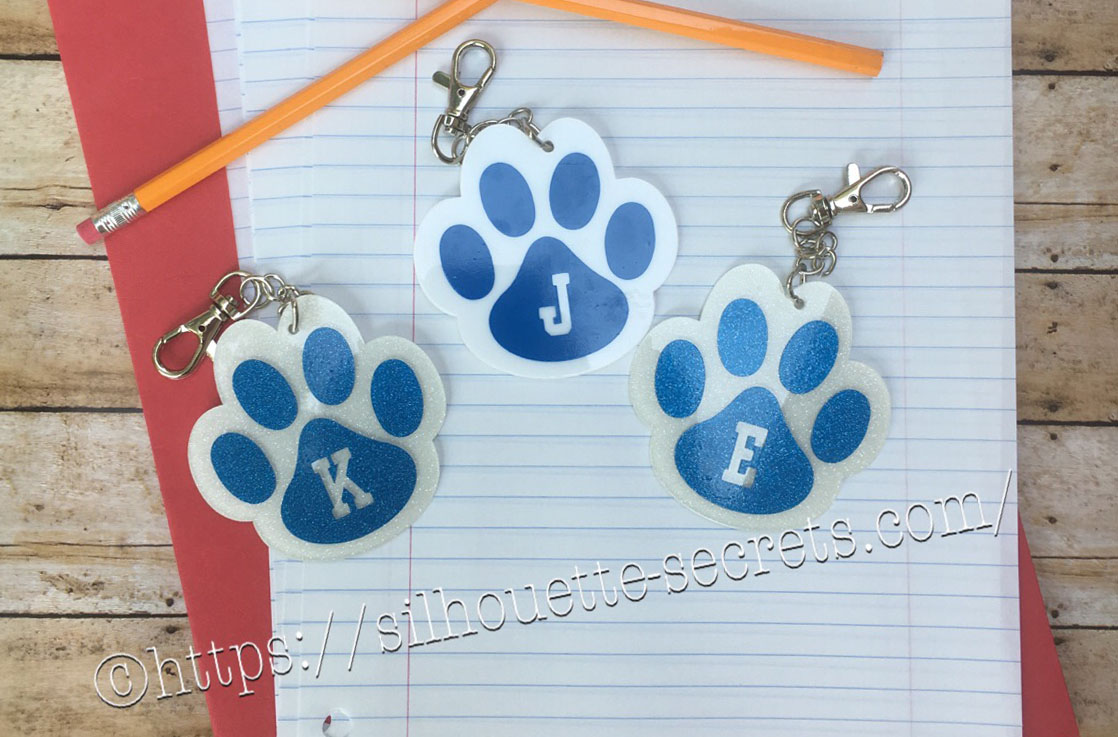
It is Back to School here for us and I made a little something to add to my kid’s backpacks. These bag tags are 3″ in size and with the lobster claw, perfect to clip onto their backpack zipper.

DYQL3512_resized

Our school colors are blue and white, so this little paw print acrylic from Craft Chameleon works great. There are many options for colors both solid and glitter, just click on the drop down box for more options.
For the girl’s tags I used the white glitter with Siser PSV in blue and the boy’s are solid white with Oracal 651 blue.

It came with a cut file that is sized perfectly for the acrylic blank, so all you have to do is customize it if needed and set it up to cut.

CC cut file

*Line color added and thickened for visual

How to make the bag tag design

For these bag tags, I wanted to add the first initial into the design. I typed the first initial using the Text Style Tool and then changed the font using the Text Style Panel.
I used Lori Whitlock’s School Font Design #273761 from the Silhouette Design Store because it was a nice bold font.

Girls paws

Once the properties (color, font style, etc) of the first letter is set, then make a copy of the letter and change the text to the next letter. I find this saves time when you are using multiple text designs that are similar. In this case, all of the initials would be the same font, so I just copied and pasted the letter and then changed it for the next one.

Place the letter in the design where you want and you are ready to cut.

Girls paws send tab

The Cameo will cut exactly where you see the bold red cut lines when you click on the Send tab. I chose to Send mine to cut this way with weeding lines between the designs.

If you are creating a design to show to someone, you can make the design look more realistic and having the letter “cut out” or subtracted from the paw print by making it a Compound Path.

Compound path

Both designs will cut the exact same way as you can see from the bold red cut lines on the Send tab.

Compound path send tab

I can’t wait to show the kids when they get home from school.

FZET7724

Here are the supplies I used to create these bag tags:
– 3″ acrylic paw print
– Swivel Lobster Clasp
– 1 inch Silver Tone Links
– Triangle bail (small)
– Bent Nose pliers
Siser PSV adhesive glitter vinyl (blue)
Siser PSV transfer tape
Oracal 651 adhesive vinyl

And here is a quick video on how I applied the vinyl to the acrylic blanks.

I love that with my Silhouette, I can make so many different custom projects.


Enjoy !

THANK YOU for your support! How can you help? Click HERE & buy a coffee. Every little bit helps with the cost of running the site.

Looking for more in-depth, step-by-step classes, check out all of my online Silhouette classes on my Teachable site HERE.

SS Logo snip it
**This post may contain affiliate links. What that means is that I may receive compensation if you purchase through the links I have provided. The price you pay for the product or service is not higher but I may get compensated for sharing.

Posted on 8 Comments

Let’s Explore v4 – Rhinestones

Bling, sparkle and wow!

Exploring the Rhinestone panel today!

This is a Designer Edition upgrade feature, so if you have the Basic software, you will not see this icon on the screen.

Rhinestone Panel copy

If you only have the Basic software, you can still cut rhinestone designs, but you cannot create rhinestone designs. The Silhouette Design store has many rhinestone designs that can be opened and cut with the Basic software.

The diamond icon is what how you can tell at a glance that it is a rhinestone design or you can use the search box and type in “rhinestone” and it will bring designs up.

Design Store Rhinestone files copy

With a rhinestone design, it comes it at a specific size to use with certain stone sizes, so they cannot be resized if you are using stones.

The description of the design will also tell you more information about the design, such as size, number of rhinestones, and rhinestone sizes needed.

Design Store description copy

With the Designer Edition upgrade to the Silhouette Studio software, you can create your own rhinestone designs in just a few clicks.

There are so many options in creating your own designs in this panel, let’s take a look.

*Please note – throughout the entire post I have filled the rhinestone design in with color so it can be seen better. When a rhinestone design it is not filled with a color.
Check out more information on the Fill Color Panel HERE.

Rhinestone Panel detail copy

  1. Rhinestone Effect – 3 options for rhinestone placement
    Edge Effect – places rhinestones around the edge of the designEffect Edge copyLinear Effect – this fills the design in a linear formationEffect Linear copy

    Here is another example of the linear effect

    Effect Linear demo2 copy

    Radial Effect – fills the design in a radial pattern

    Effect Radial copy

    Here is another example of the radial effect

    Effect Radial demo2 copy

  2. Rhinestone Size – 4 options: 6 ss, 10 ss, 16 ss, 20 ss
    ss stands for Stone SizeStone SizeChoose from the most popular stone sizes or adjust it to a custom size.Adjustable size copy
  3. Rhinestone Spacing – further customize the design by adjusting the spacing between the rhinestonesSpacing
  4. Draw Rhinestones – left click and hold the mouse button down and draw a design. The rhinestone pattern will follow your drawing and the stone size will be what is chosen above in Rhinestone size.Freehand copyHere is a the Freehand rhinestone in action:https://youtu.be/DopgVUlOshQ
  5. Release Rhinestones – releases all the rhinestone circles into individual design pieces. This allows you to manipulate the design even further by moving the rhinestone holes, adding more or deleting some. A selection box will appear around each rhinestone circle.Release RhinestonesZoomed in to see the selection boxes.Release Rhinestones zoomedHere I have moved some and added more to fill in the blank spaces.Freehand finish

    Something to keep in mind when you do release the rhinestones is you are breaking the file up from 1 object to LOTS of objects – each of those boxes around the hole is a new object. This means that it is a lot of data for your computer to process. Do not be surprised if you experience a little lag or it doesn’t react as fast as you’d like. This is normal and depends on the processing speed of your computer and how much data it can process at once.

    After adjusting the design, select the entire image and then Group it back together, so the file will move as 1 object.

    Rhinestone grouped

  6. Totals (all Shapes) – this tells how many rhinestones are either on the mat or if 1 object is selected, how many are in the design.When no objects are selected, it totals all the rhinestones on the mat file.Totals copyWhen 1 object is selected, it totals the rhinestone count for that 1 object.Totals selected copy

Rhinestone designs can be so much fun to create and design!

The design is then cut out of a rhinestone template material that can be reused over and over again to create fabulous rhinestone designs.

IMG_3996

And you have another customized project that you have created with the Silhouette machine.

temp

For a full online video course going step-by-step through the rhinestone process, check out the class on Designing with Rhinestones and Silhouette – Creating 4 projects

Supplies used in this post:
Love design by Silhouette Design #9651
Magic Flock rhinestone material, Hot Fix Transfer tape, and Rhinestones
from The Rhinestone World
Canvas Zipper bag from Craft Chameleon

Feel free to share your sparkly rhinestone projects on my Facebook group at
Silhouette Secrets+ with EllyMae.

Enjoy !

THANK YOU for your support! How can you help? Click HERE & buy a coffee. Every little bit helps with the cost of running the site.

Silhouette Classes

Never stop learning! Let me help you take the anxiety out of learning with Silhouette and get to creating faster! My Silhouette classes are heavily focused on software, so you can take the skills & techniques taught and apply them to many future projects!

SS Logo snip it
**This post may contain affiliate links. What that means is that I may receive compensation if you purchase through the links I have provided. The price you pay for the product or service is not higher but I may get compensated for sharing.

Posted on 8 Comments

Let’s Explore v4 – Sketch Panel

One of the options with the Silhouette machine is using pens in the tool holder and then the Silhouette will draw the design you choose. There are sketch designs that you can find in the Silhouette Design store and are all ready to use with your sketch pens. This is one of my favorites I did while preparing for a class.

IMG_2944

But, did you know that you can turn images into sketched designs? If you have the Designer Edition upgrade to the Silhouette software, you have the Sketch Panel available to you.

Sketch Panel copy

This is so fun to play around with and you never know what you may like until you try it.

Sketch Settings

Sketch Panel detail copy

  1. Edge Sketch – 7 different edge style sketchesEdge SketchAs you can see, each one gives it a little different look. Keep in mind that the more lines you see or the darker the sketch is, the longer it will take to sketch out that design.
  2. Fill Sketch –  8 different fill option for the sketch design.Fill SketchIn the above example, an outer edge sketch line was chosen to help show the design better and then each one is a Fill option.
  3. Release Sketch – This opens up a whole new world of possibilities in editing your sketch design. Once the sketch is released, then you can access individual point editing on the sketched design and can manipulate it how you like. On the left is before the sketch is released. Each of the gray points is an edit point that can be manipulated in this design. On the right is after the sketch has been released. Now, not only do you have the gray edit points, but the sketch fill lines have been released so you can move those as well. Keep in mind that a red dot means that it is an open point and not a closed object, so you will not be able to fill this with color. You can move the red dots towards each other and connect the dots to change the sketch fill.

And there are even more options

Advanced Sketch Settings

Advanced Sketch copy

  1. Edge Effect – 4 options for Edge Effect. These look the same when you first click on them, but with each one there may be more options for you to adjust the design.Plain – there are no further options given. AS Plain Continuous – Option for width, density & waver. AS Continuous I have made a few adjustments from the photo above to show you the difference. AS Continuous2 Rough – Option for stroke length, width, density, splay, curvature. AS Rough 1 And this photo below shows a few adjustments and how it can change the look of the sketched design. AS Rough 2 Scribble – Options for loop separation, loop size, randomness, and density. AS Scribble 1 And here is an example of adjustments made to the Scribble options. AS Scribble 2
  2. Fill Type – 3 additional options for Fill type – none, zigzag, and hatchZigzag – Options for spacing, angle, offset FT Zigzag And here is adjusting those options. FT Zigzag2 Hatch – Options for spacing, angle, sweep, offset. FT Hatch1 And more adjustments made to the Hatch fill. FT Hatch2
  3. Options – As shown in the examples above, these options change for each type of sketch fill you choose.
  4. Fill Effect – 2 advanced OptionsRough – options for stroke length, width, density, splay, curvature. FE Rough1 And changing the options up a bit, yields a different sketched look. FE Rough2 Scribble – Options are loop separation, loop size, randomness, and density FE Scribble 1.JPG And more adjustments to the options. FE Scribble 2

Now, did you know there were so many options? You could play with this feature for a long time and make many different designs with it, just by changing a few things.

Sketch pens are so fun to play with and can make very unique designs.

Keep in mind that that the Sketch Panel is available for those that have the Designer Edition upgrade to the Silhouette software.

Check out this video showing how to turn a design into a sketched design using this Sketch Panel.

Enjoy !

THANK YOU for your support! How can you help? Click HERE & buy a coffee. Every little bit helps with the cost of running the site.

Looking for more in-depth, step-by-step classes, check out all of my online Silhouette classes on my Teachable site HERE.

SS Logo snip it

**This post may contain affiliate links. What that means is that I may receive compensation if you purchase through the links I have provided. The price you pay for the product or service is not higher but I may get compensated for sharing.

Posted on 1 Comment

Creating a shadow box with Silhouette

Everyone starts out with one material or another, mine was paper. I started with my Silhouette as a paper-crafter and it has grown from there.

A while back I was visiting friends in Kansas and playing with the Silhouette and my friend asked if I could trace a photo for her that a friend took. Now, photo tracing can be tricky. Each photo can yield different results tracing in the Silhouette Studio and you just never know until you try to see what will happen.

In this case, it was a great photo to trace.

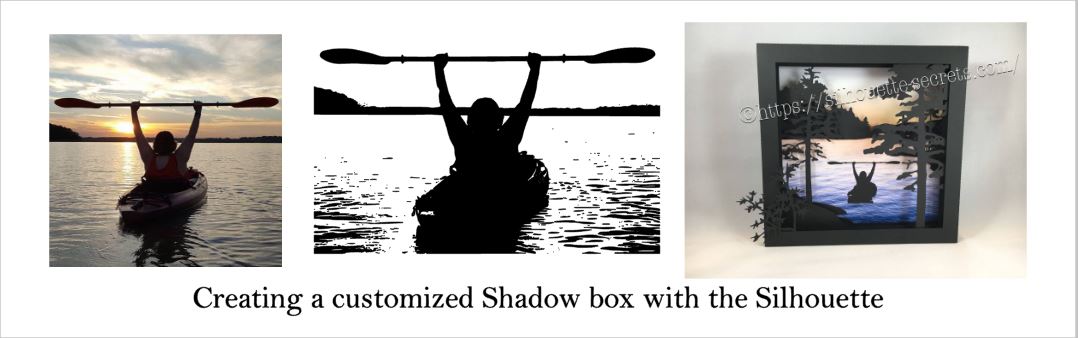
Bobbi's photo

Here is how the trace came out. I used Basic Trace panel to achieve this. Check out the Trace Panel HERE.

Photo trace

Then I released the compound path and deleted the water areas and used the point editing and deleting points to clean up edges and take out the skyline.

Cleaned up

Now, like I said above, each photo is going to vary in how it traces and this one turned out to be pretty simple with a little time for editing.

Then when I saw this Canoe at Sunrise shadow box in the Silhouette Design Store, I knew it was perfect for a gift that I could incorporate this trace into.

Design Store file

Instead of adding the canoe, I cut and added my traced image of my friend on her kayak. It was perfect!

Shadow box

I am one of those people who has to do a project pretty much exactly like the demo, at least the first time. So I did go to the designer’s website and purchase the file again – yes, sounds crazy – but I wanted the backgrounds for this particular project. However, you can use any background that you want and add it to your project.

What are you creating today? Feel free to post your project photos & questions on my Facebook group at Silhouette Secrets+ with EllyMae.

Shadow box

Enjoy !

THANK YOU for your support! How can you help? Click HERE & buy a coffee. Every little bit helps with the cost of running the site.

Looking for more in-depth, step-by-step classes, check out all of my online Silhouette classes on my Teachable site HERE.

SS Logo snip it

**This post may contain affiliate links. What that means is that I may receive compensation if you purchase through the links I have provided. The price you pay for the product or service is not higher but I may get compensated for sharing.

Posted on Leave a comment

Let’s Explore v 4 Recap

We are half-way through 2018 – can you believe that?

So it’s the perfect time to recap what the “Let’s Explore v4” series has covered so far since January.

Let's Explore Recap final 2copy

Let’s Explore v 4 series

Page Setup Panel – Tab 1 – Page Size & Cutting Mat

Page Setup copy

Page Setup Panel – Tab 2 – Grid Options & Spacing

Page Setup Tab 2 copy

Page Setup Panel – Tab 3 – Registration Marks – Print & Cut

Registration marks panel copy

Fill Color Panel

Fill Color Panel copy

Line Style Panel

Line Style Panel copy

Trace Panel – Tab 1 – Basic Trace

Tracing Panel copy

Trace Panel – Tab 2 – Trace By Color (Designer Edition feature)

Trace Panel copy

Trace Panel – Tab 3 – Magnet Trace (Designer Edition feature)

Magnet Trace Panel copy

Pixscan Panel

Pixscan copy

Text Style Panel – Tab 1 – Text Style

Text Style Panel main copy

Text Style Panel – Glyphs and Spell check

Glyph

Transform Panel – Tab 1 – Align Tab

Transform Panel copy

Transform Panel – Tab 2 – Scale Tab

Scale tab copy

Transform Panel – Tab 3 – Rotate Tab

Rotate main copy

Transform Panel – Tab 4 – Move by Tab

4-25 Transform -Move copy

Transform Panel – Tab 5 – Shear (Designer Edition feature)

Shear Panel copy

Replicate Panel – Tab 1 & 2 – Replicate & Number of Copies

Replicate panel copy

Replicate Panel – Tab 3 – Object to Path

Replicate Object on Path copy

Modify Panel – Part 1

Modify Panel copy

Modify Panel – Part 2 – Compound Paths

Modify Panel details copy

Offset Panel

6-5 Offset Panel copy

Pop Up Panel (Designer Edition feature)

Pop Up Panel copy

Stipple Panel (Curio option only)

Stipple panel copy

Nesting Panel (Designer Edition feature)

Nesting feature copy

There are so many things that the Silhouette Studio program can do. It is really an amazing program and I hope that you have learned something throughout the series. There is still so much more to explore!

Please let me know what is one thing you have learned that you did not know before by leaving a comment here or on my Facebook group.

Enjoy !

THANK YOU for your support! How can you help? Click HERE & buy a coffee. Every little bit helps with the cost of running the site.

Looking for more in-depth, step-by-step classes, check out all of my online Silhouette classes on my Teachable site HERE.

SS Logo snip it

**This post may contain affiliate links. What that means is that I may receive compensation if you purchase through the links I have provided. The price you pay for the product or service is not higher but I may get compensated for sharing.

Posted on 2 Comments

“Tank” top

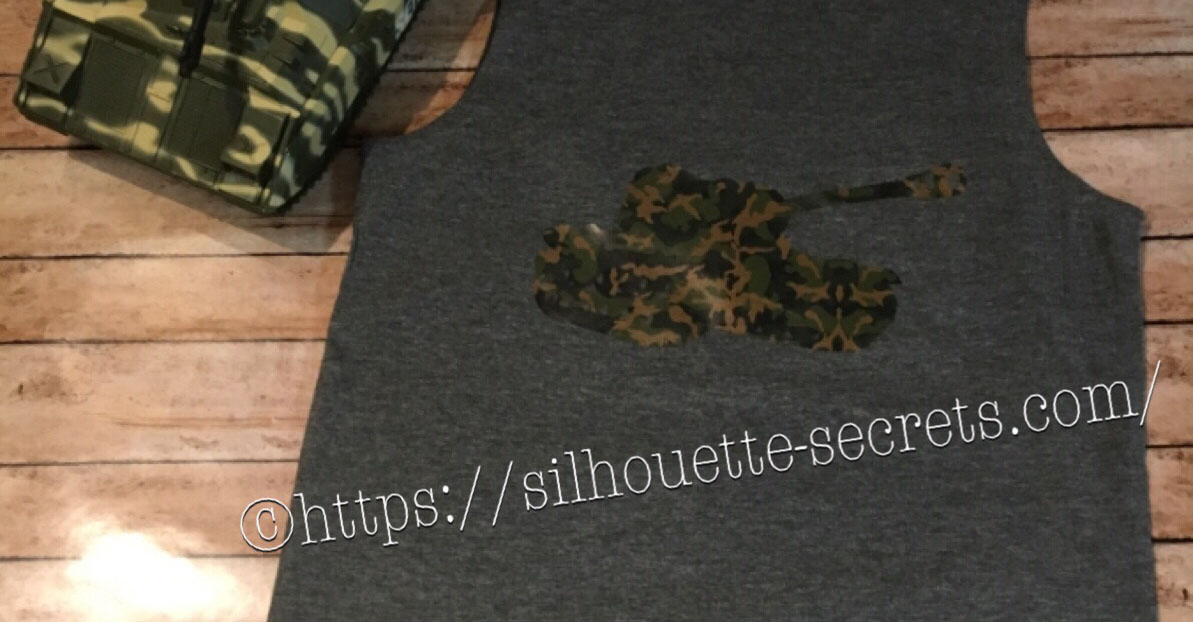
I created this shirt for my son to wear on vacation. He is all about Army and tanks at 6 years old and picked out this Military Set by Studio Ilustrado – Design #83790 in the Silhouette Design Store.

Design Store file

When this file is opened there are multiple designs so I had to right click on it then chose  ungroup and deleted the designs I did not want.

Design file ungroup copy

Then I always fill my design with color, so I can see how it will look when it’s cut.

Fill with color

And now came time to add this Camo Sparkleberry Ink HTV my cutting mat.

Sparkleberry ink camo

It turned out perfect.

temp

And as you can see, he loved it.

He told everyone the entire weekend of camping “Look at my Tank Top – get it? Tank Top”

IMG_4733

Feel free to share the creations you make on my Facebook group at Silhouette Secrets+ with EllyMae.

Enjoy !

THANK YOU for your support! How can you help? Click HERE & buy a coffee. Every little bit helps with the cost of running the site.

Looking for more in-depth, step-by-step classes, check out all of my online Silhouette classes on my Teachable site HERE.

SS Logo snip it

**This post may contain affiliate links. What that means is that I may receive compensation if you purchase through the links I have provided. The price you pay for the product or service is not higher but I may get compensated for sharing.

Posted on 2 Comments

Using multiple files to create a design

Where do you find your ideas?

I am a big Pinterest lover. I pin a lot of things of all categories and sometimes just sit and pin ideas for hours. I find it relaxing. Do I make all the pins I save? No – but I have made quite a few.

Check out my Pinterest boards HERE and maybe you’ll get some ideas.

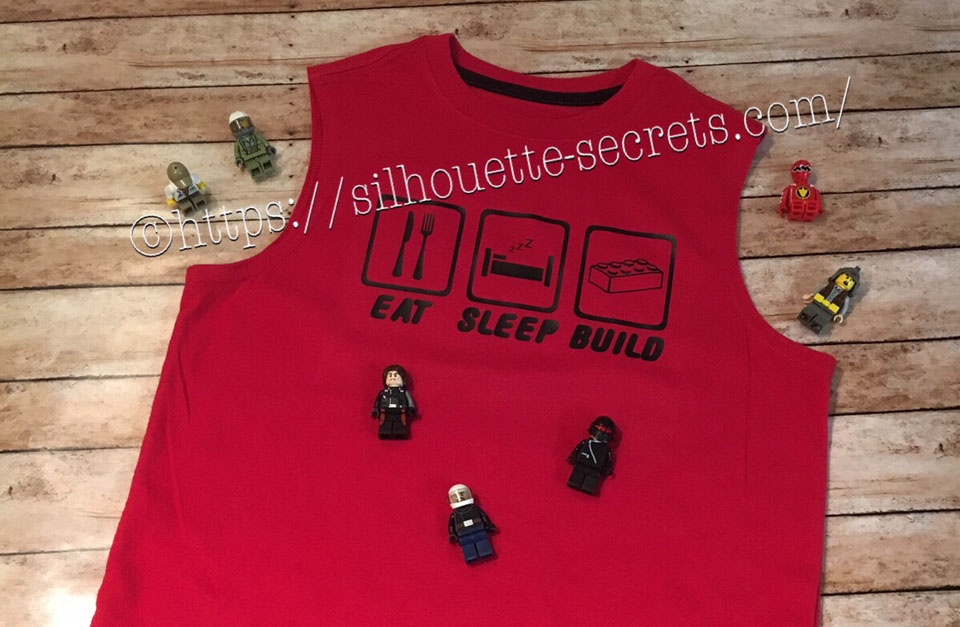
My son was looking for something to put on a shirt and he found one he really liked. I realized I could re-create it with designs from the Silhouette Design Store. My son loves Legos. He will wake up and create something before his eyes are fully opened. And he is good! I have to have directions to follow to make something and that goes for anything – I just don’t have that engineering mind. He can just imagine something and then create it out of Legos. It’s amazing and love that at 6 years old, he is doing that.

While creating this shirt, I used many of the features we have already reviewed in the “Let’s Explore v4” series. Watch for links throughout this post that will explain more about each function I used in designing the shirt.

temp_1

First, I went shopping in the Silhouette Design Store and here are the designs I picked up:

Sleep Icon by Rhonna Farrer – Design #200750 Sleep photo DS

ZP Brick Blocks Print by ScrapNFonts – Design #120497 ZP Brick Blocks Print

Building Block by Snapdragon Snippets – Design #34936 Building Block DS

Kitchen Dingbats by Lori Whitlock – Design #215176 Kitchen Dingbats by LW

Now, I am ready to create my design. I opened each of the designs from my Silhouette library and have them on my mat.

Designs on page1

Now I can start editing them to delete the pieces I do not need.

By releasing and making compound paths, I was able to alter both of these designs to ones that I could use in with HTV on the shirt.

Designs on page1

You can find more information on Compound Paths HERE.

Altered designs

I like to fill all my designs with color as it makes it easier to work with the design and you can see it better. Check out more information on the Fill Color Panel HERE.

Next, I took the drawing tools on the left side and drew a rounded rectangle.

Rounded Rectangle copy

Then I right clicked on the rectangle and chose “Convert to Path”.

Convert to Path copy

This will set the design as a solid rectangle. Before convert to path is chosen, the red dots can still be moved in the top left corner and this will change the angle of the rounded rectangle corners.

Now, make an offset of the rounded rectangle. Find more information on creating an Offset HERE.

Offset

Then select both rectangles, right click and choose “Make Compound Path“. Then fill with color and now there is a rectangle outline.

Rectangle outline

Then the rectangle can be replicated 2 more times for design. Check out more information on the Replicate Panel HERE.

Replicate rectangle

Next, I used the Lori Whitlock Kitchen Dingbats for my fork and knife.

I accessed the Dingbat font in the Text Style Panel under the Glyphs panel and double clicked on the character I wanted.

For more information on accessing glyphs directly in the software click HERE.

LW Dingbats copy

Then I right clicked and chose “Release Compound Path“, deleted the spoon, moved the fork to the right side, selected both and grouped them back together.

Now I have all my designs and just need to resize them to fit inside the rectangles.

Transform Panel - Align

Now that the designs are sized how I like, I can use the Transform Panel – Align tools to make sure they are centered and the spacing between each section is the same. Check out more information on using the Align tools HERE.

All that is left is to create my text. For this, I used the ZP Brick Blocks Print by ScrapNFonts from the Silhouette Design Store.

Block font

I used the Text Style Panel to choose the font that I wanted and then used the Transform -Align Panel to center the words to each rectangle.

Once I have everything centered and aligned how I want it, I select it all and then Group it together, so it moves as one object.

Flip Horizontal

Then I right clicked on the design and chose “Flip Horizontal”, since I am cutting this from Heat Transfer Vinyl. I prefer to flip the image myself and then tell the software to “Send As Is” when it gives me the pop up after clicking on Send, so there is no issue with it flipping it to the wrong side of my mat.

Flip copy

And now you are ready to send this to cut after making sure you blade is installed right and choosing the correct material.

This design is cut out of Siser Easyweed Black HTV and I applied it using my heat press with a Siser Pressing pillow to help raise the design area above the seams.

IMG_4003_edited

My son loved his shirt and I loved creating it by combining several designs.

temp

Are you not finding the exact design that you envision for a project? Why not create your own? Combine designs that you buy, create your own or a combination of both.

Feel free to share the creations you make on my Facebook group at Silhouette Secrets+ with EllyMae.

Enjoy !

THANK YOU for your support! How can you help? Click HERE & buy a coffee. Every little bit helps with the cost of running the site.

Looking for more in-depth, step-by-step classes, check out all of my online Silhouette classes on my Teachable site HERE.

SS Logo snip it

**This post may contain affiliate links. What that means is that I may receive compensation if you purchase through the links I have provided. The price you pay for the product or service is not higher but I may get compensated for sharing.

Posted on 1 Comment

Silhouette Weekend

What an amazing weekend spent with colleagues and new Silhouette friends!
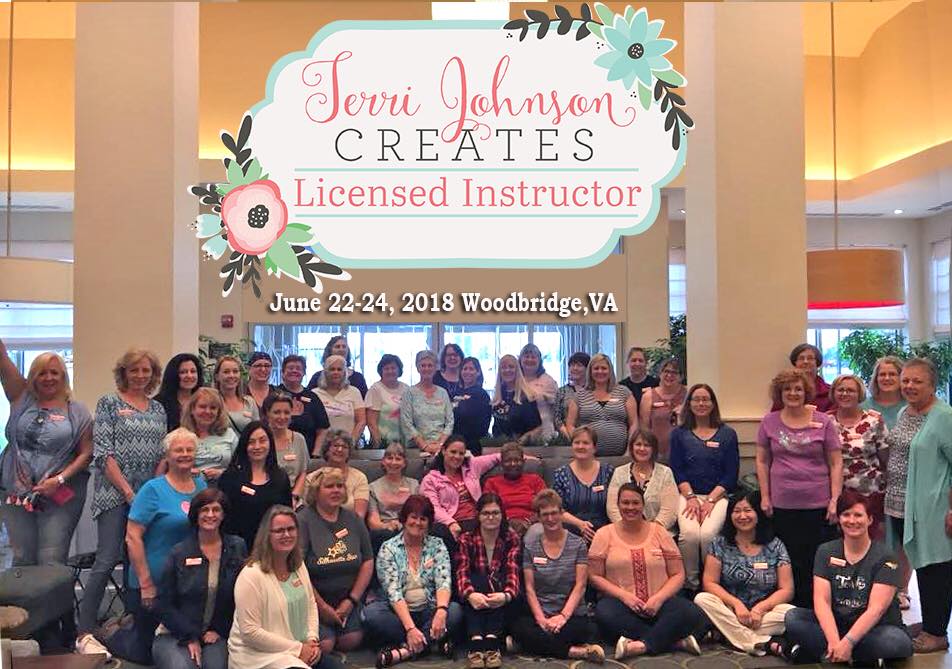
I was on staff at the Terri Johnson Creates Silhouette Instructor Licensing retreat two weeks ago and let me tell you, while it may have been long days, I still woke up feeling like my battery was recharged on Monday morning.

36064596_10155836579068924_3213699950563033088_n

First, I want to say Congratulations to all the new TJC Licensed Silhouette Instructors!
It was an amazing weekend meeting you all and seeing some of you I already knew.

I loved watching attendees create all of the projects and seeing that light shine when they finished their creations or learned a new technique in the software.
That is what I love about being an Instructor!

A weekend full of Silhouette machines, class projects and new friends! And to top it off, working with my colleagues, who have become some of my closest friends since I attended the TJC Silhouette Licensing Program in September 2016.

IMG_0926

We laughed, we talked, we bounced ideas off each other, we laughed some more….. we cried because we were laughing so hard.
This makes it all worth it – the friends you meet!

The weekend was filled with business tips, Silhouette software, projects created with the Silhouette, demos, tips, tricks, troubleshooting and lots of fun!

On Saturday evening, during the hands on session, I showed a demonstration of the Silhouette Curio etching on an acrylic coaster. This little Curio machine has very quickly become well loved in my studio and I am amazed at what it can do.

Here are just a few of the projects I’ve created using my Curio machine.

Since I attended the TJC Licensing Program in September of 2016, I have expanded my knowledge of Silhouette and many more things – more than I ever could have imagined. I have been teaching Silhouette classes in person, by video conference call and by phone; been on staff for several Terri Johnson Creates Events including the Curio Intensive, All Things Silhouette Conferences and Licensing; started the “Let’s Explore v4” series on my blog; am an Admin on several Facebook groups; written several guest posts for Silhouette School and Craft Chameleon; created  product/project videos for Craft Chameleon and am now recording and creating video lessons for users who do not have access to a hands on event.

None of this would have happened if I had not taken that moment and clicked Register for the Terri Johnson Creates Licensing Event.

I still don’t know where it’s leading me, everyday seems to bring a new opportunity.
But, I am enjoying it and learning as I go.

Each Silhouette user will read this and take something different away from it.
Do you want to know more about becoming a TJC Licensed Silhouette Instructor?
(Click HERE)
Do you want to look for a hands on event or local Instructor in your area?
(Click HERE)
Do you want to check out more information on the Instruction that I offer or have an interest in video lessons?
(Click HERE)
Do you want to check out the “Let’s Explore v4” series?
(Click HERE)
Do you just want to get your Silhouette machine out and play?
YEA!!!
That is the best way to learn. Of course, it is always a little easier with some guidance and that is why the Terri Johnson Creates Licensed Silhouette Program was created.

IMG_3812_edited

Who knows where this path will take me, but I know my life is different because I am on it and I would not trade meeting these wonderful ladies (and many more not pictured) for anything in this world.

I would love if you would share your projects with us – check out my Facebook group at
Silhouette Secrets+ with EllyMae.

Enjoy!

SS_Signature copySS Logo snip it

**This post may contain affiliate links. What that means is that I may receive compensation if you purchase through the links I have provided. The price you pay for the product or service is not higher but I may get compensated for sharing.


Posted on 1 Comment

Master the Nesting Panel in Silhouette Studio

Silhouette Secrets+ with EllyMae

Affiliate links may be present in the following blog post and as an Amazon Associate, I earn from qualifying purchases.

Let’s Explore v4 Tutorial – Nesting Panel in Silhouette

If you have the Designer Edition upgrade to the Silhouette Studio, the Nesting Tool is available in the software.

This feature allows you to “nest” the design together to either conserve material or create a new design.

Nesting feature copy

Let’s Explore the Nesting Panel.

Nesting detailed copy

Set Selected Shape as Boundary – Select a shape to be the nesting boundaries.
Make copies of the design across the page, then draw a rectangle.

Set Selected Shape as Boundary1

Select the rectangle and choose Set Selected Shape as Boundary.


Set Selected Shape as Boundary

The rectangle turned blue and is now the nesting boundary. Then select all the designs and choose Nest.

.Set Selected Shape as Boundary3

It will nest the design within that shape.

Use Cut Area or Use Selected – With a shape selected as a boundary, the “Use Selected” option is checked.

Use Selected

If the entire page size is being used, then the “Use Cut Area” is checked.

Use Cut Area

Only Shapes on Media – Choose whether you want to include all the designs that are on the design page, no matter where they are, such as the holding area or only designs on the Media.With Only Shapes on Media checked, it will only nest the designs showing on the design mat.

Only Shapes on Media

If Only Shapes on Media is unchecked, then it will nest all the designs, no matter where they are on the page.


Only Shapes on Media2

Align – This will align as many designs with each other as possible. Here align is unchecked and the Rotations is increased to 4.

Align1

With Align checked, it gives a different nesting option.


Align2

Padding – Increase or decrease the amount of space between each design when it’s nested.Above the Padding is at 1 and below the padding has been changed to 5 and allows extra spacing or padding between each design.

Padding

Rotations – Choose how many times a design can be rotated to make it nest with another design. Here the rotations have been increased to 12 and changes the nesting a little bit.

Rotations

Nest – Choose this when you are ready for the design to nest according to the settings you have chosen.

    Why would you use this?

    Do you have a piece of material that is 5″ x 7″ and you want to fit as many of a design as you can on the material without manually adjusting each design? The nesting tool will help, let the software work for you.

    Material size

    Or how about nesting a design within a larger design?

    Shape filled

    This would be a great start to filling the shape with words and then you can add more to it.

    Keep in mind that you do need the Designer Edition software upgrade or higher to access this feature.

    Designs used in this post:
    I Love Wine by Sophie Gallo Design #208790

    Have fun playing with this fun tool!

    Check out the A to Z resource to learn even more about Silhouette HERE.

    Save this for future reference by pinning the image below.

    Screenshot of Silhouette Studio showing the Design Page Nesting settings with options for boundary selection and cut area usage, featuring a design with text and heart motifs.

    Enjoy !

    THANK YOU for your support! How can you help? Click HERE & buy a coffee.
    Every little bit helps with the cost of running the site.

    Silhouette Classes

    Never stop learning! Let me help you take the anxiety out of learning with Silhouette and get to creating faster! My Silhouette classes are heavily focused on software, so you can take the skills & techniques taught and apply them to many future projects!
    Silhouette step-by-step Classes by Silhouette Secrets+

    Silhouette Secrets+ with EllyMae
    **This post may contain affiliate links. What that means is that I may receive compensation if you purchase through the links I have provided. The price you pay for the product or service is not higher but I may get compensated for sharing.